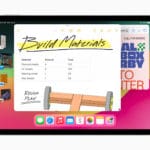
It’s been a little over a week since Apple released the final version of iOS 16.2 to the public. With this update, Apple provided quite a few different changes, such as the arrival of Freeform, External Display Support for select iPads with Stage Manager, improvements to the Always-on Display, and much more.
But it might come as a bit of a surprise that Apple also managed to slide some pretty nifty changes into the Apple Shortcuts app on your iPhone, iPad, and Mac. Most of the time, any of the changes that arrive are listed within Apple’s official change log that gets published. However, that wasn’t the case this time around.
When it comes to the latest Apple Shortcuts update, the change log can actually be found on a dedicated “What’s new in Shortcuts” Apple Support landing page. Ideally, this provides any of the new additions or bug fixes that have been applied whenever a new version of iOS, iPadOS, or macOS are released. That being said, iOS 16.2 provided a perfect opportunity for a new update to arrive for the Apple Shortcuts app.
The bulk of these changes now allow you to control the built-in Apple Books app. But there are a couple of new actions that make it easier to customize your phone’s wallpaper. As pointed out by Apple, the wallpaper changes seem to only apply to iOS 16.2, and are not for iPadOS 16.2 or macOS Ventura.
New Actions
Books
Open Book
Play Audiobook
Change Book Appearance
Change Page Navigation
Change View in Books
Open Collection
Search in Books
Turn Page
More
Switch Between Wallpapers sets the current wallpaper on iOS
Get Wallpaper returns all of the wallpapers added to the Lock Screen on iOS
Updated Actions
Ever since the final version of iOS 16 was released, it’s pretty obvious that Apple’s most recent updates have been more about refinement. That trend continues with iOS 16.2, as there are quite a few actions that have been updated.
Set Wallpaper Photo can now set photos for wallpapers that use iOS 16’s new widgets and customization options
Get Battery State can now check charging state (charging, connected to charger)
Edit Calendar Event can now set invitee status (declined or accepted)
Find Calendar Events can filter events by number of attendees
Find Health Samples can now return sleep phases (core, deep, REM) on iOS
Set Parked Car now accepts locations other than the current location
Speak Text runs more reliably when a shortcut is invoked as a part of an automation
Start Timer now prompts to select a duration when set to “Ask Each Time” and run via Siri
How to Update Apple Shortcuts App
If you want to make sure that you’re getting the most out of the Apple Shortcuts app, then you’ll want to keep it updated. With the release of iOS 13 and iPadOS 13, Apple decided to build Shortcuts into the system, as opposed to leaving it just as a downloadable app. Because of this, in order to update the Apple Shortcuts app, you’ll need to make sure your iPhone and/or iPad are updated to the latest version available.
Open the Settings app on your iPhone or iPad.
Tap General.
Tap Software Update.
If an update is available, tap the Download and Install button.
Enter your passcode to confirm.
Depending on the size of the update and the speed of your network connection will determine how long the update takes. Make sure your iPhone and/or iPad are either connected to power or have plenty of battery life before installing the update.
Andrew Myrick is a freelance writer based on the East Coast of the US. He enjoys everything to do with technology, including tablets, smartphones, and everything in between. Perhaps his favorite past-time is having a never-ending supply of different keyboards and gaming handhelds that end up collecting more dust than the consoles that are being emulated.







Write a Comment