For as wonderful as the Apple Watch is, and continues to be, there are problems that arise from time to time. This is especially true when Apple gets on a roll with regular software updates. These updates aim to fix certain bugs, but other ones can arise out of seemingly nowhere.
One such instance is something that arose for myself, as my Apple Watch stopped vibrating altogether. It was a constant source of frustration as iPhone notifications have been turned off. This leaves the Apple Watch as my only source to know when a notification has arrived.
Thankfully, there are a few different steps you can take if your Apple Watch stops vibrating.
Toggle Do Not Disturb
This may come as a surprise, but it’s extremely easy to accidentally toggle Do Not Disturb mode on. That’s because it’s found in the Control Center on Apple Watch, and you could just accidentally tap the wrong toggle. Here’s how to make sure you have DND turned off on your Watch:
Open Control Center by swiping up from the bottom of your Apple Watch.
Locate the DND icon (crescent moon).
Tap the icon to turn it on.
Tap the icon again to turn it back off.
After Do Not Disturb has been turned off, send yourself a text or email and see if the vibration comes through.
Restart Your Apple Watch
Another extremely easy method to get the cobwebs knocked off of your Apple Watch is to simply restart it. After all, these are mini-computers that are powerful in their own right, but don’t have the same power as your iPhone or iPad.
Make sure your Apple Watch is unlocked.
Press and hold the Side button until the Power Off slider appears.
Swipe the power icon from the left to the right.
Once powered off, press and hold the Side button until the Apple logo appears.
A good restart every once in awhile could go a long way to keeping your Apple Watch working properly.
Check for a software update
One of the simplest and easiest steps to try and get your Apple Watch back in working order is to check for a software update. Apple tends to get on a roll with software updates, and there’s a chance that one is waiting for you that will fix the issue. But before you start, make sure that your Apple Watch is connected to Wi-Fi and is connected to the charger.
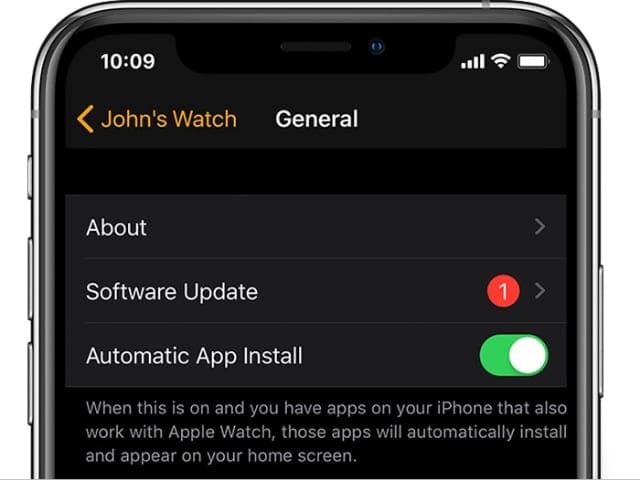
From your iPhone, open the Watch app.
Tap the My Watch tab in the bottom toolbar.
Tap General.
Select Software Update.
If an update is available, follow the on-screen instructions to download and install it. Chances are that you’ll have to enter your iPhone or Apple Watch passcode before proceeding. Once the update has commenced, you’ll see a progress wheel appear on your Apple Watch. After the update is finished installing, then your Watch will restart.
Adjust the Haptic Strength
Sometimes after a software update is applied, the haptic strength for notifications can be automatically changed. This happens from time-to-time, and could be the reason why you aren’t feeling the notifications as they arrive. If that’s the case, here are the steps to take in order to adjust the Haptic Strength.
Open the Settings app on your Apple Watch.
Scroll down and tap Sounds & Haptics.
Tap the icon on the right side of the slider to turn it up.
Continue turning it up until the slider is completely green.
Select or create a new Vibration Pattern
In case you were unaware, you can actually create custom vibration patterns for different app notifications. While this may not seem like the most obvious reason why your Watch isn’t working right, it is a step that has fixed the issue for some.
Open the Settings app on your iPhone.
Tap Notifications.
Select Messages.
Tap Sounds & Haptics.
Select either Ringtone or Text Tone.
Tap Vibration.
Select a vibration pattern.
You can also tap Create New Vibration to create your own vibration.
Toggle Haptic Notifications
We’re constantly downloading and deleting new apps on our iPhone and Apple Watch. This opens the door for the potential of Haptic Notifications from being turned off by default. If the app that you’re having problems with falls in this category, you can double check to see if Haptic Notifications are enabled.
Open the Watch app on your iPhone.
Tap My Watch in the bottom toolbar.
Tap Notifications.
From the list, select the app that you are not receiving vibrations for.
Under Alerts, tap the toggle next Haptic.
If the toggle is already turned on (green switch), then toggle it off and back on again.
Reset your Apple Watch
The final step before reaching out to Apple is to completely wipe the slate clean. This can be a source of frustration, as you likely won’t want to restore from a backup when you get to that step. However, if you are at the end of trying different methods, resetting your Apple Watch could be the answer.
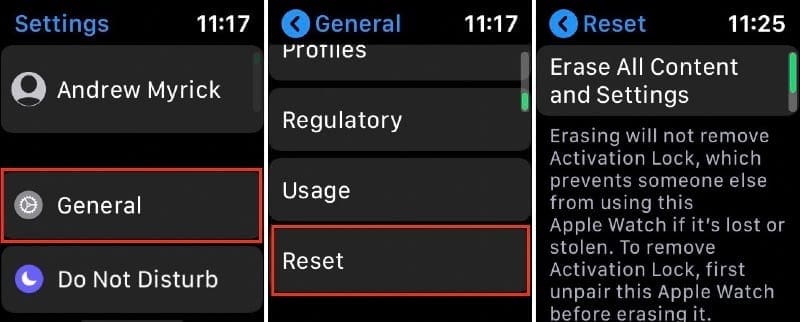
Open the Settings app on your Apple Watch.
Tap General.
Scroll down and select Reset.
Tap Erase All Content and Settings.
Enter your passcode when prompted.
Tap the button to confirm that you want to reset your Apple Watch.
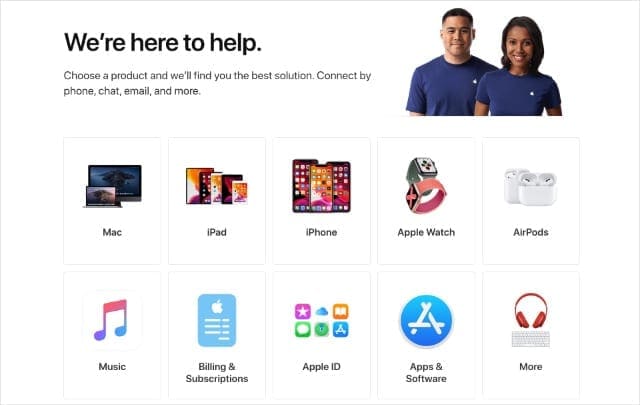
Contact Apple Support
Follow the on-screen prompts to get the best support from Apple.
If you’ve exhausted all of the steps here and are still unable to get vibrations to work properly, then it’s time to reach out to Apple. There’s a chance that there may be something that they can do to rectify the situation.
For example, if something is wrong with the actual vibration motor built into your Apple Watch, they may end up offering a replacement. But be sure to double check the status of your warranty so that you can provide all of the information to Apple Support.
Andrew Myrick is a freelance writer based on the East Coast of the US. He enjoys everything to do with technology, including tablets, smartphones, and everything in between. Perhaps his favorite past-time is having a never-ending supply of different keyboards and gaming handhelds that end up collecting more dust than the consoles that are being emulated.










Write a Comment