Having problems with sending emails regardless of the recipient via your iPad or another iDevice? When you send emails, does it always result in the error message “Cannot Send Mail. A copy has been placed in your Outbox. The recipient was rejected by the server because it does not allow relaying.”
If so, you are not alone. Recently, many iPad users complain that their iPad cannot send emails at all! Luckily, this error message usually means that your outgoing mail server settings are just not quite right.
Fortunately for all of us experiencing this issue, it is indeed easily fixed by resetting your credentials for that email account. Here’s all you need to do to fix when your device cannot send e-mails!
Especially if you see this error message when you try to send an email with iOS 11: “Cannot Send Mail. The message was rejected by the server”
Toggle Airplane Mode on and off
Check your outgoing mail server settings, and verify that your username and password are listed and correct
Don’t forget to check for multiple incoming or outgoing mail server settings. It’s possible that one of them may not have your proper credentials
Turn off WiFi and send emails using your cellular data connection
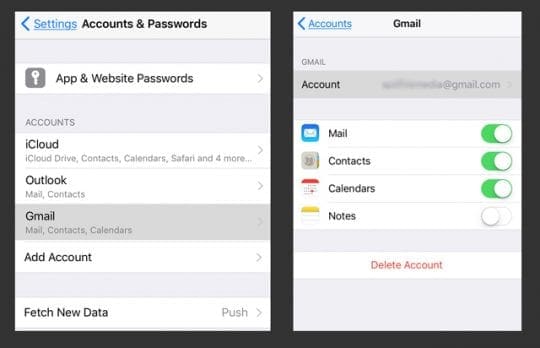
Go to Settings > Passwords & Account or Accounts & Passwords (for older iOS, look for Mail or Mail, Contacts, Calendars), then tap Accounts > Tap the Problematic Account > Tap your email address and verify your account information and the SMTP information for incoming and outgoing mail servers
Under Outgoing Mail Server SMTP > Primary Server, toggle the Server OFF, then back ON, and fill in BOTH User Name and Password under Outgoing Mail Server. Tap Done to save changes
Check the recommended settings for your email account using Apple’s Mail Settings Lookup tool. Verify that these settings match those on your iDevice. If not, update your iDevice manually
Delete the problematic email account and then add it back
Contact your mail provider about the issue and ask them to verify that you are using the correct settings
Why is this happening to me?
When you try to access multiple emails (or email accounts) at the same time
Network problems and connection issues
The settings of the outgoing mail server, SMTP or the email account’s primary server are incorrect
Fixes for iPad Cannot Send Emails
Entering Email Account Information Manually?
If you set-up your accounts manually, then check that you have a username and password for the INCOMING and OUTGOING mail server settings on your iDevice.
When configuring your accounts manually, you must enter your email account’s username and password twice–once for incoming and again for outgoing.
Sometimes It’s Easiest To Reinstall Your Mail Account
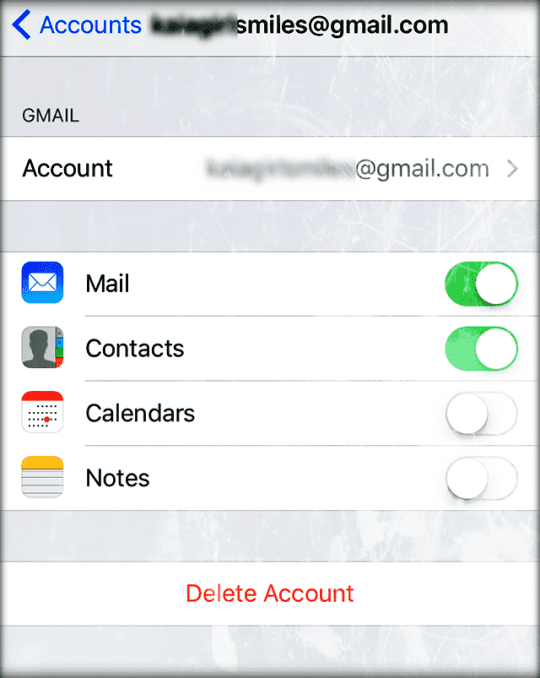
Probably the easiest fix is to delete the troublesome email account and then add it back. This small action often makes all the difference and fixes both small and big problems.
Go to Settings > Passwords & Accounts or Accounts & Passwords > Accounts >
Tap on the problematic email account and scroll down to the section “Delete Account”
Tap on the message “Delete from My iPhone“
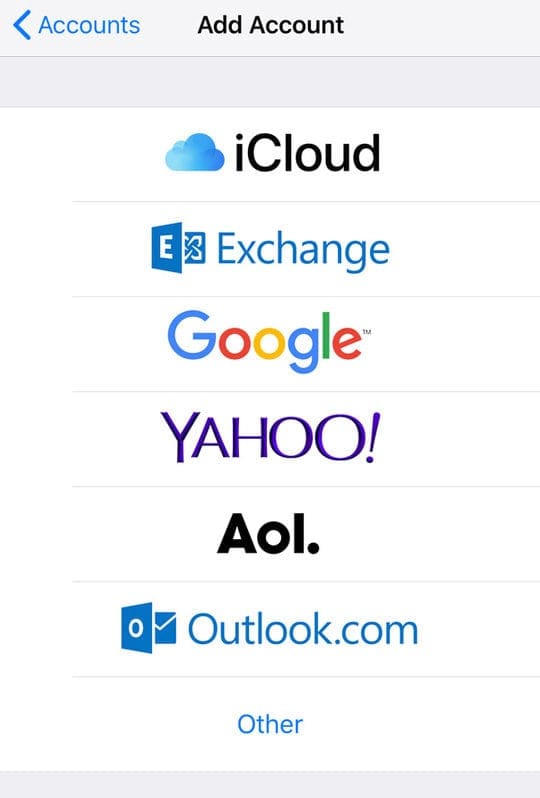
And then go through the usual process of adding an email account through Settings > Passwords & Accounts > Accounts > Add Account
Try Deleting Email Contents
Sometimes, there is something within the email messages themselves that cause problems.
Look at the emails messages that you’re trying to send when this problem started
Delete ALL the text, images, attachments, and so forth within the text, including all forwarded threads and message information in an email chain. Remove everything until you have just blank email content
Then type in what you want to send and try sending it!
If it works, there was something in the content of the email causing the problem
Take a Look at SMTP Settings
Step – 1 Settings
Go to your iPhone’s or iPad’s Settings and choose Accounts & Passwords (for older iOS, look for Mail or Mail, Contacts, Calendars)
Step – 2 The Email Account
Choose the email account that you are having problems with as shown below by tapping on it.
Step – 3 On this next screen tap on Account
Step – 4 ADD YOUR ID
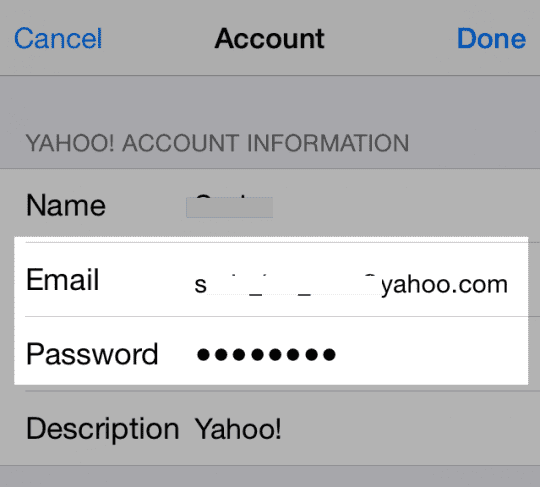
On this screen, please re-enter your EMAIL ID and Password related to your account and tap Done. Please make sure to use the complete email id, for example, maryXX@gmail.com. Make sure your username and password are entered and correct even if the password is listed as optional.
Step – 5 Check your SMTP Server Settings
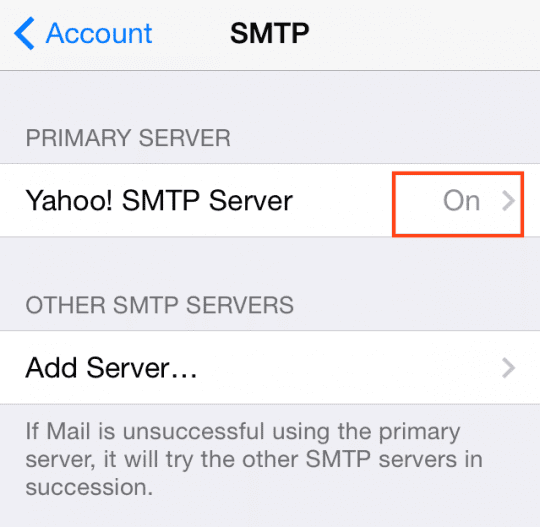
On the Account information screen, Click on SMTP, When you go to the next screen, You should see the SMTP server under the PRIMARY SERVER as “On.”
Step – 6 SMTP SERVER
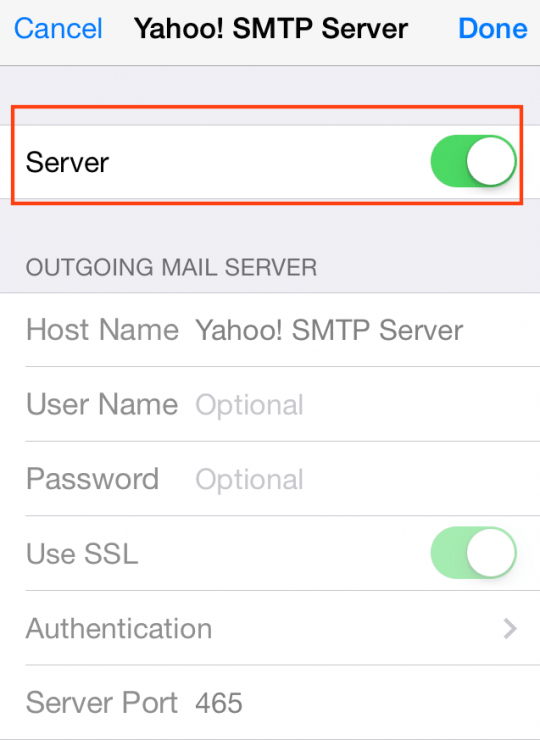
If the SMTP Server is not ON, please tap on the server button and set it ON the next screen. Fill in the optional areas for name and password.
And make sure your username and password are correct and added in the Outgoing Mail server section.
Additionally, make sure that Use SSL is turned on and Authentication is set to Password. Don’t forget to tap Done at the top of the screen to save your changes!
Enter your user id and password for BOTH the outgoing mail server as well as for the incoming mail server.
When you set up most email accounts, you enter your user id and password twice, once for the incoming SMTP Server and again for the outgoing SMTP Server.
There are exceptions to the rule, including Microsoft Exchange and iCloud. Most other ISPs and email providers require you to enter this information twice.
Step – 7 Switch off your iPhone or iPad and try your email again
This should fix the problem related to the error that you are experiencing.
If this does not fix your issue, we suggest that you delete the email account from your device and re-create the email account. If your account is active, you will not lose any emails that you have in your mail folders.
Delete Email Account and Add in Manually
After you remove the account from the default Mail app via Settings > Passwords & Accounts, you need to add it back manually using the Other option on the account selection screen.
Then, input your email account using IMAP settings when prompted (get this information from your email provider.
Once you add your account with these settings, your emails should start to come through.
For AOL mail accounts
Go to Settings> Passwords & Accounts or Accounts & Passwords (or Mail for older iOS) > Accounts > Tap on your AOL mail account from the list
Tap on your AOL email address at the top of the page
Choose SMTP from Account Information
Select SMTP from the SMPT Page
Check that the Server is ON
Verify that the Host Name is smtp.aol.com
Check that your User Name and Password are correct
Set Authentication to Password
Verify the Server Port is 587
Still Not Working?
If your account is still causing issues and you continue to see this error message, follow-up with your email provider and ask them to confirm the settings you are using, including hostname, username, server settings, port information, and how your device authenticates your account (usually your password but could be something else.)
Reader Tips
Even though your Mail server settings for User Name and Password say optional, they are not optional! Make sure you enter your full email address as your username AND your email password
One reader discovered that turning off the email’s primary server fixed the problem and all outgoing mail was sent correctly. Another variation iFolks find success with is to turn off the primary server and turn on the individual servers
Check the outgoing mail server setting. make sure that your username and password are in there. For iOS 11, go to settings>accounts & passwords>your email account>account>outgoing mail server and tap the server name next to SMTP. Then look at your primary server and make sure your username and password are entered and correct (even if it says that the password is optional!)
If your email provider doesn’t allow a secured connection to SMTP, use your mobile carrier’s SMTP server for outbound email
Contact your carrier for that specific information
Turn Off Increase Quote Level. Go to Settings > Mail > Scroll Down to “Increase Quote Level” > Toggle OFF
If you are still experiencing problems, we suggest that you check with your email service provider or with Apple Support.
Obsessed with tech since the early arrival of A/UX on Apple, Sudz (SK) is responsible for the original editorial direction of AppleToolBox. He is based out of Los Angeles, CA.
Sudz specializes in covering all things macOS, having reviewed dozens of OS X and macOS developments over the years.
In a former life, Sudz worked helping Fortune 100 companies with their technology and business transformation aspirations.
Can’t send outgoing emails. Says the user name or password for “SMTP:then my email” is incorrect……. Settings and ok are only options to choose……maddening!!!
What do you do ??????
Since you mention this is only happening with one particular email address, it’s likely the problem is on the other end of the email–the recipient’s account rather than your account.
To double check your settings, just in case:
Go to Settings > Passwords & Accounts > and tap the email account that shows this message
Choose Account > Outgoing mail server
Tap the server name under the setting for Primary Server
Verify that Primary Server is ON, if not, tap it and toggle it on
You can also add another server for your outgoing mail server, to do this follow the steps above buy choose Add Server under Other SMTP Servers.
Get the following information from your email provider or use Apple’s lookup tool:
1) Hostname for outgoing server (for example, smtp.gmail.com)
2) Your username
3) Your account password
Once you have this info, enter it manually into the option to Add Server…
Then restart your device and see if you can reply to that problematic email address.
It turned out there was something in my ‘reply’ email, so something in the email from the original sender, that was causing the problem.
So after going through all these troubleshooting tips and still experiencing the problem, I deleted all of the original email’s text and it sent without any problem.
My issue is with my iCloud account. I can not put in a user name or password as it is “grayed out”. I have tried using cellular vs wireless, turned the devices on and off and noth8ng works. Same issue exists whether I use my iPhone, iPad or MacBook. Any suggestions?
Bob, Reach out to Apple support and they may be able to help you with this one since it pertains to your iCloud account. You can chat directly with Apple support by using the details in this article.
My outgoing e-mails are intermittently not going to receipients , they all go into outbox with no error and no indication that they are not going out . I have been working with apple customer service for 1 1/2 weeks and three weeks into problem with my outgoing e-mail issue with no satisfaction. They tell me that they are waiting fir their engineer to get back to them . Can’t get to the right person , both senior help persons tell me there is no one above them .
Very frustrated and I think it is outrageous that I can’t get this resolved .
Any suggestions on a way to get to the right people ?
We’re very sorry to hear about your problems with your Mail account and emails getting stuck in the outbox without any notice. That’s terrible! As far as Apple Support and the engineering team go, our advice is to be persistent. Apple gives consumers no direct route to its engineers so those senior support team members are the gatekeepers.
We know its a huge inconvenience but generally, with Apple Support, persistence pays off.
Sorry, we don’t have better answers for you or a direct path to those right people.
My server rejects additional info as username and password, so after I fill those in it refuses to send. For some reason it gives me pop up to do just that and when I do that it rejects mail.
Sorry to hear you are having trouble locating your email account’s SMTP Server. What email account are you looking for (i.e. Gmail, yahoo, AOL, outlook, and so forth)? Different email providers have different spots for this.
For some reason the “mail, calendar, contact” selection is not listed in my settings. I have Mail.ru and my.com email. I cannot send email out but can receive. I cannot check my password settings. I was trying the above suggestions but don’t have that menu choice.
If you have updated your iOS, use Settings > Mail. Then Select Accounts. Then under Accounts, tap on the specific email account that’s giving you trouble. Now, you should be into the settings for just that one email account. Go ahead and Tap on your email address (above the toggles for Mail, Contacts, Calendars, and Notes). This opens a new page with your exact account details including Name, Email, Description, Outgoing Mail Server, and at the bottom Advanced.
Tap on what’s listed under Outgoing Mail Server. See if a primary server is listed as ON. If not, tap this and toggle Server ON. If possible, add in your user ID and password.
If this didn’t help, go back to the page with your account’s details (the one with toggles for Mail, Contacts, Calendars, Notes.) At the bottom, find Delete Account. Select this and delete the account. Then return to Settings > Mail > Accounts and choose Add Account.
Apple also has a page to check and verify your email settings. Just put your email address in the search bar and it provides a detailed picture of the settings you need.
This did not work for me, but in your step 6, I went ahead and filled in the optional areas for name and password and this worked for me. I hope this may help others as well.












Emails show up in sent mail but no one is receiving them
Can’t send outgoing emails. Says the user name or password for “SMTP:then my email” is incorrect……. Settings and ok are only options to choose……maddening!!!
What do you do ??????
Thanks for your help. This worked for me !!!
I can email 10 other emails but when I reply to a certain email I get this message. So how can my settings be wrong?
Hi Justsomeone,
Since you mention this is only happening with one particular email address, it’s likely the problem is on the other end of the email–the recipient’s account rather than your account.
To double check your settings, just in case:
Go to Settings > Passwords & Accounts > and tap the email account that shows this message
Choose Account > Outgoing mail server
Tap the server name under the setting for Primary Server
Verify that Primary Server is ON, if not, tap it and toggle it on
You can also add another server for your outgoing mail server, to do this follow the steps above buy choose Add Server under Other SMTP Servers.
Get the following information from your email provider or use Apple’s lookup tool:
1) Hostname for outgoing server (for example, smtp.gmail.com)
2) Your username
3) Your account password
Once you have this info, enter it manually into the option to Add Server…
Then restart your device and see if you can reply to that problematic email address.
I can’t get my email account to work on the iPad. It works fine for my wife’s email.
I have tried several of the suggested solutions, but no success.
Please guide me. Since I can’t see my email on this iPad, perhaps you ought to respond to my wife’s account.
I had this problem and could not resolve it.
It turned out there was something in my ‘reply’ email, so something in the email from the original sender, that was causing the problem.
So after going through all these troubleshooting tips and still experiencing the problem, I deleted all of the original email’s text and it sent without any problem.
My issue is with my iCloud account. I can not put in a user name or password as it is “grayed out”. I have tried using cellular vs wireless, turned the devices on and off and noth8ng works. Same issue exists whether I use my iPhone, iPad or MacBook. Any suggestions?
Thanks
Bob, Reach out to Apple support and they may be able to help you with this one since it pertains to your iCloud account. You can chat directly with Apple support by using the details in this article.
How do you do this if the outgoing mail server is greyed out. I am using icloud email.
Thank you!! I deleted the primary server and set up the alternative with a password then it worked for me.
My outgoing e-mails are intermittently not going to receipients , they all go into outbox with no error and no indication that they are not going out . I have been working with apple customer service for 1 1/2 weeks and three weeks into problem with my outgoing e-mail issue with no satisfaction. They tell me that they are waiting fir their engineer to get back to them . Can’t get to the right person , both senior help persons tell me there is no one above them .
Very frustrated and I think it is outrageous that I can’t get this resolved .
Any suggestions on a way to get to the right people ?
Hi Donna,
We’re very sorry to hear about your problems with your Mail account and emails getting stuck in the outbox without any notice. That’s terrible! As far as Apple Support and the engineering team go, our advice is to be persistent. Apple gives consumers no direct route to its engineers so those senior support team members are the gatekeepers.
We know its a huge inconvenience but generally, with Apple Support, persistence pays off.
Sorry, we don’t have better answers for you or a direct path to those right people.
Hope things get resolved for you soon,
SK
Since the iOS 11.2.6 update, I cannot use Safari to access my webmail, and secondly, I cannot save JPGs that I receive. Any solutions for this?
My webmail uses Icewarp on the server / provider side.
My server rejects additional info as username and password, so after I fill those in it refuses to send. For some reason it gives me pop up to do just that and when I do that it rejects mail.
Same problem, but my iPhone and iPad don’t show SMTP Server any where under the Accounts page. Any idea where this buttom is hiding?
Hi Joanna,
Sorry to hear you are having trouble locating your email account’s SMTP Server. What email account are you looking for (i.e. Gmail, yahoo, AOL, outlook, and so forth)? Different email providers have different spots for this.
Once we have this info., I hope we can help you.
Be well,
Liz
For some reason the “mail, calendar, contact” selection is not listed in my settings. I have Mail.ru and my.com email. I cannot send email out but can receive. I cannot check my password settings. I was trying the above suggestions but don’t have that menu choice.
Hi Dave,
If you have updated your iOS, use Settings > Mail. Then Select Accounts. Then under Accounts, tap on the specific email account that’s giving you trouble. Now, you should be into the settings for just that one email account. Go ahead and Tap on your email address (above the toggles for Mail, Contacts, Calendars, and Notes). This opens a new page with your exact account details including Name, Email, Description, Outgoing Mail Server, and at the bottom Advanced.
Tap on what’s listed under Outgoing Mail Server. See if a primary server is listed as ON. If not, tap this and toggle Server ON. If possible, add in your user ID and password.
If this didn’t help, go back to the page with your account’s details (the one with toggles for Mail, Contacts, Calendars, Notes.) At the bottom, find Delete Account. Select this and delete the account. Then return to Settings > Mail > Accounts and choose Add Account.
Apple also has a page to check and verify your email settings. Just put your email address in the search bar and it provides a detailed picture of the settings you need.
Apple’s Mail Settings LookUp Tool
Best of Luck!
Liz
This did not work for me, but in your step 6, I went ahead and filled in the optional areas for name and password and this worked for me. I hope this may help others as well.
Thank you, Bob for sharing the tip that worked for you!
cheers,
Liz
Great info. Thank you so much!!!
How to change email pw on iPad. Forgot old one.