There are over two million apps on the App Store, but you don’t want them all on your iPhone at the same time. If your iPhone 11 or iPhone X is running out of storage, find out how to delete some apps to free up more space.
Here are all the ways to do it, along with troubleshooting tips for when you can’t delete apps from your iPhone.
Deleting apps in iOS used to be fairly straightforward: just tap and hold the app icon on your Home screen, then hit the X that appears when the apps start to wiggle.
But these days, there are a few different ways to delete apps from your iPhone.
1. Open the Home Screen Quick Action Menu
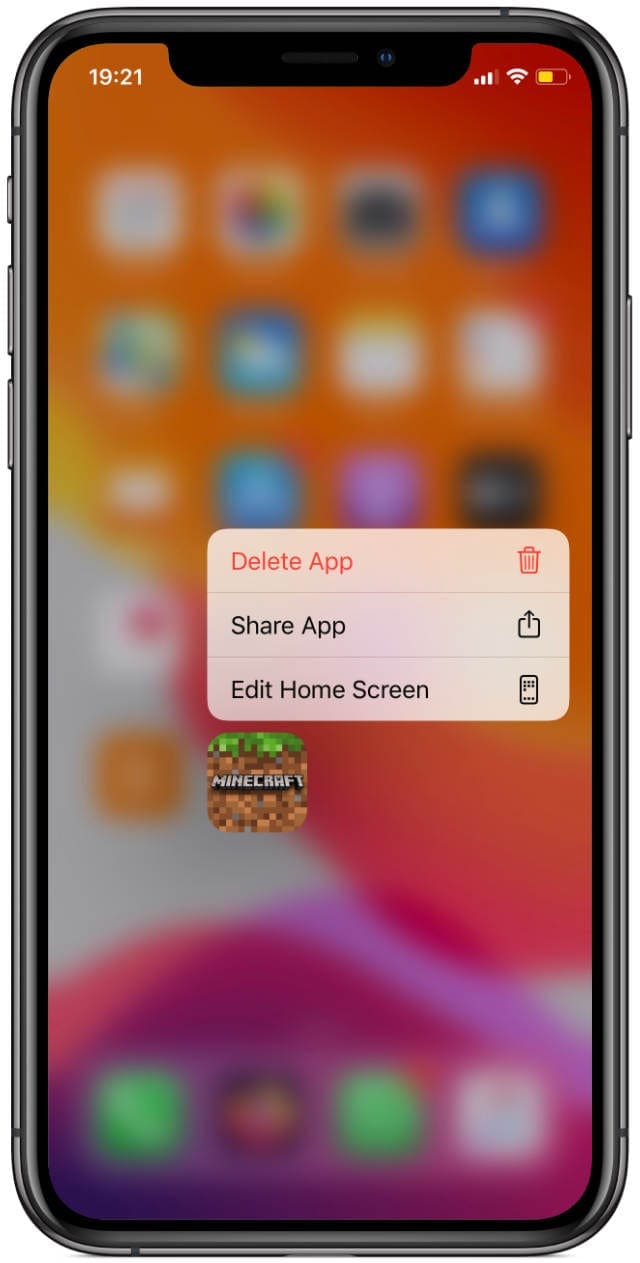
From the Home screen on your iPhone, tap and hold an app icon to reveal a quick action menu. With an iPhone X, you can even press firmly on an app to reveal this menu using 3D touch.
The exact menu options vary depending on the particular app. But at the bottom of the menu, you should see an option to Delete App. Tap it, then confirm you want to Delete the app in the following alert.
Tap and hold an app to reveal a Delete App button.
2. Edit the Home Screen to Delete Lots of Apps Quickly
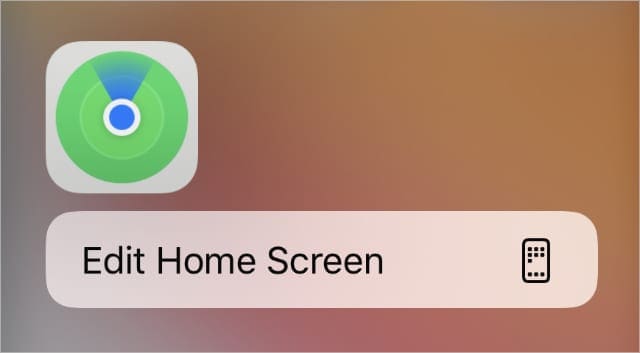
If you want to delete lots of apps at the same time, you should tap Edit Home Screen from the quick action menu instead. Find this option near the Delete App button, after tapping and holding an app icon from the Home screen.
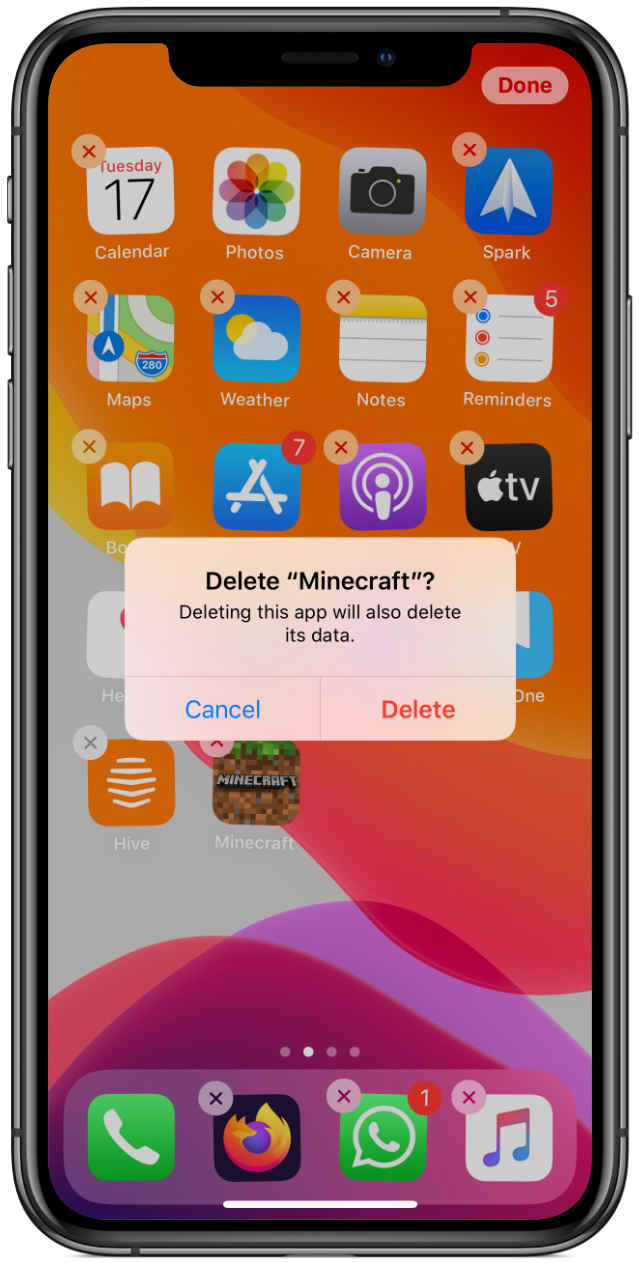
Once you tap Edit Home Screen every app starts wiggling, allowing you to drag-and-drop them to different positions on your Home screen. You should also see X buttons appear in the top-left corner of apps as well.
Tap an X button then confirm you want to Delete the app in the pop-up alert.
Select Edit Home Screen.
Tap the X button to delete an app.
Confirm you want to Delete it.
3. Delete Apps From the iPhone Storage Settings
Another convenient way to delete apps from your iPhone 11 or iPhone X is from the Settings. Go to Settings > General > iPhone Storage to load a list of all the apps on your iPhone.
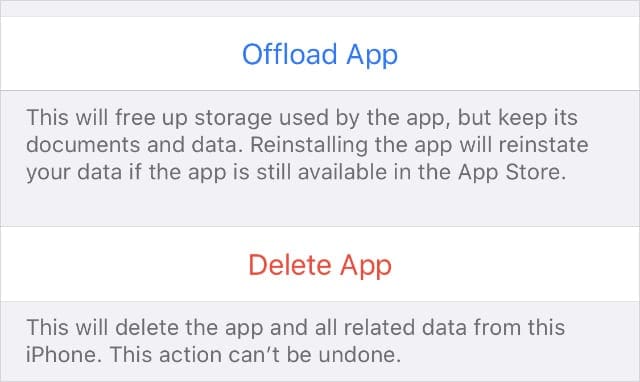
Tap a particular app to reveal more information about it, including options to Offload App or Delete App.
Use Offload App if you plan to use an app again in the future, but don’t want it taking up space on your iPhone right now. This saves your personal data and keeps the app icon on the Home screen while removing the app data itself.
Alternatively, use Delete App to delete the entire app and all your data for it. This is the best option if you don’t ever plan to use that app again.
Choose to Offload or Delete apps from your iPhone settings.
What to Do If You Can’t Delete Apps From Your iPhone
Sometimes your iPhone doesn’t let you delete apps, no matter which of the above methods you use. When this is the case, you can usually fix it by tweaking some of the settings on your iPhone 11 or iPhone X.
It’s Not Possible to Delete Some of Apple’s Built-In Apps
However, there are still plenty of built-in Apple apps that it’s impossible to delete. These include:
App Store
Camera
Clock
Find My
Health
Messages
Phone
Photos
Settings
Some apps don’t offer an option to delete them.
Although you can’t delete these apps, you can add them all to a single folder and hide it on a separate Home screen.
Update and Restart Your iPhone
If it should be possible to delete your app, you might need to update the software on your iPhone and restart it first.
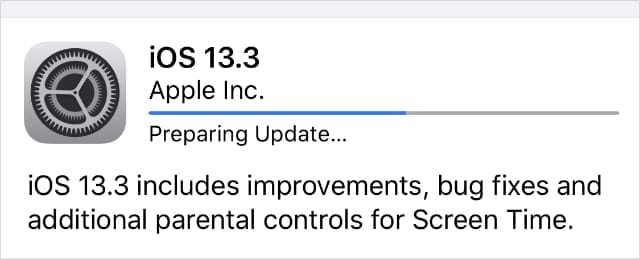
Go to Settings > General > Software Update to check for new updates to iOS. Download and install any available updates.
Update your iPhone to the latest software to fix problems.
When your iPhone 11 or iPhone X is up-to-date, press and hold the Side button with either Volume button. When prompted, slide to power off your iPhone.
Wait at least 30 seconds after your iPhone finishes powering off before pressing the Side button again to restart it.
Disable Content & Privacy Restrictions in Screen Time
Perhaps you can’t delete apps on your iPhone 11 or iPhone X because of your Content & Privacy Restrictions. These settings are usually turned on for children’s devices, to limit adult content.
Go to Settings > Screen Time > Content & Privacy Restrictions. Turn off the Content & Privacy Restrictions button at the top of the page. If prompted, enter your Screen Time passcode, which may be different from your normal iPhone passcode.
If you want to keep Content & Privacy Restrictions on, but still want to delete apps, change the following settings:
Go to Settings > Screen Time > Content & Privacy Restrictions.
Go to iTunes & App Store Purchases.
If prompted, enter your Screen Time passcode.
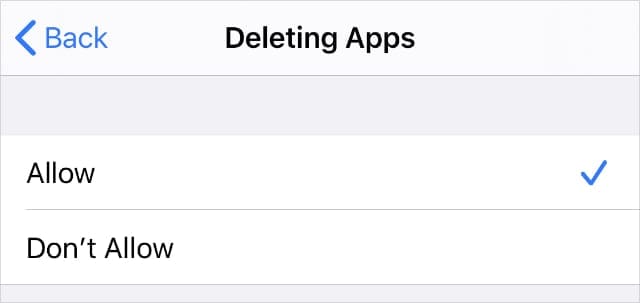
Tap Deleting Apps and set it to Allow.
Make sure your iPhone settings let you delete apps.
Adjust the Accessibility Touch Settings
If you can’t open the quick action menu to delete apps or edit your Home screen, you might need to adjust the Touch settings on your iPhone.
These affect how quickly the menu appears or how firmly you need to press for 3D touch.
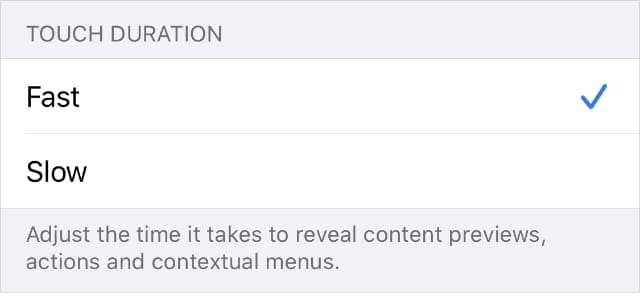
Go to Settings > Accessibility > Touch > 3D and Haptic Touch. Beneath the Touch Duration section, change the length of time you need to tap and hold an app for the quick action menu to appear. You can test this on the picture at the bottom of the page.
Adjust the Accessibility Touch Settings on your iPhone.
On an iPhone X, you can also turn on 3D Touch and adjust the 3D Touch Sensitivity. If you don’t want to have to press as hard, change the sensitivity to Light.
There Are Other Ways to Clear Storage on Your iPhone
The main reason to delete apps from your iPhone 11 or iPhone X is to create more free storage on your device. But there are plenty of other things you can do to create more free storage as well, which might mean you can keep hold of more useful apps.
Find out what’s using up your iPhone storage from the General settings. Then take a look at this post to find out what to do if you’re losing a lot of space to “Other” or “System” on your iPhone.
Dan writes tutorials and troubleshooting guides to help people make the most of their technology. Before becoming a writer, he earned a BSc in Sound Technology, supervised repairs at an Apple Store, and even taught English in China.
on my iPhone 11 there is an app that has places a circular button on the screen. You can position it anywhere on the screen, when you tap it opens spaces inn which can assign apps you want to start,
It is most annoying but it has priority over what is on the screen so you will engage the dang thing.
I cant delete or even find it. It has no name that I can find. I cant get rid of it. I even sprayed RAID in
all the jacks and vents…
It is driving me insane.
THANK YOU. I was going nuts trying to figure out how to delete the apps. The restrictions hidden in Screen Time is CRAZY. I NEVER would have found that on my own.













on my iPhone 11 there is an app that has places a circular button on the screen. You can position it anywhere on the screen, when you tap it opens spaces inn which can assign apps you want to start,
It is most annoying but it has priority over what is on the screen so you will engage the dang thing.
I cant delete or even find it. It has no name that I can find. I cant get rid of it. I even sprayed RAID in
all the jacks and vents…
It is driving me insane.
Help ! Thanks, Jerry
I’d like to say THANK YOU for 1000 times! I went crazy to find out how to delete apps.
THANK YOU. I was going nuts trying to figure out how to delete the apps. The restrictions hidden in Screen Time is CRAZY. I NEVER would have found that on my own.