• Skip to primary navigation
  • Skip to main content
  • Skip to primary sidebar
  • Skip to footer

AppleToolBox

Tools and Fixes for Mac, iPad, iPhone & iWatch

Search posts

  • About
  • Contact

CONNECT WITH US

CATEGORIES

  • iPhone
  • iPad
  • iPod
  • Apple Watch
  • Mac/MacBook
  • AirPods
  • Apple TV
  • News
  • Apple Services
  • HomePod
  • Reviews

SITE

  • Home
  • About Us
  • Contact
  • Advertise

Search posts

You are here: Home / Mac / How to Change the External Microphone Input for Adobe Audition on Mac

How to Change the External Microphone Input for Adobe Audition on Mac

By Danny Maiorca 0 comments Last updated November 18, 2022

If you want to create a podcast or start making music, Adobe Audition is one of the best tools you can use to edit everything on your Mac.

Related Reading:

  • How to Record Audio on a MacBook
  • How to Convert Audio on a Mac
  • How to Control Sound When Your Mac Is Connected to a Display
  • How to Record a Screen With Internal Audio on Your Mac
  • Apple Podcasts vs. Google Podcasts vs. Spotify: Which Is Better?

When recording your audio, we recommend using an external microphone. Why? Because your Mac’s mic is not always the best sound quality.

Before recording with your external mic in Adobe Audition, you’ll need to change your external microphone input in the app. This article will show you how to do this on your Mac.

Contents

  • Do You macOS Ventura to Change the External Microphone Input on Adobe Audition for Mac?
  • Do You Need Adobe Audition 2023 to Follow These Instructions?
  • How to Change the External Microphone Input for Adobe Audition on Mac
  • Changing Your External Microphone Input: Useful if You Want to Record Higher-Quality Audio

Do You macOS Ventura to Change the External Microphone Input on Adobe Audition for Mac?

After Apple introduced macOS Ventura, the process of performing several tasks on Mac devices changed. Changing the external microphone input, however, is not one of them.

Even if your Mac does not currently have macOS Ventura downloaded, you can change your external mic output settings. You can follow the instructions in this article as they are; the same is true if your Mac is not one of those devices with Touch ID.

Do You Need Adobe Audition 2023 to Follow These Instructions?

Toward the end of 2022, Adobe updated its Creative Cloud apps to their 2023 version. But the good news is that even if yours isn’t fully up to date, you can follow these instructions exactly as they are written.

Having said that, we recommend keeping your app updated. Doing so will allow you to keep using Adobe Audition on your Mac as you currently are, without needing to worry about performance-related issues.

How to Change the External Microphone Input for Adobe Audition on Mac

Now that we’ve covered the basics, let’s look at how you can actually change the external microphone input with Adobe Audition on your Mac. Follow these instructions to achieve your desired result.

1. Connect your external microphone to your Mac and open the Adobe Audition app. If you haven’t downloaded Adobe Audition, you can find it in the Adobe Creative Cloud app for Mac.

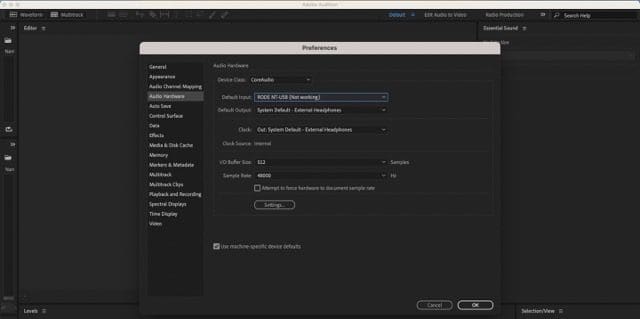
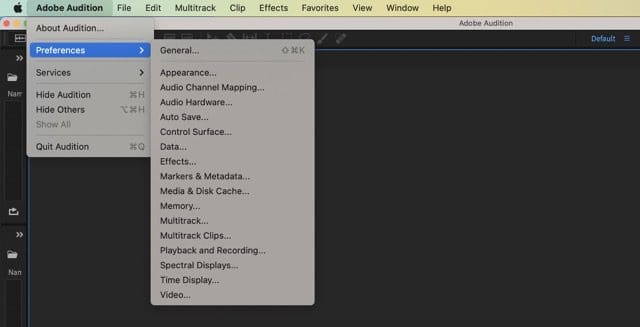
2. Go to Adobe Audition and select Preferences. When the dropdown menu appears, click on Audio Hardware.

Screenshot Showing Adobe Audition Preferences on Mac

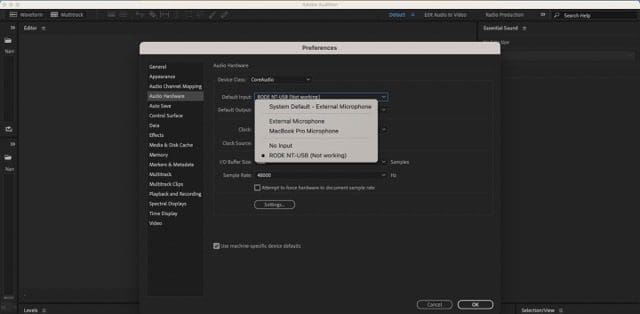
3. Go to the dropdown menu next to Default Input.

4. Select the external microphone’s name that you’ve connected to your device.

Screenshot showing how to change input for Adobe Audition on Mac

5. Once you’ve chosen your microphone, select OK.

Screenshot showing the OK button for Adobe Audition on Mac

After completing the steps above, you’ll be ready to start recording audio on Adobe Audition. You can, once you’ve done that, edit everything within the app.

Changing Your External Microphone Input: Useful if You Want to Record Higher-Quality Audio

Changing your default input to an external microphone is easy when you use Adobe Audition on your Mac. You don’t need to worry about having the latest version of the app, nor do you necessarily need macOS Ventura installed on your device.

Naturally, you’ll need to ensure that your external microphone is connected to your computer when you use the app in the future. Make sure that you make this the first step before recording future podcasts, songs, or voiceovers for videos.

Related Posts:

  • transfer spotify playlists to apple music
    Useful Apps to Transfer Spotify Playlists to Apple Music
  • Photo of someone using Apple Music on their smartphone
    How to Fix Apple Music Not Working on iPhone / iPad
  • podcasts on a phone screen
    Apple Podcasts vs. Google Podcasts vs. Spotify…
  • photo of a pair of headphones on top of a keyboard
    Everything You Need to Know About Apple Podcasts on Mac
  • iPhone Stations Header
    What Are Stations in Apple Podcasts? (+ How to Use Them)
  • pexels-magda-ehlers-1054713
    Apple Podcast Subscriptions Explained
  • spotify connect
    How to Sync Spotify Across Windows, Mac & iOS Using…
  • Photo of Spotify on a person's smartphone
    How to Use Spotify for iOS: A Complete Guide
  • Image of a MacBook with a Microphone and Not Working icon on the screen
    MacBook Microphone Stopped Working, How-to Fix
Danny Maiorca

Danny has been a professional writer since graduating from university in 2016, but he’s been writing online for over a decade. He has been intrigued by Apple products ever since getting an iPod Shuffle in 2008 and particularly enjoys writing about iPhones and iPads. Danny prides himself on making complex topics easy to understand. In his spare time, he’s a keen photographer.

Reader Interactions

Write a Comment Cancel reply

Primary Sidebar

Recent Posts

  • How to Set Up iCloud Passwords on a Windows PC?
  • How to Turn Off Apple Music’s Dark Mode
  • How to Disable Predictive Text in iOS 26
  • How to Stop Sharing Analytics in iOS 26
  • How to Manage Your iPhone Call Log
  • Are Apple’s Safety Precautions Enough for AirTags?

Connect with us

Footer

ABOUT

  • About Us
  • Contact us
  • Advertise
  • Privacy
  • Terms of Use

GUIDES

  • iOS & iPadOS
  • Apple ID
  • iCloud
  • App Store
  • iTunes
  • FaceTime
  • iMessage
  • Siri
  • Books and iBooks
  • Game Center
  • AirPlay

CONNECT

  • Facebook
  • Twitter
  • FeedBurner
  • YouTube

© Copyright 2010-2024 Guiding Tech Media · All Rights Reserved

This site and its content are in no way affiliated or endorsed by Apple, Inc. · Reproduction without explicit permission is prohibited

Last Updated on November 18, 2022 by Mitch Bartlett