Software updates are a necessity in today’s world, even those “point” releases that Apple sends out. These smaller updates can fix bugs that have been present for some time, or add-on some new features. For example, iPadOS 13.4 brought native mouse and trackpad support, instead of being released with iPadOS 14.
When iOS 12 was released, Apple introduced Automatic Updates as a way for your iPhone or iPad to download and install updates quickly. Usually, this would occur overnight while your device is charging and not actively being used. With the release of iOS 13.6, Apple took things a step further and added custom options for downloading software updates.
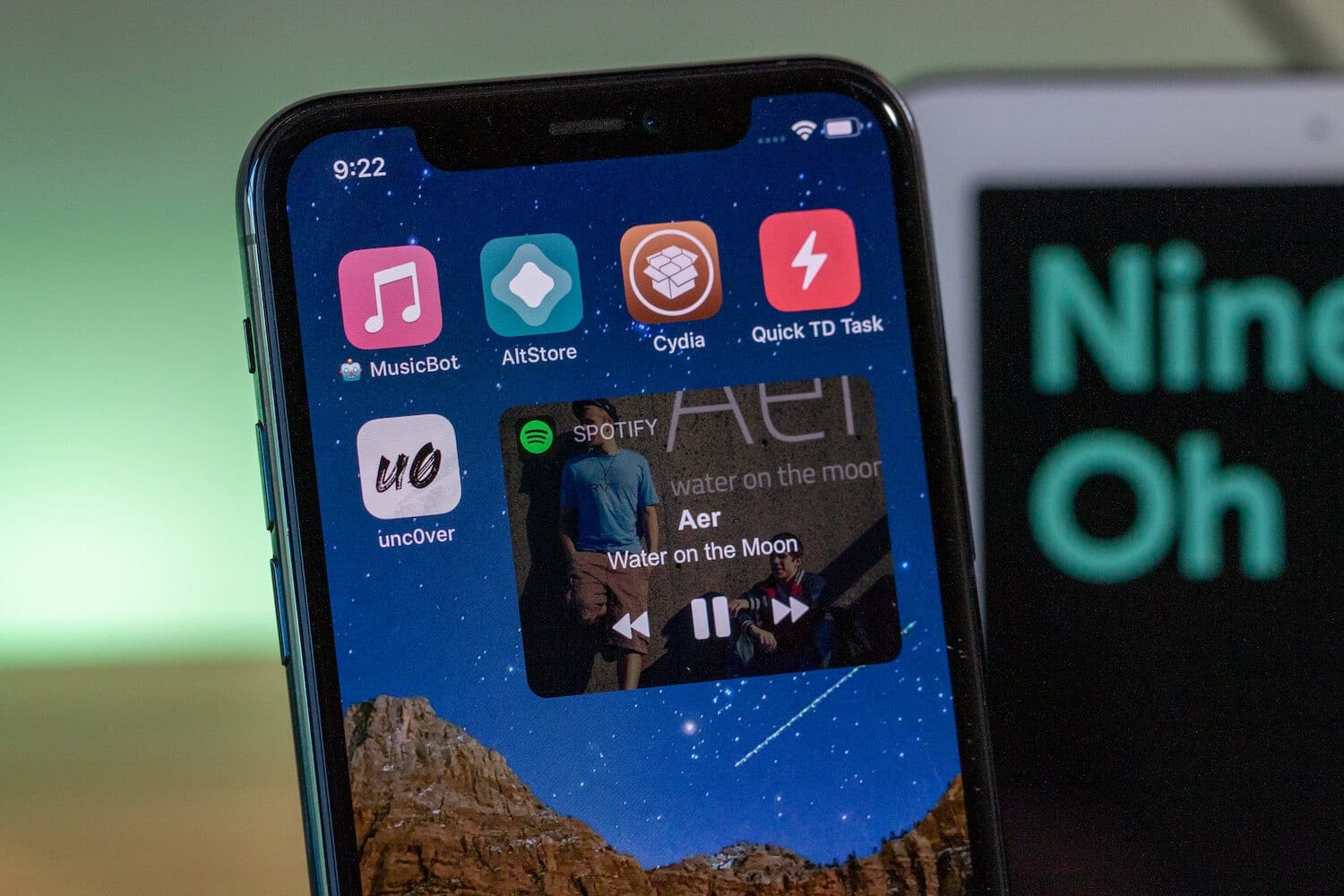
You don’t want to update if your iPhone is jailbroken
At first, you may be thinking “why would anyone want to disable automatic updates”. There are a lot of reasons why one would want this feature available, but it seems that Apple is giving more control to the users. Albeit at a slower rate than other mobile platforms.
Save some space
The biggest reason why you may not want an update to be installed is if you’re already running out of space. This is not as much of an issue for newer devices as there are more storage options available. However, even then, if you have a bunch of movies or music on your device and are getting close to maxing out, a software update could put you over the edge.
Are you jailbroken?
The jailbreak community is all about not updating, as updates usually make the jailbreak non-functional. If your iOS or iPadOS device is jailbroken, then you will want to steer clear of any software updates. These may end up patching the way that the jailbreak was made possible.
Not ready for the future
Whether a nasty bug has hit the airwaves, or you’re just not ready to move into the future, you may not want to download a software update. You may be surprised at how many people fall under this category. It will be especially interesting to see how quickly iOS users upgrade to iOS 14 with all of the changes to the home screen.
How to disable automatic downloading of updates
For one reason or another, you’ve decided that you want to disable automatic downloading of software updates. In true Apple fashion, it’s pretty easy to do so, and the options to disable this are right where you would expect them to be.
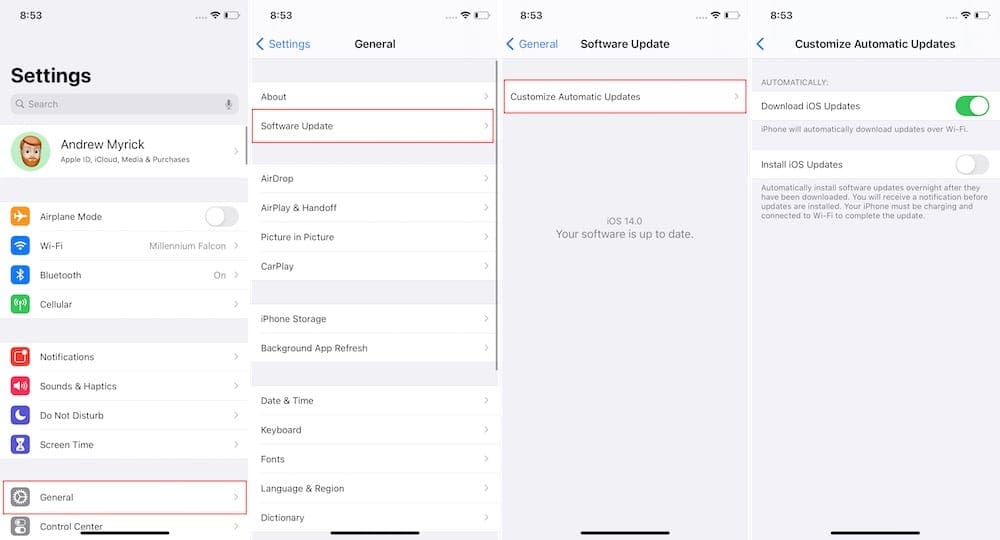
Open the Settings app on your iPhone.
Select General.
Tap on Software Update.
Select Customize Automatic Updates at the top of the page.
Tap the toggle for Download iOS Updates to the Off position.
From here, you’ll also see a toggle to automatically Install iOS Updates, which can be turned off. There’s a benefit to downloading and then installing the iOS updates are separate times. You may be in the process of using your iPhone when an update comes through, and can’t just install the update immediately.
The combination of these two toggles makes it so that you can download the update whenever, and then choose when you want to install it. After it’s been downloaded, just head into the Software Update settings panel and click that Install Now button.
Andrew Myrick is a freelance writer based on the East Coast of the US. He enjoys everything to do with technology, including tablets, smartphones, and everything in between. Perhaps his favorite past-time is having a never-ending supply of different keyboards and gaming handhelds that end up collecting more dust than the consoles that are being emulated.
I’m wondering if the option to deactivate automatic OS updates prevents iOS from searching for OS updates.
I’m on iOS 14.4. Automatic OS downloads are deactivated. 13 days after the release of iOS 14.4.1 my phone still hasn’t noticed that an update is available (no red badge on the Settings app).
Possibly, iOS stops searching for OS updates if automatic updates are deactivated. Possibly, iOS only searches for OS updates if certain conditions are met (phone is connected to a Wi-Fi network (I only use mobile data) and is charging at night or something like that).
Would appreciate if someone could confirm or refute that iOS no longer searches for OS updates if automatic OS downloads are deactivated.












I’m wondering if the option to deactivate automatic OS updates prevents iOS from searching for OS updates.
I’m on iOS 14.4. Automatic OS downloads are deactivated. 13 days after the release of iOS 14.4.1 my phone still hasn’t noticed that an update is available (no red badge on the Settings app).
Possibly, iOS stops searching for OS updates if automatic updates are deactivated. Possibly, iOS only searches for OS updates if certain conditions are met (phone is connected to a Wi-Fi network (I only use mobile data) and is charging at night or something like that).
Would appreciate if someone could confirm or refute that iOS no longer searches for OS updates if automatic OS downloads are deactivated.