Jailbreakers and iPhone users alike use Device Firm Upgrade (DFU) mode, and it is something you should know how to access. Fair warning, DFU mode is intended for advanced users. You don’t want to start using it if you’ve no idea how to use it or the basics of jailbreaking.
It allows iPhone users to set their devices to interface with iTunes without loading the operating system. DFU is also useful for updating firmware and is vital in restoring a bricked phone if iOS fails or the device is broken.
On rare occasions, you can use DFU to downgrade to a previous iPhone firmware and operating system. It may also be useful in installing custom software that is needed for a jailbreak or unlocking a blocked SIM.
It’s versatile! You can use it on your iPhone 11 Pro, too.
As great as the iPhone might be, it’s certainly not perfect. In this case, you may seriously want to consider entering DFU Mode to make some adjustments. Knowing how to do this can ultimately save you some money from switching to a new device, and give you a cool new tech skill-set.
To enter DFU mode on an iPhone 11 Pro successfully, make sure you have the following:
The latest version of iTunes
macOS Catalina
Lightning to USB-C cable
You can easily update your iPhone and macOS software for the latest version of iTunes/Catalina. Use the Lightning to USB cable to connect the device to your computer — it should cost you no more than $20.
Turn on your iPhone.
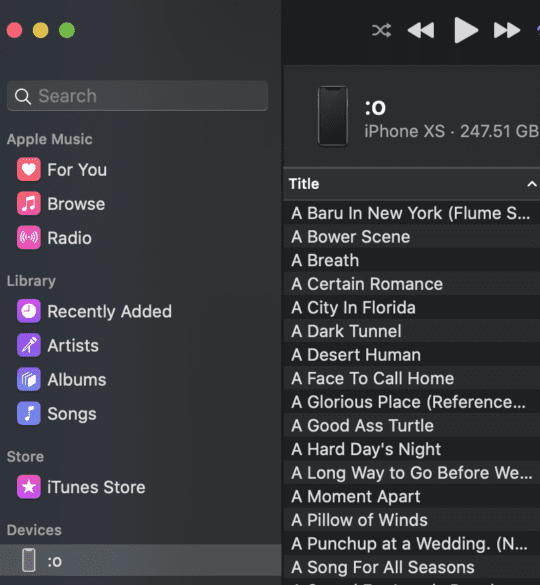
Launch iTunes on your computer. Your iPhone should appear in the list of devices.
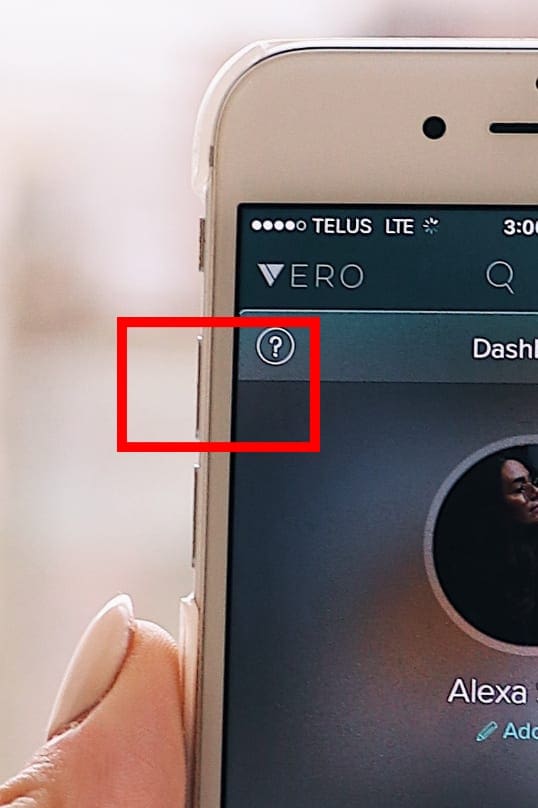
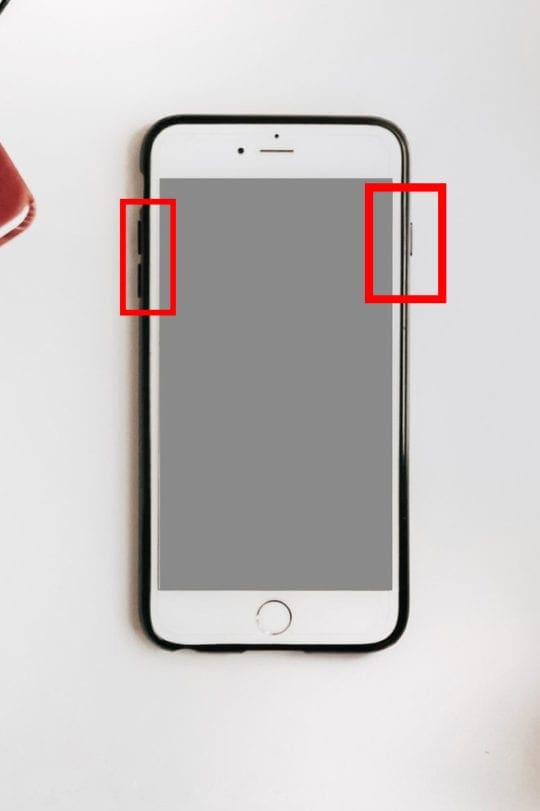
On your iPhone, press the volume up button, immediately followed by the volume down button.
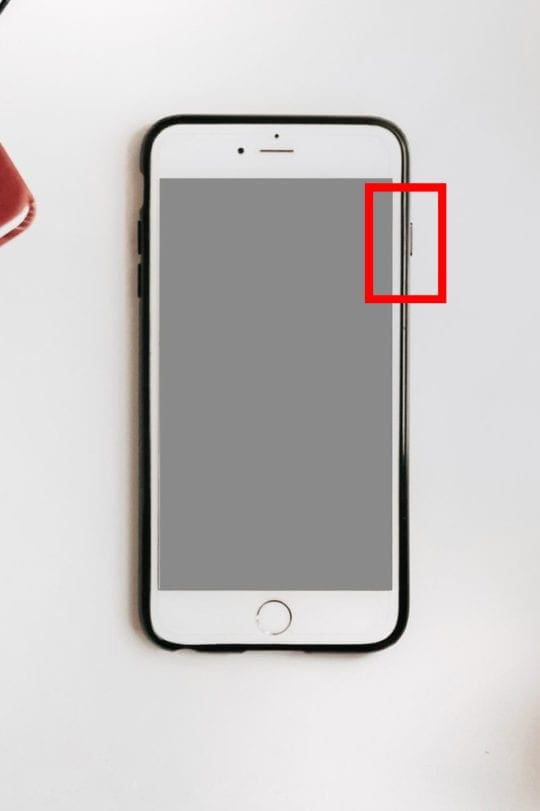
Hold the power button until your device’s screen turns black.
Hold the power and volume down buttons at the same time for five seconds.
Release the power button. Continue to press the volume down button.
Wait five seconds for iTunes to sense that you have enabled DFU recovery mode.
Your iPhone Pro 11 is now set in DFU mode. You can now update it to iTunes.
Alternative Way to Enter DFU Mode on iPhone 11 Pro
Alternatively, you can enter DFU mode by taking these steps:
Connect your iPhone to your Mac.
Launch your computer’s iTunes.
Turn off the iPhone.
Press the Lock and Home buttons for about 10 seconds, then release the Lock button.
Continue holding the Home button until the iTunes on your computer displays a message that a “recovery mode” device has been detected. The device screen will remain completely black.
What happens if you mistakenly enabled DFU mode, and you want to exit? Well, here is what to do.
Tap the volume up button on the iPhone and release it.
Tap the volume down button and release it.
Tap the power button until the Apple logo appears on your iPhone’s screen.
Enter DFU Mode on iPhone 11 Pro with a Broken Power Button
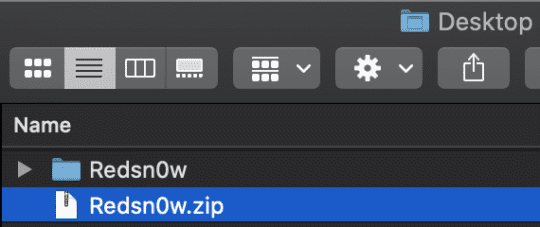
If your power button doesn’t work or a passcode lock won’t allow you to put your smartphone in DFU mode manually, try this method. The process is fairly straightforward. First, you’ll need to download the latest Redsn0w version and save it in a folder named “Redsn0w” on the desktop. You’ll also need to make sure you have the latest iOS firmware file for your iPhone 11 Pro.
Double click the Redsn0w zip file.
Extract the file to the Redsn0w folder, then click on Extras, then Even More.
Now click on the DFU IPSW button and select an IPSW by choosing the firmware file you downloaded in Step 2 (Redsn0w will create a DFU mode IPSW file), then click OK.
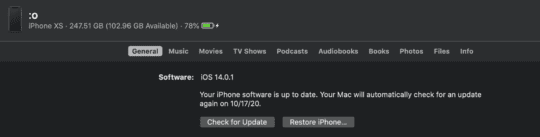
Now launch iTunes and select your iPhone 11 Pro when it appears in iTunes under Devices.
Select the General tab, then and click Restore iPhone.
From here, you’re going to pick the DFU mode IPSW file with the prefix ENTER_DFU. After your iPhone 11 Pro device has been restored, it will be automatically put in DFU mode. (The screen should be completely black).
Conclusion
Before you decide to call up the professionals or get yourself a new phone, consider trying iPhone 11 Pro DFU mode, the last resort tool in your toolbelt. But try not to get yourself in a situation where you accidentally brick your phone in the first place. You may be an iPhone jailbreaker, but unless you can fix your jailbreaking mistakes, you’re taking some big risks. Learn the DFU mode.














Write a Comment