Understandably so, there was a lot of focus on the Apple Vision Pro headset and new Mac hardware announced at WWDC 2023. This kind of made the software updates feel insignificant despite being a developer conference. However, now that the first iOS 17 Developer Preview has been available, there are a lot of new features still being discovered. And surprisingly, many of them are coming to the Messages app on your iPhone and iPad.
With iOS 17, Stickers are getting a huge overhaul, as not only are there new emoji stickers, but you can now create your own Live Stickers using your own Live Photos. When creating your own stickers, you can add a bit of personality with different effects such as Shiny, Puffy, Comic, or Outline.
Furthermore, Apple has made it so that any stickers that you use or create will sync with iCloud, making them easily accessible on your iPhone, iPad, and Mac. Apple also states that not only can you react to messages with stickers, but you’ll also be able to access and use stickers across all of your favorite apps, and not just the Messages app.
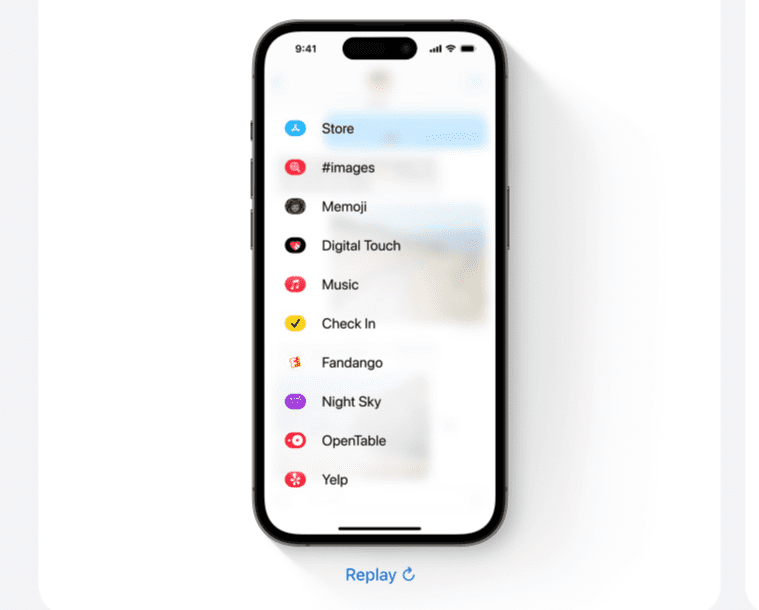
A New Menu For iMessage Apps
As opposed to the old way of needing to swipe in the bar above the keyboard to find your Messages apps and stickers. This new menu makes all of the new features more easily accessible, without worrying about cluttering up the typing experience when using Messages.
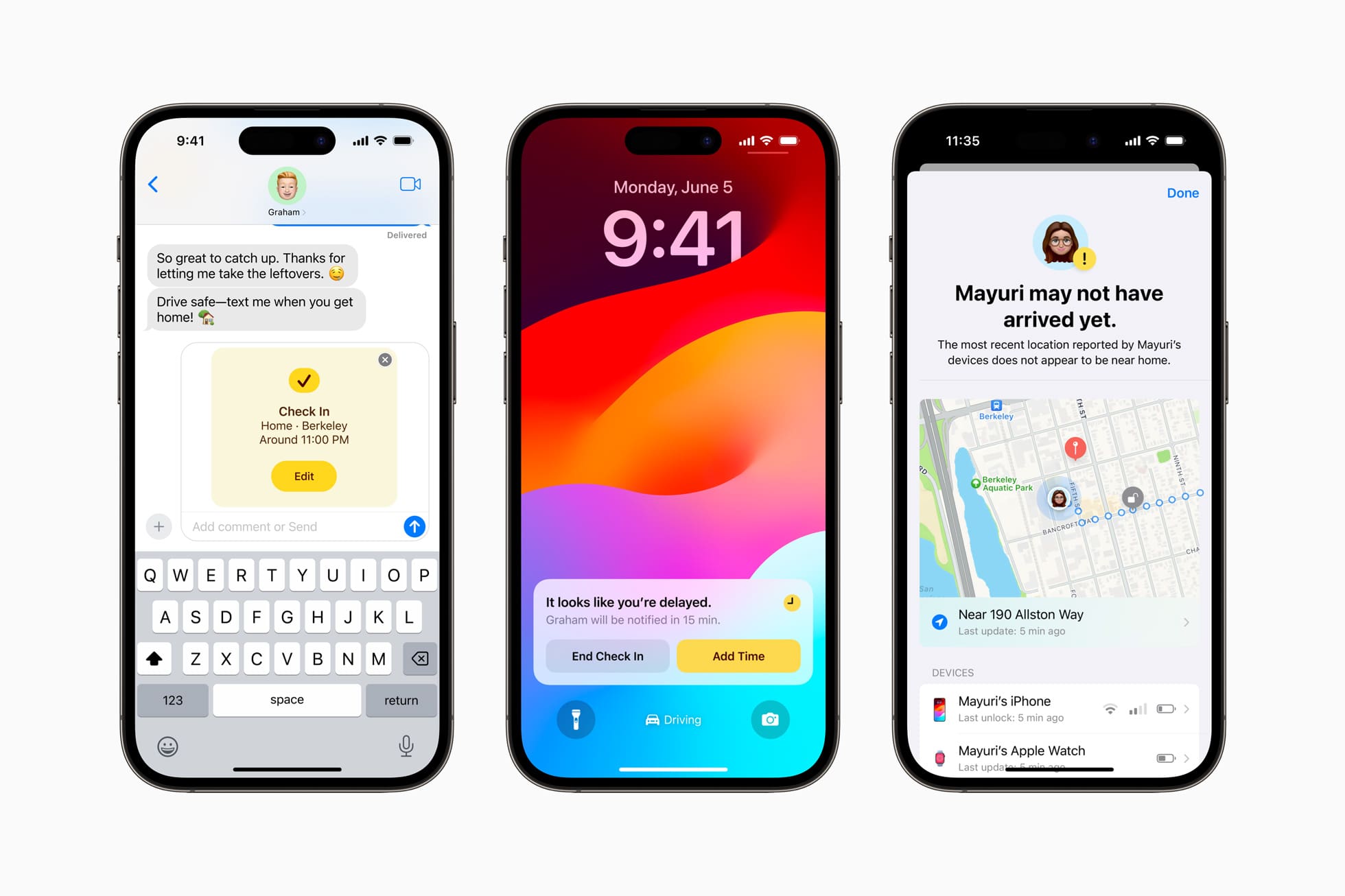
Check In
This makes it easy for you to share your location with a friend or family member. You can send a message to the contact letting them know you’re expected arrival time, and they will be notified when you reach your destination. But Check In will also show your device’s location, battery level, and cellular status in the event that you don’t reach your destination on time and the other person just wants to be able to check on you.
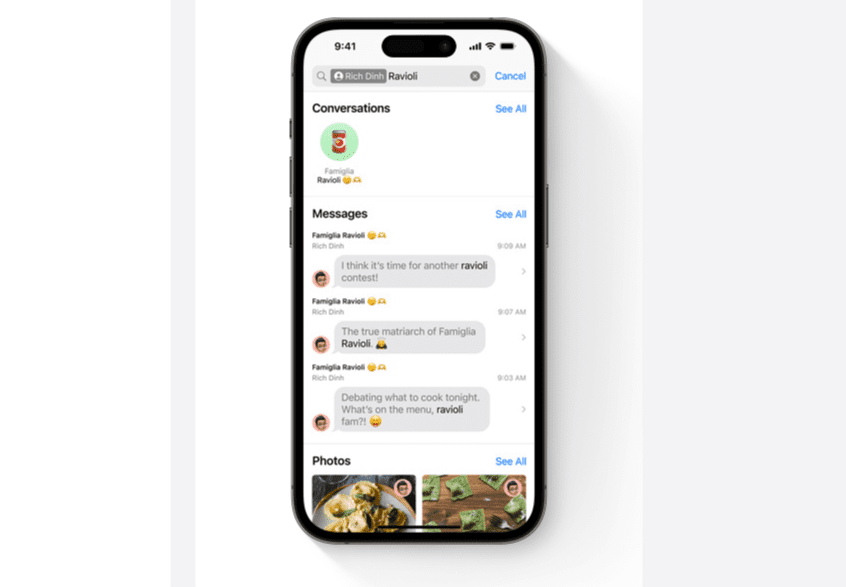
Search Filters
Conversations have also been tweaked and revamped, as it’s now possible to use search filters when you’re looking for something specific.
Better Group Messaging
Conversations have also been tweaked and revamped, as it’s now possible to use search filters when you’re looking for something specific. If you’re in a group chat, there’s a new “catch-up arrow” letting you know where you left off in the conversation.
Audio Message Transcriptions
In the event that someone responds with an audio message, it will be automatically transcribed so you won’t have to worry about having everyone around you listen to it.
Easily Share and View Locations
While Check In is great for providing specific information about your device, along with your location, Messages in iOS 17 offers another way to share your location. Thanks to the redesigned iMessage Apps menu, there’s a new Location option available.
Simply tap the Location button, make sure your location is correct, then tap the Send button. Then, your recipient will be able to quickly see where you are right in line with the rest of the conversation. This also works with group iMessage chats, if you are trying to have your friends meet up with you at a specific place.
Andrew Myrick is a freelance writer based on the East Coast of the US. He enjoys everything to do with technology, including tablets, smartphones, and everything in between. Perhaps his favorite past-time is having a never-ending supply of different keyboards and gaming handhelds that end up collecting more dust than the consoles that are being emulated.
Seems like Messages have a nasty habit of stopping to work. The only remedy I have found is logging out of both Messages and Facetime and then logging back into both apps.














Seems like Messages have a nasty habit of stopping to work. The only remedy I have found is logging out of both Messages and Facetime and then logging back into both apps.