Apple Shortcuts isn’t a new feature. In fact, it’s been around since iOS 12. But Apple has made some changes to the way the app works in its new iOS 13.1 update.
For one, it’s now a native app that comes with iOS — so you won’t have to download it separately. Apple has also added additional triggers for certain shortcuts, including NFC tags and Automations.
And yet, despite how convenient and powerful Shortcuts is, few people seem to know about it or its new features. With that in mind, here are some of the additional ways Shortcuts can help you out in iOS 13.1
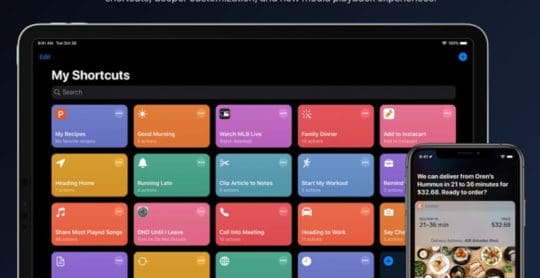
Shortcuts is now a baked-in app in iOS 13. And it comes with a slew of new automation features.
Shortcuts in iOS 13 has a new system called Automations. And it fundamentally changes how you interact with certain shortcuts on a day-to-day basis.
These automations will run a shortcut automatically when certain parameters or triggers are met. Some examples include when you stop your alarm in the morning or when you arrive at work.
While not available for all actions, certain Automations can be set to run without any prompting. That means you won’t need to actually do anything — it’ll run seamlessly in the background and perform the various tasks you assign to it.
Personal Automations
Personal shortcuts can help you manage tasks and workflows on your iOS devices. Image via jackthewoodman.
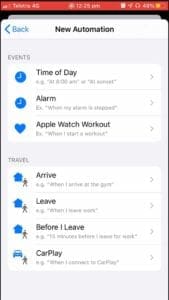
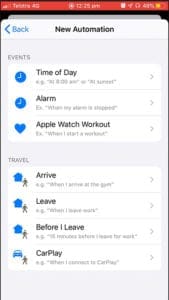
Personal automations are ones that run solely on your devices, but are still incredibly powerful. Some of the parameters, or triggers, include:
Time of day: For example, a shortcut could trigger at 8 a.m. or 3 p.m.
Alarm: Triggers when based on an alarm, such as when it stops.
Apple Watch Workout: Triggers a shortcut when you start working out using the Apple Watch.
Arrive: Triggers a shortcut when you arrive at a location — the gym, work, home, etc.
Leave: Triggers a shortcut when you leave a location.
Before I Leave: Based on your activity, triggers a shortcut before you leave a location. Exmaple: 15 minuets before you leave for work.
CarPlay: Triggers a shortcut when you connect to CarPlay.
Just looking at that list, you can probably imagine how powerful some of the shortcuts can be. You can get a shortcut to tell you the weather as soon as your alarm is stopped, or a shortcut that queues a certain playlist when you get to the gym.
Before I Leave is also incredibly powerful. It uses machine learning to analyze when you tend to drive every day and bases its prediction on that. You can set a shortcut to give you the current traffic conditions 15 minutes before you leave work.
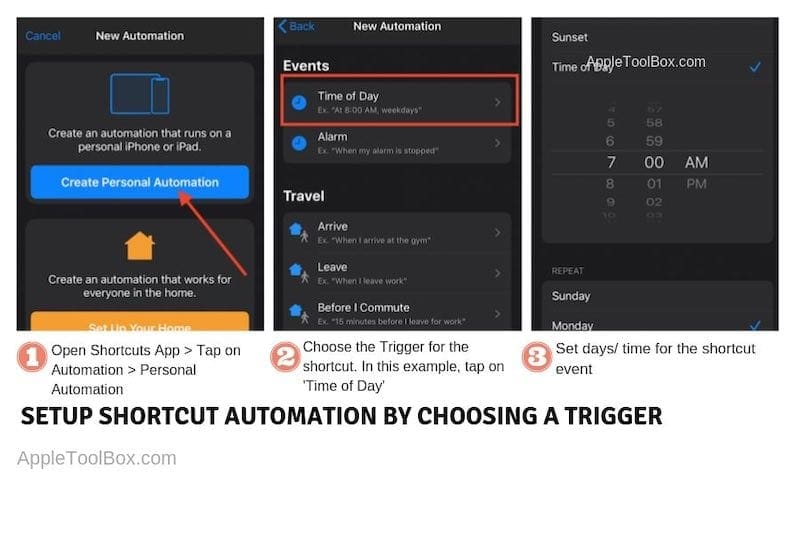
How to set up a shortcut automation in iOS 13.1
A simple way to understand this is via an example. Here is how you can set up a simple shortcut automation that helps you to understand some of the basics around this new feature. In this example, we will create an easy automation that plays a podcast/music at a certain time in the morning. We have customized it to play only on weekdays so that we can still enjoy the extra sleep on the weekends! Yes, you can customize it by day of the week.
The first part of this process involving using the automation and setting up a trigger using ‘Time of the day’.
The first sequence of these easy steps is to define the automation
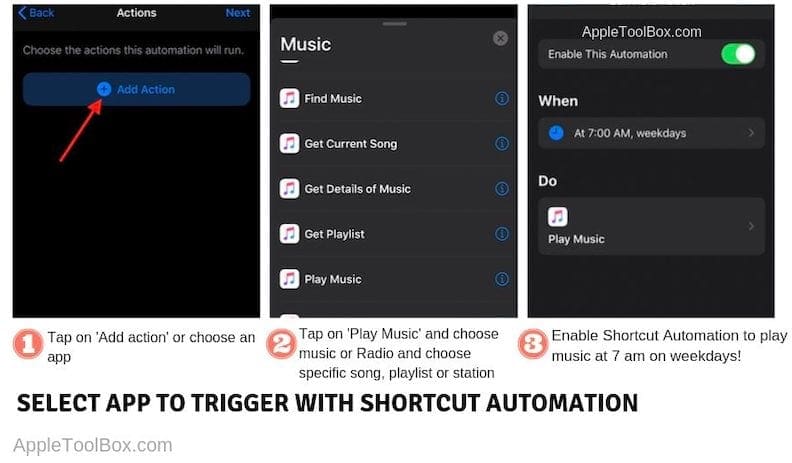
Now that you have followed the steps to define the trigger event in this case time of the day, your next sequence of steps will need to define what it is that you want to accomplish. In this case, we are setting up the automation to play simple music/ podcast from the library on the iPhone.
Once you enable the automation that you created, you are done. It will get activated automatically and perform the action that you want your iPhone or iPad to do. Give it a try!!
Home Automations
Home-based automations can contorl your smart home. Image via jackthewoodman.
You can also trigger certain home automations when using Shortcuts and the process is just as simple and powerful.
Home automation parameters include:
People Arrive: Triggers a shortcut when someone arrives home, using geolocation.
People Leave: Triggers a shortcut when everyone leaves the house.
Time of Day Occurs: Pretty simple, this just runs a shortcut when it hits a specific time.
An Accessory is Controlled: You can set certain actions to activate when something like the lights are turned on.
A Sensor Detects Something: Triggers a shortcut when a home-based sensor device detects something — movement, smoke or dangerous carbon monoxide levels, for example.
As you can see, these are equally as powerful. You can have a shortcut that plays relaxing music and activates a thermostat when you arrive home, or a shortcut that turns on a home alarm when everyone leaves.
You can also have texts sent to your device when a camera detects motion or a smart home smoke detectors sniffs smoke in the air.
NFC-based automations in iOS 13.1
An earlier version of the iOS 13 betas supported NFC-based triggers, but it did require some complicated setup.
Shortcuts in iOS 13 also support NFC tags. This is a lot like the current capabilities of many Android smartphones, and it’s just as useful as location- or time-based automations.
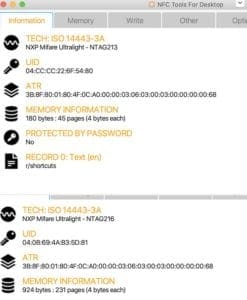
The process involves getting NFC tags, which commonly appear as stickers. At this point, it looks like it’s fairly tricky to set up an NFC trigger and encode a shortcut on it. But Apple may make the process easier in the future.
As far as use cases, they’re pretty limitless.
You could, for example, place an NFC tag on your home speaker system. When you tap your iPhone on this NFC tag, it could automatically trigger your device to connect to Bluetooth, turn down the volume and start playing a certain playlist or podcast.
Place an NFC tag in your car and you could tap it to automatically enable Do Not Disturb While Driving. It could also bring up your favorite navigation app and automatically text someone your current ETA.
Unfortunately, you’ll need an iPhone XS or iPhone XR or newer to actually use NFC tags. While previous iPhones had NFC support, Apple’s newer devices are the only ones that can perform background reading of NFC tags — which is required for automations.
When can I use Shortcuts Automations?
While Apple released iOS 13 earlier this month, Shortcuts Automations are actually coming in iOS 13.1.
Originally, Automations was due for release in the base version of iOS 13, which Apple launched on Sept. 19. But during the beta testing cycle, Apple pulled the feature from iOS 13.
It now appears that Automations will be reintroduced in iOS 13.1, which is currently slated for a general release to the public on Tuesday, Sept. 24.
When it does launch, we highly recommend playing around with Shortcuts and the new Automations features. We’ve been praising the life-enhacing benefits of Shortcuts for quite a while now. And hopefully with Automations and NFC support, more people will start using the Apple Shortcuts app.
Mike is a freelance journalist from San Diego, California.
While he primarily covers Apple and consumer technology, he has past experience writing about public safety, local government, and education for a variety of publications.
He’s worn quite a few hats in the journalism field, including writer, editor, and news designer.
Automations are the future. However, the Apple iOS documentation indicates that some can be executed without an interactive query. This does not seem to work in IOS 13.3 as the toggle for “Ask Before Running,” does not exist.
I have four time-triggered automations set and they won’t run on my iPhone 6s without prompting. Doesn’t seem very automated if the phone has to ask me if I want the action to run every time.
Hey, is there a way to setup an automation based off an existing alarm that will get Siri to speak the current daily weather report (current and rest f the day)?













Automations are the future. However, the Apple iOS documentation indicates that some can be executed without an interactive query. This does not seem to work in IOS 13.3 as the toggle for “Ask Before Running,” does not exist.
Triggers not working at all…
Tried with 3 automations and all not working (got that information from a german forum)
I have four time-triggered automations set and they won’t run on my iPhone 6s without prompting. Doesn’t seem very automated if the phone has to ask me if I want the action to run every time.
I can’t get automation to send a text message “when I leave work”. Does the screen have to be unlocked for the automation to work?
Hey, is there a way to setup an automation based off an existing alarm that will get Siri to speak the current daily weather report (current and rest f the day)?