On average, a MacBook Pro lasts between 6 to 8 years free of hardware and performance issues. If you want to extend that lifespan to, say, 10 years or longer, follow the tips available in this guide.
Your Mac’s battery is one of the first hardware components to wear out with time and use.
To prolong your MacBook Pro’s battery life, use an original Apple power cord and charger, and try not to charge the battery to 100 percent. Charge it only to 90 percent.
Each charge cycle reduces battery health. Charging your battery less frequently helps preserve its health.
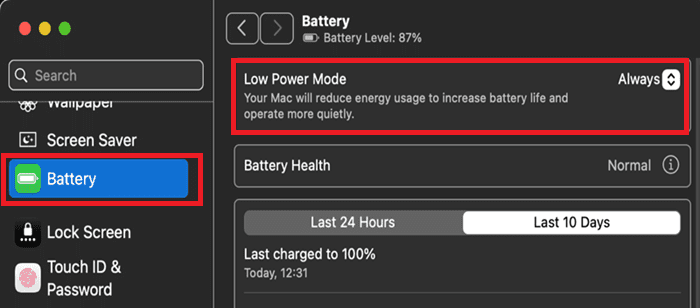
Enable Low Power Mode to reduce app background activity and energy usage.
Check which apps are draining your battery. Force-close them when you’re not using them, or replace them with alternative apps that do the same thing with a lower battery impact.
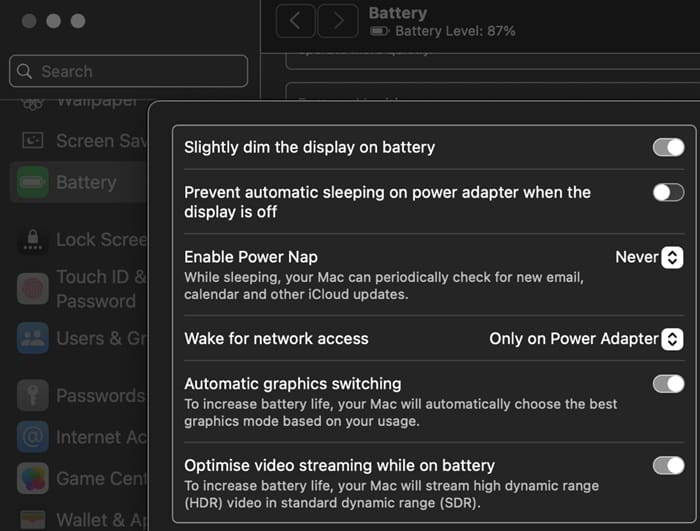
Go to Settings, select Battery, scroll down to Options and optimize your battery settings so as to increase battery life.
Other things you can do to increase battery life:
Disable keyboard backlights
Dim your display
Disable Bluetooth and WiFi if you’re not using them
Disable background apps
Use native Apple apps instead of third-party apps
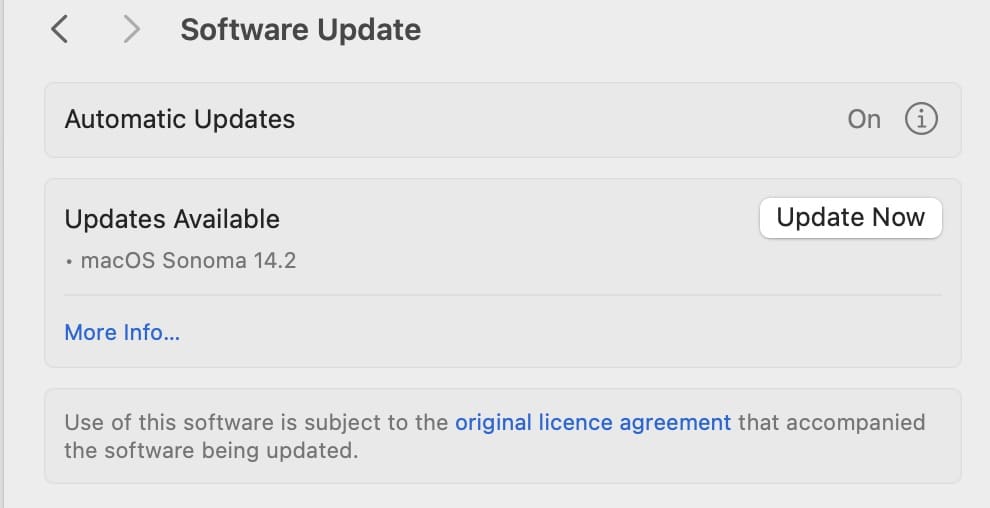
Run the Latest macOS Version
I’m not saying you should download and install the latest macOS updates as soon as Apple releases them. Some might pack nasty bugs, so you might want to wait a week or so before updating your device.
Avoid running macOS versions that are more than two generations old. The latest OS versions often bring performance improvements that can help prolong your device’s lifespan.
Avoid Overheating
One of the worst things you can do for your Mac is to use it for extended periods of time while the computer is hot to the touch.
If the fans become very noisy, that indicates they’re working extra hard to keep the device cool.
Use a cooling pad when running intensive tasks, don’t keep your Mac in direct sunlight, and avoid using it in environments where the air temperature is high.
Ideally, use it an environment where the temperature is controlled.
Avoid Overloading Your Mac All the Time
Your MacBook Pro can handle many tasks simultaneously, but try not to push it too hard. Don’t overload it with dozens of resource-hogging apps at the same time.
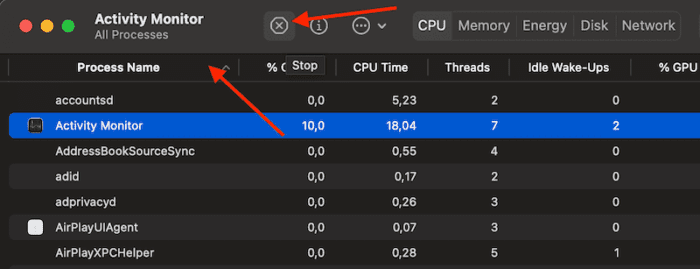
Use the Activity Monitor and force close background apps that you’re not actively using.
Think of your MacBook Pro as an endurance runner. It performs best in zone 2.
Sure, it can handle Zone 4 and 5 occasionally, but if you want to prolong its lifespan, don’t push it to its limits for 10 hours every day.
Equally important, don’t keep the storage space full to the brim. When there’s not much free space available, macOS will struggle to find space for temporary files. It will work extra hard to read and write data, increasing hardware wear.
Regularly declutter your Mac to clean up junk files. Go to Settings, select General, and click Storage.
Then, use the built-in options to optimize storage, and empty Bin automatically.
Shut Down Your Mac From Time to Time
Sure, you can close the lid of your Mac and put it to sleep if you want to quickly pick up where you left off.
But you should still shut your computer down every night to prevent software issues that could, over time, lead to performance and hardware issues.
Shutting down clears temporary OS and app files and makes your device run more efficiently. After all, that’s probably the first troubleshooting step you take when something goes wrong.
Plus, it helps you save some money on your electricity bill too.
I don’t want to reignite any debate with this tip. I am well aware that many users haven’t shut down their MacBook Pros in weeks or months.
I’m just saying that’s what I do, and it works for me. My 5-year-old MacBook Pro hasn’t glitched once and I’m pretty sure that’s also because I regularly shut it down.
Additional Tips
Avoid physical shocks. Sudden drops or impacts can damage your hardware, loosen connections, or weaken the chassis and hinges. Use a protective case to carry your Mac.
Keep your laptop clean to prevent dust buildup. Regularly clean your keyboard.
I personally use an external keyboard to prevent fingerprint oil transfer to my MacBook Pro’s screen when I close the lid. This way, I avoid delamination and keep the anti-glare coating of my Retina display intact.
Regularly backup your Mac to prevent data lost in case anything goes wrong.
This brings us to the end of this guide. Hit the comments below and let us know which of these tips you’re going to use to prolong your MacBook Pro’s lifespan.
Madalina has been a Windows fan ever since she got her hands on her first Windows XP computer. She is interested in all things technology, especially emerging technologies — AI and DNA computing in particular.
Avoid closing the lid on laptops. The thin cable that connects the screen to the motherboard is just that, “thin” and can wear out if you are constantly opening and closing the lid.













Avoid closing the lid on laptops. The thin cable that connects the screen to the motherboard is just that, “thin” and can wear out if you are constantly opening and closing the lid.