Starting with iOS 14, Apple has introduced a new way to organize your apps. The App Library automatically organizes all of your apps into specific folders. Bu the new feature has divided iOS users into two groups: those who like the new option and those who wish Apple hadn’t implemented it. The bad news is that you can’t disable or hide the App Library, it’s here to stay.
Many iPhone users complained about the App Library suddenly disappearing from their devices. If you hate this feature, you won’t even notice this glitch. But if you like the App Library, follow the steps below to restore it.
Why Is My App Library Not Showing up on My iPhone?
Restart Your iPhone and Keep Swiping Right
The App Library is an entire screen of its own. Restart your device, and keep on swiping right until you can’t go any farther. Most likely, the App Library screen is hidden somewhere. Swiping right multiple times should help you find it.
If the issue persists, try a force-restart. Press and quickly release the Volume Up button, and then the Volume Down button. Then immediately press and hold the Side button until the Apple logo appears on the screen. Release the Side button and let your iPhone restart.
Reset the Home Screen Layout
Some users also complained about App Library folders and apps disappearing all of a sudden. Try resetting the Home Screen layout, and check if your folder categories re-appear in the App Library.
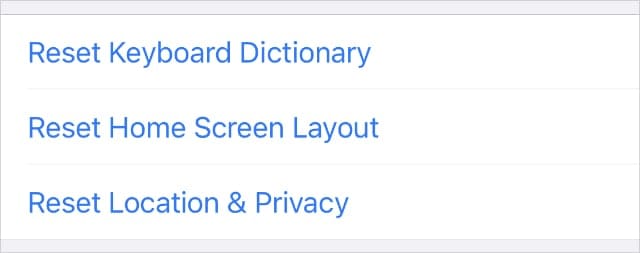
Go to Settings, select General, and then select Transfer or Reset iPhone. Tap Reset, and select Reset Home Screen Layout.
Choose to reset your Home Screen layout from the Settings.
Perform a New Update
First, back up your device using iCloud or your computer. In this manner, you’ll be able to restore your iPhone in case anything goes wrong.
Then, disable cellular data, connect to Wi-Fi, and update your iPhone again. Go to Settings, select General, and tap Software Update. Installing the latest iOS version should fix the glitch where the App Library disappears unexpectedly.
Conclusion
It seems that the App Library is still a work-in-progress. Apps may sometimes disappear from folders or the App Library itself may disappear unexpectedly. To fix these glitches, restart your iPhone, install the latest iOS updates, and reset your Home Screen Layout. If the issue persists, contact Apple Support.
Do you like the new App Library feature? Have you encountered other issues apart from the ones mentioned in this post? Share your thoughts in the comments below.
Madalina has been a Windows fan ever since she got her hands on her first Windows XP computer. She is interested in all things technology, especially emerging technologies — AI and DNA computing in particular.
Hi there, Thanks for sharing such an awesome blog with us. I was doing research for some points your blogs really helped me. I visited your website its really great. Good Luck
You really should mention that by “Resetting Home Screen Layout”…all your apps are removed from all your folder then it seems placed randomly page after page in no apparent order. I have 9 pages of apps, none are in alphabetical order and it’s a flipin’ night mare trying to move them all back into folders and then renaming the folders. Why on earth aren’t the apps at least put in Alphabetical Order????











Hi there, Thanks for sharing such an awesome blog with us. I was doing research for some points your blogs really helped me. I visited your website its really great. Good Luck
You really should mention that by “Resetting Home Screen Layout”…all your apps are removed from all your folder then it seems placed randomly page after page in no apparent order. I have 9 pages of apps, none are in alphabetical order and it’s a flipin’ night mare trying to move them all back into folders and then renaming the folders. Why on earth aren’t the apps at least put in Alphabetical Order????