• Skip to primary navigation
  • Skip to main content
  • Skip to primary sidebar
  • Skip to footer

AppleToolBox

Tools and Fixes for Mac, iPad, iPhone & iWatch

Search posts

  • About
  • Contact

CONNECT WITH US

CATEGORIES

  • iPhone
  • iPad
  • iPod
  • Apple Watch
  • Mac/MacBook
  • AirPods
  • Apple TV
  • News
  • Apple Services
  • HomePod
  • Reviews

SITE

  • Home
  • About Us
  • Contact
  • Advertise

Search posts

You are here: Home / Mac / Fix: Apple Music Broken After Sonoma Update

Fix: Apple Music Broken After Sonoma Update

By Madalina Dinita 0 comments Last updated February 28, 2024

MacBook users have been experiencing a plethora of Apple Music issues after installing the Sonoma Update. Music will randomly stop playing, Bluetooth headsets keep disconnecting, users can’t access their playlists or add new songs, they can’t open their Music folders, or worse, they’ve lost all the songs from their library.

Unfortunately, these glitches persist even in Safe Mode. This indicates the root cause of the problem is a bug with macOS Sonoma.

Here are some workarounds to troubleshoot these issues. Keep your fingers crossed and let’s hope one of these tips works for you.

Contents

  • Sign Out of Your Account
  • Create a New Playlist
  • Create a New User Account
  • Check Your Jumbo Frames Settings

Sign Out of Your Account

Go to your Music App menu, click on Account, and then select Sign Out. Disconnect from your Internet connection, wait 30 seconds, and go back online. This should reset your connection to Apple’s servers.

Sign back into your Music App account and check if everything works as intended.

If the issue persists, go to All Playlists, right-click on the playlist you want to listen to and open it in a new window.

Create a New Playlist

Create a new playlist, then drag your old playlist into it. Double-check to make sure all of your tracks have been successfully copied to your new playlist.

Delete the old playlist. If you want to, you can rename the new playlist to the old playlist’s name. Check if your Apple Music features are available in the new playlist.

Copying old playlists into new ones is a time-consuming task, but lots of users confirmed it works, so it’s worth giving this workaround a try.

Create a New User Account

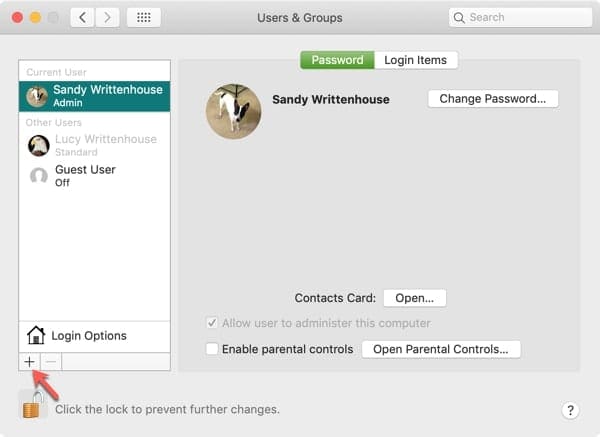
If signing out and creating a new playlist didn’t work, try creating a new macOS user account. To do that, go to System Settings, scroll down to Users & Groups in the sidebar, and click Add User.

Add a Mac User
Click the plus sign to add a user

Check Your Jumbo Frames Settings

According to some users, setting up Jumbo Frames manually can randomly disconnect Apple Music.

As a quick reminder, Jumbo Frames allows you to transfer larger packets of data in one go. The problem is that not all network hardware supports this configuration.

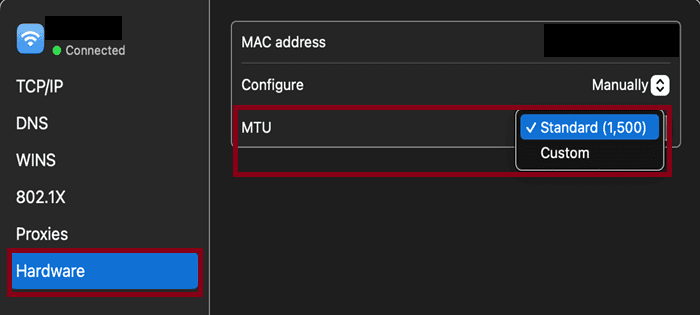
Go to System Settings, click Network, select Ethernet, go to More Options, and use a different MTU configuration.

Use the standard 1500 bytes option and check if Apple Music works as intended.macOS-MTU-network-settings

Meanwhile, if none of these workarounds do the trick for you, don’t forget to regularly check for updates and install the latest macOS versions on your device.

Apple regularly rolls out new updates to add new features and patch known glitches.

Related Posts:

  • 2023 Mac Studio lifestyle - 1
    macOS Could Not Be Installed, How-To Fix
  • Photo of someone using Apple Music on their smartphone
    How to Fix Apple Music Not Working on iPhone / iPad
  • transfer spotify playlists to apple music
    Useful Apps to Transfer Spotify Playlists to Apple Music
  • Delete-Group-Reminders-Folder-macOS
    MacBook Will Not Start Up After macOS Update, How-To Fix
  • 2022 Mac Mini with Studio Display and Accessories
    Mac Tips For New Users In 2023
  • pexels-designecologist-1779487
    The Best iPhone And Mac Shortcuts For Beginners
  • How to Find Lost AirPods Pro 2 with Precision Finding - Locate earbud
    I Lost My AirPods! How To Find Your Lost AirPods or…
  • Mac Studio - 22
    Mac Randomly Wakes from Sleep, How-to Fix
  • Bluetooth Control Center close up on iPhone screen
    10 Ways to Fix Bluetooth Not Working on Your iPhone or iPad
Madalina Dinita

Madalina has been a Windows fan ever since she got her hands on her first Windows XP computer. She is interested in all things technology, especially emerging technologies — AI and DNA computing in particular.
Reader Interactions

Write a Comment Cancel reply

Primary Sidebar

Recent Posts

  • How to Export iTunes Library to New Computer
  • What the Gemini Desktop App Will Bring to Mac
  • What to Do When Windows 11 Won’t Detect Your iPad
  • Outlook Outage 2026: iPhone Fixes for Sign-In Chaos
  • Guide to Changing iMessage Backgrounds on iPhone and Mac
  • Has Apple Killed Vision Pro? (Insane Sales Flop Explained)

Connect with us

Footer

ABOUT

  • About Us
  • Contact us
  • Advertise
  • Privacy
  • Terms of Use

GUIDES

  • iOS & iPadOS
  • Apple ID
  • iCloud
  • App Store
  • iTunes
  • FaceTime
  • iMessage
  • Siri
  • Books and iBooks
  • Game Center
  • AirPlay

CONNECT

  • Facebook
  • Twitter
  • FeedBurner
  • YouTube

© Copyright 2010-2024 Guiding Tech Media · All Rights Reserved

This site and its content are in no way affiliated or endorsed by Apple, Inc. · Reproduction without explicit permission is prohibited

Last Updated on February 28, 2024 by Mitch Bartlett