Your iPhone speaker may sometimes sound distorted. You may hear a crackling noise during conversations or when playing music. But before you rush to get a Genius Bar appointment, follow the troubleshooting steps below and check if you manage to solve the problem by yourself.
There are multiple reasons that could explain why your iPhone speaker sounds distorted. For example, maybe you’re not using the right sound settings. Specks of dust or lint often clog the speaker. By the way, if you accidentally drop your iPhone on the floor, even with its case on, the shock can potentially displace certain hardware components.
If you recently dropped your device in water, check for signs of water damage. While your iPhone is water-resistant, if the rear glass cracked, the device will lose its water resistance.
How Do I Fix a Distorted Speaker on My iPhone?
Check Your Sound Settings
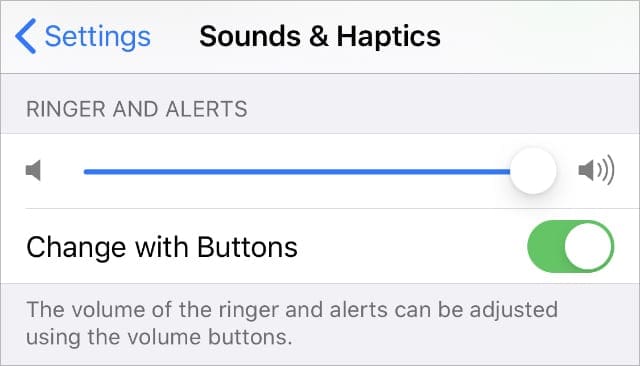
Navigate to Settings, and select Sounds (or Sounds & Haptics). Then drag the Ringer and Alerts slider back and forth to ensure your speaker works properly. By the way, if the speaker button is dimmed, this indicates your speaker is faulty and may need servicing.
Turn the volume up to max to make sure you hear it.
Reset All Settings
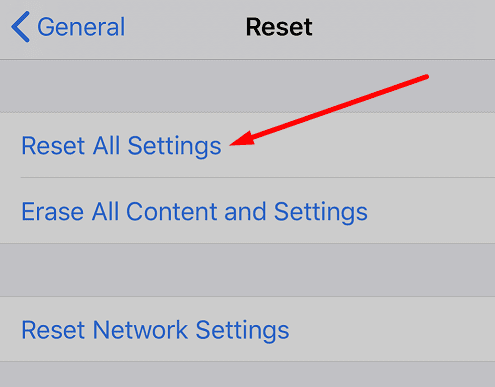
Try resetting all of your iPhone settings and check if this method helps you clear the glitch. Go to Settings, select General and then tap Reset. Tap Reset All Settings, enter your passcode, and confirm your choice. Restart your iPhone and check the results.
Update Your iPhone
Distorted or muffled sound may also be the result of a software issue. After all, iOS tells the hardware what sounds to play. But if there’s a bug in the OS itself, only Apple can solve the problem.
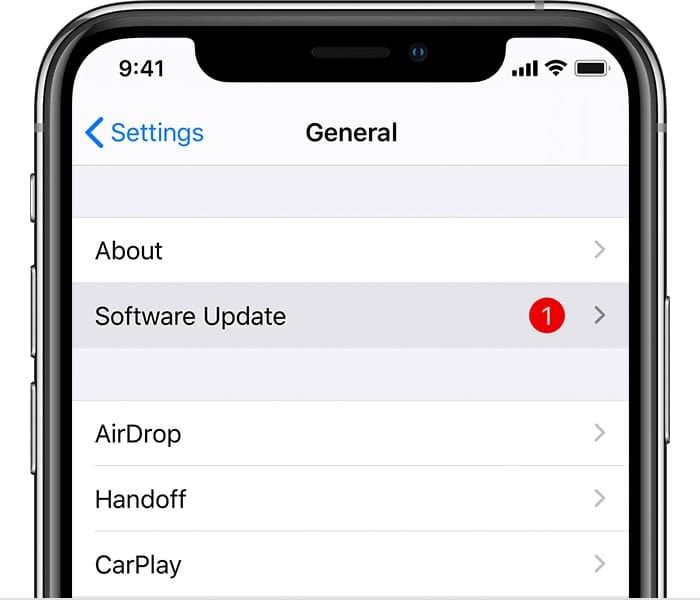
Go to Settings, select General and tap Software Update. Update your device to the latest iOS version, restart it, and check if you notice any improvements.
Make sure your device is running the latest software.
Clean Your Speakers
Remove the case, and visually inspect your iPhone’s speaker. Make sure the area is not dirty or blocked. Use a soft cotton cloth to clean the speaker and the area around it. You can also use a clean, soft-bristled brush to clean the speaker.
Alternatively, you can also use electrical tape to get the job done. Cover the top speaker with electrical tape, and gently press the tape on the speaker. Dirt, dust, and lint should quickly stick to the tape. Then gently remove the tape and check if the speaker sounds normal.
By the way, don’t use really strong adhesive tape, you don’t want to damage your device in any way. If your electrical tape is really adhesive, use Band-Aid instead. Some users also suggested using a toothpick to clean the speaker grill. Be very careful though, you don’t want to accidentally poke a hole in the speaker.
Have Your iPhone Repaired
Well, if your speaker is permanently damaged, the only option you have left is to have your iPhone repaired. If we’re talking about an old iPhone model, you may want to consider getting a new device instead of repairing your broken speaker. As you all know, repairing an iPhone can be quite expensive. Sometimes, getting a new iPhone is a far better option than having your good old device repaired.
Conclusion
If your iPhone speaker sounds distorted, check your sound settings, and install the latest iOS updates. Then clean the speaker with a soft cloth, electrical tape, or soft-bristled brush. If the issue persists, book a Genius Bar appointment to check if this is indeed a hardware issue.
Did you manage to identify the culprit and fix the problem? Let us know in the comments below.
Madalina has been a Windows fan ever since she got her hands on her first Windows XP computer. She is interested in all things technology, especially emerging technologies — AI and DNA computing in particular.
I cleaned the speakers with a soft cloth, soft brush, took it out of the case, upgraded the IOS and nothing works; speakers so distorted at all volumes .IPhone X








No, I did everything you recommended, didnt help 🙁
No these options did not fix the problem. People tell me the connection keeps breaking up.
Iphone ear speaker still distorted after doing the above recommended steps
I cleaned the speakers with a soft cloth, soft brush, took it out of the case, upgraded the IOS and nothing works; speakers so distorted at all volumes .IPhone X