After updating to the latest OS version, many iPad users complained Wi-Fi is working but there’s no Internet connection. If you’re experiencing similar problems, restart your iPad and unplug your router to establish a new connection. If the issue persists, pursue the troubleshooting steps below.
Your iPad may have trouble obtaining a valid IP address. Maybe something’s interfering with your network devices.
Disable VPN and Security Apps
If you’re using a VPN or security app, they might be interfering with DHCP. Disable these tools and let DHCP operate normally. As a quick reminder, DHCP (Dynamic Host Configuration Protocol) is a network protocol that network devices use to automatically obtain an IP address.
If your device doesn’t have a valid IP address, you won’t be able to connect to the Internet. So, disable your VPN and security apps, restart your iPad, and check your connection.
Force Restart Your iPad
Perform a force restart and check if this solution solves the problem. If your iPad has a Home button, press and hold the Home and top buttons at the same time. Release them when the Apple logo appears on the screen.
If your device doesn’t have a Home button, press and quickly release the Volume Up button, and then press and release the Volume Down button. After you do that, immediately press and hold the top button. Release it when the Apple logo appears on the screen. Check if you can go online.
Disable Bluetooth
Try turning off your Bluetooth connection and check if the problem persists. Many iPad users confirmed that disabling Bluetooth worked like a charm. Maybe your Bluetooth is interfering with your Wi-Fi connection in strange ways.
Forget the Problematic Network
Your network parameters may have gotten corrupted after installing the latest OS updates on your iPad.
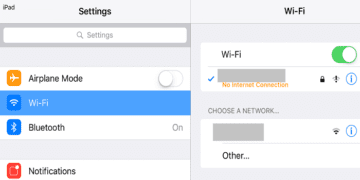
Navigate to Settings, and select Wi-Fi.
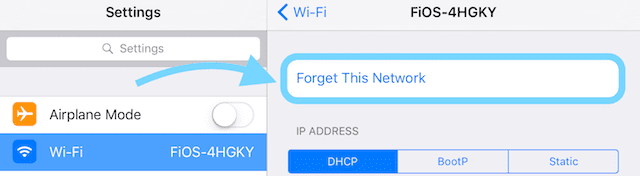
Tap the Info icon next to your network.
Select Forget This Network and confirm your choice.
Turn off your iPad and unplug your router.
Wait for 30 seconds and boot up your devices.
Go to Wi-Fi, and join the network again.
Reset Network Settings
If the issue persists, try resetting your network settings.
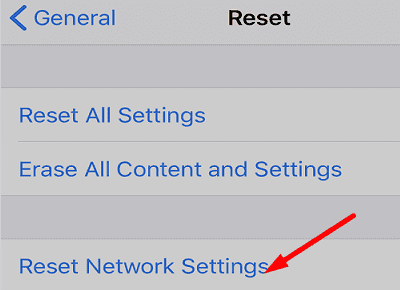
Navigate to Settings and tap General.
Then go to Reset and tap Reset Network Settings.
Restart your iPad and rejoin your Wi-Fi network.
If your iPad still won’t connect to the Internet, contact Apple Support or book a Genius Bar appointment.
Conclusion
If your iPad won’t connect to the Internet, disable your VPN and security apps. Then force-restart your device, disable Bluetooth, and forget the problematic network. If the issue persists, reset your network settings. Did you manage to fix the problem? Let us know in the comments below.
Madalina has been a Windows fan ever since she got her hands on her first Windows XP computer. She is interested in all things technology, especially emerging technologies — AI and DNA computing in particular.
My refurbished ipad has no apps on the screen so I can’t use settings to connect to the internet! When I try manually & enter the pass word, when I click to join, it all just switches off & returns to where I started. I have tryed over & over again but the same thing happens. Any ideas?
I’ve had some success with turning off the location services toggle. (Privacy and security— location services toggle) I had tried all the suggestions that I could find and zilch. This was a last stab before I brought the IOS back to a previous version something I really didn’t want to attempt. This has improved the connectivity of my iPad pretty well. It’s not perfect and I miss location services and now have to turn it back on ever so often for weather and map apps. Still waiting for the fix but it has saved me from throwing the iPad across the room.











Still nothing on my games, occasional links to shy, iplayer and amazon prime
My refurbished ipad has no apps on the screen so I can’t use settings to connect to the internet! When I try manually & enter the pass word, when I click to join, it all just switches off & returns to where I started. I have tryed over & over again but the same thing happens. Any ideas?
I’ve had some success with turning off the location services toggle. (Privacy and security— location services toggle) I had tried all the suggestions that I could find and zilch. This was a last stab before I brought the IOS back to a previous version something I really didn’t want to attempt. This has improved the connectivity of my iPad pretty well. It’s not perfect and I miss location services and now have to turn it back on ever so often for weather and map apps. Still waiting for the fix but it has saved me from throwing the iPad across the room.