Time Machine can be a lifesaver when something unexpected happens and you lose your data. You can use the tool to back up your files, apps, and settings and then restore that data. But sometimes, Time Machine may fail to create a new backup. Instead, it throws the following error message: “Time Machine couldn’t complete the backup to [insert destination drive]. Two of the disks to back up have the same name. Rename one of the disks named [insert disk name].” We did the heavy lifting and compiled this guide to help you fix the problem.
Two of the Disks to Back up Have the Same Name on macOS
Rename the Main Disk
If you’re lucky, this quick solution is all you need to fix the problem. Simply rename the main disk (with most space used) and check if the issue is gone. Use whatever name you want, or simply add “2” at the end of the disk, it really doesn’t matter.
By the way, if the second disk automatically gets renamed as well, don’t mind it. Try to back up your data anyway and check the results.
Unmount and Delete the Problematic Partition
If renaming the second disk didn’t solve the problem, unmount the problematic partition.
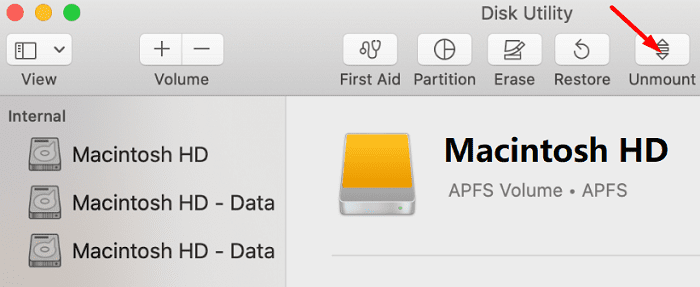
Launch Disk Utility and locate the redundant partition. Usually, it’s the second instance of HD Data.
Select it and hit the Unmount option.
Note: Don’t delete the disk that has all the user data and applications. That’s the disk with the most space used. Always double-check this crucial detail.
Then delete that partition and restart your computer.
Check if Time Machine works properly.
⇒ Quick Note: Keep in mind that the Unmount option may sometimes be greyed out and not clickable. This indicates the partition you selected is the active volume. If the partition is clickable, and the Unmount option is available, then this is the volume you can remove.
Conclusion
If Time Machine can’t complete the backup because two of the disks have the same name, rename the second disk. If the issue persists, unmount and delete the redundant partition. Then restart your MacBook and check the results. We hope one of these two solutions worked for you. Hit the comments below and let us know which one did the trick for you.
Madalina has been a Windows fan ever since she got her hands on her first Windows XP computer. She is interested in all things technology, especially emerging technologies — AI and DNA computing in particular.
1. Go to disk utilities.
2. You will see “Macintosh HD” Click on the drop down arrow
3. You will notice there are two instances of the same name “Macintosh HD – Data” under the drop down menu.
4. Click on one of the instances of “Macintosh HD – Data” if its the main drive DO NOT UNMOUNT.
5. Unmount the other drive which has basically no data.
6. Go to Time Machine. Click Back up now and now it should work.
I added an external SSD to act as the start up disk because my original macintosh hd was so slow. Everything worked well until the end. I am instructed to rename the internal hard disk but the link to do that is greyed out and won’t work. I renamed the new external ssd “Macintosh HD per the instructions but now i get the Time Machine message that it cannot back up because there are two disks with the same name. I tried to unmount the internal hd but that has not seemed to work. It should work if i could change the name of the internal hard disk, but because the link is greyed, i have not been able to do that.
Yes, that makes sense – but in my case there are absolutely no duplicated disks. I have unmounted everything except my main HD and the Time Machine disk and I still get the error
Yup, worked for me. Searched everywhere before this post, to no avail. I needed to unmount the second redundant instance of HD Data and everything worked as expected using Time Machine to backup my second mac to the same external hard drive
that is exactly my issue; i recently had a major crash on my mac pro and had to totally rebuild it with time machine (thank you Jesus for time machine; it really works), but now that same external hard drive gets the message discussed….help!











I was having the same problem. Here’s the fix:
1. Go to disk utilities.
2. You will see “Macintosh HD” Click on the drop down arrow
3. You will notice there are two instances of the same name “Macintosh HD – Data” under the drop down menu.
4. Click on one of the instances of “Macintosh HD – Data” if its the main drive DO NOT UNMOUNT.
5. Unmount the other drive which has basically no data.
6. Go to Time Machine. Click Back up now and now it should work.
I added an external SSD to act as the start up disk because my original macintosh hd was so slow. Everything worked well until the end. I am instructed to rename the internal hard disk but the link to do that is greyed out and won’t work. I renamed the new external ssd “Macintosh HD per the instructions but now i get the Time Machine message that it cannot back up because there are two disks with the same name. I tried to unmount the internal hd but that has not seemed to work. It should work if i could change the name of the internal hard disk, but because the link is greyed, i have not been able to do that.
Yes, that makes sense – but in my case there are absolutely no duplicated disks. I have unmounted everything except my main HD and the Time Machine disk and I still get the error
Yup, worked for me. Searched everywhere before this post, to no avail. I needed to unmount the second redundant instance of HD Data and everything worked as expected using Time Machine to backup my second mac to the same external hard drive
I renamed the second Mac HD, that did it, im two thirds backed up.
Thank you.
Brad
nope. both didn’t work. I only have 1 time machine disk. it just suddenly keeps showing 2 disks. Tried everything already.
that is exactly my issue; i recently had a major crash on my mac pro and had to totally rebuild it with time machine (thank you Jesus for time machine; it really works), but now that same external hard drive gets the message discussed….help!
Great… it works. Thanks guys.