Keyboards are keyboards. All personal computers have them, whether they’re external or built-in. And like most electronics, they don’t last forever.
That can be especially annoying if your MacBook or MacBook Pro built-in keyboard stats having issues. If your keys stop working, you’re sort of out of luck unless you can plug in an external keyboard. (Which, of course, sort of defeats the purpose of a laptop.)
The Virtual Keyboard is tucked away in System Preferences. But once you enable it, you can easily hide or show it whenever you please.
Here’s how to turn it on.
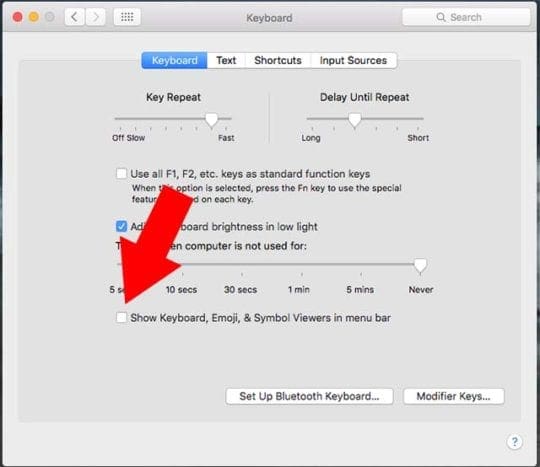
Open System Preferences.
Navigate to Keyboard.
Click on the Keyboard tab.
Find the box that says Show Keyboard, Emoji & Symbol Viewers in menu bar. Click on it to check it.
At this point, you’ll now see a small Keyboard icon in the right-hand side of the top menu bar. You can click on this to actually bring up the Virtual Keyboard.
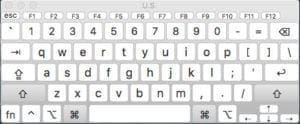
Once you do, you’ll see a digital keyboard appear on your desktop. You can resize it and move it around however you want.
When you’re done using the Virtual Keyboard, you can hide it away again by clicking on the Keyboard icon in the top menu bar and selecting Hide Keyboard Viewer. Alternatively, you can simply click the X icon on the Virtual Keyboard itself.
A Few Things to Note
The Virtual Keyboard can be used to input text basically anywhere that you’d be able to type with an actual keyboard. It’ll helpfully “float” above any windows or screens you have open.
There is a limitation with the feature, however. Namely, you won’t be able to click keys that would be accessible when holding down the Shift or Option keys.
With that being said, if your physical Shift and Option keys are still functional, you’ll be able to input those keys and commands normally.
Why Would You Use This?
The Virtual Keyboard is incredibly, and it’s far from just a neat party trick. Here are a couple of ways that you could use it.
A Broken Keyboard
First and foremost, the Virtual Keyboard is extremely useful for when your actual keyboard is broken or you’re otherwise having trouble typing certain characters.
Some MacBook models are notorious for getting “sticky” or nonfunctional keys as they age. The tricky part comes when you need to set up an appointment to bring a MacBook with a broken keyboard in for repairs.
While the Virtual Keyboard is hardly an ideal solution for long-term typing use, it’s invaluable for short-term typing to get your keyboard repaired. You can input passwords, search for the closest Apple Store, and type relevant information into web browsers.
Special Characters
Most of this article has been focused on using the Virtual Keyboard to type when your physical keyboard is broken. But the Virtual Keyboard can actually come in handy in other instances, too.
For example, the Virtual Keyboard is a handy way to type special characters or characters in other languages. That’s useful because physical keyboards only come in one language layout — and you can’t exactly switching it around on a MacBook.
To add keyboards in different languages, simply go to System Preferences > Keyboard. Tap on the Input Sources tab and click the + icon.
Make sure that the Show Input Menu in Menu Bar box is checked. Once it is, you’ll be able to easily switch to keyboards of different languages.
We hope that you found this short article helpful! Please let us know in the comments below if you have any questions.
Mike is a freelance journalist from San Diego, California.
While he primarily covers Apple and consumer technology, he has past experience writing about public safety, local government, and education for a variety of publications.
He’s worn quite a few hats in the journalism field, including writer, editor, and news designer.













Write a Comment