• Skip to primary navigation
  • Skip to main content
  • Skip to primary sidebar
  • Skip to footer

AppleToolBox

Tools and Fixes for Mac, iPad, iPhone & iWatch

Search posts

  • About
  • Contact

CONNECT WITH US

CATEGORIES

  • iPhone
  • iPad
  • iPod
  • Apple Watch
  • Mac/MacBook
  • AirPods
  • Apple TV
  • News
  • Apple Services
  • HomePod
  • Reviews

SITE

  • Home
  • About Us
  • Contact
  • Advertise

Search posts

You are here: Home / Mac / How to Change the Dock Location in macOS Ventura

How to Change the Dock Location in macOS Ventura

By Danny Maiorca 0 comments Last updated January 13, 2023

Regardless of whether you use a MacBook or another kind of Apple computer, you’ll typically see the Dock located at the bottom of your screen. Here, you can access apps you’re currently using – along with others that you’ve pinned or might have recently used.

Related Reading:

  • How to Only Show Open Apps in the Dock on Your Mac
  • macOS Ventura: How to Show and Hide Recent Apps in the Dock
  • How to Customize the Dock in macOS
  • How to Install macOS Ventura 13.1
  • What’s New in macOS Ventura?

If you want to change the location of your Dock in macOS Ventura, the process is straightforward. This article will show you how to do precisely that.

How to Change the Dock Location on Your Mac

Changing the location of your Dock is easy if you use macOS Ventura. First, you’ll need to open the System Settings app on your computer.

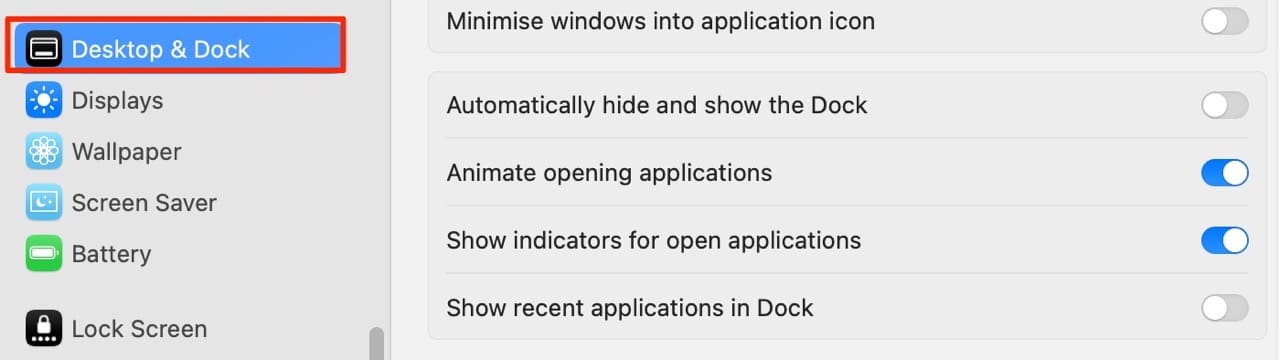
Once you’ve opened the System Settings app, look for Desktop & Dock and select it. You’ll find this in the left-hand toolbar.

Screenshot showing the position of Desktop and Dock in macOS Ventura System Settings

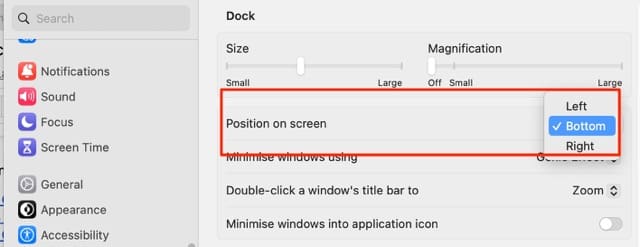
After selecting the previously mentioned option, click on the dropdown menu next to Position on screen.

Screenshot showing the Position on screen option in macOS Ventura

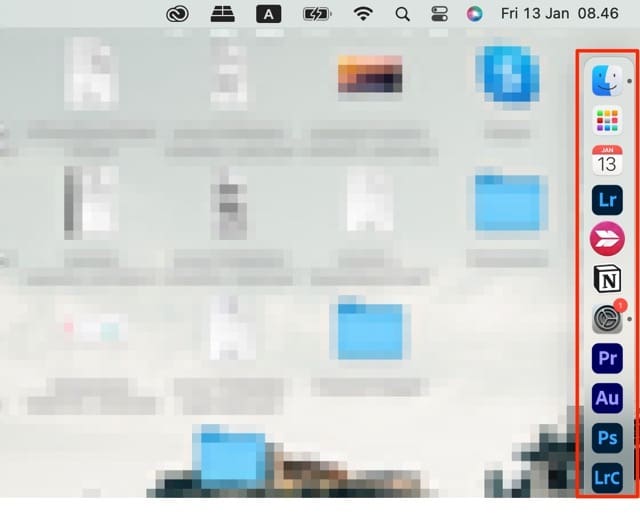
Once you’ve chosen your new location, your Mac’s Dock will move there – as you can see from the screenshot below.

Screenshot showing a repositioned dock in macOS Ventura

Changing the Dock Location on Your Mac is Easy

If you want to change the position of the Dock in macOS Ventura, doing so isn’t too difficult. You might want to move it for several reasons; maybe you want to try something different, but you might also find putting the Dock on the sides easier if you use apps that have similar layouts. One example would be Photoshop.

Once you’ve changed your Dock’s location, you can always move it back to the previous spot if you don’t like how it looks – or if you find it too difficult to navigate.

Related Posts:

  • 2022 Mac Mini with Studio Display and Accessories
    Mac Tips For New Users In 2023
  • pexels-jess-bailey-designs-810079
    How To Run Linux On Mac: A Step-by-Step Guide
  • 2023 Mac Studio lifestyle - 1
    macOS Could Not Be Installed, How-To Fix
  • photo of an iphone with ios 16 downloaded on it
    iOS 16 Tips and Tricks: The Definitive List
  • pexels-designecologist-1779487
    The Best iPhone And Mac Shortcuts For Beginners
  • sidecar on iPadOS and macOS
    Sidecar not working in iPadOS and macOS? How to fix…
  • pexels-tima-miroshnichenko-6860464
    How To Start Using Regex With The Shortcuts App
  • Apple Watch Ultra Tips and Tricks
    Apple Watch Tips and Tricks for 2023
  • pexels-tranmautritam-696899
    iPhone Tips for New Users In 2023
Danny Maiorca

Danny has been a professional writer since graduating from university in 2016, but he’s been writing online for over a decade. He has been intrigued by Apple products ever since getting an iPod Shuffle in 2008 and particularly enjoys writing about iPhones and iPads. Danny prides himself on making complex topics easy to understand. In his spare time, he’s a keen photographer.

Reader Interactions

Write a Comment Cancel reply

Primary Sidebar

Recent Posts

  • How to Manage Your iPhone Call Log
  • Are Apple’s Safety Precautions Enough for AirTags?
  • How to Hide Username and Photo on the Mac Lock Screen
  • Microsoft Resume vs. Apple Handoff – Which Wins for Cross-Device Work?
  • How to Export iTunes Library to New Computer
  • What the Gemini Desktop App Will Bring to Mac

Connect with us

Footer

ABOUT

  • About Us
  • Contact us
  • Advertise
  • Privacy
  • Terms of Use

GUIDES

  • iOS & iPadOS
  • Apple ID
  • iCloud
  • App Store
  • iTunes
  • FaceTime
  • iMessage
  • Siri
  • Books and iBooks
  • Game Center
  • AirPlay

CONNECT

  • Facebook
  • Twitter
  • FeedBurner
  • YouTube

© Copyright 2010-2024 Guiding Tech Media · All Rights Reserved

This site and its content are in no way affiliated or endorsed by Apple, Inc. · Reproduction without explicit permission is prohibited