• Skip to primary navigation
  • Skip to main content
  • Skip to primary sidebar
  • Skip to footer

AppleToolBox

Tools and Fixes for Mac, iPad, iPhone & iWatch

Search posts

  • About
  • Contact

CONNECT WITH US

CATEGORIES

  • iPhone
  • iPad
  • iPod
  • Apple Watch
  • Mac/MacBook
  • AirPods
  • Apple TV
  • News
  • Apple Services
  • HomePod
  • Reviews

SITE

  • Home
  • About Us
  • Contact
  • Advertise

Search posts

You are here: Home / Mac / macOS Ventura: How to Show and Hide Recent Apps in the Dock

macOS Ventura: How to Show and Hide Recent Apps in the Dock

By Danny Maiorca 0 comments Last updated January 4, 2023

The Dock is one of the most underrated Mac tools. It’s great for keeping all of your favorite apps in one place, and you can also use it to switch between different programs you use when your computer is switched on.

Related Reading:

  • How to only Show Open Apps in Your Mac Dock
  • How to Add Spaces to the Dock on Your Mac
  • iPad Dock Keeps Disappearing: How Can I Fix This?
  • How to Install macOS Ventura 13.1
  • What’s New With System Preferences in macOS Ventura?

You’ve got a little more flexibility to control the Dock on your Mac, including the ability to show and hide recent apps. In this article, you’ll learn how to do both in macOS Ventura. Let’s dive in and get started.

Contents

  • How to Show Recent Apps in Your Mac Dock
  • How to Hide Recent Apps in Your Mac Dock
  • Showing and Hiding Apps in the Dock on Your Mac Is Simple

How to Show Recent Apps in Your Mac Dock

In many cases, your Mac will show recent apps you’ve used in your Dock by default. But turning the feature back on is not too difficult if you’ve switched the feature off before. Follow these steps:

1. Open the System Settings app on your Mac.

2. In the left-hand sidebar, look for Desktop & Dock and click on this.

Screenshot showing the Desktop and Dock feature on Mac

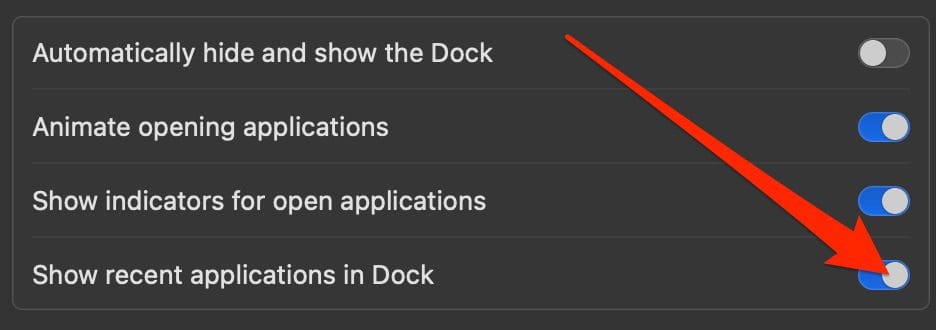
3. An extensive list of items and actions will appear on the next screen. Go to Show recent applications in Dock and toggle this feature on.

Screenshot how to turn on the feature for recent applications in the Dock on Mac

Once you’ve toggled the feature on, your changes should take immediate effect.

How to Hide Recent Apps in Your Mac Dock

The process is pretty straightforward if you want to hide the recent apps in your Mac Dock. You effectively need to do the opposite of what we discussed in the previous section. To make things easier for you to follow, here are the steps to hide recent apps in your Dock:

1. Go to System Settings > Desktop & Dock.

Screenshot showing the Desktop and Dock feature on Mac

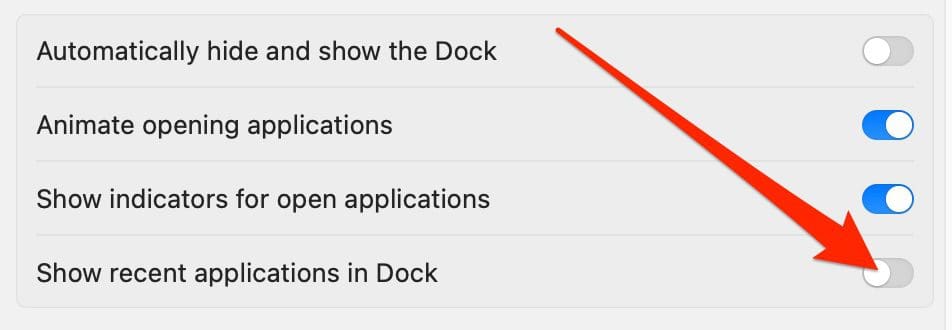
2. Look for Show recent applications in Dock when the next screen appears. Toggle the feature off so that it’s no longer blue.

Screenshot showing how to hide recent apps in Dock on Mac

As with turning the feature on, your changes will take immediate effect once you have switched it off. You can close your System Settings after toggling the feature as you feel necessary.

Showing and Hiding Apps in the Dock on Your Mac Is Simple

Regardless of whether you want to show or hide your apps in the Dock on your Mac, the process for both is simple. Hiding recent apps can help you keep everything organized, and you can hand-pick the apps you’d like to feature in this section of your computer for easy access.

On the flip side, you might find that turning the feature on makes it easier for you to continue with ongoing projects. You can experiment with both and figure out which works best for you.

Related Posts:

  • sidecar on iPadOS and macOS
    Sidecar not working in iPadOS and macOS? How to fix…
  • iPadOS 16 WWDC 22 Stage Manager - 9
    How to Use Stage Manager on Mac With macOS Ventura
  • 2023 Mac Studio lifestyle - 1
    macOS Could Not Be Installed, How-To Fix
  • How to Download and Install VMware Tools on macOS in 2023
    How to Download and Install VMware Tools on macOS
  • Mac Output Audio Header
    How to Control Individual Application Volume on Mac
  • 2022 Mac Mini with Studio Display and Accessories
    Mac Tips For New Users In 2023
  • macOS Ventura Wallpaper
    What's New in macOS Ventura
  • ipad stood up
    The Best iPad Tips and Tricks to Turn You into a Power User
  • photo of an iphone with ios 16 downloaded on it
    iOS 16 Tips and Tricks: The Definitive List
Danny Maiorca

Danny has been a professional writer since graduating from university in 2016, but he’s been writing online for over a decade. He has been intrigued by Apple products ever since getting an iPod Shuffle in 2008 and particularly enjoys writing about iPhones and iPads. Danny prides himself on making complex topics easy to understand. In his spare time, he’s a keen photographer.

Reader Interactions

Write a Comment Cancel reply

Primary Sidebar

Recent Posts

  • How to Set Up iCloud Passwords on a Windows PC?
  • How to Turn Off Apple Music’s Dark Mode
  • How to Disable Predictive Text in iOS 26
  • How to Stop Sharing Analytics in iOS 26
  • How to Manage Your iPhone Call Log
  • Are Apple’s Safety Precautions Enough for AirTags?

Connect with us

Footer

ABOUT

  • About Us
  • Contact us
  • Advertise
  • Privacy
  • Terms of Use

GUIDES

  • iOS & iPadOS
  • Apple ID
  • iCloud
  • App Store
  • iTunes
  • FaceTime
  • iMessage
  • Siri
  • Books and iBooks
  • Game Center
  • AirPlay

CONNECT

  • Facebook
  • Twitter
  • FeedBurner
  • YouTube

© Copyright 2010-2024 Guiding Tech Media · All Rights Reserved

This site and its content are in no way affiliated or endorsed by Apple, Inc. · Reproduction without explicit permission is prohibited

Last Updated on January 4, 2023 by Mitch Bartlett