• Skip to primary navigation
  • Skip to main content
  • Skip to primary sidebar
  • Skip to footer

AppleToolBox

Tools and Fixes for Mac, iPad, iPhone & iWatch

Search posts

  • About
  • Contact

CONNECT WITH US

CATEGORIES

  • iPhone
  • iPad
  • iPod
  • Apple Watch
  • Mac/MacBook
  • AirPods
  • Apple TV
  • News
  • Apple Services
  • HomePod
  • Reviews

SITE

  • Home
  • About Us
  • Contact
  • Advertise

Search posts

You are here: Home / iPhone / How to Change the Ringtone on Your iPhone

How to Change the Ringtone on Your iPhone

By Danny Maiorca 0 comments Last updated March 8, 2023

While many people leave their iPhones on silent mode, having a ringtone is a great way to ensure that you don’t miss important calls. You’ve probably heard the default iPhone ringtone before, but what can you do if you want to change it to something else?

Related Reading:

  • Why Does My iPhone Hang Up When I Call Someone?
  • Can You Ignore a Call on iPhone Without Declining It?
  • How to Turn iOS Continuity On and Off
  • Understanding Do Not Disturb Features on Your iPhone
  • Incoming iPhone Calls Go to Voicemail Without Ringing

Changing your iPhone ringtone is easy if you want to choose one of the default ones. You’ll need to do a couple more steps, however, if you want to set something custom. Either way, you’ll learn how to do both in this article.

Contents

  • How to Change to a Different Default Ringtone
  • How to Change Your iPhone Ringtone to a Song
  • Now You Know How to Change Your iPhone Ringtone

How to Change to a Different Default Ringtone

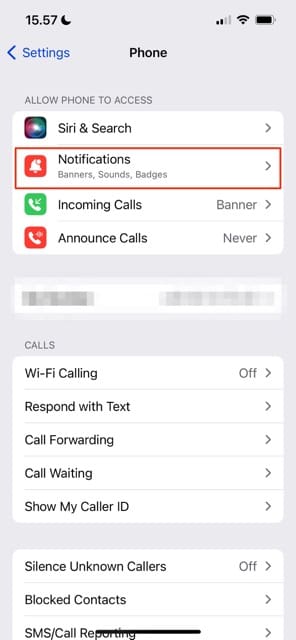
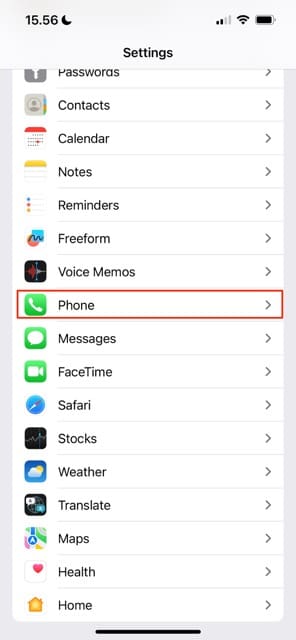
Screenshot showing how to select the Phone option in iOS
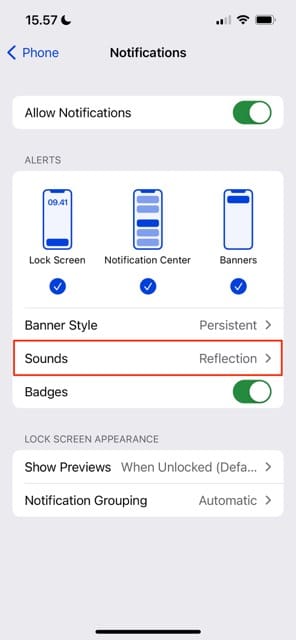
Screenshot showing how to change ringtone notification settings on iPhone
Screenshot showing the sound settings on iPhone

If you want to change your iPhone ringtone to one of Apple’s default versions, you can follow these steps.

  1. Open the Settings app on your iPhone. Then, go to Phone.
  2. Under the Allow Phone to Access section, click on Notifications.
  3. Click on Sounds. Under Ringtones, choose the tone you’d like to change your iPhone to.

After choosing your new ringtone, your changes will take immediate effect.

How to Change Your iPhone Ringtone to a Song

If you’d like to change your ringtone to a song instead, the process is more complicated. You’ll need to get the tune onto your phone, and you can download a wide selection from the iTunes store.

After going to the iTunes store and downloading your ringtone, choose to set it as your default ringtone – and you’ll also be able to change it to your text tone if you’d like.

Now You Know How to Change Your iPhone Ringtone

Changing your iPhone ringtone is, in many cases, quite simple. But if you want to change it to a song, things are a little more complicated. Nonetheless, it’s not impossible; in addition to altering your ringtone for everyone, you can also choose different ones for individual contacts.

Now that you’ve read this guide, you’ve got more information for changing the ringtone on your iPhone. So, why not go and customize it?

Related Posts:

  • The home screen on an iPhone
    iOS iPhone Visual Voicemail Not Working After iOS 17…
  • iPhone Voicemail Header
    iPhone Calls Going Straight to Voicemail Without…
  • pexels-tranmautritam-696899
    iPhone Tips for New Users In 2023
  • Disable Do Not Disturb iPhone Header
    How to Turn Off Do Not Disturb on iPhone 14
  • photo of an iphone with ios 16 downloaded on it
    iOS 16 Tips and Tricks: The Definitive List
  • 2022 Mac Mini with Studio Display and Accessories
    Mac Tips For New Users In 2023
  • iPhone 15 Pro unboxing
    How To Extend Your iPhone Battery Life
  • Photo of an iPhone being taken out of its box
    How To Use Dual SIM and eSIM on Your iPhone
  • pexels-cottonbro-5082579
    Getting Started With iOS 15: Everything Good And Bad
Danny Maiorca

Danny has been a professional writer since graduating from university in 2016, but he’s been writing online for over a decade. He has been intrigued by Apple products ever since getting an iPod Shuffle in 2008 and particularly enjoys writing about iPhones and iPads. Danny prides himself on making complex topics easy to understand. In his spare time, he’s a keen photographer.
Reader Interactions

Write a Comment Cancel reply

Primary Sidebar

Recent Posts

  • How to Turn Off Apple Music’s Dark Mode
  • How to Disable Predictive Text in iOS 26
  • How to Stop Sharing Analytics in iOS 26
  • How to Manage Your iPhone Call Log
  • Are Apple’s Safety Precautions Enough for AirTags?
  • How to Hide Username and Photo on the Mac Lock Screen

Connect with us

Footer

ABOUT

  • About Us
  • Contact us
  • Advertise
  • Privacy
  • Terms of Use

GUIDES

  • iOS & iPadOS
  • Apple ID
  • iCloud
  • App Store
  • iTunes
  • FaceTime
  • iMessage
  • Siri
  • Books and iBooks
  • Game Center
  • AirPlay

CONNECT

  • Facebook
  • Twitter
  • FeedBurner
  • YouTube

© Copyright 2010-2024 Guiding Tech Media · All Rights Reserved

This site and its content are in no way affiliated or endorsed by Apple, Inc. · Reproduction without explicit permission is prohibited