One of the biggest complaints about the iPhone has been the lack of customization options that are available. Even following the release of iOS 14, which made it possible to add widgets to your Home Screen, that only goes so far, especially compared to what’s possible in the Android side of the world.
Thankfully, and finally, Apple has been making some pretty tremendous strides over the past few major iOS releases. Not only can we add widgets to our Home Screens, but you can also use the built-in Shortcuts app to set custom icons for your most-used apps. And with the release of iOS 16, the Lock Screen got a lot of love, as you now have the ability to use widgets and change time font on iPhone.
How to Change Time Font on iPhone
Custom font selection is something that many iPhone and iPad users have been asking for over the years. And while you still aren’t able to change the font at a system level, iOS 16 with its new Lock Screen layout enables the ability to change time font on iPhone. And here’s how you can do so:
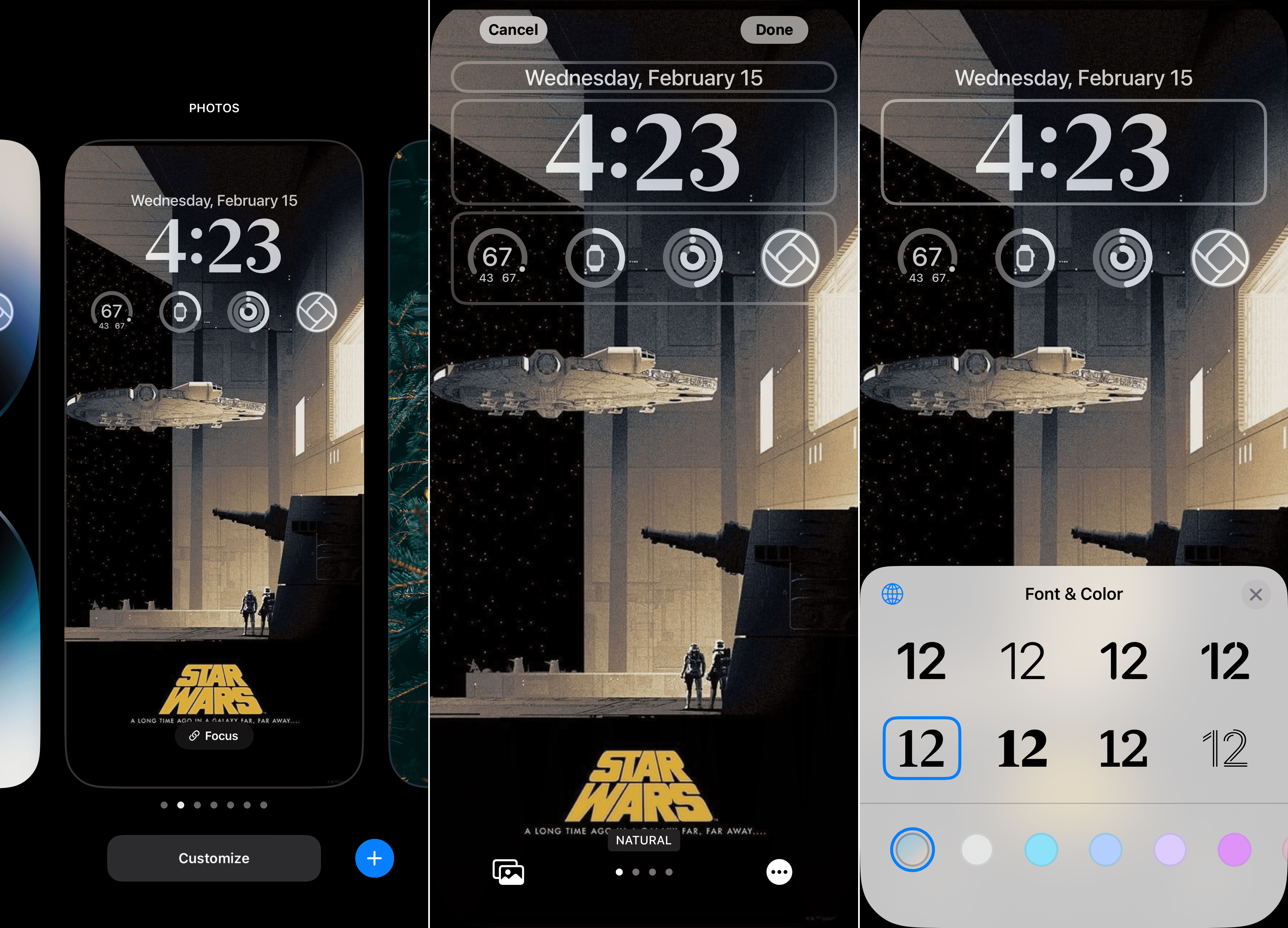
Press the Side button or tap the screen to show your iPhone Lock Screen.
Press and hold on to an empty area until you feel your iPhone vibrate.
Tap the Customize button at the bottom of the screen.
Tap the Lock Screen preview from the Customize Wallpaper section.
Tap the Clock.
From the Font & Clock dialog box, select one of the listed font options. (There are 8 different fonts to choose from.)
Below the font examples, select the color for the Clock and widget text.
If you select anything other than the first two options, drag the slider to adjust the color hue.
When it comes to those who want to customize font on Lock Screen, Apple provides quite a few default options. The very first selection draws some inspiration from the colors on your Lock Screen’s wallpaper. This is the default choice, as it aims to make the Clock and other elements visible even at a glance.
But if you swipe all the way to the end of the list, you’ll see another color icon appear. Essentially, this is a dedicated color picker that lets you choose from a grid, or spectrum, or use sliders to customize the colors. And if you look in the top left corner of the Colors dialog box, Apple has even added an “eye dropper”.
When you tap this, it will let you physically select specific colors from your Lock Screen wallpaper. After you’ve found the color you like, you can add it to your “Favorites” which can be easily selected from this dialog box when customizing other Lock Screen setups.
Andrew Myrick is a freelance writer based on the East Coast of the US. He enjoys everything to do with technology, including tablets, smartphones, and everything in between. Perhaps his favorite past-time is having a never-ending supply of different keyboards and gaming handhelds that end up collecting more dust than the consoles that are being emulated.










Write a Comment