iCloud is unique to the Apple ecosystem. While there are many alternative cloud storage services available, what makes Apple’s different is its ability to make using an iPhone, iPad, and Mac feel like a single, fluid experience. By default, everything stays perfectly in sync. One drawback of this, though, is that every time you send a message to somebody on your phone, a copy of it is stored on your Mac.
Over time, this will mean your Mac gets filled up with needless messages, taking up space and slowing your computer down. Since you probably use your phone for messaging primarily anyway, it makes sense to unsync this element from iCloud. This guide will show you how to delete messages on Mac but not iPhone, and limit or stop future messages from syncing across your devices.
The first thing you need to do is to stop messages from synchronizing to your Mac through iCloud.
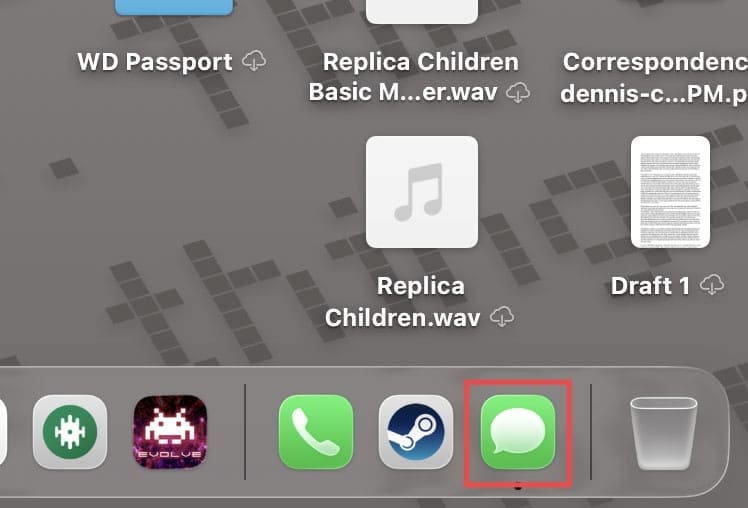
Step 1. Open the “Messages” app on your Mac.
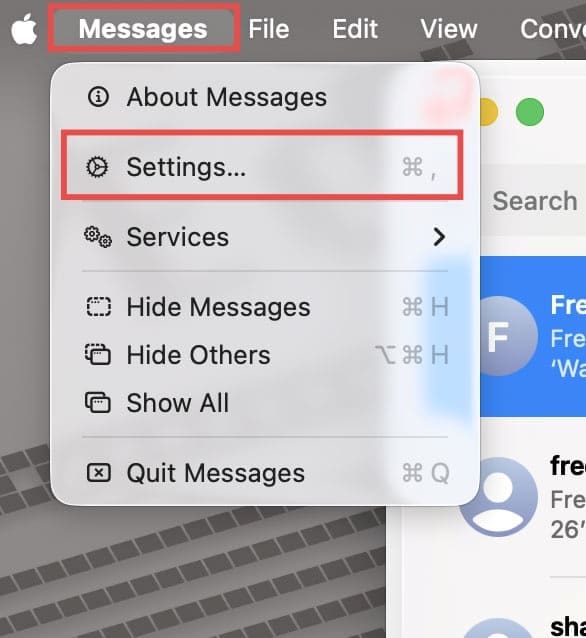
Step 2. In the top-left menu bar, click “Messages,” then “Settings” (or “Preferences” in older macOS versions).
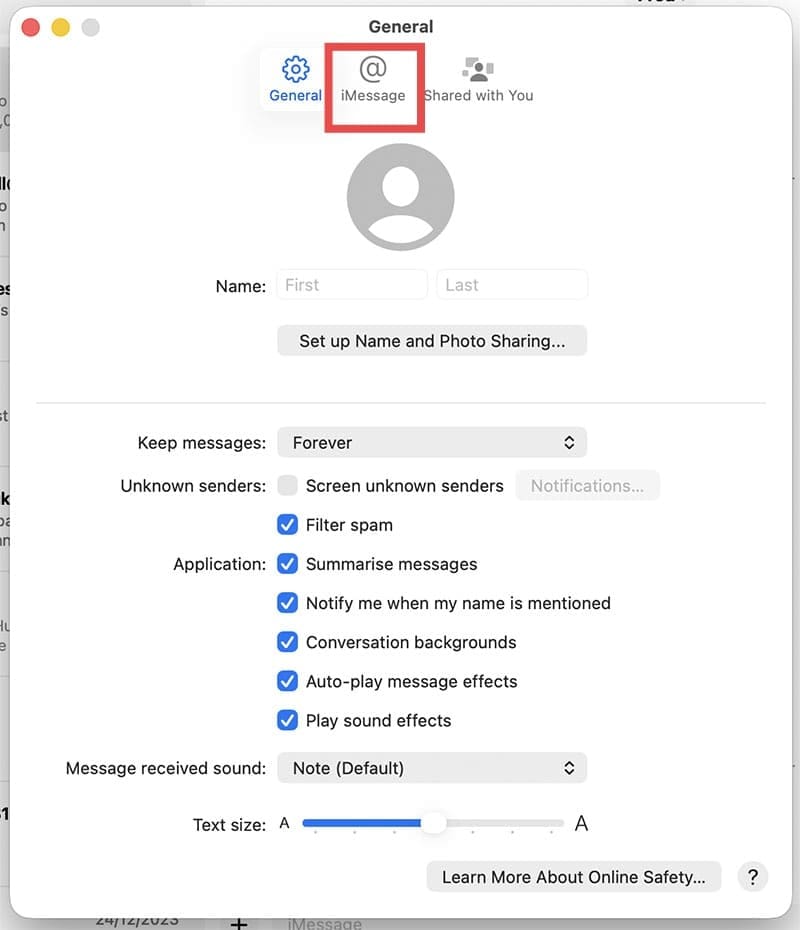
Step 3. Click on the “iMessage” tab at the top.
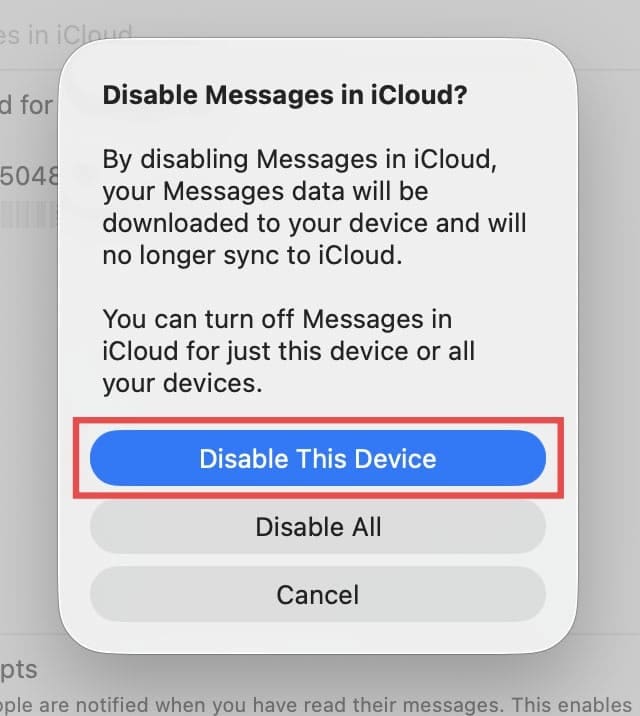
Step 4. Uncheck the “Enable Messages in iCloud” box. You may see a prompt asking if you want to disable this device. If so, select “Disable This Device.”
Delete the Messages on your Mac
Now that you’ve stopped the cloud pushing iPhone messages to your computer, you can optionally delete messages on Mac but not iPhone to free up more space and get your computer running a bit more smoothly. You can delete single messages, a whole thread of conversation, or multiple conversations as follows:
Deleting a Single Message
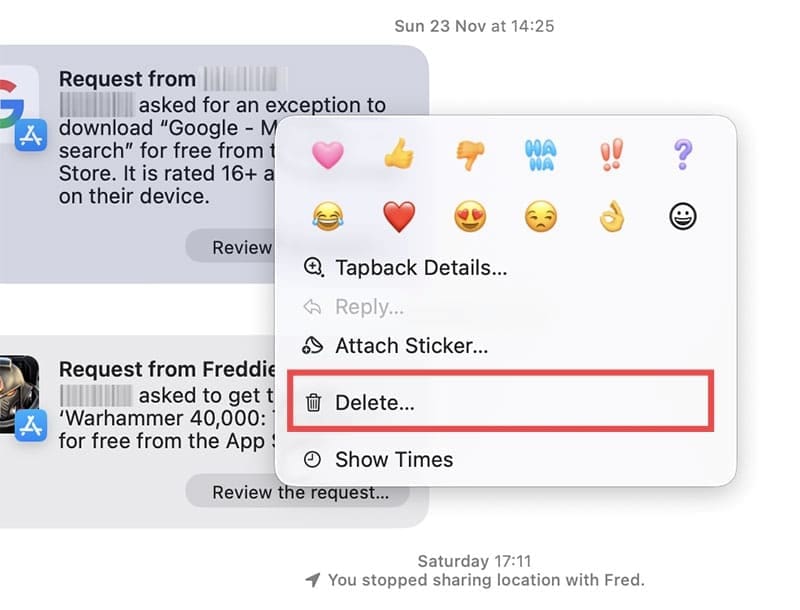
Step 1. To delete a single message, right-click on that message bubble and click “Delete.”
Deleting a Whole Conversation
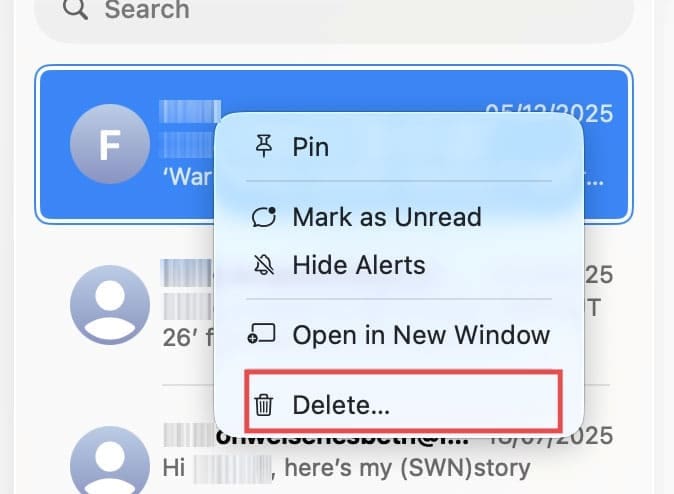
Step 1. Select the thread in the left-hand sidebar as a whole, right-click on it, and choose “Delete Conversation.”
Delete Multiple Conversations
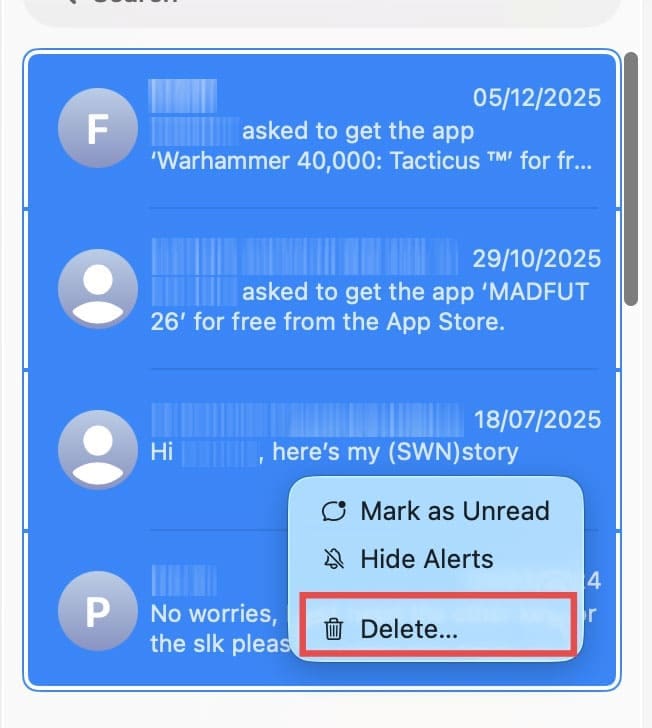
Step 1. To delete multiple threads or conversations, hold down the “Command” key while left-clicking to select each one. Once you’ve selected some or all of the conversations, right-click and choose “Delete.”
Additional Options
Now that you’ve learned how to delete messages from your Mac and stop new messages from syncing in the future, there are some additional options and things for you to consider.
Space Saving
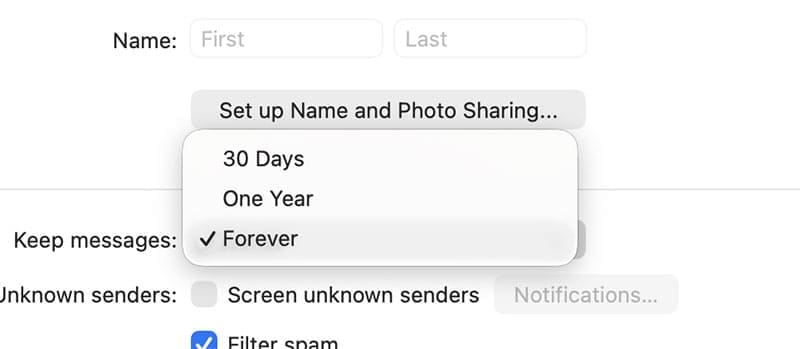
If your main goal is to save storage capacity on your Mac, you can continue to sync messages, but limit how long they are stored for.
Step 1. In the Messages app, navigate to “Settings,” “General,” and change “Keep messages” from “Forever” to “30 days.” This will ensure messages are purged monthly, maintaining the storage space on your computer.
Re-Enabling Syncing
If at any point, you decide to re-enable “Enable Messages in iCloud” later, your Mac may try to download all of the old messages again (the ones that are still on your iPhone). It’s important to note that deleted messages on Mac are moved to a “Recently Deleted” folder (View > Recently Deleted) and are kept there for 30 days, as we mentioned.
As an avid gamer, I’ve run into my fair share of error codes and weird faults that have forced me to find fixes to problems I never anticipated. That gave me a passion for sharing those fixes with others so we can all game without feeling like our hardware is rebelling against us.












Write a Comment