• Skip to primary navigation
  • Skip to main content
  • Skip to primary sidebar
  • Skip to footer

AppleToolBox

Tools and Fixes for Mac, iPad, iPhone & iWatch

Search posts

  • About
  • Contact

CONNECT WITH US

CATEGORIES

  • iPhone
  • iPad
  • iPod
  • Apple Watch
  • Mac/MacBook
  • AirPods
  • Apple TV
  • News
  • Apple Services
  • HomePod
  • Reviews

SITE

  • Home
  • About Us
  • Contact
  • Advertise

Search posts

You are here: Home / iPhone / How to Filter Unknown Senders in Messages on iOS

How to Filter Unknown Senders in Messages on iOS

By Danny Maiorca 0 comments Last updated February 22, 2023

Messages is one of the most established iOS apps, and people around the world use it to keep in touch with friends and family each day. But while you’ll often talk to people in your contacts list, you might sometimes receive messages from unknown senders.

Related Reading:

  • How Is iMessage Different From Normal Text Messages?
  • iMessage Needs to Be Enabled to Send This Message
  • iMessage Not Working? Here’s How to Fix It
  • How to Enable and Disable iMessage on Your Mac
  • How to Tell If You’re Sending an iMessage or an SMS Text

Some messages from unknown senders are useful, but that isn’t the case for all of them. You might decide that you want to filter unknown senders in Messages, and this guide will show you how to do precisely that.

Contents

  • Why You Should Consider Filtering Unknown Senders in iMessage
  • What Happens When You Filter Unknown Senders in Messages for iOS?
  • How to Filter Unknown Senders in Messages
  • Gain More Control Over Your Messages

Why You Should Consider Filtering Unknown Senders in iMessage

You might want to consider filtering unknown senders in Messages for iOS, but the main reason is that it allows you to gain more control over who you want to respond to. When you keep texts from contacts you know and those you don’t together, things can quickly get muddled.

If you filter your messages between known and unknown senders, you can also decide whether a text from someone random is genuine. You might find it easier to figure out whether something is a scam attempt or something else that’s malicious, meaning that you can protect yourself better.

What Happens When You Filter Unknown Senders in Messages for iOS?

Screenshot showing where to find the Filter Messages option in iOS
Screenshot showing the different Message filter settings in iOS

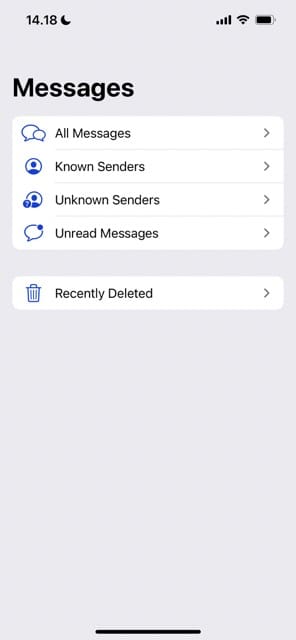
When you filter unknown senders in Messages on iOS, the differences aren’t drastic. To find them, you’ll need to go into the Messages app and click on Filters; you’ll find this option in the top left-hand corner.

In the next window, you’ll see an option where you can view texts from known senders – as well as people you don’t know. You can, if you’d still prefer to, also view all of your messages in one place.

Another filter that appears is Unread Messages, which is where you can find all of the texts you haven’t yet opened.

How to Filter Unknown Senders in Messages

Screenshot showing where to find the Message settings in iOS
Screenshot showing how to filter unknown senders in iMessage

With the basics of filtering unknown senders in Messages out of the way, let’s look at how you can switch this feature on. Follow the steps below to achieve your desired result.

  1. Open the Settings app and go to Messages.
  2. Scroll down until you see Message Filtering.
  3. Here, you’ll see an option titled Filter Unknown Senders. Toggle this option on so that the button turns green.

Once you’ve toggled the button on, your changes will take immediate effect.

Gain More Control Over Your Messages

Messages has evolved significantly over the years, and it now offers more than the ability to merely send texts to others. You will find a wide variety of customization options, allowing you to filter your messages without too much difficulty.

If you want to divide your texts between known and unknown senders, you’ll find an option that allows you to do precisely that. And now that you’ve read this guide, you’ve got all the steps you need to switch it on.

Related Posts:

  • pexels-designecologist-1779487
    The Best iPhone And Mac Shortcuts For Beginners
  • iOS 16 Unsend Messages on Your On Your iPhone
    No Text or Message Notification Alerts or Sounds on…
  • photo of an iphone with ios 16 downloaded on it
    iOS 16 Tips and Tricks: The Definitive List
  • iPhone 15 Pro Max - 4
    Best iPhone Lock Screen Widgets for iOS 17
  • 2023 Mac Studio lifestyle - 1
    macOS Could Not Be Installed, How-To Fix
  • sidecar on iPadOS and macOS
    Sidecar not working in iPadOS and macOS? How to fix…
  • 2022 Mac Mini with Studio Display and Accessories
    Mac Tips For New Users In 2023
  • pexels-cottonbro-5082579
    Getting Started With iOS 15: Everything Good And Bad
  • iphone and airpods on a table
    These Apps Have the Best iOS 17 Widgets
Danny Maiorca

Danny has been a professional writer since graduating from university in 2016, but he’s been writing online for over a decade. He has been intrigued by Apple products ever since getting an iPod Shuffle in 2008 and particularly enjoys writing about iPhones and iPads. Danny prides himself on making complex topics easy to understand. In his spare time, he’s a keen photographer.

Reader Interactions

Write a Comment Cancel reply

Primary Sidebar

Recent Posts

  • How to Create Custom Wallpapers in iOS 27
  • How to Stop Your Pointer From Moving to Other Macs and Apple Devices
  • What Will Siri AI Bring to Apple Devices?
  • How to Check if Your Device Is Compatible With Siri AI
  • How to Get Rid of Reading List in Safari
  • Gaming Alternatives to Whisky: Which Is Better for Running Windows Games on Mac?

Connect with us

Footer

ABOUT

  • About Us
  • Contact us
  • Advertise
  • Privacy
  • Terms of Use

GUIDES

  • iOS & iPadOS
  • Apple ID
  • iCloud
  • App Store
  • iTunes
  • FaceTime
  • iMessage
  • Siri
  • Books and iBooks
  • Game Center
  • AirPlay

CONNECT

  • Facebook
  • Twitter
  • FeedBurner
  • YouTube

© Copyright 2010-2024 Guiding Tech Media · All Rights Reserved

This site and its content are in no way affiliated or endorsed by Apple, Inc. · Reproduction without explicit permission is prohibited