When you set up wallpaper on your MacBook by using the screen saver window in the system preferences, you only see a limited set of wallpapers that are shown on that screen.
Did you know that there are many more images on your macOS Mojave that you can use to set up your wallpaper?
The sequence of steps to discover these hidden wallpapers on your MacBook is the same even if you are running macOS Sierra, High Sierra, and Mac OS X El Capitan.
Start by locating these wallpapers. The key to locating these images is to search for a folder on your macOS Mojave and other MacOS X and macOS versions called Default Collections.
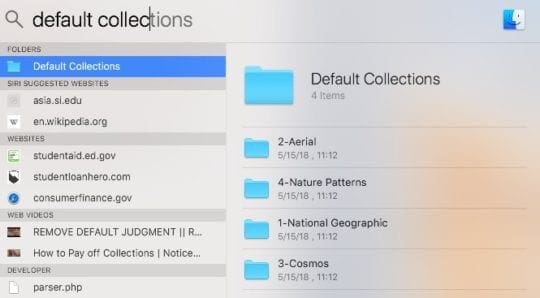
Start by clicking on the magnifying glass and open spotlight and type in default collections in the search bar
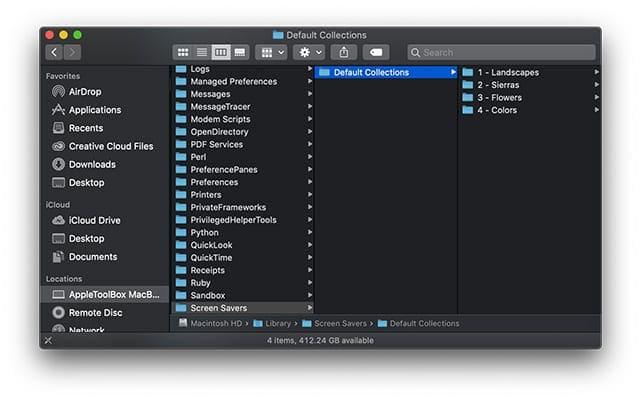
Or navigate to the System Library > Screen Savers > Default Collections
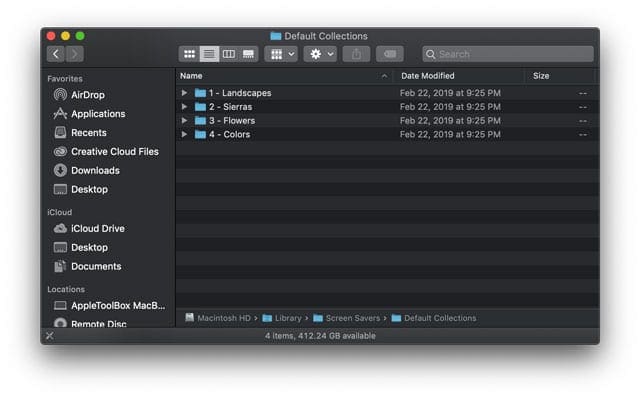
There are four full folders of images within the default collections that you can choose from when setting up a built-in wallpaper
Select any of the folders from Landscapes, Sierras, Flowers, and Colors. Older macOS and Mac OS X El Capitan showcase the folders Aerial, Cosmos, Nature Patterns and National Geographic
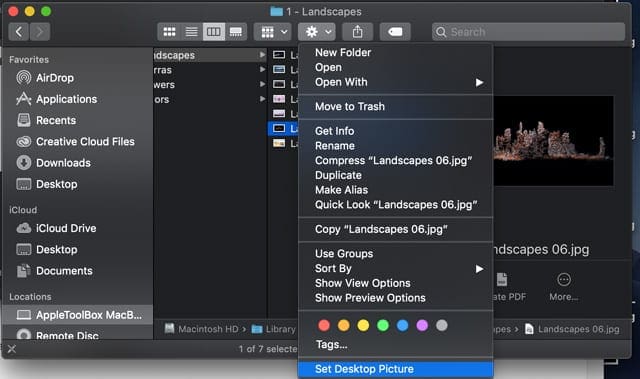
To browse images, open each folder and press the space bar on each image to take a quick peek at them
Once you have selected an image of your liking, click the cog wheel in the folder menu and choose Set Desktop Picture
Import these images to your wallpapers
You can also import the images from these hidden folders and have them available for you to use
In order to do so, you need to select the images from the folders to Library > Screen Savers.
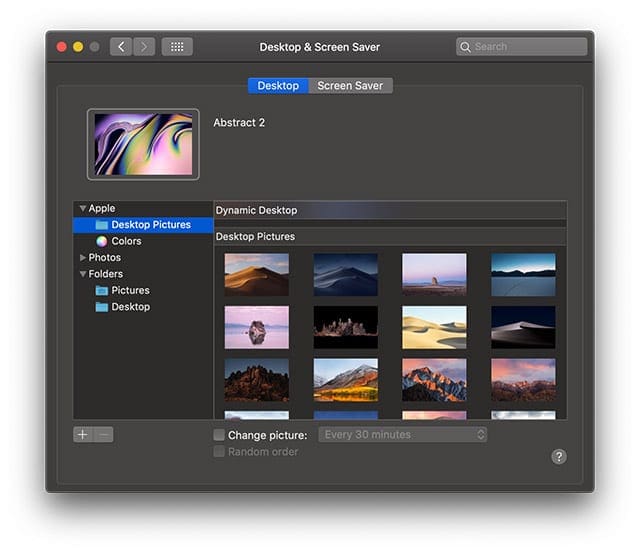
Start by going System Preferences > Desktop & Screen Saver
Check if the images are already there under the Apple folder > Desktop Pictures and Colors–you may not need to import them
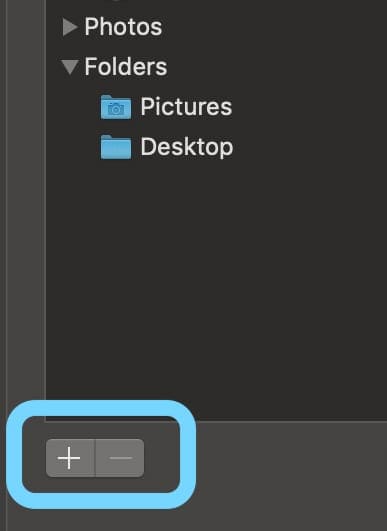
If the pictures are not there, on the left navigation pane, click on the ‘+’ button
Then navigate to the default collections folder to import these images
You can add all 4 folders if you choose, one folder or image at a time
Once the folder has been added you can click the images as thumbnail and choose one to set it up as your wallpaper
The steps around importing a folder into Desktop/Screensavers also works if you have downloaded other wallpapers from outside.
Want the older macOS and Mac OS X wallpaper folders Aerial, Cosmos, Nature Patterns and National Geographic?
If you like those older images, you can still find and download them from Imagur!
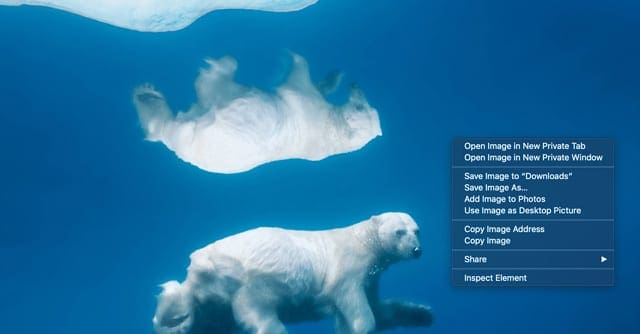
Tap on an image you like to expand it, then right-click it and choose how and where you want to save it on your Mac, it’s that easy!
Dark mode wallpapers!
macOS Mojave also introduced a whole new set of wallpapers that are suitable for Dark mode.
There are several wallpapers that feature images of the Mojave desert, along with new abstract oil slick-style wallpapers and new dark flower wallpapers.
Feel free to check these out in your desktop and screensaver preferences.
We hope that you found this short article helpful. Please let us know in the comments below if you have any questions.
Obsessed with tech since the early arrival of A/UX on Apple, Sudz (SK) is responsible for the original editorial direction of AppleToolBox. He is based out of Los Angeles, CA.
Sudz specializes in covering all things macOS, having reviewed dozens of OS X and macOS developments over the years.
In a former life, Sudz worked helping Fortune 100 companies with their technology and business transformation aspirations.












I found my “Default Collections” folder in Mojave 10.14.5, but none of the files you described above are there.
I’m only seeing the ones that are currently available in Desktop & Screensaver. What’s up with that?
Hi Bob,
Those images were replaced with a macOS Mojave update–we needed to update the article to reflect that change!
If you like those older images, you can still find and download them from Imagur!
Aerial Mac Images
Cosmos Mac Images
National Geographic Mac Images
Nature Patterns Mac Images