There’s always a chance when you install a new version of macOS that you run into compatibility issues with the apps that are already installed. But what are you supposed to do when the system gives you an error but doesn’t provide any other information about what is causing the error? For one reason or another, this is something that we’ve seen over the past few years as Apple has started making major changes to macOS, including the latest version of macOS Monterey 12.3.
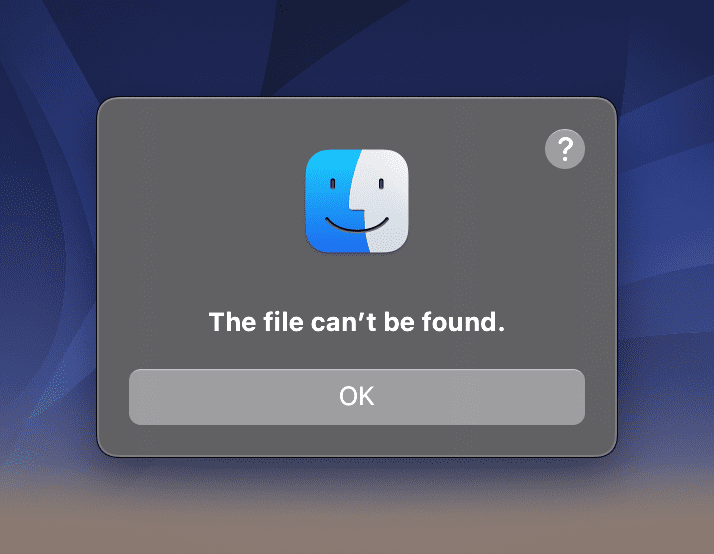
One error that continues to plague users happens whenever you wake your Mac from sleep or if it’s powered down. For us, the problem started happening after updating to macOS Monterey 12.3, which includes the ability to use and enjoy Universal Control between our MacBook Pro and iPad Pro. But as is usually the case, not everything is sunshine and rainbows, as a new prompt keeps appearing stating “The file can’t be found.”.
As you can see in the screenshot above, there’s a “?” icon in the top right corner of the dialog box. But, at least for us, this attempts to open Apple’s Help documentation to no avail. Nothing actually ever loads up, so we’re left guessing and trying to figure out what is going on and why Finder is throwing an error whenever we restart. Making matters worse, there are times when the MacBook Pro is woken from sleep only to see a cascade of the same error messages that can only be removed by pressing the OK button on each dialog box. One could easily surmise or assume that there’s a corrupt file on your hard drive, or files continue to be removed.
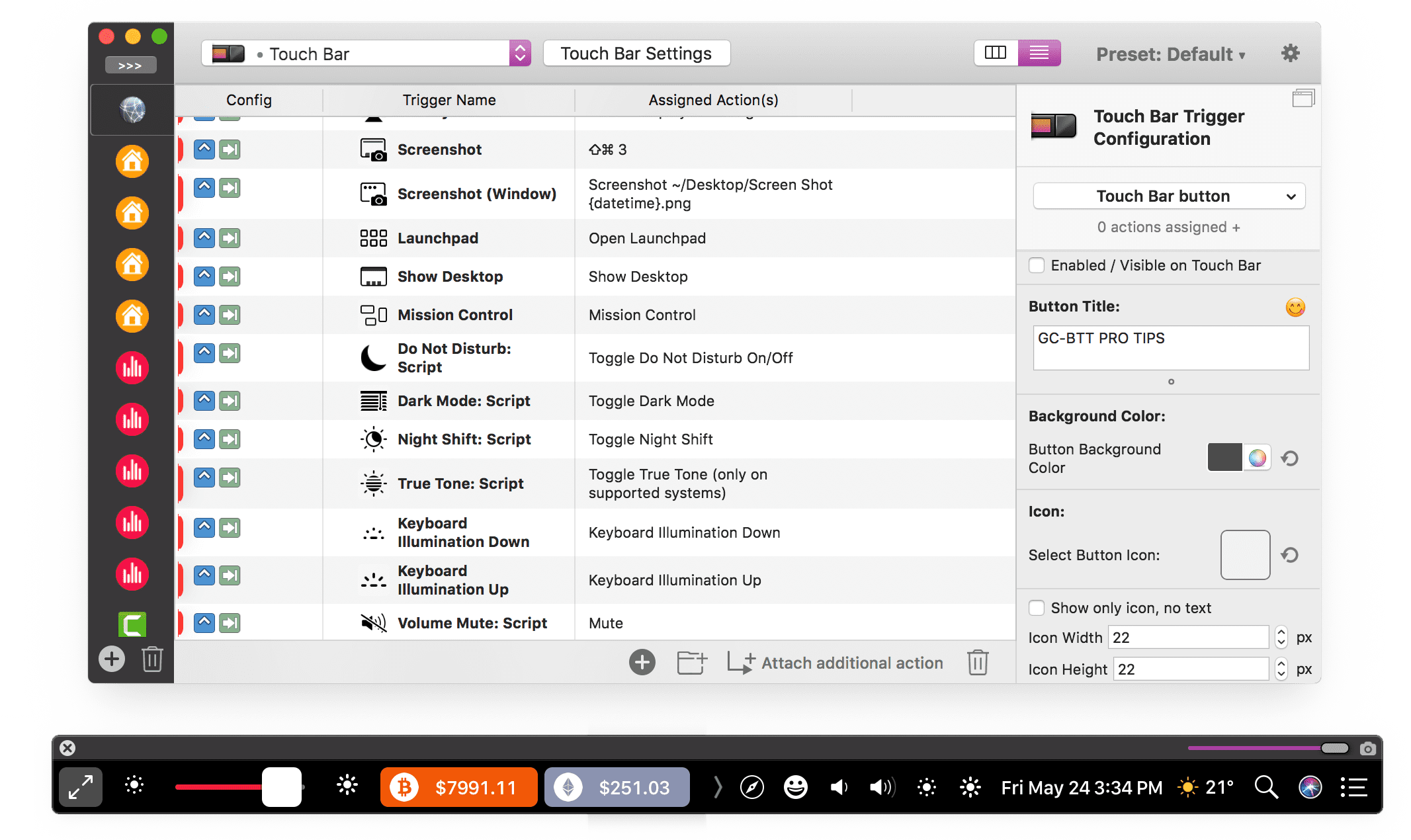
If you head over to the macOS Beta subreddit, you’ll see that this problem is not limited to just a handful of users who have upgraded to the macOS Monterey 12.3 beta. It seems to be a recurring issue across the board, but once you dive into the comments, you’ll see a common thread. Almost all of those who have run into the issue of seeing “The file can’t be found” message are also using BetterTouchTool.
Thankfully, this isn’t a case of corrupt or disappearing files on your Mac. In fact, the developer for BetterTouchTool have already implemented a fix for the bug, which removes it from appearing entirely. According to the lead developer, this is related to a change in Shortcuts with the latest version of macOS.
Resolved in macOS Monterey 12.3 Beta
The Shortcuts Events app, which provides scripting functionality for Shortcuts, no longer needs to be opened once before it can be used. The bundle has moved to /System/Library/CoreServices. If an app relies on the location of the bundle, the code needs to be updated to reference the new location. (85249991)
Considering that BetterTouchTool features integration with the Shortcuts app, it makes complete sense that this error would appear following the update to macOS Monterey 12.3. Since then, the developer has disabled the code for Monterey 12.3 and has released a new version of BetterTouchTool that solves the problem. All you need to do is head over to the releases landing page for BTT and download the latest “Alpha” version of the app. Next time you restart your Mac, you should no longer see the above dialog box.
Andrew Myrick is a freelance writer based on the East Coast of the US. He enjoys everything to do with technology, including tablets, smartphones, and everything in between. Perhaps his favorite past-time is having a never-ending supply of different keyboards and gaming handhelds that end up collecting more dust than the consoles that are being emulated.
Thanks – I’m getting this message when trying to open files on my Synology NAS using Ventura 13.1. I’ve never heard of BetterTouchTool, so the problem is definitely more widespread. Maybe the Synology code has the same problem?
I’m getting the same thing with my QNAP NAS. Everything was fine until a few minutes ago. I was converting some old .wav files to .mp3 via GarageBand and saving the new ones in the same folder (on my NAS). Now, most of the files in that folder generate the “can’t be found” error. Renaming the file [and renaming it back] fixes it. But this is very annoying! So far, it looks like only files in that one folder have been affected. Hopefully, it doesn’t spread.











Thank you very much . glad i found this …it saved me a huge headache.
Thanks – I’m getting this message when trying to open files on my Synology NAS using Ventura 13.1. I’ve never heard of BetterTouchTool, so the problem is definitely more widespread. Maybe the Synology code has the same problem?
yep, same exact problem here. synology NAS, never heard of BTT
I’m getting the same thing with my QNAP NAS. Everything was fine until a few minutes ago. I was converting some old .wav files to .mp3 via GarageBand and saving the new ones in the same folder (on my NAS). Now, most of the files in that folder generate the “can’t be found” error. Renaming the file [and renaming it back] fixes it. But this is very annoying! So far, it looks like only files in that one folder have been affected. Hopefully, it doesn’t spread.
Same here. Users on 10.16 (BigSur OS11) and earlier are fine, just the one Ventura (13.3.1) user.
Synology DS1819+ NAS running DSM 7.1.1
Thank you so much for this. Today I woke up to this annoying error but also to my biggest nightmare: bettertouch not working…
Thank you!
Thank you! <3
Awesome, thanks for the post <3
TY!
Thank you very much.
Thank you! This was really hard to figure out since it’s caused by a particular program that only some of us enthusiasts are using.
Much appreciated. This was driving me mad…
thx .. really needed this one 🙂
Very useful, thank you very much!
Thank you for writing this short post – Fixed this extremely annoying bug for me 🙂