Say what you will about Outlook, but Microsoft has gone to great lengths in an effort to improve Outlook as a service, and an app, over the past few years. With Microsoft 365, you get access to more storage in OneDrive, and more features across Microsoft’s suite of products, including Outlook. But it seems that a random bug has appeared, which is causing quite a few headaches and filling up users’ Downloads folders.
Recently, those who use Microsoft’s Outlook 365 in Safari have been running into a rather random issue. As soon as you navigate to the landing page for Outlook, you are prompted with a downloaded file named ‘TokenFactoryIframe’. This is one of the more obscure problems to crop up from using Microsoft’s services, and it seems that the company has figured out what was causing the problem.
A recent update to our Office User Experience (UX) changed a parameter from “conditional” to “required” in order to sync client-side and service-side properties. However, the Outlook on the web service didn’t receive the same change as intended, resulting in a property mismatch and repeated “TokenFactoryIFrame” download prompts.
How To Fix ‘TokenFactoryIframe’ Error in Outlook
Considering that the issue caused by visiting outlook.com in Safari is resulting in multiple file downloads that don’t actually have any use, there is one workaround available. It involves heading into Safari Preferences and removing access for Outlook 365 to download any files. This is obviously pretty problematic if you need to download any other files, as following the steps below will reject any files at all from being downloaded. But if you’re not concerned about that and just want to fix ‘TokenFactoryIframe’ error in outlook, here’s what you need to do:
Open Safari on your Mac.
In the Menu Bar, click Safari.
From the drop-down menu, select Preferences.
Alternatively, you can press CMD + , on your keyboard.
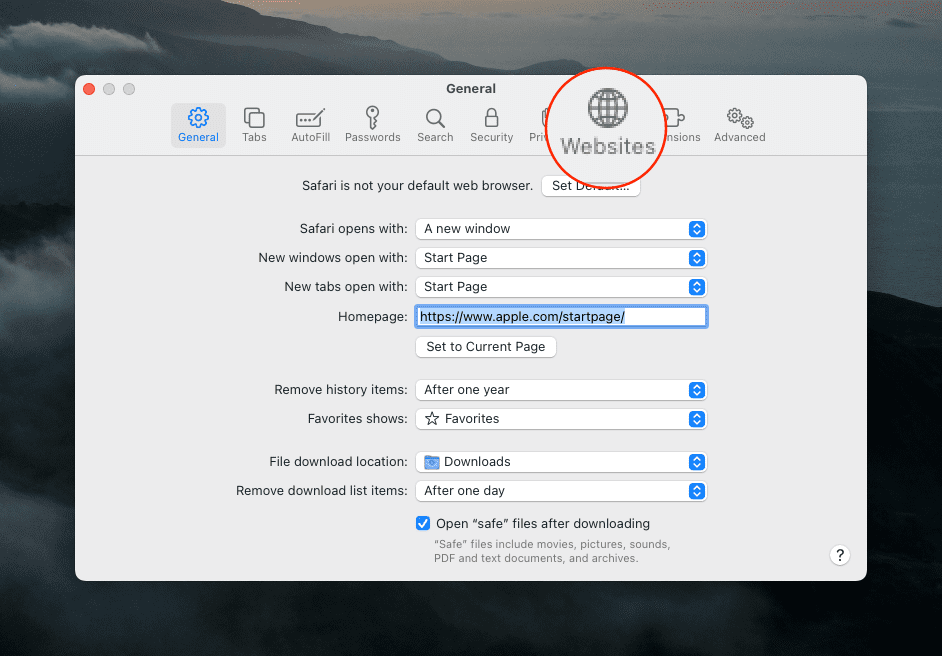
Select Websites in the toolbar at the top.
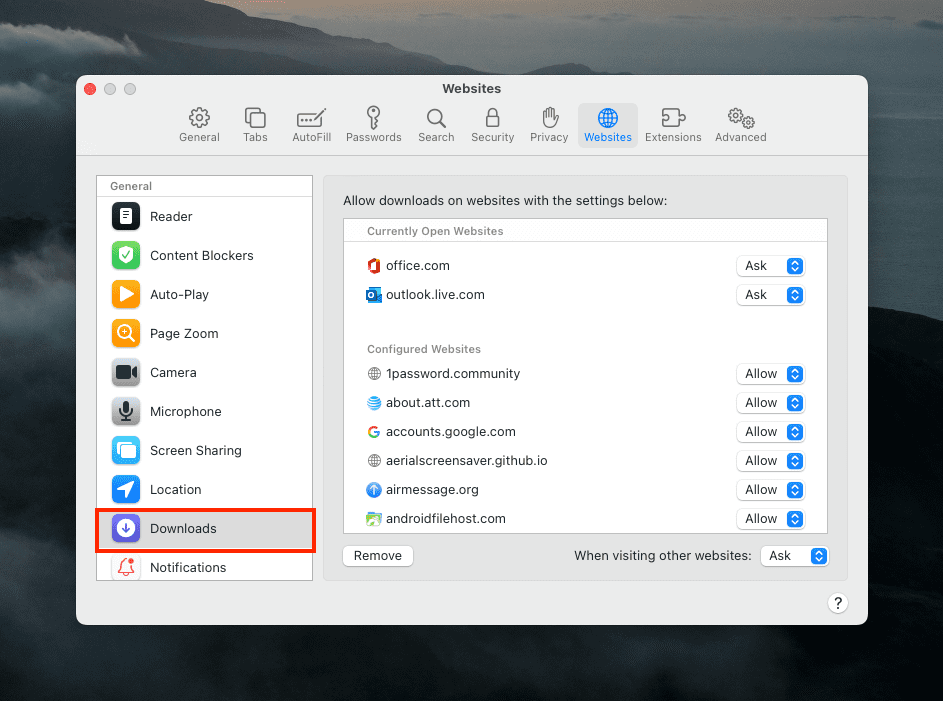
In the left sidebar, click Downloads.
Scroll through the list that appears on the right side until you find “outlook.office365.com“.
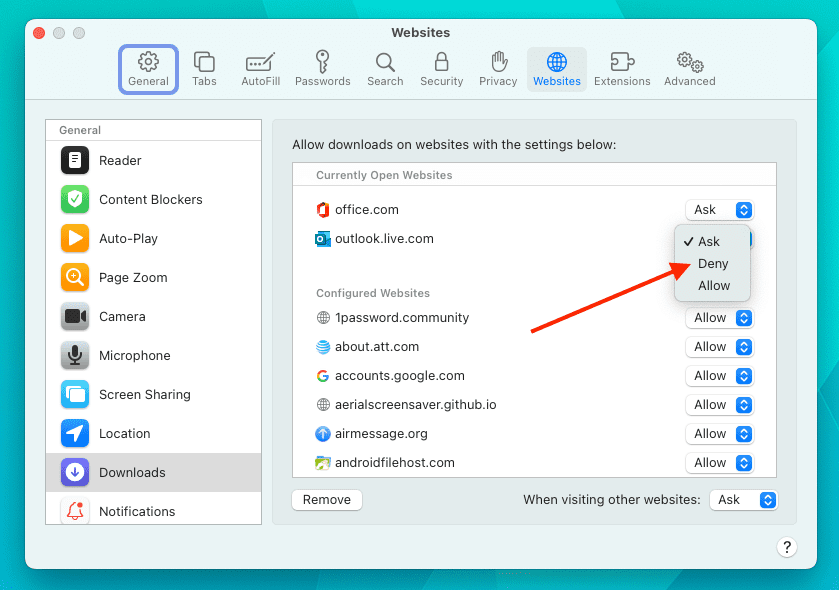
Click the pop-up menu to the right of the Office entry.
Select Deny.
Exit Safari Preferences.
Because this problem isn’t actually being caused by Safari or the user, we have to wait for Microsoft to implement a proper fix on the server-side. Once that’s completed, you’ll then need to go back and provide permissions to Office 365 in order to download any potential files that you need.
Use a different browser
For one reason or another, it seems as though this problem is mainly affecting those who are using Safari. So until Microsoft is able to fix the problem on their end, we would recommend using a different browser if you’re still seeing the ‘TokenFactoryIframe’ error in Outlook.
The problem does exist when using other browsers, but if you have Chrome installed you shouldn’t run into any other problems. In fact, chances are, if you use any other Chromium-based web browser, you won’t see those random downloaded files appear.
Andrew Myrick is a freelance writer based on the East Coast of the US. He enjoys everything to do with technology, including tablets, smartphones, and everything in between. Perhaps his favorite past-time is having a never-ending supply of different keyboards and gaming handhelds that end up collecting more dust than the consoles that are being emulated.








Write a Comment