When Apple finally announced that the Shortcuts app was coming to the Mac, many iOS and iPadOS fans rejoiced. Shortcuts is a much more intuitive option for automation, so it only made sense for Apple to bring it to the Mac. But there was a slight bit of confusion, as macOS already has an automation tool built-in thanks to Automator. At the time, Apple pretty much said that Shortcuts would eventually replace Automator, but what about all those scripts that you’ve created over the years?
How to Import Automator Scripts Into Shortcuts on macOS
When macOS Monterey was debuted at WWDC 2021, there was a lot of excitement. But if you are a “classic” macOS user and rely on Automator, using Shortcuts may seem a bit redundant. While there is some truth to this, Apple’s integration of Shortcuts on the Mac means that you can create workflows on your iPhone and have them available on all of your devices.
The ability to import Automator scripts and workflows into the Shortcuts was not available when macOS Monterey was in its Developer Preview stage. However, now that macOS Monterey is available for everyone, you can finally use and import Automator scripts into Shortcuts on macOS and here’s how:
Open the Finder app on your Mac.
In the sidebar, click iCloud Drive.
Locate and open the Automator folder.
From here, you’ll be presented with all of your various .workflow files that have been created with Automator. And importing them into the Shortcuts is about as easy as it gets. Apple details there are several different options to pick from if you want to import Automator scripts into Shortcuts:
Double-click a .workflow file in the Finder.
Drag a .workflow file into the main window of the Shortcuts app.
Drag a .workflow file onto the Shortcuts app in the Dock.
One other option requires a couple of steps if you like using keyboard commands:
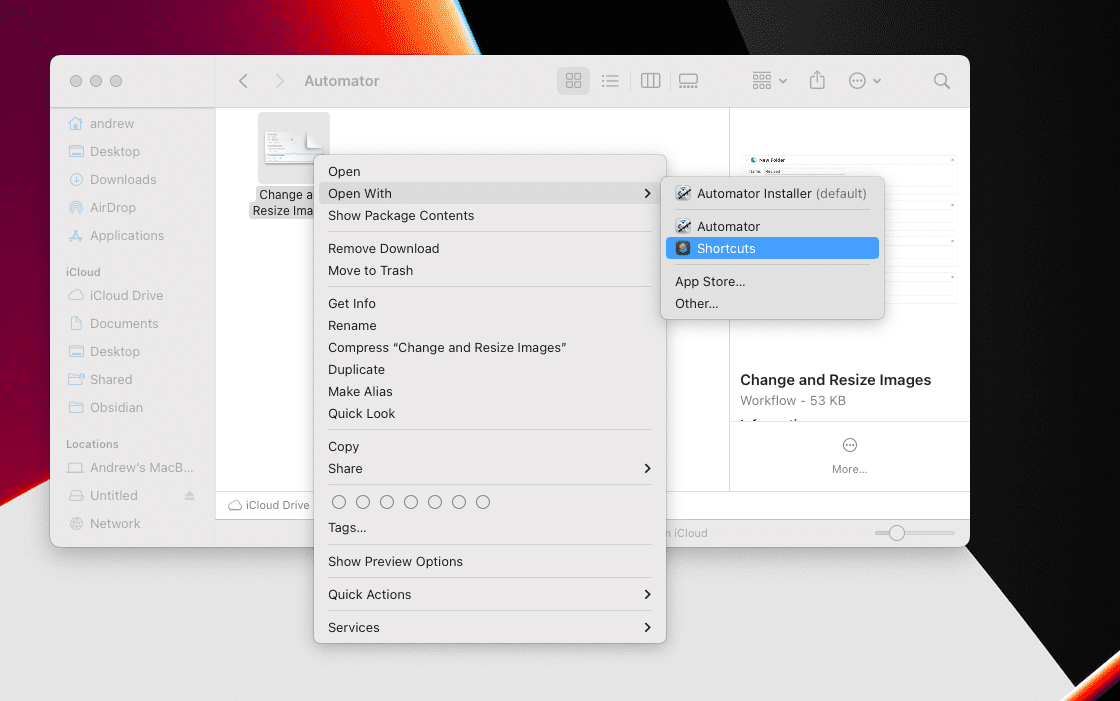
On your keyboard, hold the Control key and click on the .workflow file.
From the pop-out menu, highlight Open With.
Select Shortcuts from the drop-down menu.
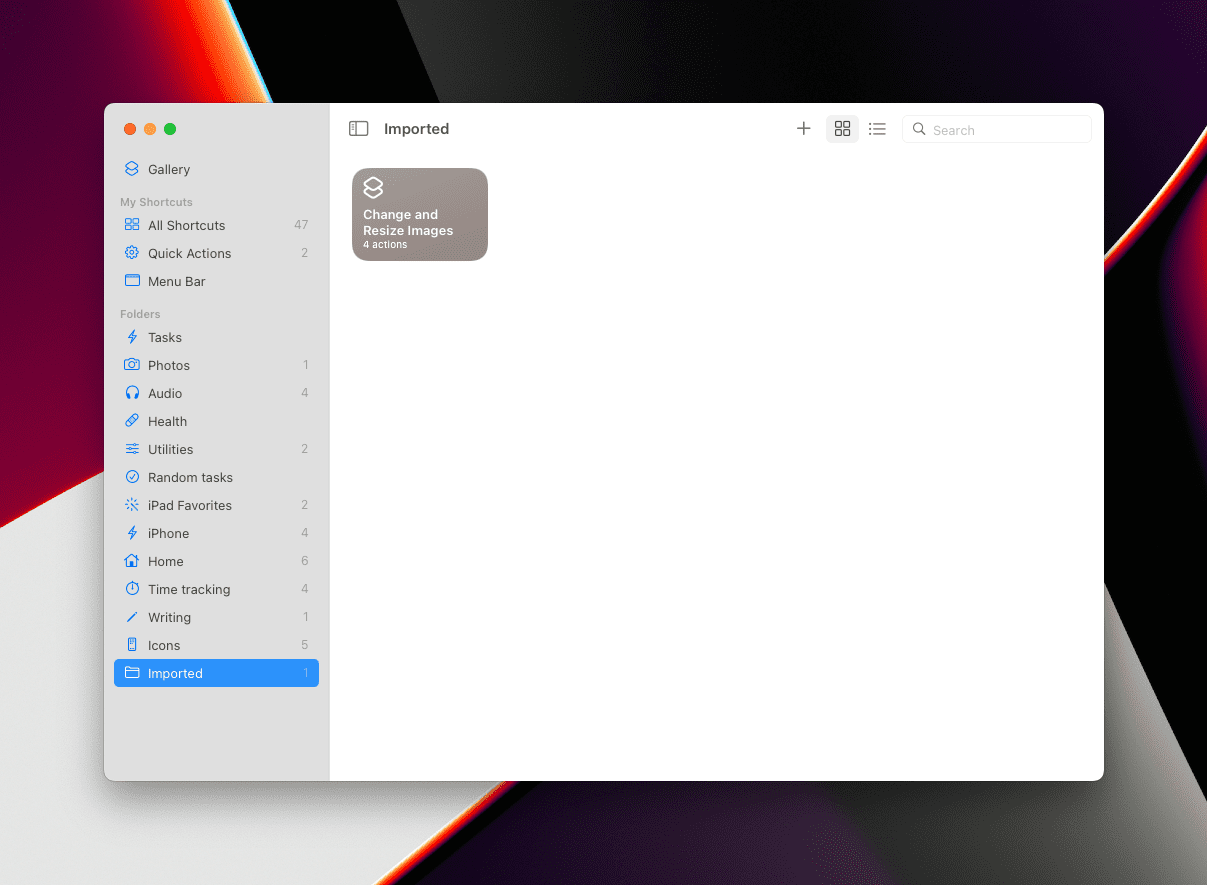
Every time you add or import an Automator workflow, it will be opened in the Shortcuts app so that you can make modifications if you need to. We recommend doing so, and you’ll want to do so if you want to make it available with Finder’s Quick Action menu.
Open the Shortcuts app on your Mac.
Double-click the imported Automator script.
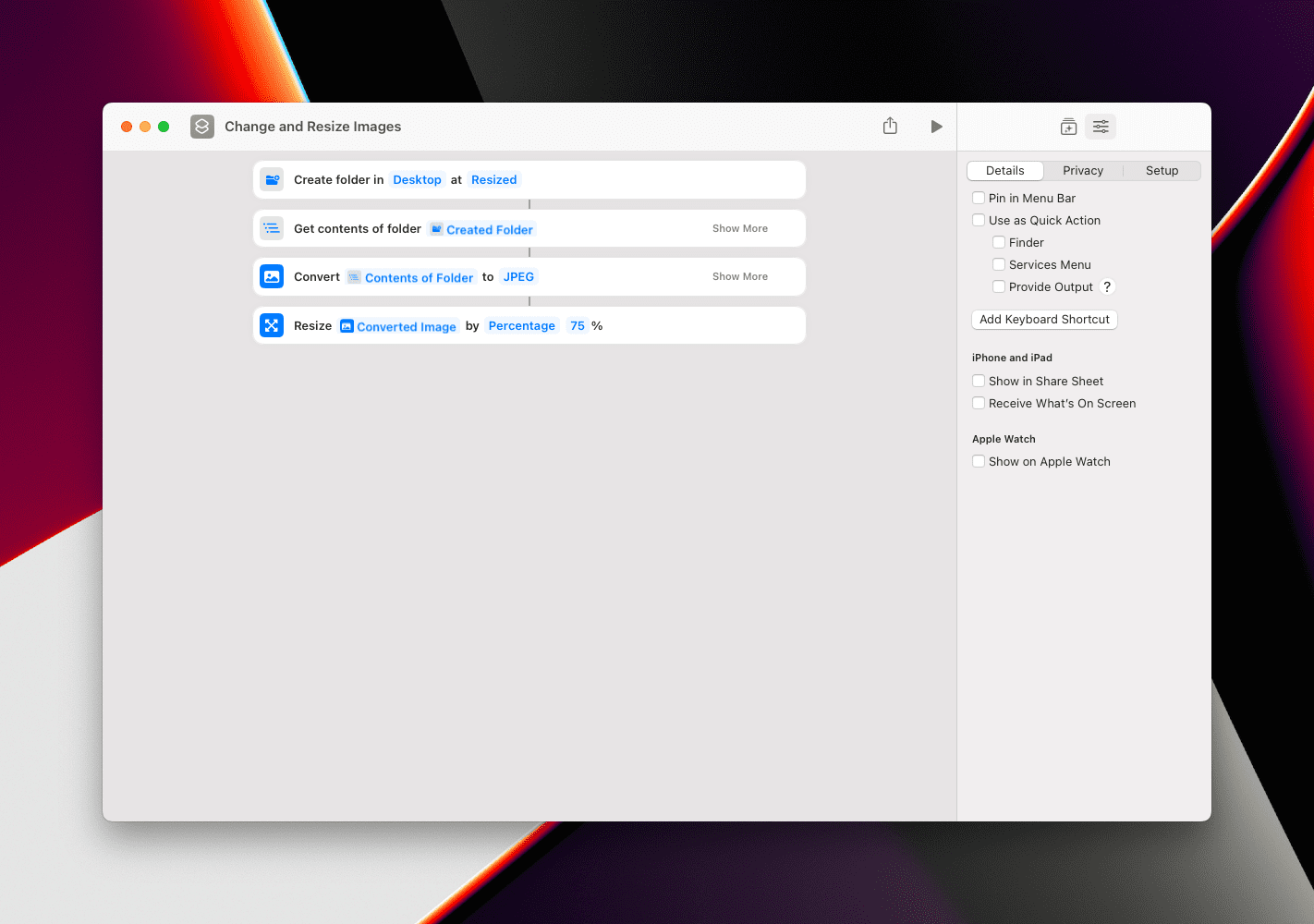
Click the three vertical lines on the right side.
Click Details.
Check the box next to Use as Quick Action.
Select one of the following options:
Finder
Services Menu
Provide Output
Close the Shortcut.
Now, you can right-click files, highlight Quick Actions, and select the imported Automator script without ever opening the Shortcuts app. This just makes it so you don’t have to run the scripts manually, and can run them with just a couple of clicks.
Shortcuts Is Great
If you’re a complete novice to the Shortcuts app and want to get an idea of how it can work, there are a few great sources. For one, you can just open the app and start tinkering around with the different options and variables for your automations. Apple also makes it so that you can download and import Shortcuts from other sources and have them available on your various devices.
The future of automation has finally arrived, and now you can create and use these automation workflows pretty much anywhere. Let us know what you think about Shortcuts and if you really think it will be able to replace Automator for macOS users.
Andrew Myrick is a freelance writer based on the East Coast of the US. He enjoys everything to do with technology, including tablets, smartphones, and everything in between. Perhaps his favorite past-time is having a never-ending supply of different keyboards and gaming handhelds that end up collecting more dust than the consoles that are being emulated.











Write a Comment