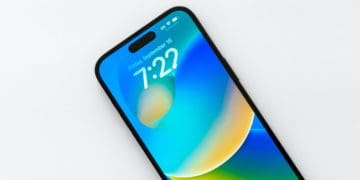
With the release of iOS 16, Apple completely blew everyone away as iPhone users finally have the ability to customize their Lock Screen. Until now, “customization” options were relegated to only being able to change your wallpaper. Thankfully, that’s no longer the case, as you are actually able to download, install, and use widgets on your Lock Screen.
Now that iOS 16 is officially available for all compatible iPhone models, we’ve been seeing a flood of app updates and even some new apps that take advantage of Lock Screen widgets. And while many of these widgets are great at displaying different bits of important information, there are some apps that are changing the way we use our phones.
With previous iterations of iOS, the only app that you could launch from the Lock Screen was the Camera app. There’s also a shortcut that quickly turns on or off the flashlight functionality, both of which are still present. Unfortunately, Apple hasn’t made it possible to customize these options. But leave it to developers to find a way to launch apps from Lock Screen on iOS 16.
Update to iOS 16.1 and Enable Live Activities
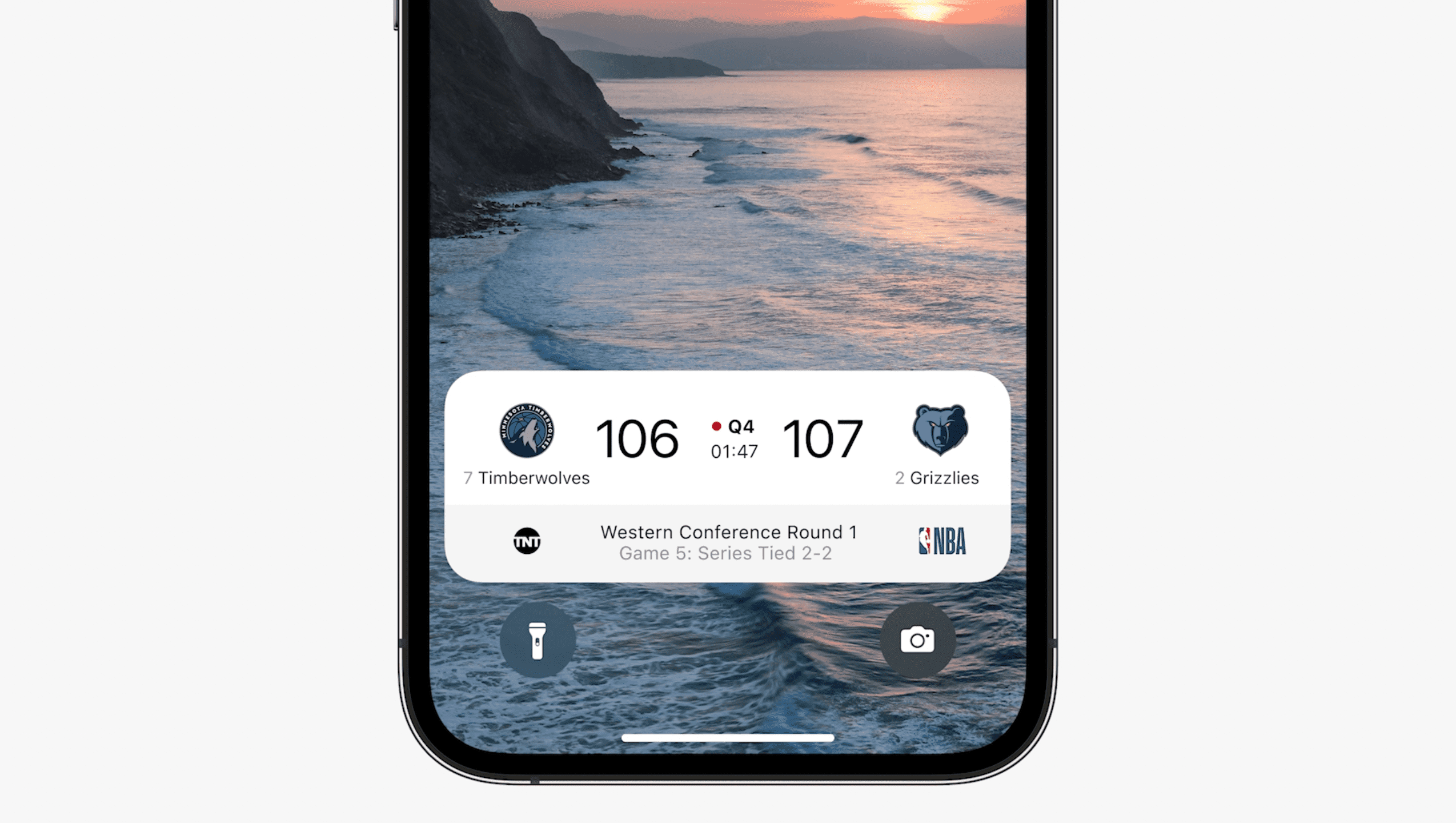
Live Activities are essentially interactive notifications that constantly update and are viewable from anywhere on your device. This includes appearing at the bottom of the Lock Screen, but can also be viewed on the iPhone 14 Pro and Pro Max thanks to the Dynamic Island.
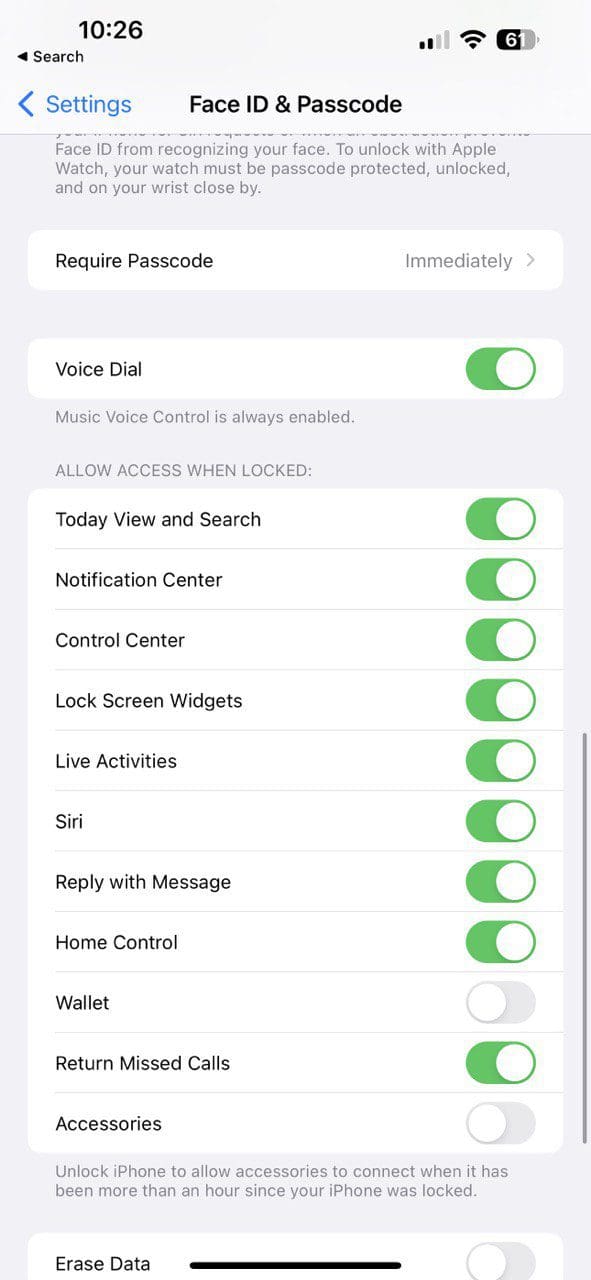
In order to make the most out of Lock Launcher, you’ll first need to make sure your iPhone is updated to iOS 16.1. Then, you’ll need to enable Live Activities, as this feature is turned off by default. Here’s how you can turn on Live Activities:
Open the Settings app on your iPhone running iOS 16.1 or higher.
Scroll down and tap Face ID & Passcode.
Scroll down again until you reach the Allow Access When Locked section.
Tap the toggle next to Live Activities to the On position.
Exit the Settings app.
Lock Launcher
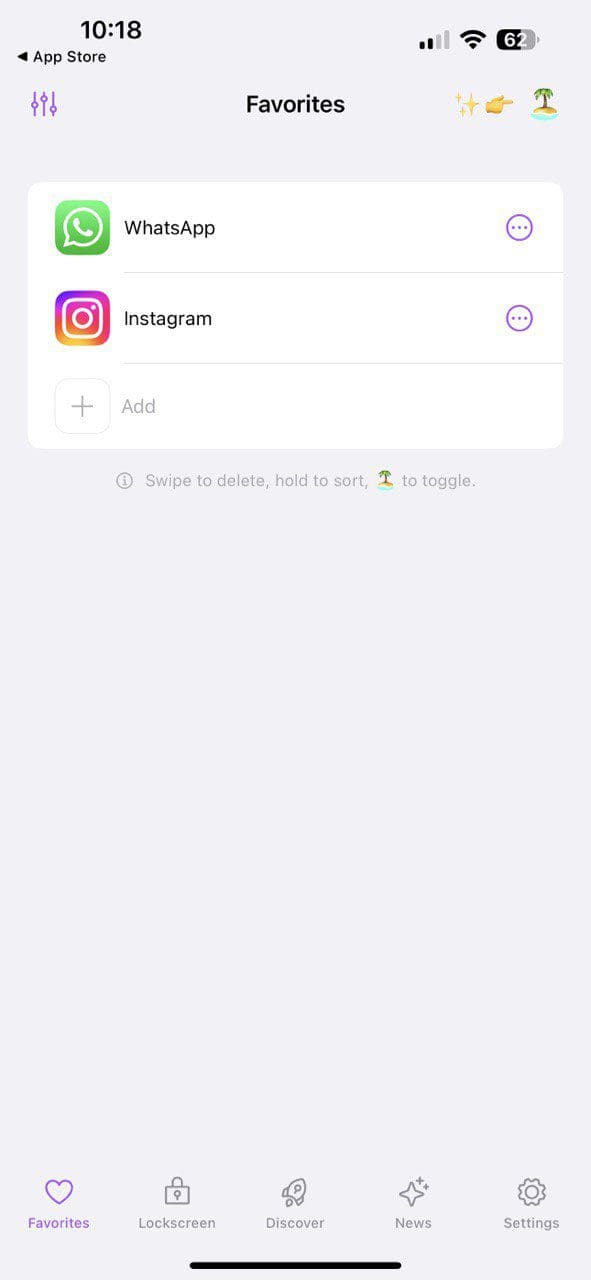
Lock Launcher is free to download from the App Store, but also offers some in-app purchases to unlock more functionality. With Lock Launcher, you can basically set any app to immediately launch from the Lock Screen. But perhaps even more impressive is the fact that you can also use Lock Launcher to launch Shortcuts, open directly to a specific website, and even take advantage of custom URL schemes from your other favorite apps.
Going even further, Lock Launcher’s functionality isn’t limited to just the Lock Screen of your iPhone running iOS 16. A recent update (at the time of this writing) also introduced support for Live Activities, which arrived with iOS 16.1.
From here, you’ll also need to make sure that Live Activities is enabled within the Lock Launcher app itself. Here’s how you can do so:
Open the Lock Launcher app on your iPhone.
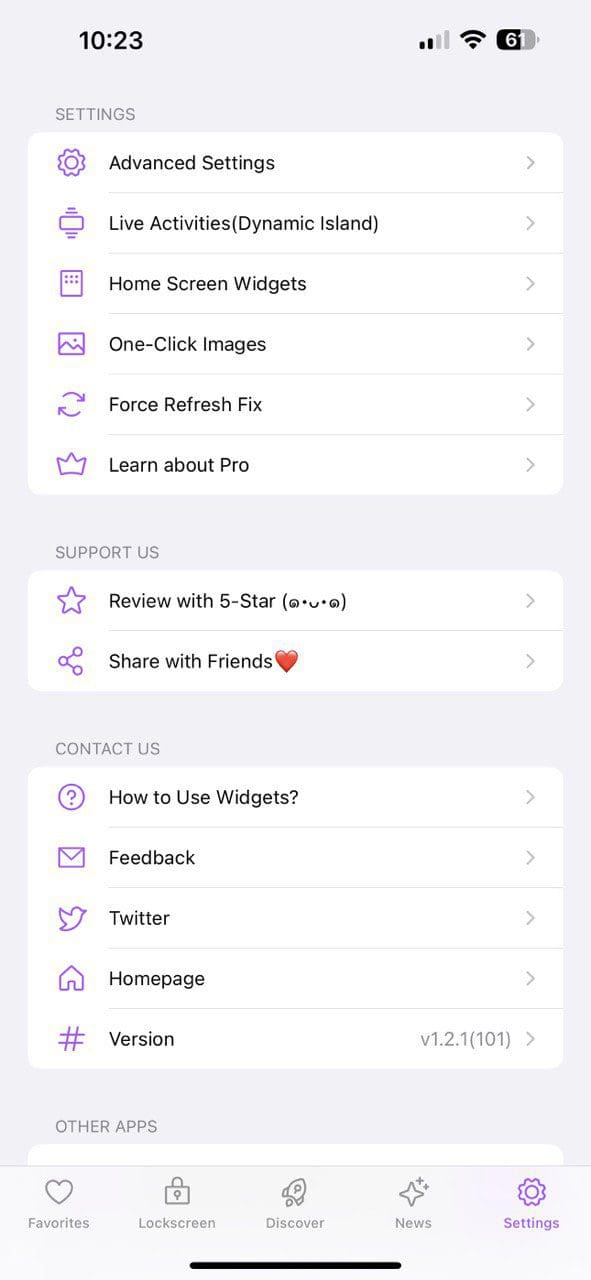
Tap the Settings icon in the bottom right corner.
At the top of the page, tap Live Activities (Dynamic Island).
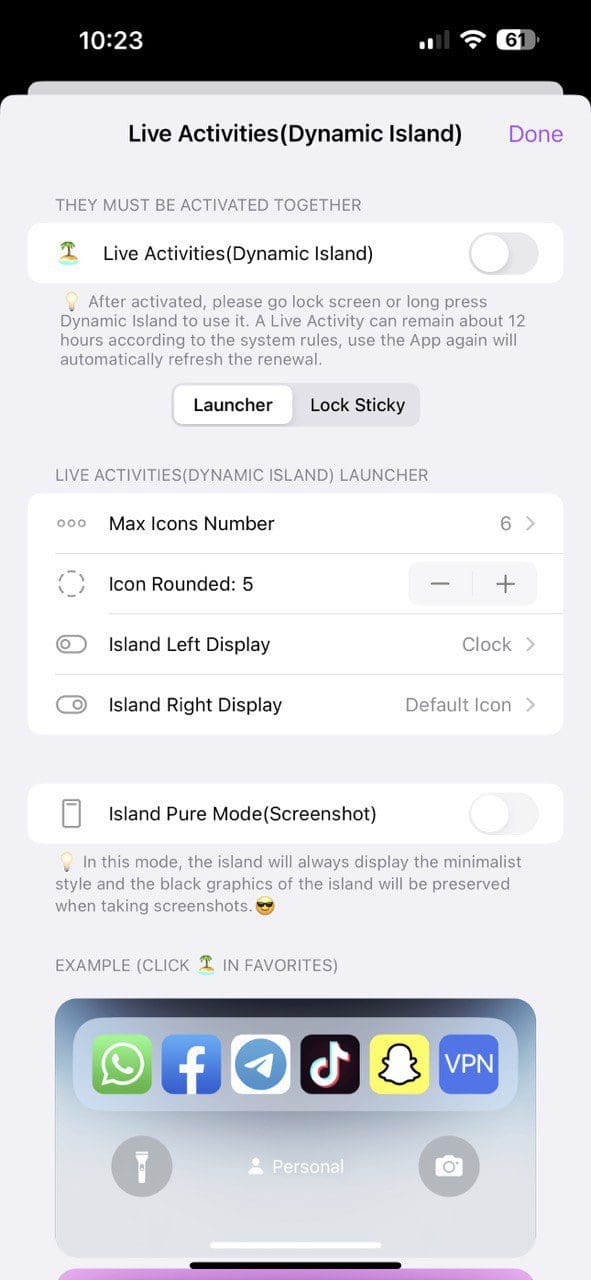
Tap the toggle next to Live Activities (Dynamic Island) to the On position.
In the top right corner, tap the Done button.
Now, you can go through Lock Launcher and start customizing which apps you want to have appear from the Lock Screen or in the Dynamic Island. And if you go back to the Live Activities settings from within Lock Launcher, there are a few additional options to pay attention to.
Max Icons Number
Icon Rounded
Island Left Display
Island Right Display
It’s really interesting to see just how much is possible from the Lock Launcher app. The only real “catch” is that it doesn’t know which apps are already installed on your iPhone. Currently, there are more than 130 different pre-loaded URL schemes for apps available within Lock Launcher. But if you want to use Lock Launcher with an app that isn’t listed, you’ll need to search for the proper URL scheme online and then use the Custom section.
Andrew Myrick is a freelance writer based on the East Coast of the US. He enjoys everything to do with technology, including tablets, smartphones, and everything in between. Perhaps his favorite past-time is having a never-ending supply of different keyboards and gaming handhelds that end up collecting more dust than the consoles that are being emulated.










Write a Comment