• Skip to primary navigation
  • Skip to main content
  • Skip to primary sidebar
  • Skip to footer

AppleToolBox

Tools and Fixes for Mac, iPad, iPhone & iWatch

Search posts

  • About
  • Contact

CONNECT WITH US

CATEGORIES

  • iPhone
  • iPad
  • iPod
  • Apple Watch
  • Mac/MacBook
  • AirPods
  • Apple TV
  • News
  • Apple Services
  • HomePod
  • Reviews

SITE

  • Home
  • About Us
  • Contact
  • Advertise

Search posts

You are here: Home / Mac / Safari: How to Enable and Disable Do Not Track Settings

Safari: How to Enable and Disable Do Not Track Settings

By Danny Maiorca 0 comments Last updated August 2, 2023

The Do Not Track (DNT) feature is a technological mechanism that enables users to inform websites (including advertising networks) that they do not want to be tracked. Safari offers this feature. When the feature is enabled, Safari will ask web sites not to track you online.

Related Reading:

  • How to Stop Apps From Tracking You on Your iPhone or iPad
  • How to Use Mail Privacy Protection on iPhone, iPad, and Mac
  • The Best iOS Privacy Tips and Tricks You Might Not Have Previously Known About
  • Apple Data Collection: What Does It Know About You?
  • The Complete Guide to Siri Privacy

You can stop websites and advertisers from tracking you on your iPhone, iPad, and Mac. The process is simple on each of them, and we’ll show you how to enable and disable this feature for each device today.

Contents

  • iPhone & iPad
  • macOS
  • Control Your Safari Tracking Settings With These Tips

iPhone & iPad

Enabling and disabling the Do Not Track feature is an identical process for iPhone and iPad. Below are the steps, and we’ll also give you another unique trick that you can try to further enhance privacy.

First, let’s start off by looking at how to switch Do Not Track on and off.

  1. Open the Settings app.
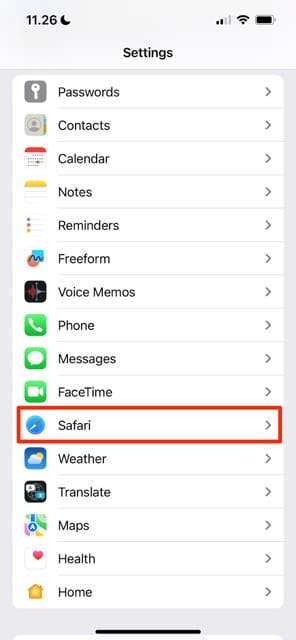
  2. Scroll down to Safari. Alternatively, you can search for the app in your search bar at the top.
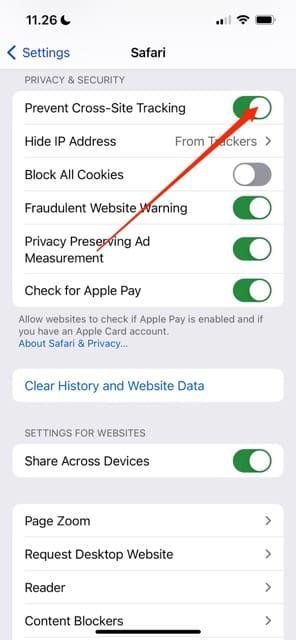
  3. Keep scrolling on the next window until you see Privacy & Security. Then, toggle Prevent Cross-Site Tracking off or on — depending on your preferences.
click on the safari tab to access the instructions mentioned today

If you switch off the tracking prevention feature, you can still hide your IP address from trackers.

  1. Navigate to Settings > Safari > Privacy & Security.
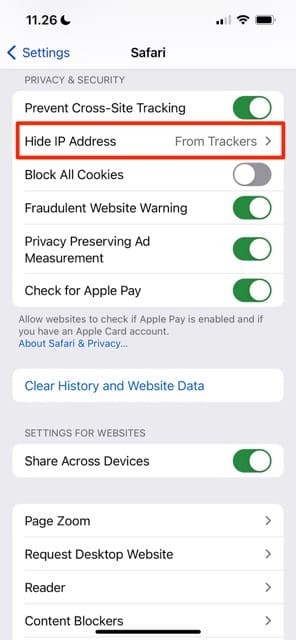
  2. Here, you’ll see a tab called Hide IP Address. Click on this tab.
  3. Make sure that you’ve turned on From Trackers to enable the feature.
click on the safari tab to access the instructions mentioned today
The tab you should click on to hide the IP tracking tab in Safari

macOS

You can also stop websites from tracking you in Safari on your Mac. However, you’ll need to follow a different set of instructions than iPhone and Mac users. Here are the steps to take instead.

  1. Open Safari on your Mac.
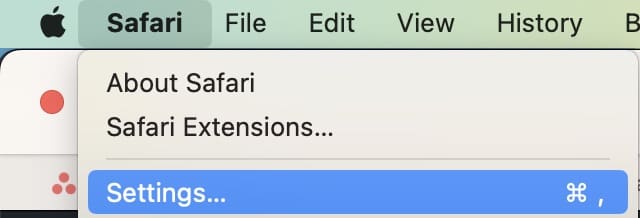
  2. Click on the Safari tab at the top of your screen. Then, tap on Settings. The Settings tab in Safari on Mac
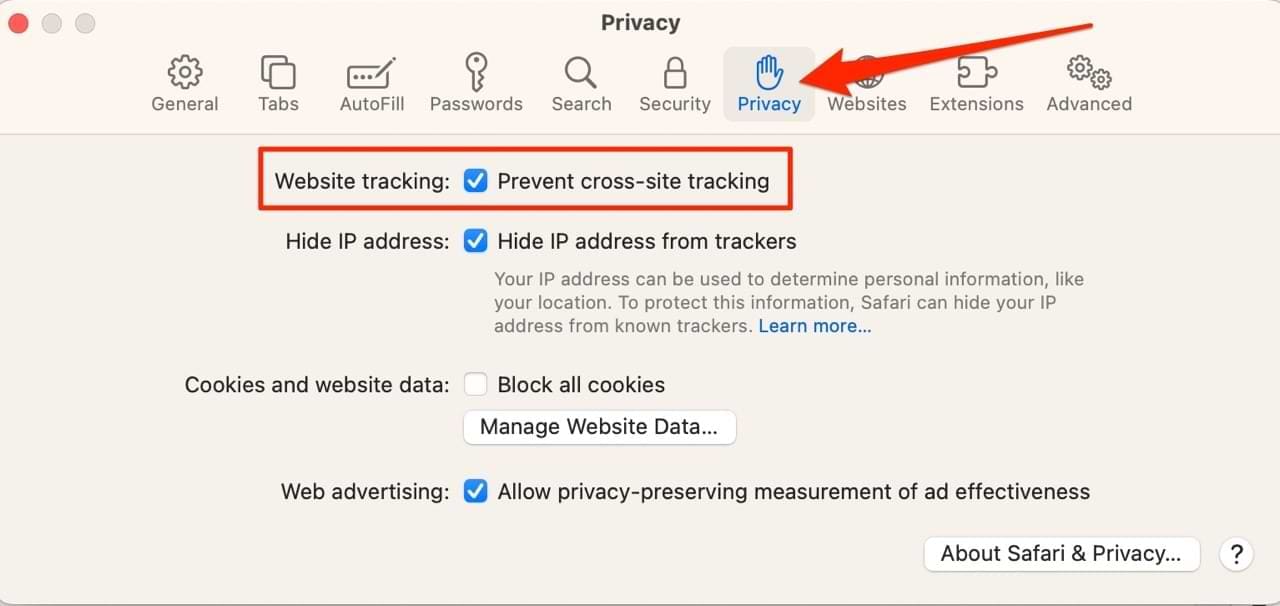
  3. Click on the Privacy tab when the pop-up window appears.
  4. Next to Website tracking:, you’ll see a checkbox called Prevent cross-site tracking. Make sure that this is checked if you want to enable the feature, and uncheck it if you want to disable it. Prevent cross-site tracking on your Mac in Safari

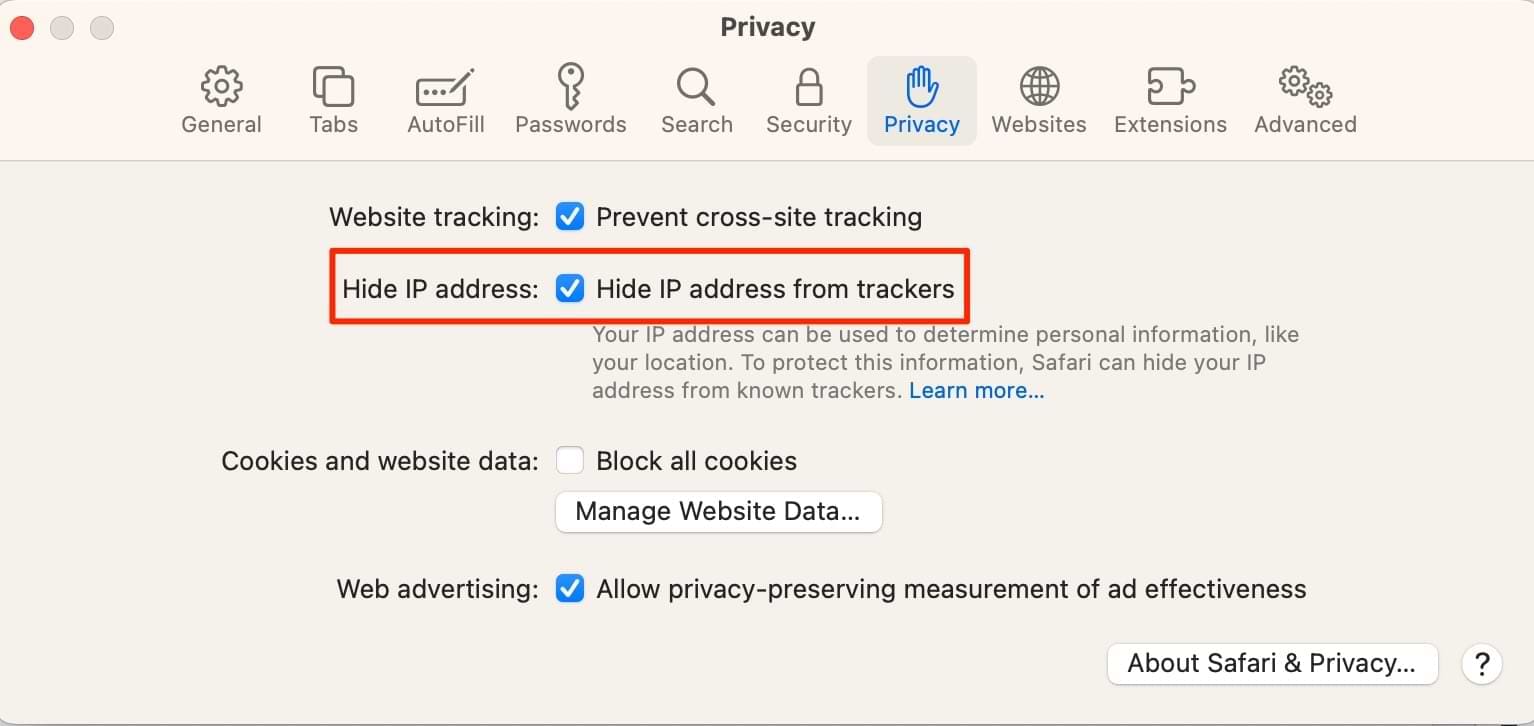
Like when disabling the Do Not Track feature on iOS and iPad, you can — if you keep the tool switched off — still hide your IP address. Tick the box next to Hide IP address from trackers to do this.

The box to hide IP address from trackers in Safari on Mac

Control Your Safari Tracking Settings With These Tips

The tips mentioned in this guide will help you quickly enable Safari’s Do Not Track settings. You can turn these on and off whenever you want, and you shouldn’t have too many problems using these features.

While you can use the settings we’ve shown you how to use today, you can increase your privacy when browsing online in numerous other ways. For example, you can use a virtual private network (VPN). Another option is to use incognito tabs when using the internet on your preferred device(s).

Related Posts:

  • MacBook Pro 2021 iPad Mini iPhone 13 Pro AirPods 3 Beats Fit Pro iPad Pro Best Apple Products - 1
    How to Turn on Apple's Advanced Data Protection for…
  • sidecar on iPadOS and macOS
    Sidecar not working in iPadOS and macOS? How to fix…
  • 2023 Mac Studio lifestyle - 1
    macOS Could Not Be Installed, How-To Fix
  • iPhone 15 Pro Max - 4
    Best iPhone Lock Screen Widgets for iOS 17
  • photo of an iphone with ios 16 downloaded on it
    iOS 16 Tips and Tricks: The Definitive List
  • Mail app macOS Ventura WWDC 2022
    Mail: Fix "Your Network Settings Prevent Content…
  • 2022 Mac Mini with Studio Display and Accessories
    Mac Tips For New Users In 2023
  • iphone and airpods on a table
    These Apps Have the Best iOS 17 Widgets
  • Update Apple ID settings on your iPhone, iPad, or Mac after changing your password
    Getting a Message to Update Apple ID Settings on…
Danny Maiorca

Danny has been a professional writer since graduating from university in 2016, but he’s been writing online for over a decade. He has been intrigued by Apple products ever since getting an iPod Shuffle in 2008 and particularly enjoys writing about iPhones and iPads. Danny prides himself on making complex topics easy to understand. In his spare time, he’s a keen photographer.

Reader Interactions

Write a Comment Cancel reply

Primary Sidebar

Recent Posts

  • How to Hide Username and Photo on the Mac Lock Screen
  • Microsoft Resume vs. Apple Handoff – Which Wins for Cross-Device Work?
  • How to Export iTunes Library to New Computer
  • What the Gemini Desktop App Will Bring to Mac
  • What to Do When Windows 11 Won’t Detect Your iPad
  • Outlook Outage 2026: iPhone Fixes for Sign-In Chaos

Connect with us

Footer

ABOUT

  • About Us
  • Contact us
  • Advertise
  • Privacy
  • Terms of Use

GUIDES

  • iOS & iPadOS
  • Apple ID
  • iCloud
  • App Store
  • iTunes
  • FaceTime
  • iMessage
  • Siri
  • Books and iBooks
  • Game Center
  • AirPlay

CONNECT

  • Facebook
  • Twitter
  • FeedBurner
  • YouTube

© Copyright 2010-2024 Guiding Tech Media · All Rights Reserved

This site and its content are in no way affiliated or endorsed by Apple, Inc. · Reproduction without explicit permission is prohibited

Last Updated on August 2, 2023 by Mitch Bartlett