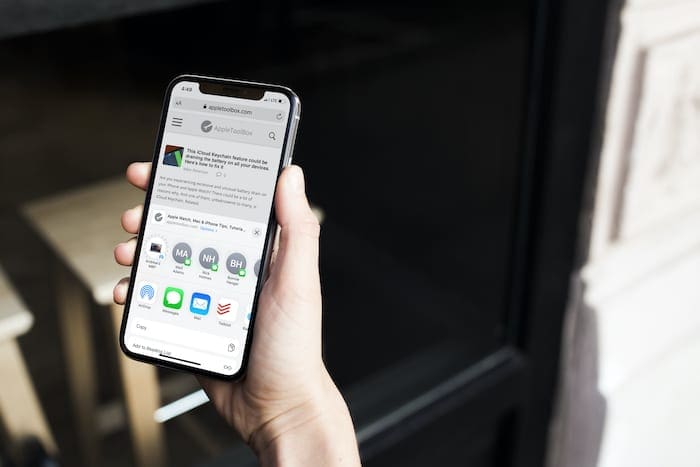
We already know that iOS 14 is going to be here before we know it, but there are still things about iOS 13 being worked out. One such instance is when it comes to the improved iOS Sharesheet now available for iPhone’s and iPad’s.
Apple made some major improvements to the Sharesheet, but left some users in the dark for certain features. An example of this is why some of your apps are now appearing under conversation suggestions, when those used to only be stock apps like Mail or Messages.
What did Apple add to the Share Sheet in iOS 13 & iPadOS?
For years, the Share Sheet was largely left untouched, with minor improvements here and there. Then, with the release of iOS 13 and iPadOS, Apple gave the users more control over what they see.
Instead of just getting the boring ole’ menu that didn’t really serve much purpose, Apple made it so you can customize and share to different apps easier.
The top two rows of icons show suggestions for conversations that you want to share something to. This includes your Mail app, the Messages app, and even some third-party apps. The catch comes in when it comes to the different API’s that Apple is using.
Apple opted to make this an “opt-in” situation for developers. This gives the developers the opportunity to take advantage of the new Sharesheet or not. Once added, the third-party apps will appear in the suggested conversations area.
But the fun doesn’t stop there, as there are all-new “Actions” which are available based on your apps. For example, you can set an array of Favorite Actions, which may include adding to a bookmark, or quickly accessing the Markup functionality.
How to add apps to the iOS Share Sheet
Some of the apps that appear in your share sheet are automatically added based on your usage. That’s why you might see something like Facebook Messenger listed, while Messages is at the end of the list.
But since this is all new, the suggestions can be a bit “wonky” from time-to-time. You may end up seeing apps that you have installed, but rarely use, or not see an app that you know is used all the time.
Here’s how you can manually add apps to your iOS or iPadOS Share Sheet:
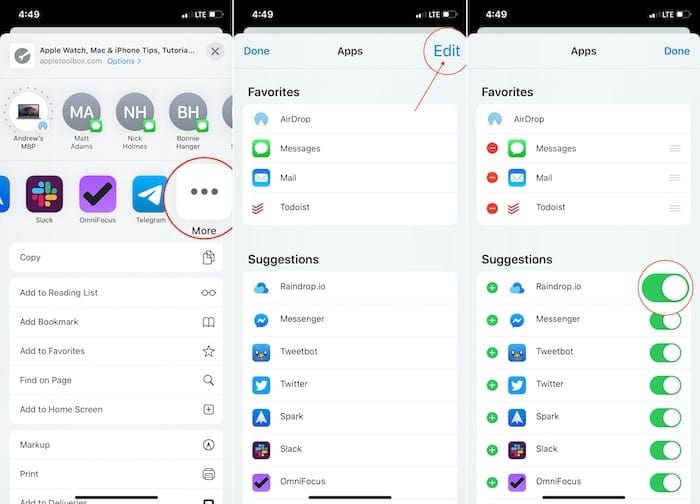
Open the Share Sheet and from the 2nd row, scroll all the way to the right.
Tap the More button.
This menu will show you all of the apps that can be added (or removed) from the share sheet. There is a Favorites section at the top, and then a Suggestions section below.
If you want to add an app to your favorites, tap the Plus icon and it will move to that section. Then, you can adjust the order of what apps show up first.
Moving back to the Suggestions section, if you go through and tap the toggle to the On position, apps will now appear in the share sheet. This can be useful if an app was turned off by default and you want it to be made available.
How to remove apps from the iOS Share Sheet
From time to time, you will see some app suggestions in the top row of your share sheet. When iOS 13 was first released, it was limited to only Apple apps, but now developers can add this functionality.
However, what are you supposed to do if an app appears that you don’t want to be shown? Unfortunately, there is no easy way to do this directly from the iOS Settings application. Instead, Apple has left it to the developers to include the ability to turn this off or on.
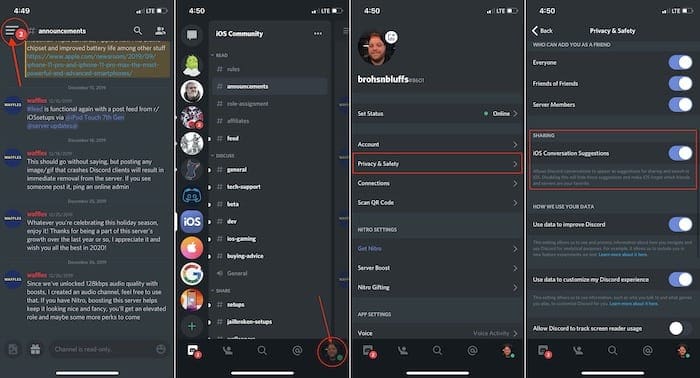
If that’s a situation you’re dealing with, it’s not terribly difficult to remove those apps from appearing. For instance, let’s walk through the steps of removing Discord.
Open Discord on your iPhone.
Click on the hamburger menu icon in the top left-hand corner.
Tap the Profile icon in the bottom right-hand corner.
Select Privacy & Safety.
Scroll down and toggle iOS Conversation Suggestions.
Once completed, Discord messages will no longer appear in your Share Sheet for suggestions. It’s also important to note that not all apps are created equal, so you will have to dive deeper to find the right settings menu for the apps you’re trying to remove.
Open an app to share something from on your iPhone
Tap the Share in the tool bar
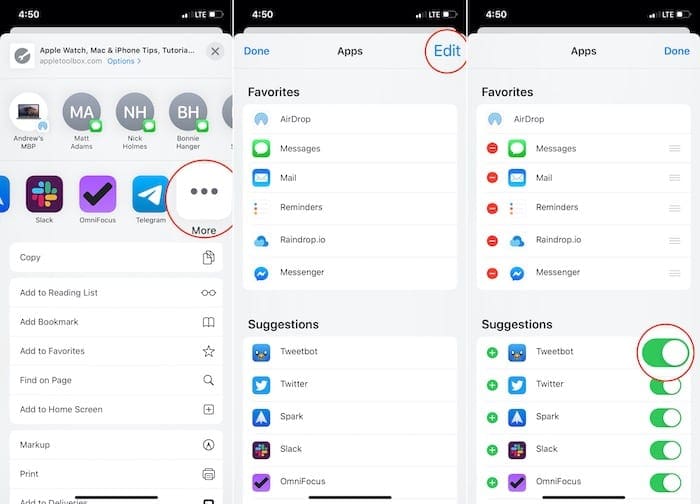
From the second row of apps, scroll all the way to the right.
Tap the More button.
Tap Edit in the top right-hand corner.
Go through and toggle the apps that you do or don’t want to appear.
As you can see, there is a list of favorites at the top, and these are the apps that appear first in the Sharesheet. When in this menu, under Suggestions, you can tap the Plus icon next to the apps that you wish to add to your Favorites.
Conclusion
It’s great to see Apple making these strides to make interaction with our phones and tablets easier. Being able to choose which applications can be used to share content to, along with opening things up for developers to take advantage of the API’s, is pretty amazing.
We aren’t 100% sure of what to expect when it comes to iOS 14, as the rumors continue to swirl. All we can hope is that Apple keeps pushing the envelope, trying new things, and making lives better and easier for iOS and iPadOS users.
If you have any questions about how to remove apps from the iOS Share Sheet, let us know in the comments. And as always, if there’s anything that we missed, sound off so we can have it added to the instructions above!
Andrew Myrick is a freelance writer based on the East Coast of the US. He enjoys everything to do with technology, including tablets, smartphones, and everything in between. Perhaps his favorite past-time is having a never-ending supply of different keyboards and gaming handhelds that end up collecting more dust than the consoles that are being emulated.
I am trying to add an app to the share sheet on iPadOS 14, but the one I want is not listed in either favourites or suggestions… any ideas please? Thanks!












Hello Andrew,
I am trying to add an app to the share sheet on iPadOS 14, but the one I want is not listed in either favourites or suggestions… any ideas please? Thanks!
Paul