Freeform has been a popular app for people in all kinds of fields to use since it launched in late 2022. You can use the tool if you’re a student, in a full-time job, or self-employed. And if you simply want to jot your thoughts, you’ll find that Freeform is handy for doing that.
You can use Freeform on your own, but it’s also handy if you’d like to share your projects with others. This article will show you how to do that, and you’ll also discover the requirements for using the app collaboratively.
What You Need to Share Freeform Projects With Others
Sharing Freeform projects with others requires work on both sides. To use the app in the first place, you’ll need to have at least iOS 16.1 or iPadOS 16.1 installed. Alternatively, if you use a Mac, your device must have macOS Ventura 13.1 or later.
To share your Freeform projects with others, the people you want to send your canvases to must own Apple products. Moreover, they’ll need to have the latest version of whichever operating system they use.
How to Share Freeform Projects With Others
Now that we’ve got the system requirements for sharing Freeform projects out of the way, let’s look at how you can share your canvases with others. Below, you’ll find out how to do so for iPad, iPhone, and Mac; we’ve split these into subsections so that it’s easier for you to navigate.
iPhone and iPad
If you want to share your Freeform canvases with others on your iPhone or iPad, the process is the same. Below, you’ll find the steps you need to follow.
1. Open the Freeform app on your device and go to the canvas you want to share.
2. When you find your canvas, hold down on it until a dropdown menu appears.
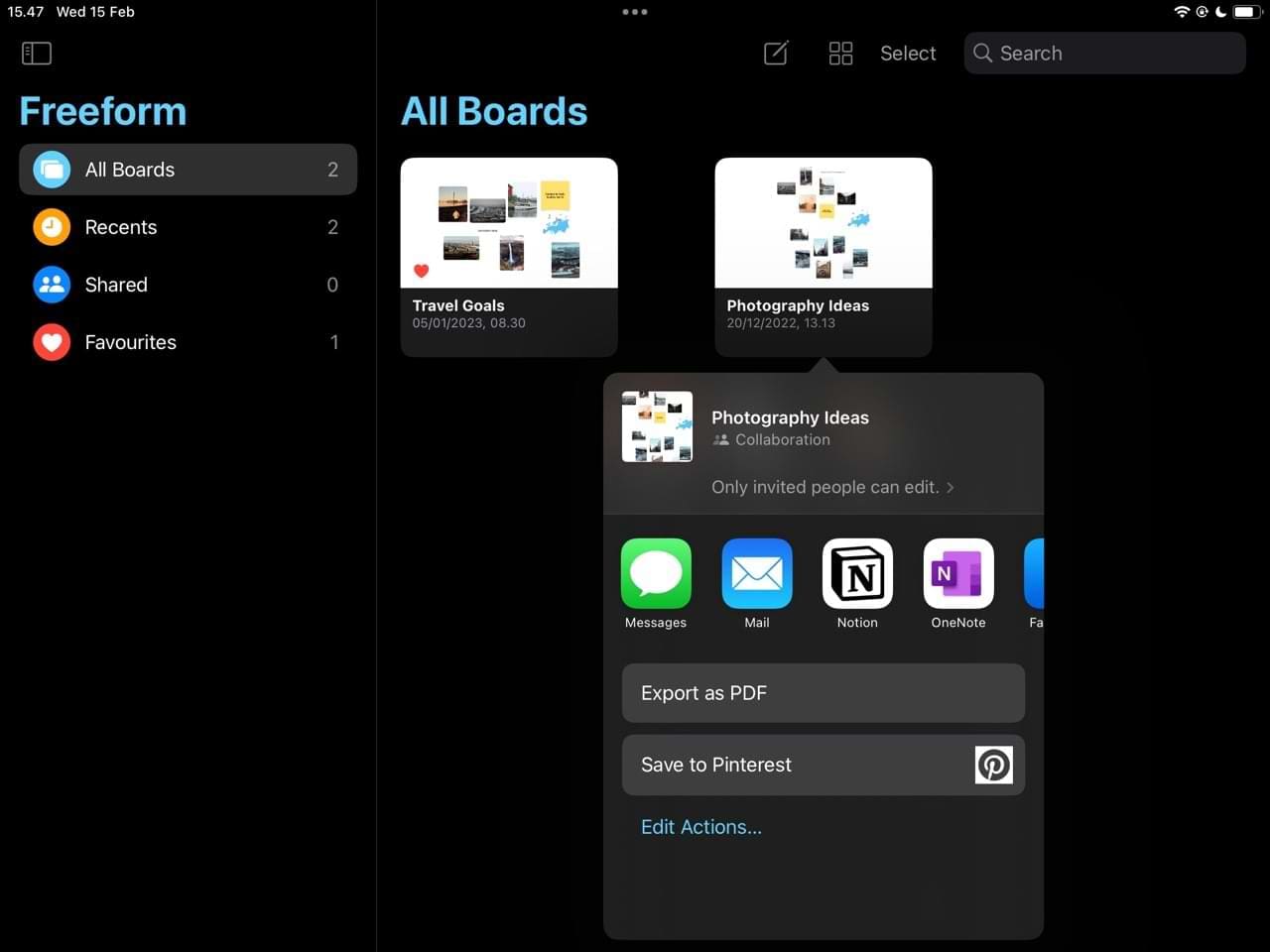
3. Hit the Share button.
4. Go to your editing options and decide on the permissions you want to give recipients. You can decide whether you’d like them to make changes directly within the app, or if you’d only like to give viewing permissions. Moreover, you can choose if only invited users can see your canvas – or if anyone with the link can.
5. Select who you want to share your project with, along with how you want to.
In addition to sharing your Freeform projects with others, you can also choose to export them as PDFs. Moreover, you can save them to Pinterest if you’d rather do that.
Mac
If you want to share your Freeform canvases with others from your Mac, you’ll need to do a couple of things differently. To help you achieve your desired results, you can follow the instructions we’ve listed below.
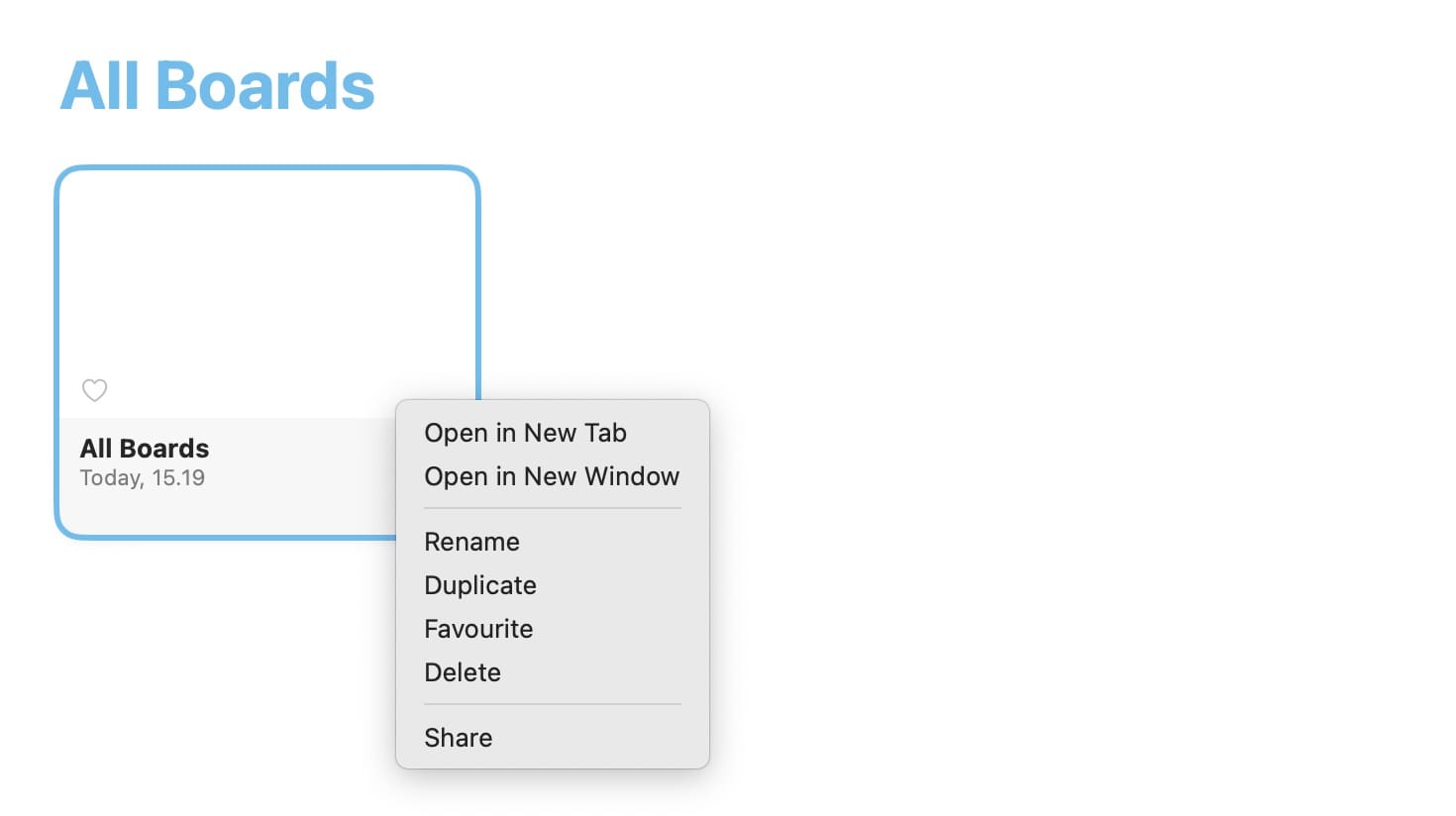
1. Click on the canvas you want to share. At the same time that you click the trackpad on your Mac, hold the control button on your keyboard.
2. Select the Share button to begin the process.
3. Like on your iPad, you’ll need to choose your sharing permissions and who you want to share your Freeform canvas with.
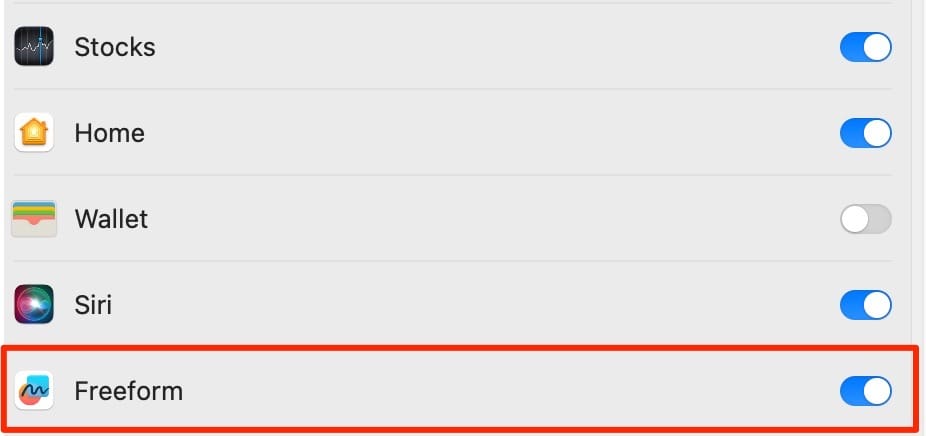
If you’ve never shared a canvas in Freeform before, you might need to switch on iCloud for the app. Go to Settings > iCloud, and toggle the button next to Freeform on.
Share Your Freeform Projects With Friends, Colleagues, and More
Whether you’re on your iPhone, Mac, or iPad, you can easily share your Freeform canvases with others. You’ve got complete control over who can access your projects, and you also have the ability to decide whether others can edit or view your canvases.
You can use the sharing function to show others what you’ve produced, and it’s also an excellent tool for collaborating with others on big projects. The process to share your Freefrom canvases is slightly different on iPad and iPhone than it is on Mac, but you shouldn’t have too many issues on any device.
Danny has been a professional writer since graduating from university in 2016, but he’s been writing online for over a decade. He has been intrigued by Apple products ever since getting an iPod Shuffle in 2008 and particularly enjoys writing about iPhones and iPads. Danny prides himself on making complex topics easy to understand. In his spare time, he’s a keen photographer.













Useless. It doesn’t explain at all how to share from Mac to Mac. Wow “Click Share”. And then?