• Skip to primary navigation
  • Skip to main content
  • Skip to primary sidebar
  • Skip to footer

AppleToolBox

Tools and Fixes for Mac, iPad, iPhone & iWatch

Search posts

  • About
  • Contact

CONNECT WITH US

CATEGORIES

  • iPhone
  • iPad
  • iPod
  • Apple Watch
  • Mac/MacBook
  • AirPods
  • Apple TV
  • News
  • Apple Services
  • HomePod
  • Reviews

SITE

  • Home
  • About Us
  • Contact
  • Advertise

Search posts

You are here: Home / iPhone / How to Stop iPhone From Automatically Updating to iOS 26

How to Stop iPhone From Automatically Updating to iOS 26

By Louis Roundtree 0 comments Last updated December 26, 2025

Things to Know
  • Staying on iOS 18 is only possible in the short-term, with most users who have an iPhone 11 or older eventually being forced to switch to the newer version.
  • You need to prevent your phone from downloading updates, as just manually deleting them will prompt it to re-download.
  • Make sure to move your most valuable files to iCloud, just in case.
  • Turn off Wi-Fi when making any changes to stop the iPhone from downloading new updates.

If you’re using an older iPhone app that is not yet fully compatible with the newest operating system, or you just simply don’t like the new Liquid Glass feature, you might be out of luck. Apple is slowly forcing everyone to switch to iOS by stopping security updates for iOS 18. But that doesn’t mean you can’t stop iPhone from updating to iOS 26 automatically for a few more months. Here’s how.

Contents

  • Part 1: Turn Off Automatic Updates
  • Part 2: Removing the Update File
  • Part 3: Blocking Apple Update on Wi-Fi
  • How to Stop iPhone from Updating if It Gets Stuck

Part 1: Turn Off Automatic Updates

Since your phone needs to download the update to install it, you can prevent the automatic download in settings.

Step 1. Go to the Settings app.

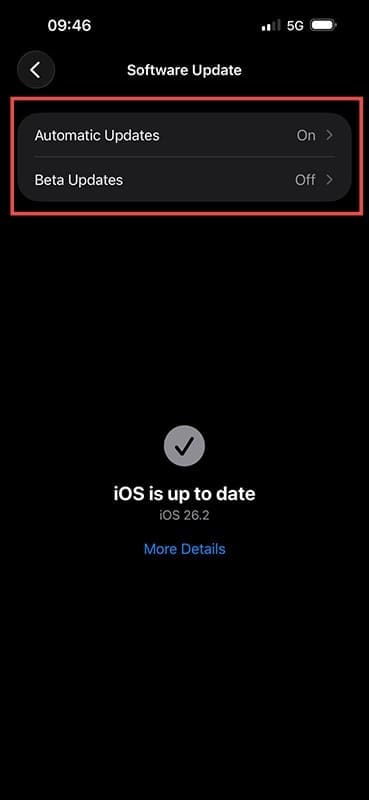
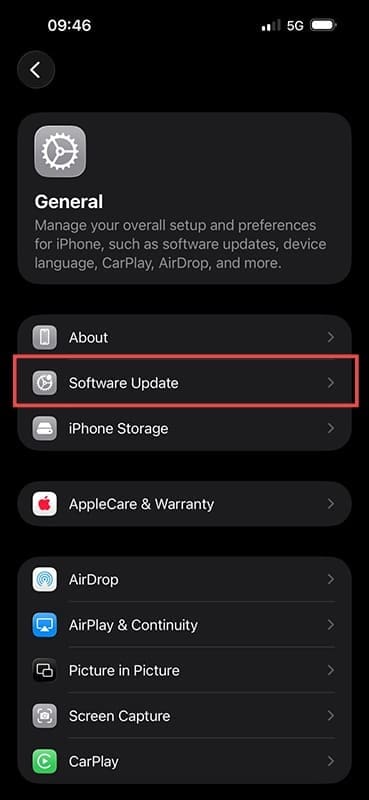
Step 2. Tap on “General,” then select “Software Update.”

How to Stop iPhone From Automatically Updating to iOS 26 1

Step 3. Select “Automatic Updates,” then toggle off the option “iOS Updates” for both the “Automatically download” and “Automatically install” categories.

How to Stop iPhone From Automatically Updating to iOS 26 2

Part 2: Removing the Update File

While preventing automatic installations should be enough, your phone might’ve still downloaded the update file and is waiting for the last possible moment to install it. You can try to manually remove it from the device.

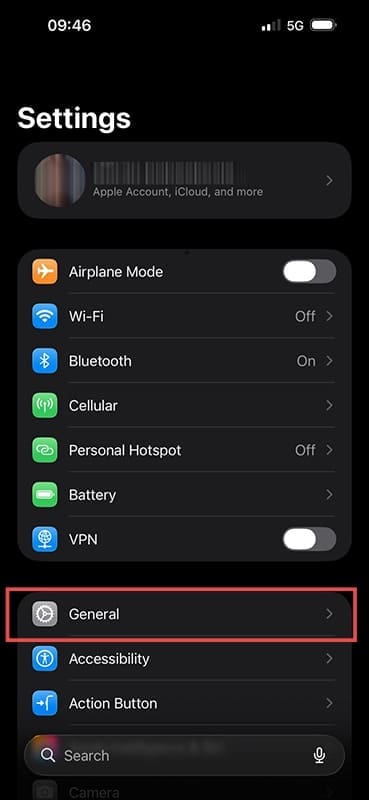
Step 1. Go to Settings, then to “General.”

How to Stop iPhone From Automatically Updating to iOS 26 3

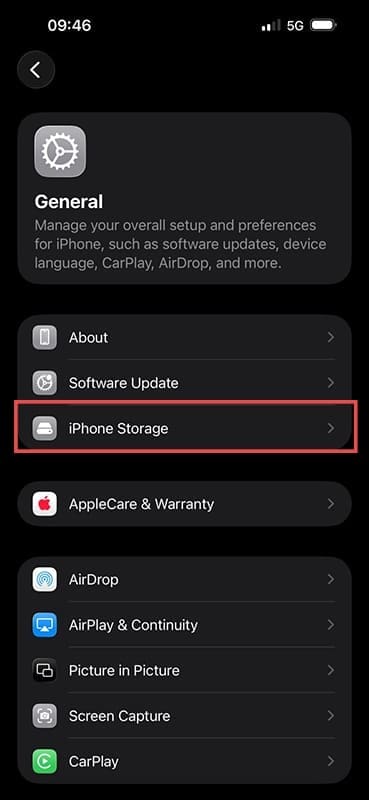
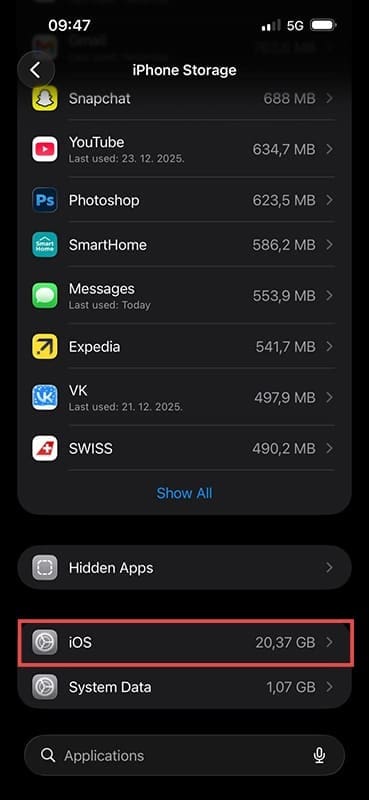
Step 2. Tap on “iPhone Storage,” then scroll down until you find a file named “iOS 26” (it might be named iOS 26.1 or something similar depending on the exact version).

How to Stop iPhone From Automatically Updating to iOS 26 4

Step 3. Select the file and tap on “Delete Update,” then confirm your choice.

How to Stop iPhone From Automatically Updating to iOS 26 5

Part 3: Blocking Apple Update on Wi-Fi

If you want to go a step further, you can leverage the fact that iPhones generally won’t update when they’re only using mobile data. This is done by blocking the connection to Apple’s update servers on your Wi-Fi router.

Step 1. Go to a PC and enter your router’s local IP address in the browser. This is typically 192.168.1.1 or 192.168.0.1.

Step 2. Log into your router’s administration page (the stock account credentials are usually printed on the label on the router itself).

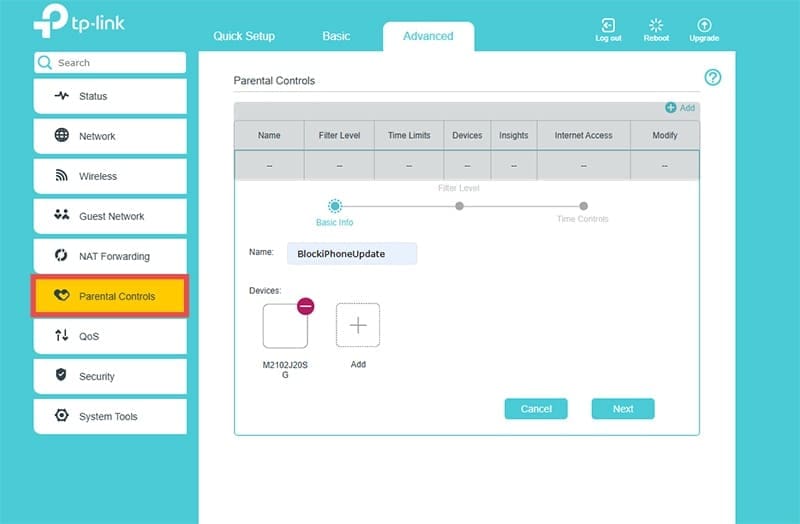
Step 3. The interface and options will depend on your exact browser. Find “Domain blocking” or “Service filtering” (usually in the “Security” options). In some cases, you may need to go to “Parental Controls,” like with TP-Link devices.

How to Stop iPhone From Automatically Updating to iOS 26 6

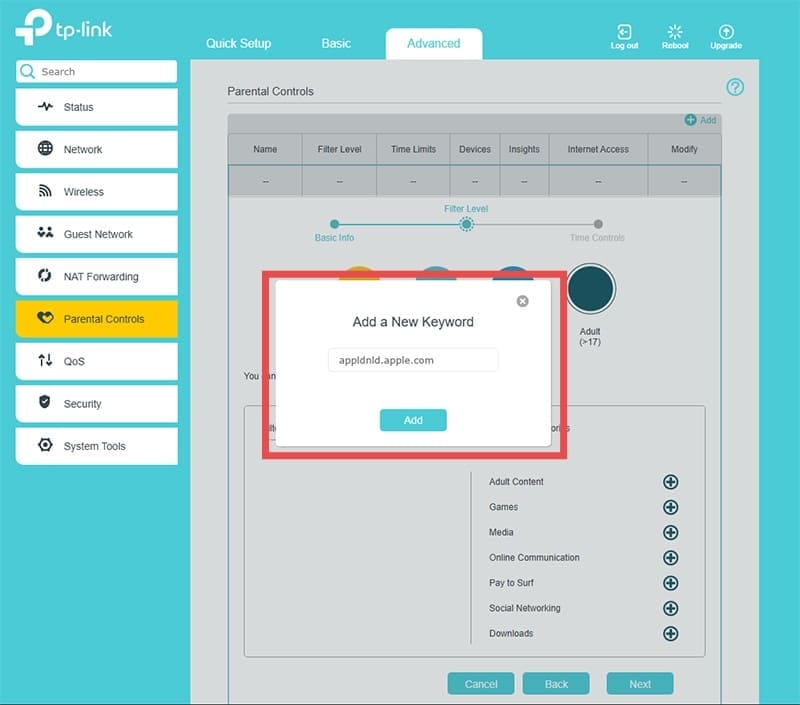
Step 4. Add new domain-blocking rules, then block the websites appldnld.apple.com and mesu.apple.com in the rules. This might be under “Domain blocking” or “Keywords.”

How to Stop iPhone From Automatically Updating to iOS 26 7

Step 5. Click on “Save” and exit router settings.

How to Stop iPhone From Automatically Updating to iOS 26 8

Step 6. You need to remember to turn off Wi-Fi on your phone whenever you’re out of the house. Even connecting to a public Wi-Fi might prompt the iPhone to update.

How to Stop iPhone from Updating if It Gets Stuck

If your device is older and has its memory full, you may need to stop iPhone from updating to iOS 26 due to it freezing mid-way. This can usually be accomplished by force restarting the device, but is not a surefire method. Usually, your data should be backed up on iCloud and safe even if the iPhone needs to be reverted to an older update. You may need to use iTunes to update the iPhone manually anyway.

Related Posts:

  • change back liquid glass on ios 26
    How to Change Liquid Glass on iOS 26 to the “Old Look”
  • 2023 Mac Studio lifestyle - 1
    macOS Could Not Be Installed, How-To Fix
  • 2022 Mac Mini with Studio Display and Accessories
    Mac Tips For New Users In 2023
  • pexels-jess-bailey-designs-810079
    How To Run Linux On Mac: A Step-by-Step Guide
  • pexels-cottonbro-5082579
    Getting Started With iOS 15: Everything Good And Bad
  • pexels-designecologist-1779487
    The Best iPhone And Mac Shortcuts For Beginners
  • iphone with raindrops
    Liquid Detected in iPhone Lightning Connector: How to Fix
  • Photo of someone using Apple Music on their smartphone
    How to Fix Apple Music Not Working on iPhone / iPad
  • sidecar on iPadOS and macOS
    Sidecar not working in iPadOS and macOS? How to fix…
Louis Roundtree
Louis Roundtree

As an avid gamer, I’ve run into my fair share of error codes and weird faults that have forced me to find fixes to problems I never anticipated. That gave me a passion for sharing those fixes with others so we can all game without feeling like our hardware is rebelling against us.
Reader Interactions

Write a Comment Cancel reply

Primary Sidebar

Recent Posts

  • How to Stop Sharing Analytics in iOS 26
  • How to Manage Your iPhone Call Log
  • Are Apple’s Safety Precautions Enough for AirTags?
  • How to Hide Username and Photo on the Mac Lock Screen
  • Microsoft Resume vs. Apple Handoff – Which Wins for Cross-Device Work?
  • How to Export iTunes Library to New Computer

Connect with us

Footer

ABOUT

  • About Us
  • Contact us
  • Advertise
  • Privacy
  • Terms of Use

GUIDES

  • iOS & iPadOS
  • Apple ID
  • iCloud
  • App Store
  • iTunes
  • FaceTime
  • iMessage
  • Siri
  • Books and iBooks
  • Game Center
  • AirPlay

CONNECT

  • Facebook
  • Twitter
  • FeedBurner
  • YouTube

© Copyright 2010-2024 Guiding Tech Media · All Rights Reserved

This site and its content are in no way affiliated or endorsed by Apple, Inc. · Reproduction without explicit permission is prohibited

Last Updated on December 29, 2025 by Louis Roundtree