• Skip to primary navigation
  • Skip to main content
  • Skip to primary sidebar
  • Skip to footer

AppleToolBox

Tools and Fixes for Mac, iPad, iPhone & iWatch

Search posts

  • About
  • Contact

CONNECT WITH US

CATEGORIES

  • iPhone
  • iPad
  • iPod
  • Apple Watch
  • Mac/MacBook
  • AirPods
  • Apple TV
  • News
  • Apple Services
  • HomePod
  • Reviews

SITE

  • Home
  • About Us
  • Contact
  • Advertise

Search posts

You are here: Home / AirPods / How To Turn off Head Tracking and Spatial Audio in iOS 15

How To Turn off Head Tracking and Spatial Audio in iOS 15

By Andrew Myrick 1 comment Last updated January 6, 2022

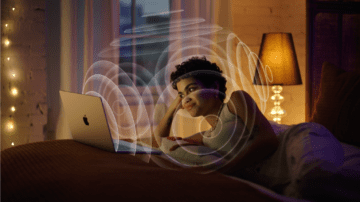
One of the best additions made to the AirPods lineup over the past few years is Spatial Audio and Head Tracking. This can truly immerse you in whatever music (or movies) that you are listening to, creating a completely different experience than you’ve ever imagined.

Related Reading

  • How To Use Spatial Audio With Amazon Music
  • How To Enable Spatial Audio in Apple Music
  • AirPods 3 vs AirPods Pro: Do You Need The Pro?
  • How to Watch Netflix With Spatial Audio and Your AirPods
  • AirPods 3 Review: The Best Gets Better

The way that it works is that whenever you turn or move your head, the music follows you. This ensures that your remain immersed in the music and that it still “fills the room”.

One of the best parts about Spatial Audio coming is that other music services and streaming services like Amazon Music and Netflix are enabling the ability to use Spatial Audio. This transforms even your movies into a completely different experience, making you feel like you’re in the movie theater.

Turn off Head Tracking and Spatial Audio in iOS 15

As a reminder, head tracking and Spatial Audio only works with the likes of the AirPods Pro, AirPods Max, and select other headphones. However, if you find that you don’t like the experience offered by head tracking, you can actually turn the feature off. Here’s how you can turn off head tracking and Spatial Audio in iOS 15 and iPadOS 15:

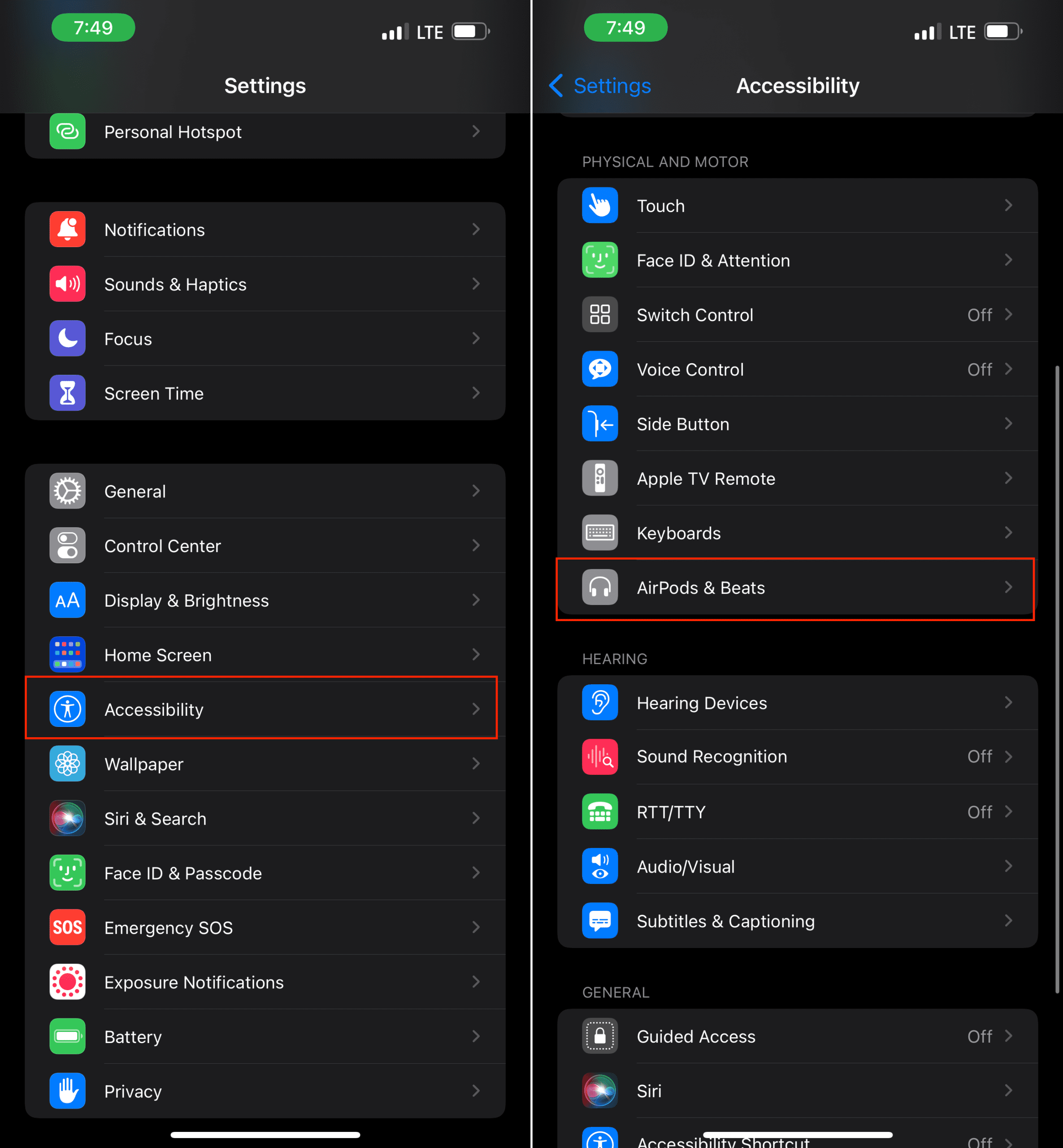
  1. Open the Settings app on your iPhone or iPad.
  2. Scroll down and tap Accessibility.
  3. Tap AirPods & Beats under the Physical and Motor section.
  4. Select the AirPods or Beats headphones that you want to turn off Head Tracking and Spatial Audio for.
  5. Under Spatial Audio Head Tracking, tap the toggle next to Follow iPhone or Follow iPad.

Once completed, you can try turning your head back and forth while listening with your headphones. You’ll notice that the music no longer follows you around while you’re walking around.

The reason why some might want to turn this unique feature off is that it can be a little bit jarring at first. When you first listen to an album using Spatial Audio and move your head around, it’s definitely something like you’ve never heard before. But this has been known to cause a bit of confusion until you get used to it.

Related Posts:

  • Netflix logo on a TV screen
    Netflix App Not Working on iPhone or iPad: How to Fix
  • Screen Shot 2021-07-12 at 4.52.12 AM
    AirPods Max Review: How They Look Six Months Later
  • Apple Watch Ultra Tips and Tricks
    Apple Watch Tips and Tricks for 2023
  • two iphones standing up
    Best iPhone 14 Accessories
  • Netflix logo on a TV screen
    What to Do if Netflix Is Not Compatible with Your iPad
  • AirPods Pro 2 - 1
    AirPods Max vs AirPods Pro 2: Making The Right Purchase
  • Apple iPad Pro M2 - Hover Apple Pencil
    Best iPad Pro M2 Accessories in 2022
  • 2022 Mac Mini Lifestyle
    Best Accessories for M2 Mac Mini
  • Photo of someone using Apple Music on their smartphone
    How to Fix Apple Music Not Working on iPhone / iPad
Andrew Myrick
Andrew Myrick

Andrew Myrick is a freelance writer based on the East Coast of the US. He enjoys everything to do with technology, including tablets, smartphones, and everything in between. Perhaps his favorite past-time is having a never-ending supply of different keyboards and gaming handhelds that end up collecting more dust than the consoles that are being emulated.
Reader Interactions

Write a Comment Cancel reply

Show 1 Comments

  1. Josh says

    November 29, 2022 at 6:07 PM

    What about for video?
    All this stuff is turned off
    And it still follows my phone.

    Reply

Primary Sidebar

Recent Posts

  • What the Gemini Desktop App Will Bring to Mac
  • What to Do When Windows 11 Won’t Detect Your iPad
  • Outlook Outage 2026: iPhone Fixes for Sign-In Chaos
  • Guide to Changing iMessage Backgrounds on iPhone and Mac
  • Has Apple Killed Vision Pro? (Insane Sales Flop Explained)
  • 5 Great Apps for Staying Organized on Your iPhone

Connect with us

Footer

ABOUT

  • About Us
  • Contact us
  • Advertise
  • Privacy
  • Terms of Use

GUIDES

  • iOS & iPadOS
  • Apple ID
  • iCloud
  • App Store
  • iTunes
  • FaceTime
  • iMessage
  • Siri
  • Books and iBooks
  • Game Center
  • AirPlay

CONNECT

  • Facebook
  • Twitter
  • FeedBurner
  • YouTube

© Copyright 2010-2024 Guiding Tech Media · All Rights Reserved

This site and its content are in no way affiliated or endorsed by Apple, Inc. · Reproduction without explicit permission is prohibited

Last Updated on January 6, 2022 by Mitch Bartlett