It’s more important than ever to keep your passwords and accounts protected. Thankfully, there is a slew of tools that you can take advantage of, including being able to enjoy features built into our iPhones. But did you know that you can turn your iPhone into a physical security key for your Google account?
If you were to ask an Android user what Google Smart Lock is, you’ll be presented with a much different answer than what the app does on iOS. With Android, Smart Lock essentially allows you to unlock and start using your phone much faster than normal. Instead of needing to enter a passcode or using a fingerprint, features like On-body detection do not require you to enter your password again when you pull your phone out of your pocket.
However, this is different than what you can do with Google Smart Lock on the iPhone. Here’s Google’s “official” description of what the app provides for iOS users:
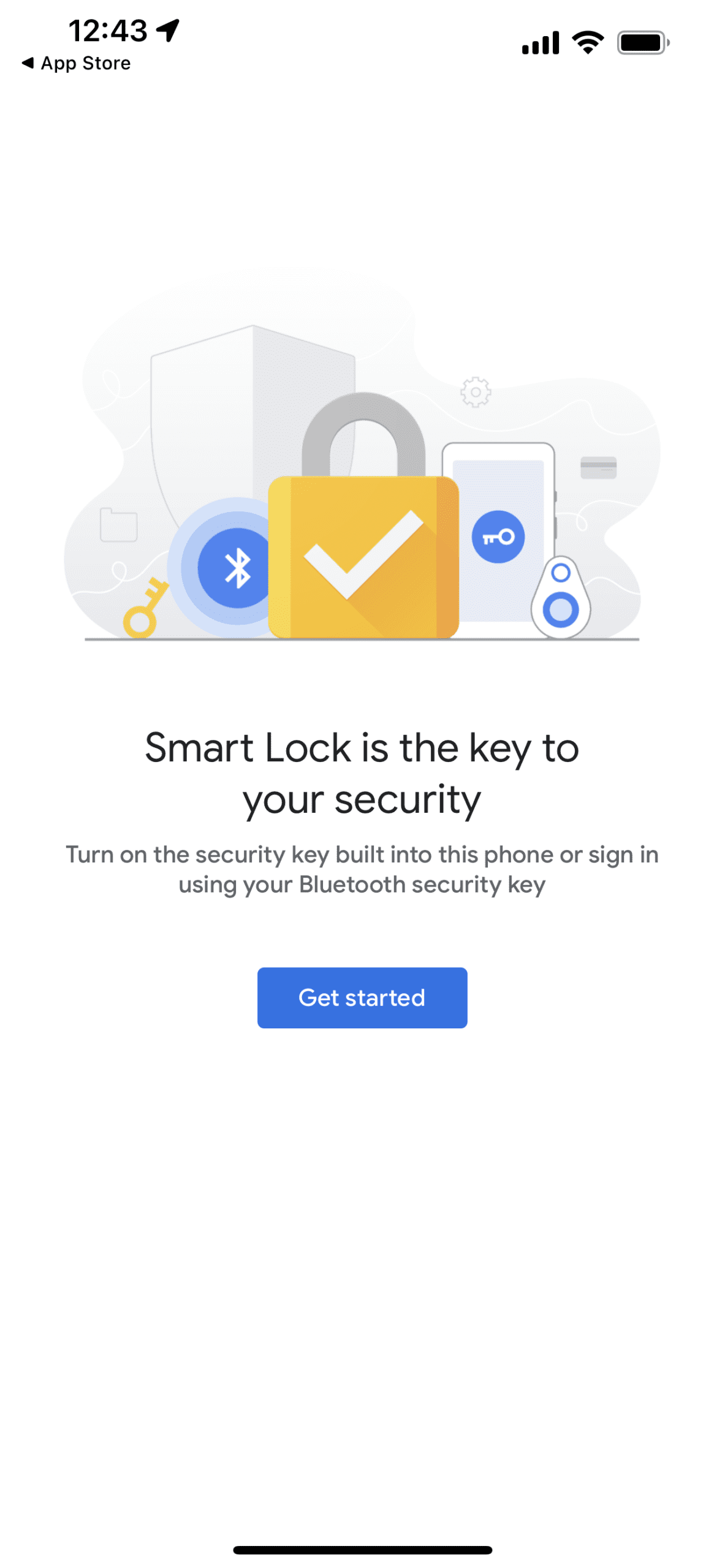
“Smart Lock allows you to use your Bluetooth security key or set up the security key built into your phone.”
Truthfully, that’s selling the app a bit short and is not very descriptive at all. Google Smart Lock is really the perfect companion app for those who are looking to add another layer of protection for their Gmail accounts.
After going through the setup process, whenever you try to log into your account, your iPhone will now send you a prompt from the Smart Lock app. Essentially, it’s just a blank page that asks if you’re trying to sign in while providing two buttons (Yes or No) at the bottom.
How To Use Google Smart Lock on iOS
If you’re intrigued by what Google Smart Lock can offer on iOS, the app is completely free to download to try out. Considering that pretty much everyone already has a Google account, Smart Lock is a must-have feature to keep your account as secure as possible. Here’s how to set up and use Google Smart Lock on iOS:
Download Google Smart Lock on the App Store.
After installed, open the app and tap the Get Started button.
Log in with your Google email and password.
Tap the Allow box in the bottom right corner to enable Bluetooth access.
Tap the Allow box in the bottom right corner to allow notifications from the app.
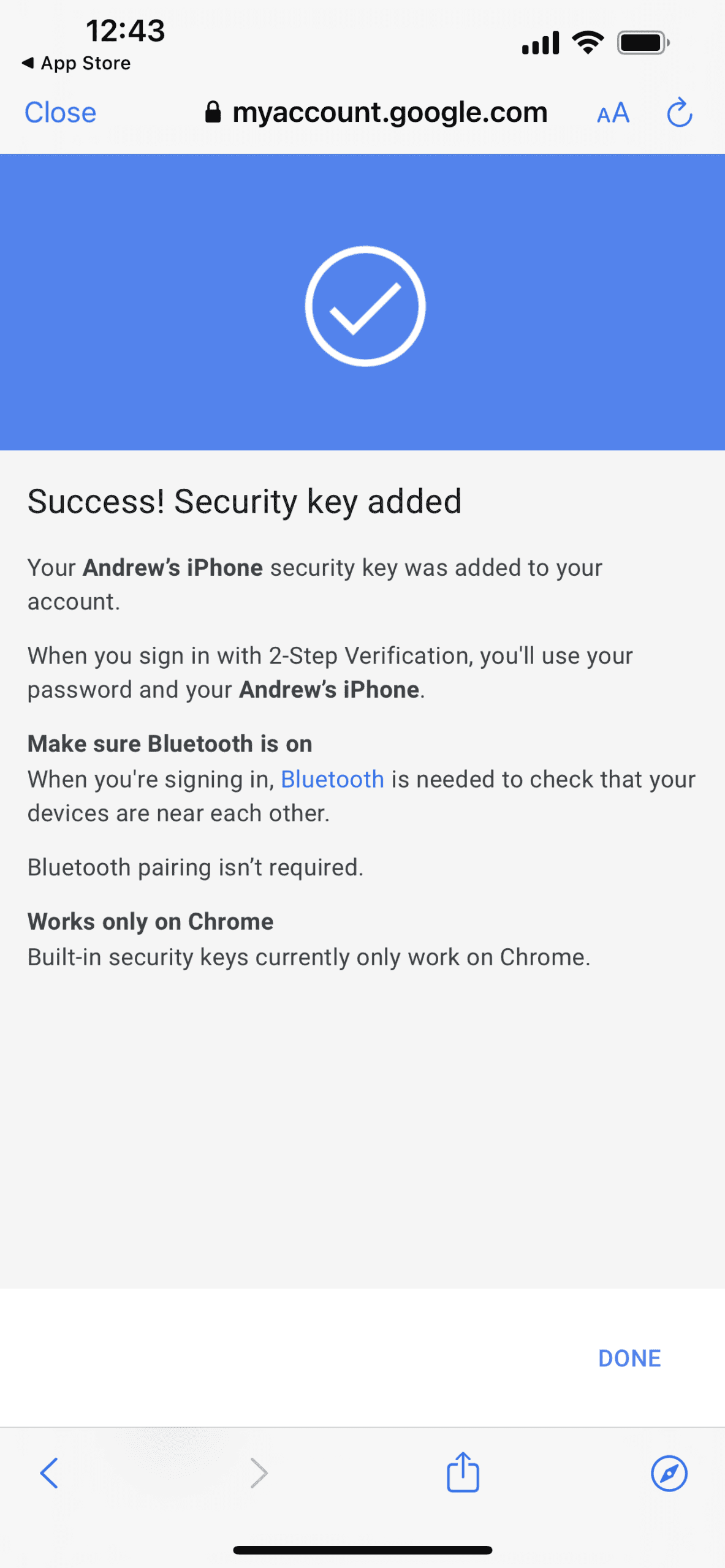
Follow the on-screen steps to select the iPhone that you want to add as a Security Key to your Google account.
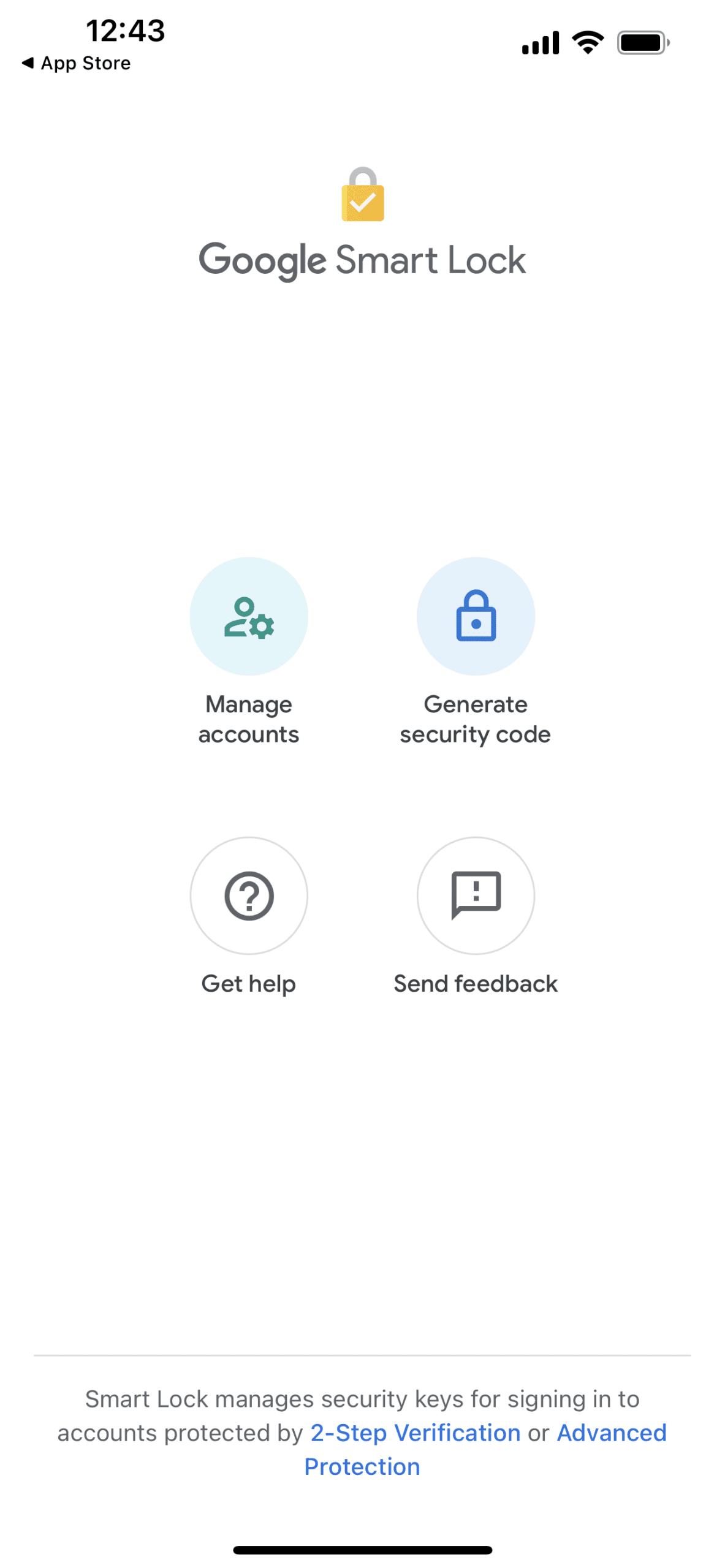
With Google Smart Lock installed and set up, you are presented with just a couple of options. Selecting “Manage accounts” will provide quick and easy access to settings for your different Google accounts. This is also where you can remove devices from the Smart Lock app if you need to.
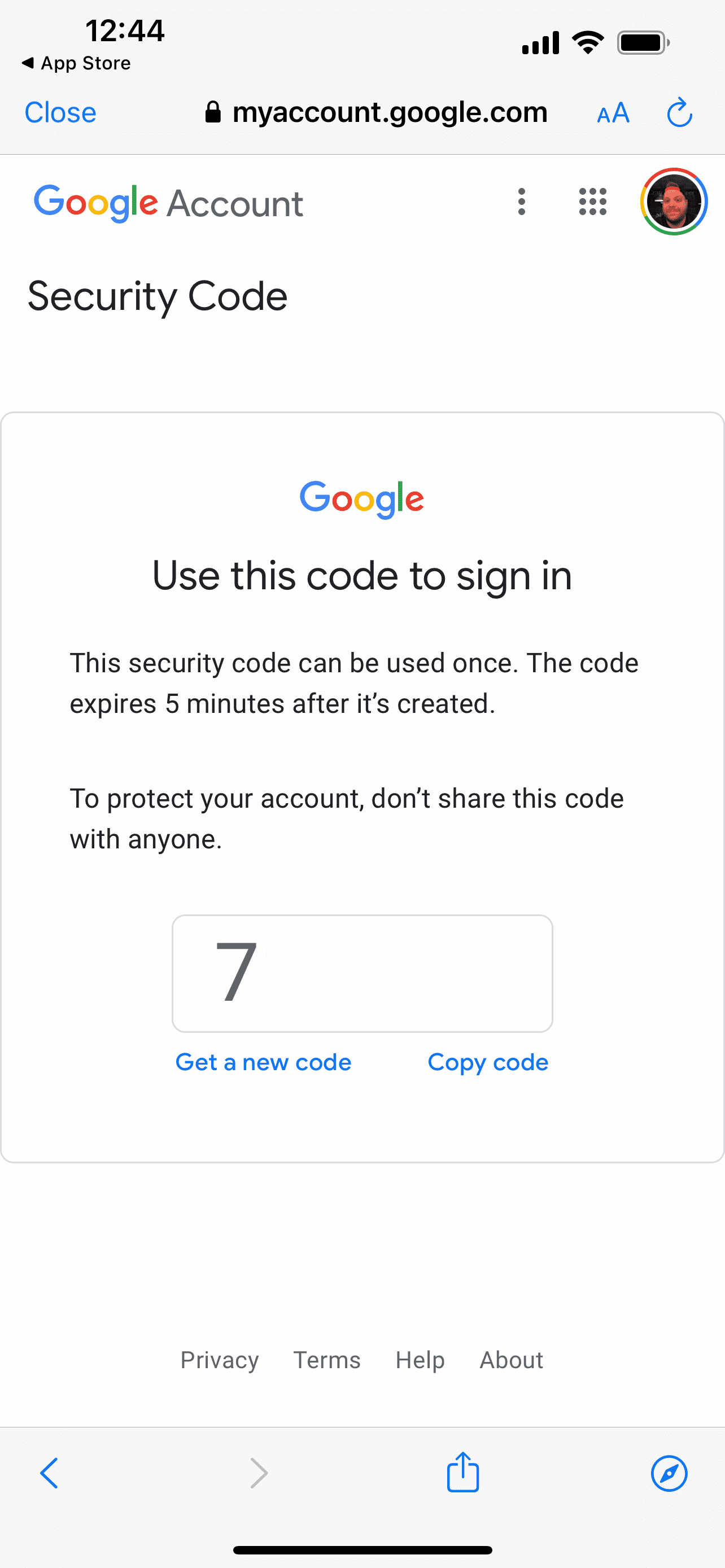
The next option is arguably the more important one when it comes to keeping your Google account secure. If you are logging into a website, app, or service that requires your Gmail account, you will likely be prompted to provide a verification code. Of course, this is only available for those who already have two-factor authentication (2FA) enabled. If not, you will need (and want) to get that set up to provide an additional layer of protection for your accounts.
Andrew Myrick is a freelance writer based on the East Coast of the US. He enjoys everything to do with technology, including tablets, smartphones, and everything in between. Perhaps his favorite past-time is having a never-ending supply of different keyboards and gaming handhelds that end up collecting more dust than the consoles that are being emulated.














Write a Comment