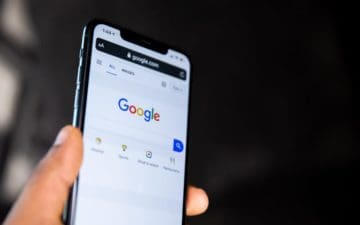
As we’ve seen in past iOS releases that integrate new features, Google is one of the first companies to jump on the hype train. This time around, Google has updated quite a few of its apps in celebration of the iPhone 13 and the release of iOS 15 / iPadOS 15. With these updates, your favorite Google apps can take advantage of some of the best iPhone 13 features, including being able to search Google from Spotlight.
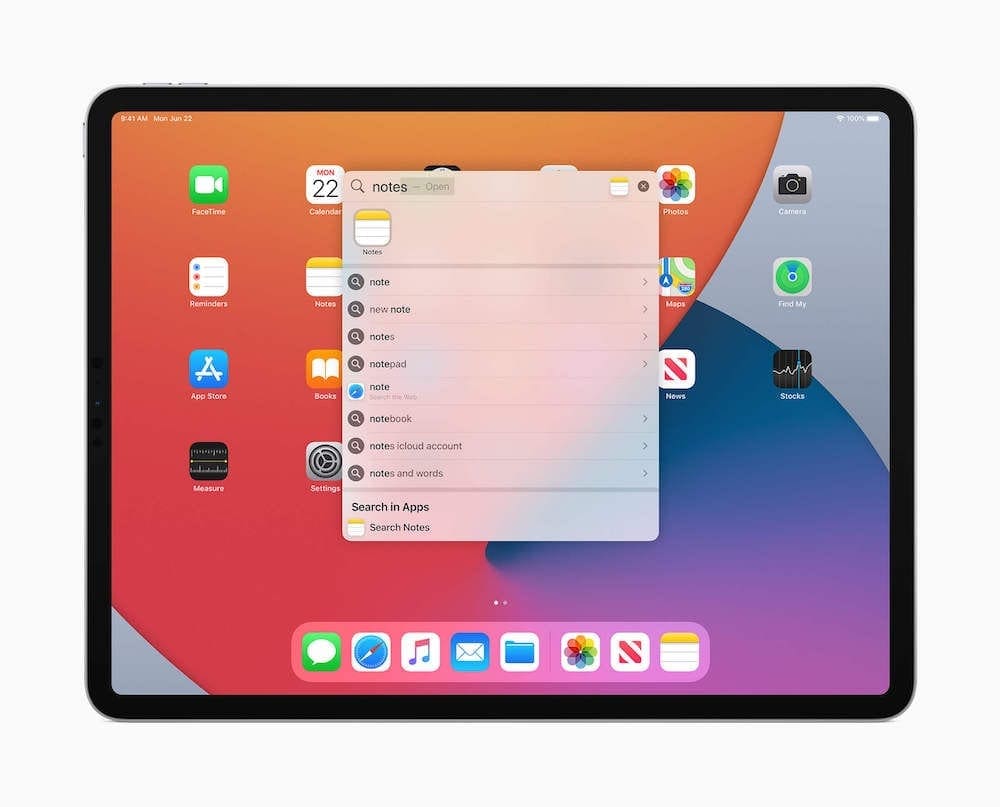
Technically this was already possible, as you can just enter a search term in Spotlight and tap the first Safari result. However, that requires you to have Google set as your default search engine within the Safari settings. And this may not be the most convenient way to do a quick Google search, or if you want to use Google Chrome as your default browser.
How To Search Google From Spotlight
Thanks to this new update from Google, the Chrome app has been updated with the ability for you to search Google from Spotlight. But in order for you to take full advantage, you’ll first need to set Google Chrome as your default browser. This is a feature that arrived with iOS 14, along with making it possible to set other default email clients as the default.
If you need a refresher course, here’s how you can change the default browser on your iPhone or iPad from Safari to Google Chrome:
Open the Settings app on your iPhone or iPad.
Scroll down until you find Chrome in the list of apps.
Tap Chrome in the list.
Tap Default Browser App.
Select Chrome from the list.
Tap Chrome in the top left corner to go back.
Swipe up (or click the Home Button) to go to your Home Screen.
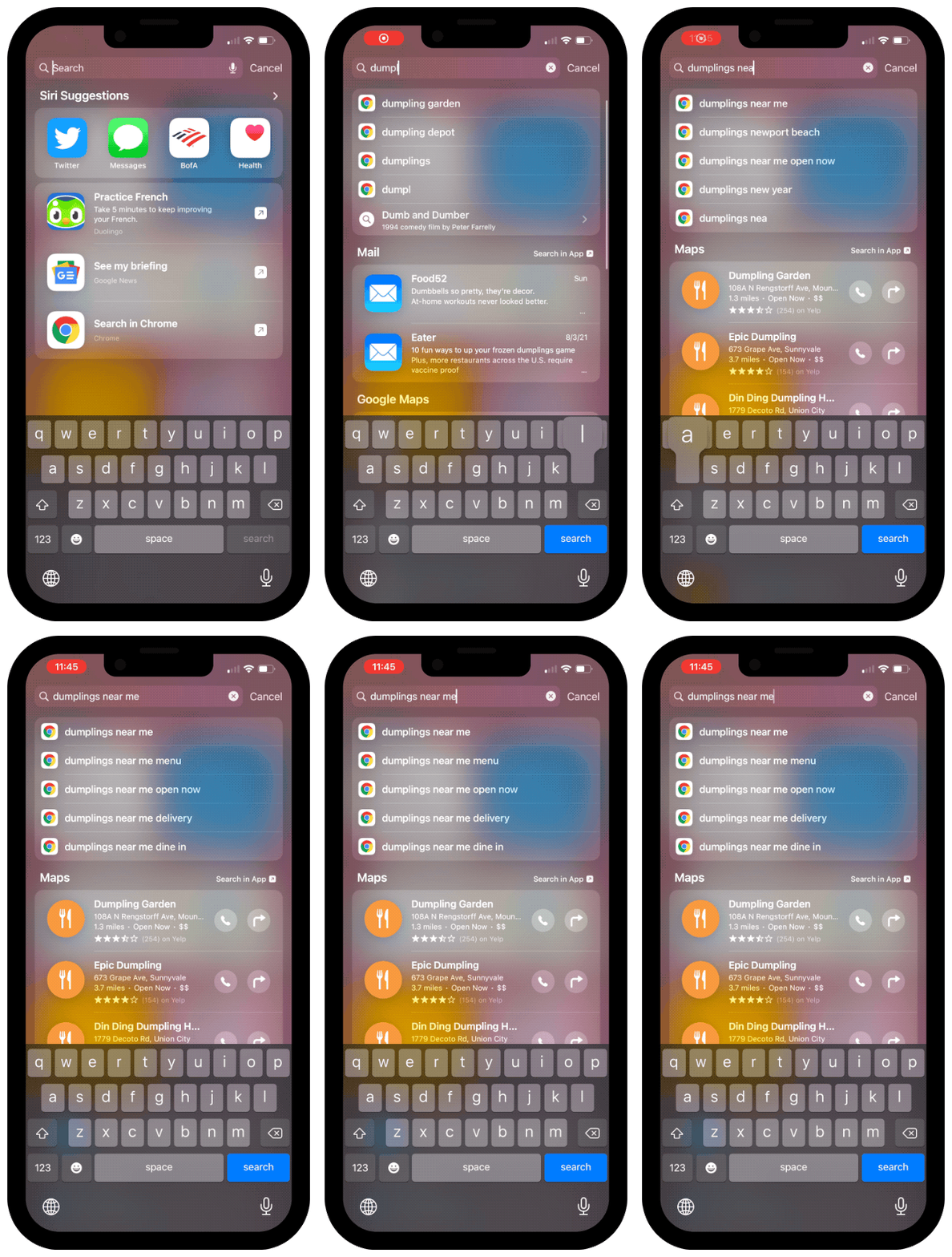
Now that Chrome is set as your default browser, you can search Google from Spotlight with ease. It’s literally no different than searching for anything else on your phone using Spotlight. However, here are the steps in case you want to double check to make sure everything works correctly.
Unlock your iPhone.
Swipe down on your Home Screen to reveal Spotlight.
Enter your search query in the text box.
Tap any of the result options with a Google Chrome logo next to them.
When tapped, you’ll be taken straight to the Google results within the Chrome app on your iPhone or iPad. It really doesn’t get much easier than that.
Other Google App Updates Arrive
As we mentioned above, Google has released updates for many of its apps. These include the likes of Google Calendar, Gmail, Drive, Classroom, and YouTube. Many of the updates released by Google include new widget options that were not previously available. Now, you can even create a Smart Stack on your iPhone or iPad Home Screen filled with nothing by Google apps.
It just goes to show that despite the conflicts Google and Apple have had over the years, Google is still prioritizing iOS over Android in some aspects. Let us know what you think about this latest update, and whether you have switched from Safari to Chrome.
Andrew Myrick is a freelance writer based on the East Coast of the US. He enjoys everything to do with technology, including tablets, smartphones, and everything in between. Perhaps his favorite past-time is having a never-ending supply of different keyboards and gaming handhelds that end up collecting more dust than the consoles that are being emulated.








Write a Comment