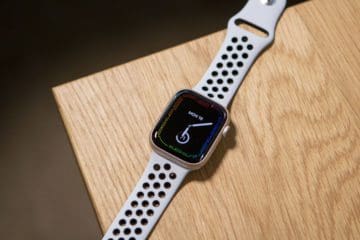
Apple has really struck gold with its acquisition and integration of Shortcuts. Now that it’s a system application and not just a third-party app, the possibilities are practically endless. This includes integration with the Apple Watch, as you can activate and use Shortcuts right on your wrist.
But easily one of the best features is the ability to change up your Apple Watch faces automatically. While we are still awaiting the arrival of third-party watch faces, Apple is doing justenough to keep Watch users happy.
How To Use Shortcuts To Change Apple Watch Faces
Unfortunately, having your Watch Faces change automatically is not one of those pre-created Shortcuts in the app. Instead, you’ll have to go through and manually create the Shortcut yourself. Here’s how you can use Shortcuts to change Apple Watch faces:
Open the Shortcuts app on your iPhone.
Tap the + icon in the top right corner.
Tap Automation at the bottom.
Select Time of Day at the top of the page.
Tap one of the following:
Sunrise
Sunset
Time of Day
Pick the time of day that you want to have the watch change.
Choose when you want this automation to repeat.
Tap Next in the top right corner.
Tap Add Action on the next page.
In the search box at the top, search for Watch.
Select Set Watch Face from the list of options.
Tap Face.
Select the watch face that you want to change via Shortcuts.
Tap Next in the top right corner.
On the next screen, turn off Ask Before Running.
Confirm by tapping Don’t Ask.
Tap Done.
In addition to having your Watch Face changed depending on the time of day, there are other options available. Another popular Shortcut to create is to have your Watch Face change whenever you leave or arrive at a certain location.
When going through the Shortcut creation process, you’ll want to select either Arrive or Leave at the New Automation screen. Then, you’ll simply select the locations for each, and then you can select a time range if you want. But the most logical setting is to set it to change at Any Time.
This ensures that the Watch Face will change regardless of the time or day of the week. From there, just follow the rest of the steps to finish creating the shortcut to have it change based on your location.
We Still Need More
Shortcuts is already pretty robust in what you can have automated from your iPhone or iPad. With macOS Monterey, Apple has finally brought the Shortcuts app to the Mac, which adds even more functionality to your computer. But we’re still hoping to see more options and settings added to the Shortcuts app in the future.
Drop us a line below and let us know what your favorite Shortcuts are. Also let us know whether you want to see third-party watch faces supported, or if you are content with the options that are already available.
Andrew Myrick is a freelance writer based on the East Coast of the US. He enjoys everything to do with technology, including tablets, smartphones, and everything in between. Perhaps his favorite past-time is having a never-ending supply of different keyboards and gaming handhelds that end up collecting more dust than the consoles that are being emulated.











Write a Comment