• Skip to primary navigation
  • Skip to main content
  • Skip to primary sidebar
  • Skip to footer

AppleToolBox

Tools and Fixes for Mac, iPad, iPhone & iWatch

Search posts

  • About
  • Contact

CONNECT WITH US

CATEGORIES

  • iPhone
  • iPad
  • iPod
  • Apple Watch
  • Mac/MacBook
  • AirPods
  • Apple TV
  • News
  • Apple Services
  • HomePod
  • Reviews

SITE

  • Home
  • About Us
  • Contact
  • Advertise

Search posts

You are here: Home / iPhone / iOS 16.2 Keeps Screen On: Potential Fixes

iOS 16.2 Keeps Screen On: Potential Fixes

By Danny Maiorca 0 comments Last updated December 19, 2022

For many people, iOS 16.2 didn’t cause issues with the iPhones. However, some users have complained that their screen stays on after they’ve upgraded their software.

Related Reading:

  • How to Download iOS 16.2
  • What’s New in iOS 16.2?
  • How to Switch the Lock Screen on Your iPhone
  • How to Customize the Always-On Display on the iPhone 14 Pro
  • The Best iPhone 14 Tips and Tricks

If you’ve had issues with your screen staying on after upgrading to iOS 16.2, consider trying the tips we’ve outlined in the sections below.

Contents

  • 1. Change Your Auto-Lock Settings
  • 2. Restart Your iPhone
  • 3. Turn Off the Always On Feature
  • If Your Screen Stays On, Try These Fixes

1. Change Your Auto-Lock Settings

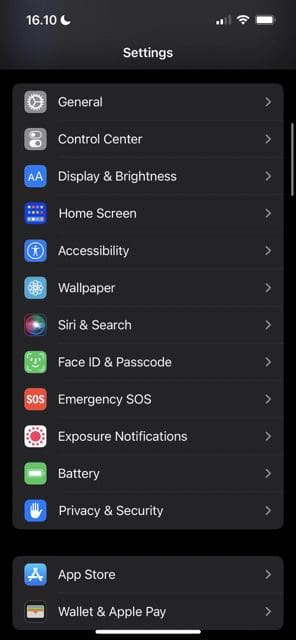
Screenshot showing the Settings app in iOS
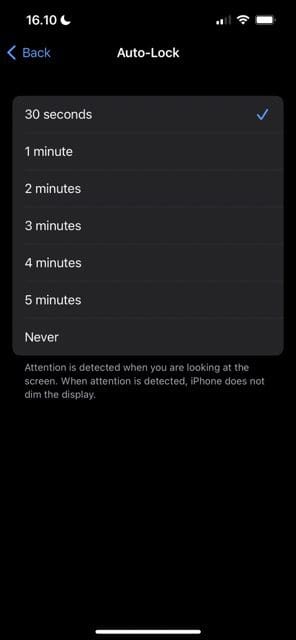
Screenshot showing the Auto-Lock tab in iOS
Screenshot showing the different time options in iOS Auto-Lock

We all have different preferences for how long we’d like our iPhone screen to stay on before it switches off. And if you’re having issues with your device not switching off when you want it to, adjusting your Auto-Lock settings is a good starting point.

If you want to change the Auto-Lock settings on your iPhone, follow these steps:

  1. Open the Settings app on your iPhone and go to Display & Settings.
  2. Scroll down on the next page. You’ll see a tab called Auto-Lock close to the bottom of your window; click on this when you do.
  3. You might see that the Auto-Lock is set to Never; in this case, you’ll want to choose something else. You can pick multiple times between 30 seconds and five minutes, so pick whichever fits your needs best.

2. Restart Your iPhone

If your screen is staying on after downloading iOS 16.2, you might also want to think about restarting your iPhone. How you turn your phone off and on again depends on the device you have.

For users with an iPhone that has a home button, hold the power button and your home screen. Your device will switch off, and you’ll see the Apple logo appear when it’s turning on again.

If you use an iPhone without a home button, you can press the power button and either of the volume buttons. A power off slider will appear, and you should move this to switch your device off. When your screen goes black, you can hold the power button to turn your iPhone back on.

You can also force restart your iPhone by tapping the button to increase your volume and doing likewise for the lower volume button. After that, hold the power off button. You should, however, try to avoid using this technique as it can cause issues.

3. Turn Off the Always On Feature

If you use an iPhone 14 Pro or iPhone 14 Pro Max, you’ll have access to an Always On Display feature. Your phone turns this on by default, but switching it off is easy. Follow these instructions:

  1. Open your iPhone’s Settings app and go to Display & Brightness.
  2. Select Always On Display.
  3. In the next window, toggle the Always On Display slider off. Your changes should take immediate effect.

If Your Screen Stays On, Try These Fixes

If you’ve noticed that your screen won’t turn off after upgrading to iOS 16.2, there are a few things you can try. You shouldn’t have too many issues tackling this problem, and all of the steps we’ve mentioned above will help you get your device working as you want it to again.

Once you’ve fixed this problem, you can focus on enjoying the new features in iOS 16.2 instead.

Related Posts:

  • iPhone 15 Pro Max - 4
    Best iPhone Lock Screen Widgets for iOS 17
  • photo of an iphone with ios 16 downloaded on it
    iOS 16 Tips and Tricks: The Definitive List
  • iPhone 15 event - iPhone 15 Pro and iPhone 15 Pro Max A17 Pro Video Recording Promo
    iPhone 14 vs. iPhone 15: Should You Upgrade?
  • AirPods Pro 2 - 1
    AirPods Max vs AirPods Pro 2: Making The Right Purchase
  • iPhone 13 Pro Max on Keyboard
    iPhone 13 Pro Max vs iPhone 14 Pro Max: Should You Upgrade
  • apple-studio-display-front
    Apple Studio Display Review: Is this the Best…
  • WWDC 2022 iOS 16 Lock Screen - 18
    iOS 16 Lock Screen: How To Customize iPhone
  • AirPods Pro not working Hero
    AirPods Pro Not Working? Here Are Some Tips and Tricks
  • 2021 Holiday Gift Guide Stocking Stuffers iPad iPhone AirPods Hero
    How to Customize iPad Lock Screen on iPadOS 17
Danny Maiorca

Danny has been a professional writer since graduating from university in 2016, but he’s been writing online for over a decade. He has been intrigued by Apple products ever since getting an iPod Shuffle in 2008 and particularly enjoys writing about iPhones and iPads. Danny prides himself on making complex topics easy to understand. In his spare time, he’s a keen photographer.
Reader Interactions

Write a Comment Cancel reply

Primary Sidebar

Recent Posts

  • What Is a Firmware Password (Mac), and Why Do You Need It?
  • Water Resistance and Your iPhone Model – How Safe Is It?
  • Liquid Detected on iPhone? Here’s What to Do
  • 5 Signs It’s Time to Replace Your iPhone Battery
  • Unstable Wi-Fi on Tahoe? Try These Fixes
  • What to Do if You Keep Getting Logged Out of Apps After iPhone Update

Connect with us

Footer

ABOUT

  • About Us
  • Contact us
  • Advertise
  • Privacy
  • Terms of Use

GUIDES

  • iOS & iPadOS
  • Apple ID
  • iCloud
  • App Store
  • iTunes
  • FaceTime
  • iMessage
  • Siri
  • Books and iBooks
  • Game Center
  • AirPlay

CONNECT

  • Facebook
  • Twitter
  • FeedBurner
  • YouTube

© Copyright 2010-2024 Guiding Tech Media · All Rights Reserved

This site and its content are in no way affiliated or endorsed by Apple, Inc. · Reproduction without explicit permission is prohibited

Last Updated on December 29, 2022 by Mitch Bartlett