In October, Apple released iPadOS 16. Like the company’s big update for iPhone devices, the new version of iPadOS gives iPad users plenty of new features to try for the Mail app in particular.
Unsending emails is one of the handiest new iPadOS 16 tools on the Mail app. How do you use it, and are iPads the only Apple devices you can use the feature on? How long do you have before it’s no longer possible to undo a sent email?
If any of the above questions are on your mind right now, keep reading to discover the answers.
Is iPadOS 16 the Only Apple Device You Can Undo Sent Emails On?
No – in addition to iPadOS 16, Apple has rolled out the email unsend feature on iOS 16 and macOS Ventura. If your device supports any of these software updates, you can use the tool when necessary.
How Long Does the Email Unsend Feature Last on Mail?
When undoing sent emails on Mail for iPad, you’ll need to remember that the feature has a timescale for each message. You can undo sent messages within a maximum of 30 seconds after initially sending them.
Once you’ve downloaded iPadOS 16, the delay is set at 10 seconds by default. However, you can increase it by going to Settings > Mail > Undo Send Delay.
In the Undo Send Delay section, you can change between 10, 20, and 30 seconds – depending on what you’d prefer. You can also turn the feature off altogether. Once you’ve selected one, it’ll take effect immediately.
How to Undo Sent Emails in iPadOS 16
Once you’ve downloaded iPadOS 16 and changed the unsending delay to a time that suits you, you can follow the steps below to undo a sent email.
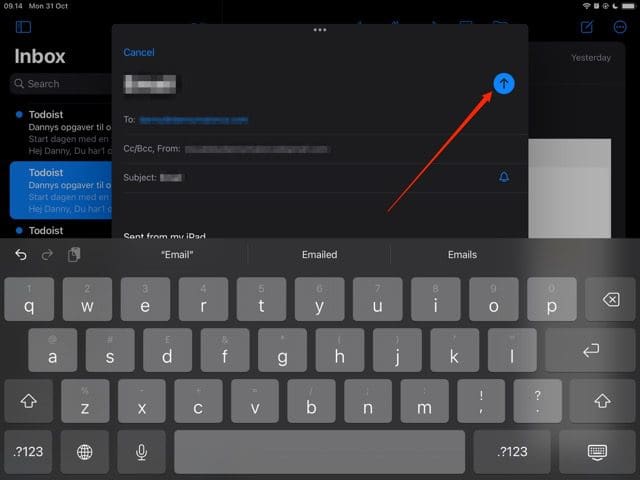
1. In the Mail app, go to the pencil icon in the top right-hand corner. Compose your email, along with adding your subject line and the recipient’s address. You can also CC anyone that you’d like to receive your message.
2. Select the send icon, which is the blue circle with an upward-pointing arrow.
3. If you need to undo a sent email, click on the Undo Send prompt – which appears at the bottom of the Inbox tab. After clicking on that, the message composing window will appear. You can fix any issues that need altering and resend when you’re done.
4. If you want to double-check emails before sending them, you can schedule your emails to send later. This will allow you to edit any typos or inaccuracies that need fixing.
Undoing Sent Emails in iPadOS 16: A Handy Feature
If you realize that you’ve made a mistake in your emails, undoing sent emails is a useful option for quickly recalling your message and editing everything you need to. However, only having 30 seconds (at most) to recall your email can get a little frustrating.
For quick email edits that you need to make, the Undo Send tool is a helpful addition to iPadOS 16. But if you want to check messages in more detail before the other person receives them, you might want to consider scheduling your emails instead.
Danny has been a professional writer since graduating from university in 2016, but he’s been writing online for over a decade. He has been intrigued by Apple products ever since getting an iPod Shuffle in 2008 and particularly enjoys writing about iPhones and iPads. Danny prides himself on making complex topics easy to understand. In his spare time, he’s a keen photographer.













Write a Comment