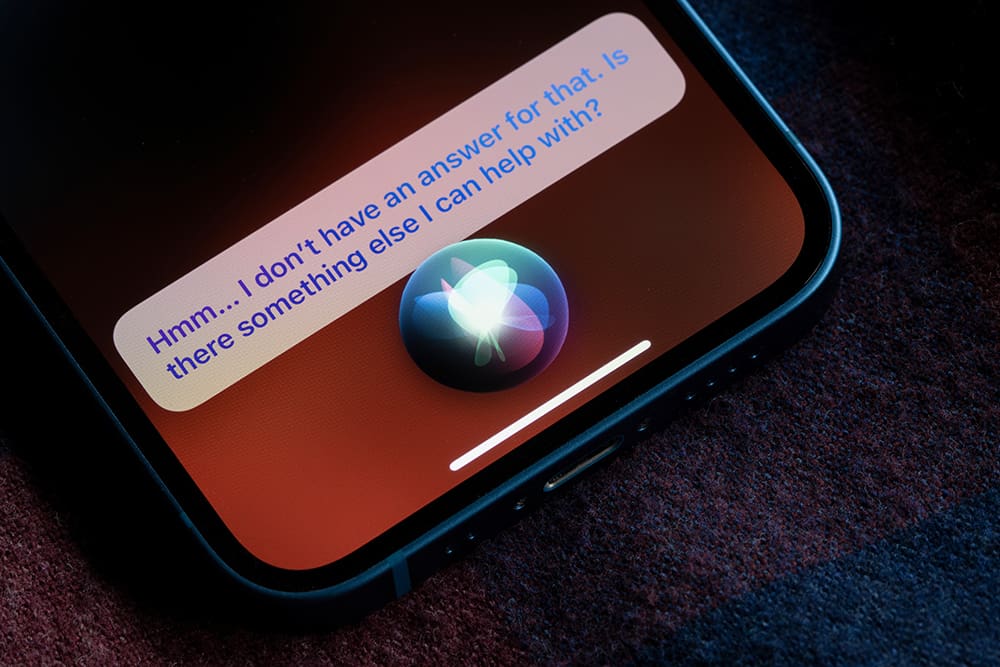
Siri is supposed to be your helpful personal assistant, ready to set reminders, look up information, place calls, and handle other tasks just by using your voice. But what if Siri goes suddenly silent and unresponsive?
It’s a frustrating situation we all face sooner or later. In this comprehensive troubleshooting guide, we’ll cover the most common reasons Siri fails on iPhone, iPad, Apple Watch, Mac, HomePod and more. You’ll also learn effective step-by-step fixes to revive Siri whenever issues pop up.
Ready to solve the mystery of the uncooperative voice assistant? Let’s get Siri to obey commands again!
In an age where digital assistants are becoming increasingly integral to our daily routines, encountering issues with Siri can be more than just a minor inconvenience—it can disrupt how we interact with our devices, manage tasks, and access information quickly. However, like any technology, it’s not immune to problems.
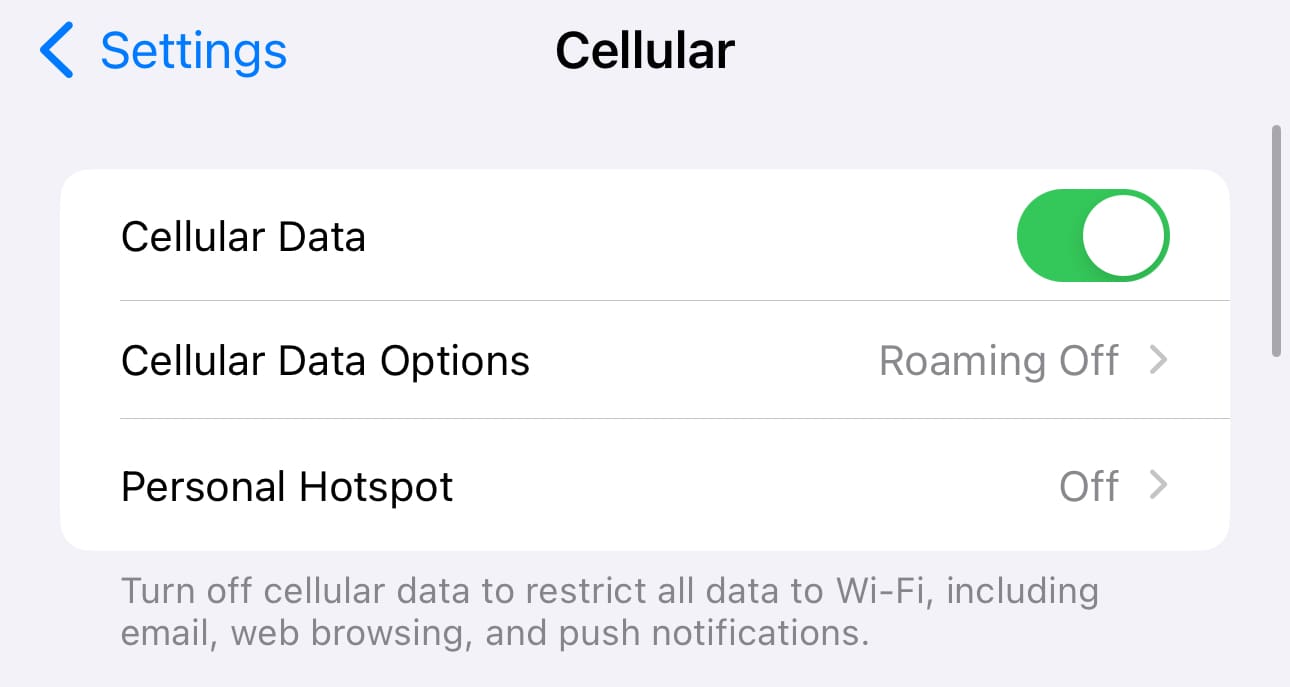
Connectivity Problems – Siri relies on internet access to function. Any Wi-Fi, cellular or network issues interfere.
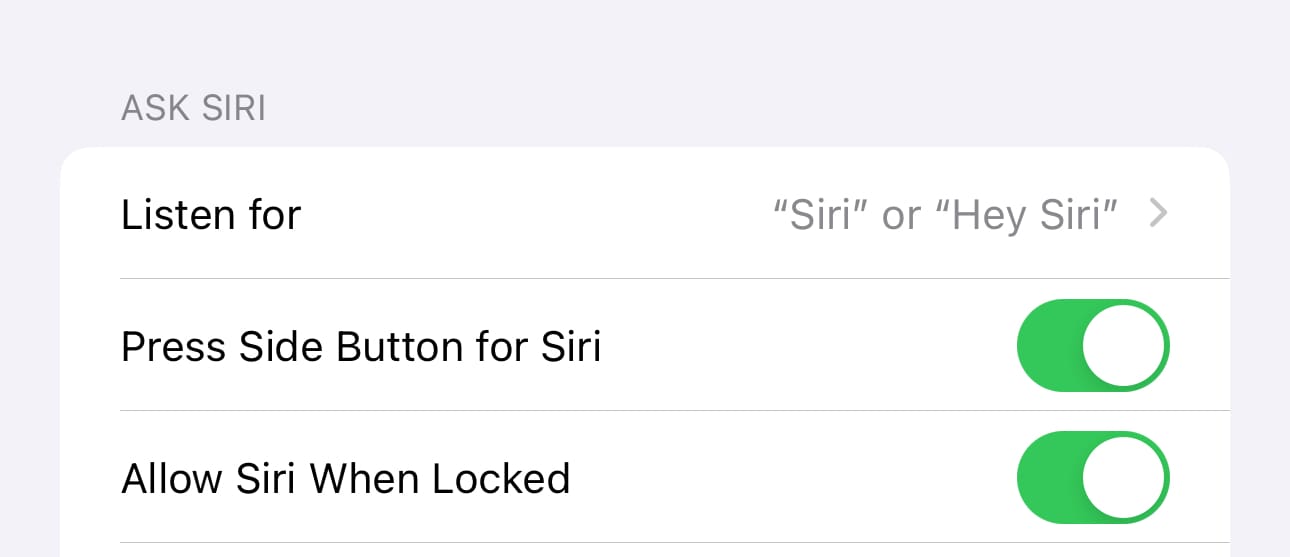
Incorrect Siri Settings – If Siri gets toggled off, set to ignore your voice, or is missing permissions, it won’t respond properly.
Outdated Software – Like any app, Siri itself needs regular software updates on all devices for maximum reliability.
Server Overloads – During major iOS releases or service outages, overloaded Apple servers sometimes scramble Siri connectivity.
Hardware Damage – Very rarely, actual physical microphone/speaker damage prevents Siri from hearing commands or speaking responses.
Navigating the challenges of a non-responsive Siri can be frustrating, but with the right approach, most issues can be resolved swiftly, restoring the convenience and efficiency we’ve come to expect from our digital assistants.
Quick Fixes for a Non-Responsive Siri
This section focuses on simple and speedy solutions to get Siri back on track and responsive to your every command. Dive in for some quick, actionable fixes you can implement even with minimal tech expertise.
Check Internet Connection: Since Siri requires steady internet access, toggle Airplane Mode off/on to reconnect Wi-Fi and cellular data.
Disable then Re-Enable Siri: Turn Siri off and back on via Settings to clear any glitches and reconnect properly.
Make Sure Siri Is Unmuted: Open Control Center and check the microphone icon to confirm Siri isn’t muted and permissions are enabled.
Check for Headphone Blockages: Remove any connected headphones/Bluetooth headsets to ensure nothing is physically blocking the microphone.
Retrain “Hey Siri” Recognition: Re-record your “Hey Siri” voice sample so Siri relearns recognition.
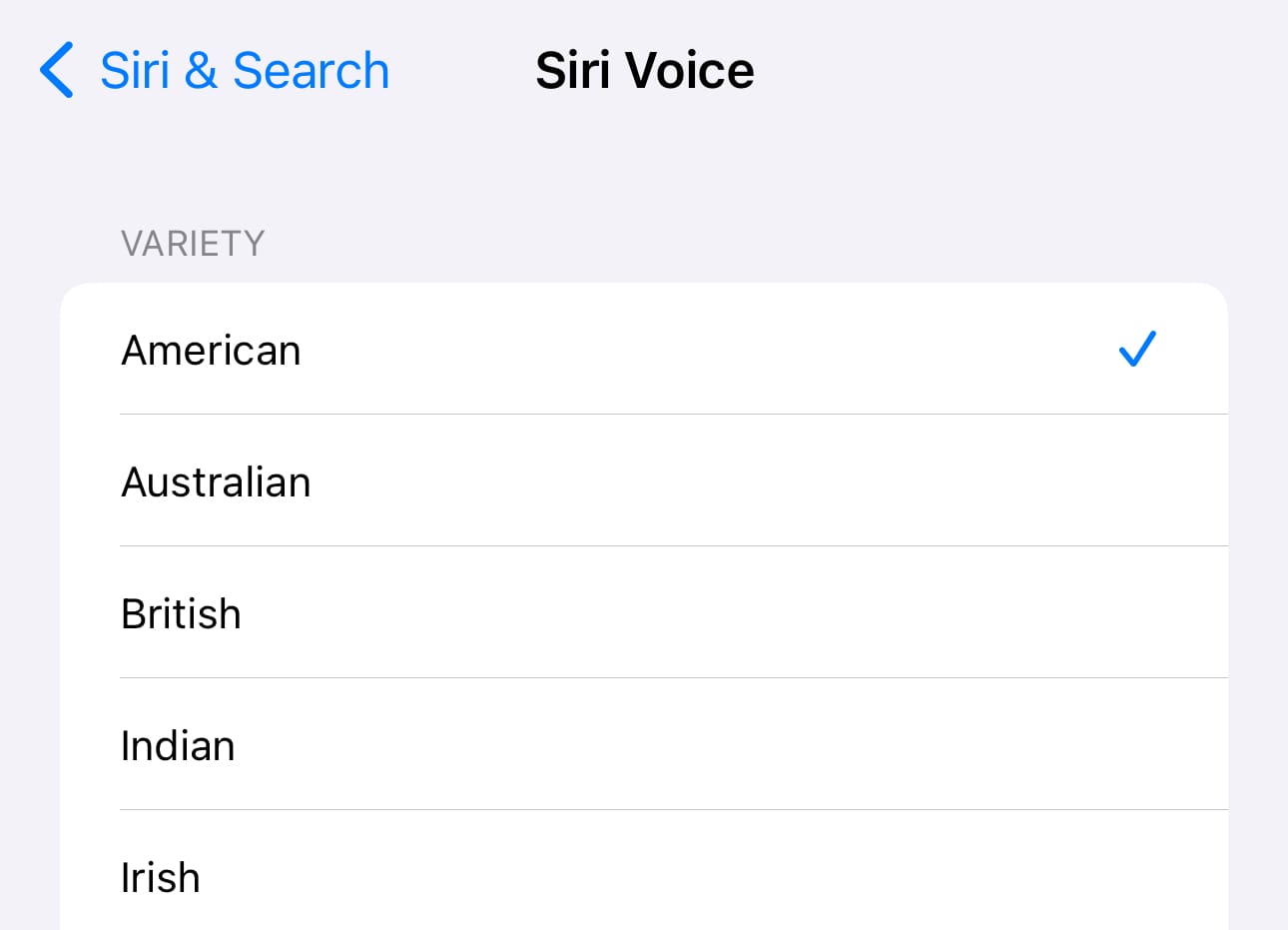
Siri Language & Accent: (Settings > Siri & Search > Language/Siri Voice) Sometimes changing your language or accent settings and switching back helps Siri “reset.”
Dictation: For general Siri malfunction, verify Dictation is enabled within Settings > General > Keyboard > Enable Dictation.
Disable VPN: Temporarily disable your VPN (if you use one) to see if it impacts Siri’s behavior. Some VPN configurations can block Siri functions.
Update iOS/iPadOS/watchOS/macOS: Install the latest OS updates containing Siri bug fixes and performance tweaks.
Reset Network Settings: Reset all network settings back to factory defaults, including Wi-Fi passwords, to eliminate any connectivity conflicts.
Reset All Settings: Before opting for full factory reset, try “Reset All Settings” (Settings > General > Transfer or Reset [Device] > Reset). This maintains your data but resets many network and device settings which can address stubborn issues.
Reboot Your Device: If the above steps don’t restore Siri, completely power down then restart your iPhone, iPad, Mac, Apple Watch, etc.
Contact Apple Support: For recurring unresponsive Siri even after resets and reboots, contact Apple to diagnose potential hardware faults needing repair/replacement.
Siri’s troubleshooting can be frustrating, but following these systematic steps usually tackles the most common issues. If issues persist despite exhaustive measures, contacting Apple Support remains the recommended approach.
With the proper troubleshooting, Siri should bounce back in no time! But you can also reduce future issues.
Preventing Siri Problems From Occurring
Think of Siri as your tech-savvy teammate—when it’s working seamlessly, life just flows a bit easier. While the previous troubleshooting section focused on fixing active issues, let’s shift gears to proactive maintenance. With a few adjustments and habits, you can help ward off many common Siri headaches before they even begin. From double-checking device settings to optimizing your environment, these preemptive measures keep Siri functioning smoothly.
Keep devices updated to the latest iOS/iPadOS/watchOS/macOS versions
Use strong Wi-Fi and cellular connections whenever possible
Disable Siri access on shared devices to prevent permission conflicts
Turn off Siri when handing devices to children to prevent retraining issues
Back up voice profile/preferences regularly in case retraining is ever needed
By taking these preventive steps, you significantly reduce the likelihood of disruptions. This means more time spent using Siri productively and less time getting bogged down in technical hiccups. Consider these guidelines not only as safeguards against problems but enhancements to your overall Siri experience, ensuring your virtual assistant is always readily on hand for those important asks.
Conclusion
Unresponsive Siri issues arise eventually, but a few simple troubleshooting steps usually get the voice assistant to obey commands again. Rebooting, retraining, re-permissioning, and updating Siri return full functionality when weird glitches pop up.
With these fixes, you’ll keep Siri happily helping out across all your Apple devices. Never get left hanging by an uncooperative Siri again!
Andrew Myrick is a freelance writer based on the East Coast of the US. He enjoys everything to do with technology, including tablets, smartphones, and everything in between. Perhaps his favorite past-time is having a never-ending supply of different keyboards and gaming handhelds that end up collecting more dust than the consoles that are being emulated.













Write a Comment