iPhone screens can show lots of weird glitches for several reasons, such as problems with your software. Dropping your device can also stop your screen from functioning as it should – but whatever the reason, it’s crucial that you get back on track as soon as possible.
One issue that can arise when your screen has problems is the same apps showing up multiple times. In this guide, you’ll discover a range of solutions for fixing this discrepancy.
Sometimes, your iPhone showing the same app multiple times is a simple glitch that you can fix by locking and unlocking your device.
You can lock your iPhone by hitting the standby button. You’ll see this on the side of your device for newer models, whereas older versions will have the button on the top instead.
After locking your phone, you can either use Face or Touch ID to unlock it again. Alternatively, you have the option to type your passcode.
Force Restart Your iPhone
If locking and unlocking your device didn’t work, you can try force restarting your iPhone.
Like locking and unlocking your device, the process will vary depending on the model you have. For newer iPhones, you’ll need to tap the volume up button – before doing the same for the other. Once you’ve hit both buttons, hold the power button.
For iPhone 7 users, you’ll need to hold the volume down and standby button. You can release these when you see the Apple logo appear on your screen.
If you have an iPhone 6 or iPhone SE, you can hold the home button and your power button. Some devices have the power button on the top, whereas it’s on the side for others.
Factory Reset Your iPhone
If you’re still experiencing problems with apps appearing on your iPhone screen multiple times, factory resetting your iPhone can help.
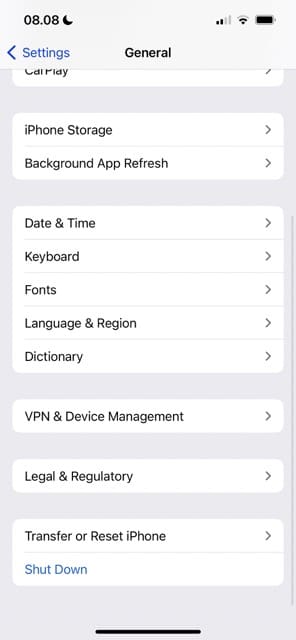
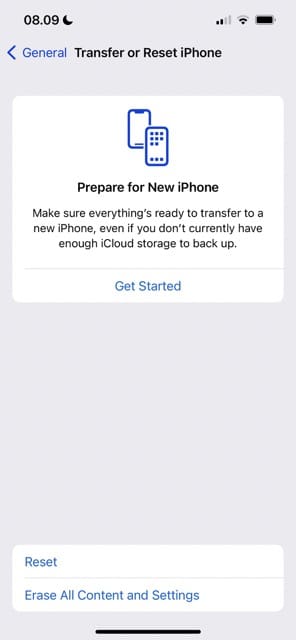
Before factory resetting your iPhone, we should warn that you could lose your data if you haven’t backed everything up into iCloud or another location. To factory reset your iPhone, you can follow these instructions:
Open the Settings app.
Go to General > Transfer or Reset iPhone.
Hit the Erase All Content and Settings button.
Enter your password.
Reset your iPhone when everything has been deleted, and try again to see if your screen now looks as it should.
Get an Official Apple Diagnosis
If all has failed so far, you can get Apple to look at your iPhone. You’ve got plenty of options for this; if you live close to an Apple Store, you can book an appointment.
You can, however, also receive help online. Apple lets you call them, while you can also send an email or start a live chat.
Once you know what’s wrong with your device, you can take the next appropriate step. This might, in some cases, require getting a screen replacement. In other instances, you may need a new phone altogether.
Try These Steps to Fix the Problem if you See Your iPhone Showing the Same App Multiple Times
If your iPhone is showing the same app on your screen more than once, it could be a technical glitch. In those cases, the problem shouldn’t be too hard to solve. But sometimes, the problem might be related to hardware – and in those cases, you may need to perform more drastic steps to get back on track.
Now that you’ve read this guide, you should have an optimal starting point to help you solve the problem and start using your iPhone as you normally would.
Danny has been a professional writer since graduating from university in 2016, but he’s been writing online for over a decade. He has been intrigued by Apple products ever since getting an iPod Shuffle in 2008 and particularly enjoys writing about iPhones and iPads. Danny prides himself on making complex topics easy to understand. In his spare time, he’s a keen photographer.













Write a Comment