Some users are reportedly having a weird issue with their iPhones, typically after an iOS upgrade. Their iPhone will not access certain sites on the internet. That’s an oddball issue for sure!
Users report that accessing sites such as Apple works without any hiccups on their device. They are also able to access other News websites without issues. Typically the problem happens when they are trying to access a website that requires them to log in.
The best course of action to tackle this issue is to follow each of the steps below and then check if it fixes your issue. These steps will also work with your iPad if you are having this issue on the device.
We are not sure what causes the issue but have found that simple reset procedures have worked in most cases.
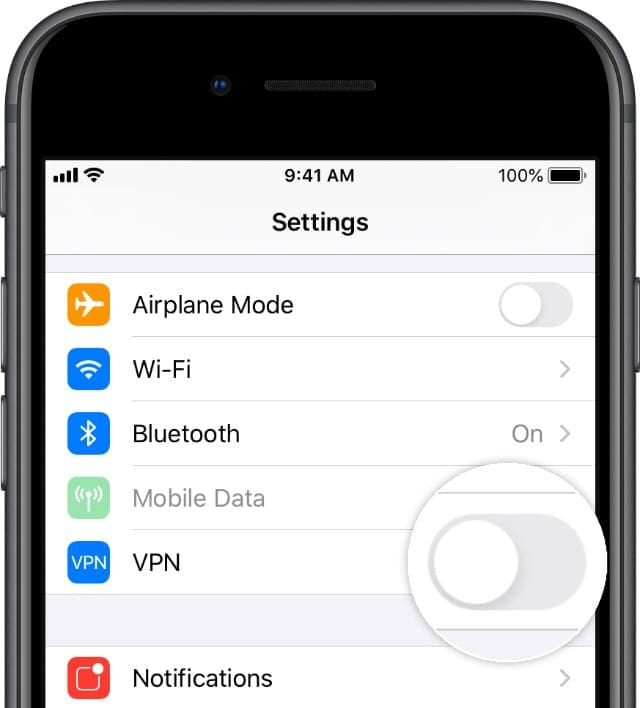
Some sites do not work when you use a VPN. So if you enabled a VPN on your iPhone or iPad, try turning it off and see if you can now access the site.
Go to Settings > VPN and toggle it off.
Turn off your VPN or change it to your home country.
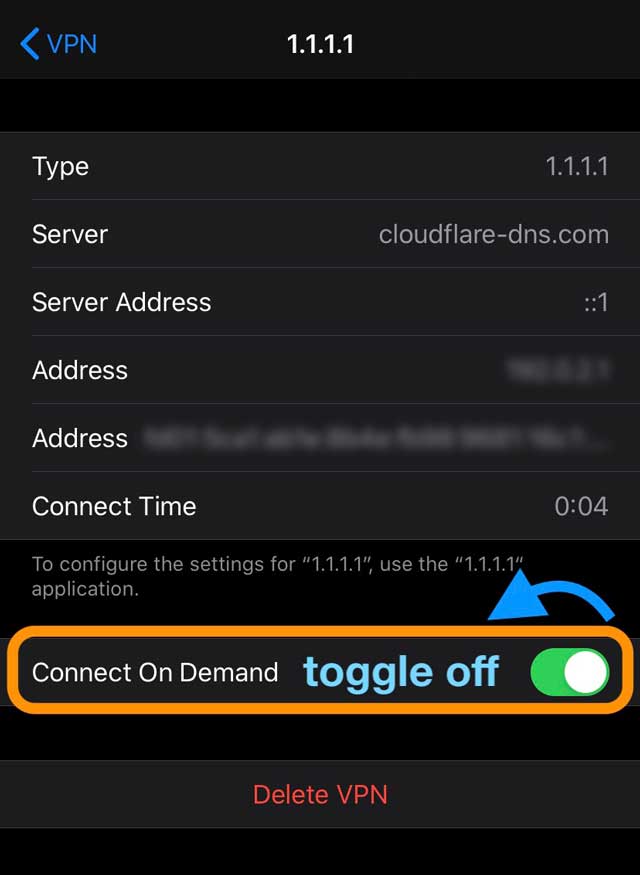
If you don’t see your VPN setting there or if it immediately toggles back on, go to Settings > General > VPN and tap the “i” button next to the name of your VPN provider. Then toggle off Connect On Demand.
When you return to the previous menu, you should see the toggle for Status show Disconnected and the setting for Settings > VPN should now be off.
Step 2 – Check Restriction Settings
Sometimes our devices have restrictions on the type of content we can view–this may be a parent or guardian limiting access or an inadvertent setting change.
For iOS 12 and above, check Settings > Screen Time > Content & Privacy Restrictions. Disable this feature by entering your screen time or restrictions passcode.
For iOS 11 and below, go to Settings > General > Restrictions. Turn off all restrictions by entering your restrictions passcode.
If you don’t know your Screen Time passcode, see this article.
Step 3- Review Date and Time Settings
Another possibility is that your device’s Date & Time settings do not match online servers.
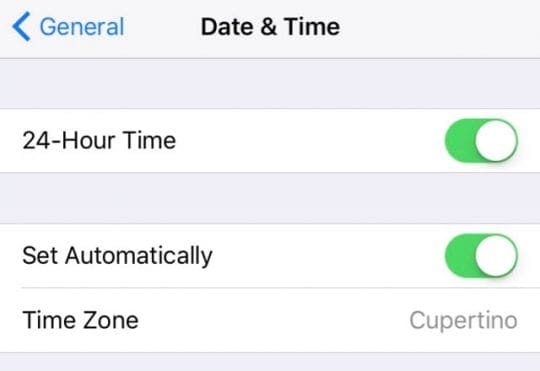
Go to Settings > General > Date & Time and verify that Set Automatically is on. If not, toggle it on. If it is on, toggle it off, wait a few seconds, and toggle it back on.
Step – 4 Restart your iPhone
This is probably the best way to resolve numerous iPhone related issues.
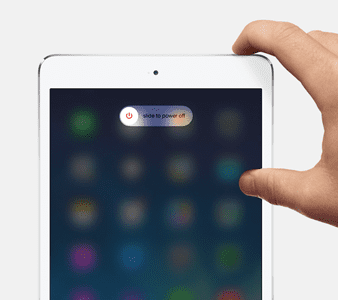
Restart your iOS Device
For devices with no home button: press and hold the Side or Top button and either volume button until the slider appears
For devices with a home button: press and hold the Top (or Side) button until the slider appears
Drag the slider to turn your device completely off
After your device turns off, press and hold the Side button again until you see the Apple logo
Step – 5 Clear Safari Data on Your Device
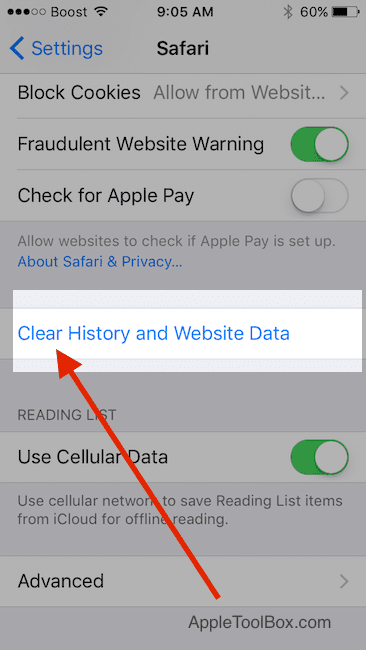
If this problem is happening while using the Safari App on your iPhone, you can reset the Safari cache and data.
Tap on Settings > Safari > Scroll down and choose “Clear History and Website Data”
Confirm to clear on the next screen
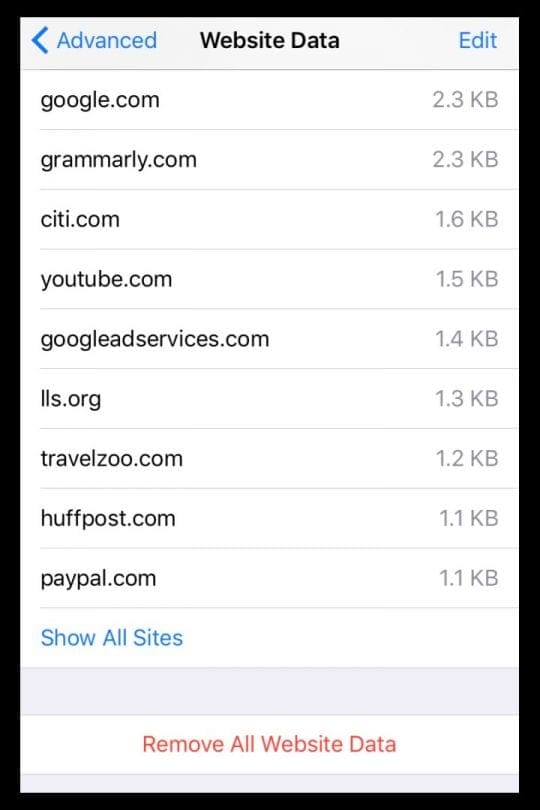
Then go back to Settings > Safari and scroll all the way down to choose Advanced.
Tap Website Data and wait for the screen to populate
Once all app information shows up, select Remove All Website Data
Restart your iPad, iPod, or iPhone and check if the issue is sorted.
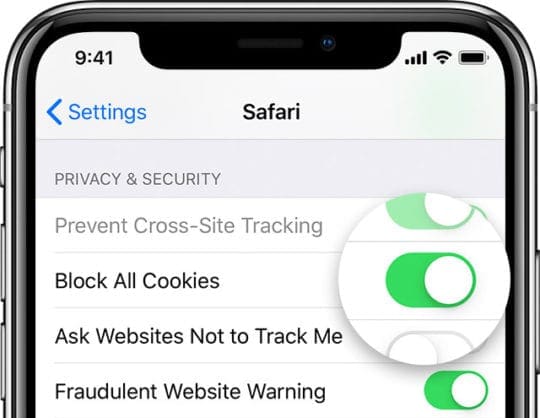
Optional: Block Cookies on Safari
A cookie is a piece of data that a website stores on your device, so it remembers you the next time you visit the site.
To block cookies, tap Settings > Safari > Block All Cookies
If you block cookies, some web pages might not work. Here are some examples:
You might not be able to sign in to a site using your correct username and password
You might see a message that cookies are required or that your browser’s cookies are off
Some features on a site might not work
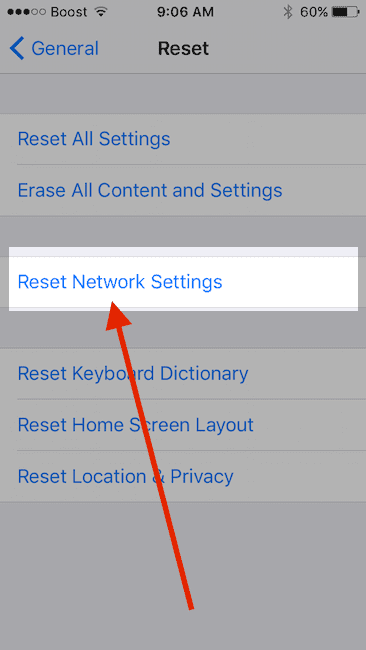
Step – 6 Reset Network Settings on iPhone
If you find that the problem is happening irrespective of the browser you may need to reset your network settings to get rid of this issue.
Resets all your network connection options and sets your device’s network settings back to the factory defaults. Clears your current cellular (if applicable) and WiFi networks including saved networks, WiFi passwords, and VPN settings.
Before you reset your network’s settings, be sure to have your WiFi network name and passwords available for re-entry.
Tap on Settings > General > Reset> and choose Reset Network Settings.
Once your device starts following the reset, open the website that you were having problems with using Safari or Firefox and give it a try.
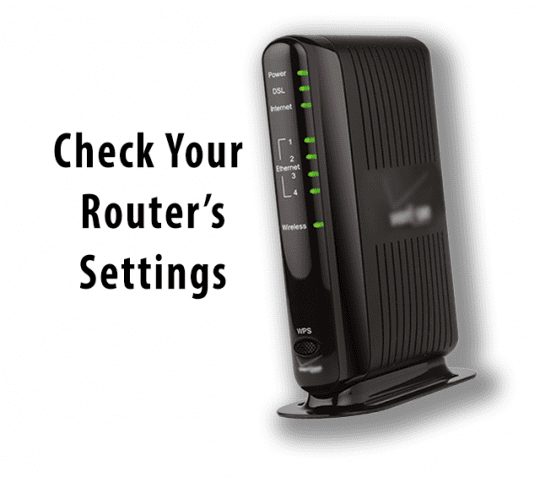
Optional: Reset Your WiFi Router
If none of the above steps resolve your issue, you may want to reset your network router at home.
Sometimes several issues occur that are related to router issues.
Before resetting the router, switch off your Wi-fi on your iPhone and see if you are having the issue.
If after switching off your Wi-Fi, you are unable to use the websites using your cellular services on your iPhone, then this is not a router related issue and your problem is related to network settings on your iPhone. Resetting the Network Settings should do the trick.
We hope that the steps above helped you solve your issue on your iPhone and you are able to access the websites now without any hiccups.
Obsessed with tech since the early arrival of A/UX on Apple, Sudz (SK) is responsible for the original editorial direction of AppleToolBox. He is based out of Los Angeles, CA.
Sudz specializes in covering all things macOS, having reviewed dozens of OS X and macOS developments over the years.
In a former life, Sudz worked helping Fortune 100 companies with their technology and business transformation aspirations.
OMG FINALLY!!! Clearing the website data & restarting my phone was the step that finally worked to stop getting “ cannot access this website, you do not have permission….” THANK YOU!!!!!
All fixes did not work. Problem persisted. It’s in your latest software update and it should be fixed same way and not by individuals missing with settings. We’re overseas and have no sold apple support. Please, help.
After reading many things. I finally turned off my iPhone and restarted it. Everything is back to normal and no problems with Safari. I hope this works for you
Tried these steps, didn’t work. I have a website that after entering username and pwd, and pressing ‘sign in’, the next page tries to load but I just get a blank screen. Same issues on iPad 9th Gen and iPhone 12, iOS 15.4.1 and previous ver. Also tried Safari, Chrome,and Duck Duck Go.
I can load the site without any problems on Win10, MacMini (latest MacOS), and Samsung Note20 Ultra Android 12.
Ever since the install of iOS 15.2.1 I cannot get into sites that have a hyperlink. Example. I go into a certain site. Comes up fine. But then I try to go into a linked portion of that site using the hyperlink and I get a blank page. Seems to be happening to a lot of people with their iPhones and iPads. Both of mine are doing the exact thing.
What’s the fix other than the old turn your phone off, check the VPN, check the screen time etc etc.
it’s in the iOS 15 updates that’s causing the issue.
I followed all the steps and I still go to cannabis websites locally. It’s legal in the state of Michigan and when I was at the dispenser they gave me there website. It worked there but when I left my carrier couldn’t access it. No wifi, but when I got home to hook to wifi it still wouldn’t work. It always loads the page a few seconds in it crashes. I assumed maybe it was the company’s fault till we got a second store in town and repeated the same issue. My only other stop would be into an AT&T store to have them look at it. I find it odd that I can view porn with no issues but not these websites. Please send help
Bought new iPad. Having problems using 2 websites . Go to pay & they say session timed out or problem with website. Yet I can order on my iPhone . No problems . Any ideas what I have to do . Have tried using google but still can’t do on iPad.
Thanks
after the 14.1 ios update my mother in laws iphone will no longer login to her bank or my bank for that matter through the app or website via Safari or Chrome. when on wifi. it works fine on cellular. I’ve reset everything I can think of followed all the steps on the website, even checked and reset my router settings for good measure even though all of my other devices could login to the bank no problem. I’m obviously missing something…..any suggestions would be greatly appreciated.
I have a web server set upon my PC at home. It has no SSL certificate and is accessed using http only. Other devices connect to it but my iPhone will not. I get a notice that the “connection is not private” with no option to go ahead and access it. How can I fix this?
Turning off the VPN worked! I suppose I shall have to turn it back on while contacting my bank, but otherwise OK. Thanks for your help. I was upgrading to iOS 14.01
I got a new iPad everything transferred over from old pad except Facebook I can’t log in keeps saying wrong password – it’s the same one I’ve had for years ! Getting very frustrated! Can you help andthe email set up for Facebook I no longer have so I don’t get a code !
I just wanted to note that I too had the issue of trying to click on a website URL and getting the access denied page. I turned off my VPN and then tried again and I was able to access the website.
I was trying to access ulta and also some apps weren’t functioning right but as soon as I disconnected the VPN it worked. so just FYI if any of you have VPN maybe give that a try?
I have an ipad 2 running iOS 9.3.5. I cannot access http://www.medicare.gov/plan-compare/ with Safari, Chrome or Opera.
Tried
Turn ipad off, wait, then back on
Airplane mode on, wait, then back on
Turned all restrictions off
Reset Network
Reset ipad
Block all cookies
Allow all Cookies
Allow cookies from websites I visit
clear history and cache
clear website data
All of this to no avail. This is the only page that I have gone to that does not work on any browser I can use. I help people with their Medicare and I must be able to use this page.
Sorry, you can’t access those sites. It’s likely they were down or in maintenance when you tried reaching them.
Let’s try closing all your apps and then restarting.
Close an app
1. On an iPhone or an iPad with no home button from the Home screen, swipe up from the bottom of the screen and pause slightly in the middle of the screen to reveal the app switcher
2. On an iDevice with a home button, double-click the Home button and swipe right or left to find the app that you want to close to show the app switcher
3. Swipe right or left to locate the app you want to close
4. Swipe up on the app’s preview to close it
5. Repeat for all open apps until you only see the home screen at the app switcher
6. Restart your device by powering off, waiting 20-30 seconds, and powering back on
After this process, try accessing those sites again.
Hi Guys
I am sure you feel sorry, but , as far as i can see there is no solution to the problem yet and today is the 23rd of March 2019.!!
On 4G mobile data iOS 7plus is working fine
On wifi it works fine with Facebook, Youtube, Google (all apps like gmail, photos news etc) but when I try to load other websites, all of them are not loading, including several apps, like Aliexpress App, WIND app (its a mobile phone provider) etc.
I restarted the router several times, nothing happens
Any clever idea?
(I reset network settings, I restarted the iPhone, I rebooted the router)
All i have to do now is to throw the iPhone 7+ out of the window and buy Android??
First, if using Safari make sure you do not have any Content Blockers enabled. To check, go to Settings > Safari > Content Blockers. If you have any listed, toggle them off. Then close the Safari app and restart your phone. See if those sites that weren’t working, now work.
Please check if there are any restrictions set-up on your device or limits within Screen Time.
Go to Settings > Screen Time and turn it off by entering the passcode, then restart the phone by going to Settings > General > Shut Down.
Even I am holding iPhone 6s,
After the software update this week week I cannot access some internet sites. I tried all of the above, nothing works. Could you please suggest how to fix this issue. I am blocked with lot of things with this issue.
Take a look and see if you enabled any restrictions on your device via Screen Time or via Restrictions. If so, disabled these and see if you can access these sites.
I faced the same issue and spend good 2 to 3 hours in trying to debug it. Here are the details of the problem and how to resolve it:
Symptom: some websites load while some do not when using mobile network. Everything runs well on wifi.
Error message: unable to resolve dns server name.
Reason for the error: ios upgrade causes a desync between the cartier and the operating system.
How to resolve:
Follow these easy sequential steps:
1) Go to settings > general>reset>reset network settings.
2) Eject your sim and then re-insert it. This will reinstall your mobile network settings.
3) Restart your phone.
Boom. Its done. No need to get bothered anymore by a small bug.
I have a iPhone 6s
After the software update last week I cannot access some internet sites.
Normal sites that do not require username and password.
I tried all of the above, nothing works.
Can I restore my phone to the previous software version, as the update obviously has bugs.
Please advise.
On iOS 11 and below, open Settings > General > Restrictions
It’s also possible that you need to register your device with your account–on a computer, open your Schwab account details and check if there is a setting to register your devices (or something similar.)
If that doesn’t do the trick, clear the cache on Safari or the browser you use. For Safari, go to Settings > Safari > and scroll down to select Clear History and Website Data. After doing this, scroll down further and tap Advanced > Website Data > Remove All Website Data.
If you use the Schwab Mobile app–try deleting the app and reinstalling it via the App Store–you’ll need to sign into your account again.










OMG FINALLY!!! Clearing the website data & restarting my phone was the step that finally worked to stop getting “ cannot access this website, you do not have permission….” THANK YOU!!!!!
Definitely an easier read than Apples vague and sometimes confusing directions.
Thanks!
All fixes did not work. Problem persisted. It’s in your latest software update and it should be fixed same way and not by individuals missing with settings. We’re overseas and have no sold apple support. Please, help.
After reading many things. I finally turned off my iPhone and restarted it. Everything is back to normal and no problems with Safari. I hope this works for you
Tried these steps, didn’t work. I have a website that after entering username and pwd, and pressing ‘sign in’, the next page tries to load but I just get a blank screen. Same issues on iPad 9th Gen and iPhone 12, iOS 15.4.1 and previous ver. Also tried Safari, Chrome,and Duck Duck Go.
I can load the site without any problems on Win10, MacMini (latest MacOS), and Samsung Note20 Ultra Android 12.
Any suggestions?
None of these have worked, it started since I updated my software to the 15.2 version, it’s becoming frustrating
What about the first comment? Was that deleted? Does not show below.
My comment is awaiting moderation via Apple. Guess they don’t want the truth to be said.
Ever since the install of iOS 15.2.1 I cannot get into sites that have a hyperlink. Example. I go into a certain site. Comes up fine. But then I try to go into a linked portion of that site using the hyperlink and I get a blank page. Seems to be happening to a lot of people with their iPhones and iPads. Both of mine are doing the exact thing.
What’s the fix other than the old turn your phone off, check the VPN, check the screen time etc etc.
it’s in the iOS 15 updates that’s causing the issue.
I agree with you Wyatt. It’s the new installs that are the real issue. But Apple will not admit that.
I followed all the steps and I still go to cannabis websites locally. It’s legal in the state of Michigan and when I was at the dispenser they gave me there website. It worked there but when I left my carrier couldn’t access it. No wifi, but when I got home to hook to wifi it still wouldn’t work. It always loads the page a few seconds in it crashes. I assumed maybe it was the company’s fault till we got a second store in town and repeated the same issue. My only other stop would be into an AT&T store to have them look at it. I find it odd that I can view porn with no issues but not these websites. Please send help
Bought new iPad. Having problems using 2 websites . Go to pay & they say session timed out or problem with website. Yet I can order on my iPhone . No problems . Any ideas what I have to do . Have tried using google but still can’t do on iPad.
Thanks
Thanks for this info – removing website data fixed the problem.
after the 14.1 ios update my mother in laws iphone will no longer login to her bank or my bank for that matter through the app or website via Safari or Chrome. when on wifi. it works fine on cellular. I’ve reset everything I can think of followed all the steps on the website, even checked and reset my router settings for good measure even though all of my other devices could login to the bank no problem. I’m obviously missing something…..any suggestions would be greatly appreciated.
I have a web server set upon my PC at home. It has no SSL certificate and is accessed using http only. Other devices connect to it but my iPhone will not. I get a notice that the “connection is not private” with no option to go ahead and access it. How can I fix this?
Turning off the VPN worked! I suppose I shall have to turn it back on while contacting my bank, but otherwise OK. Thanks for your help. I was upgrading to iOS 14.01
Thanks a lot. Deleting web site data solved the issue for me.
I got a new iPad everything transferred over from old pad except Facebook I can’t log in keeps saying wrong password – it’s the same one I’ve had for years ! Getting very frustrated! Can you help andthe email set up for Facebook I no longer have so I don’t get a code !
Hi Jane,
There are some problems today with logging into Facebook, so it’s likely you are experiencing these issues.
Wait a few days and try again.
I just wanted to note that I too had the issue of trying to click on a website URL and getting the access denied page. I turned off my VPN and then tried again and I was able to access the website.
I was trying to access ulta and also some apps weren’t functioning right but as soon as I disconnected the VPN it worked. so just FYI if any of you have VPN maybe give that a try?
I have an ipad 2 running iOS 9.3.5. I cannot access http://www.medicare.gov/plan-compare/ with Safari, Chrome or Opera.
Tried
Turn ipad off, wait, then back on
Airplane mode on, wait, then back on
Turned all restrictions off
Reset Network
Reset ipad
Block all cookies
Allow all Cookies
Allow cookies from websites I visit
clear history and cache
clear website data
All of this to no avail. This is the only page that I have gone to that does not work on any browser I can use. I help people with their Medicare and I must be able to use this page.
JS
Unable to access twitter. It keeps displaying: “Sorry! We did something wrong” and the refresh button doesn’t work.
Also unable to access Democracy Now! Site.
This occurred concurrently with twitter
Hi Richard,
Sorry, you can’t access those sites. It’s likely they were down or in maintenance when you tried reaching them.
Let’s try closing all your apps and then restarting.
Close an app
1. On an iPhone or an iPad with no home button from the Home screen, swipe up from the bottom of the screen and pause slightly in the middle of the screen to reveal the app switcher
2. On an iDevice with a home button, double-click the Home button and swipe right or left to find the app that you want to close to show the app switcher
3. Swipe right or left to locate the app you want to close
4. Swipe up on the app’s preview to close it
5. Repeat for all open apps until you only see the home screen at the app switcher
6. Restart your device by powering off, waiting 20-30 seconds, and powering back on
After this process, try accessing those sites again.
If they still don’t work, let us know
Liz
I have the same kind of problem and none of these things have worked…
Settings: Safari: Advanced: JavaScript ON
Ever heard saying if it ain’t broke don’t fix it? Well,Apple should quit breaking our phones with phony updates
Hi Guys
I am sure you feel sorry, but , as far as i can see there is no solution to the problem yet and today is the 23rd of March 2019.!!
On 4G mobile data iOS 7plus is working fine
On wifi it works fine with Facebook, Youtube, Google (all apps like gmail, photos news etc) but when I try to load other websites, all of them are not loading, including several apps, like Aliexpress App, WIND app (its a mobile phone provider) etc.
I restarted the router several times, nothing happens
Any clever idea?
(I reset network settings, I restarted the iPhone, I rebooted the router)
All i have to do now is to throw the iPhone 7+ out of the window and buy Android??
Thank you for your cooperation
Hi Manos,
First, if using Safari make sure you do not have any Content Blockers enabled. To check, go to Settings > Safari > Content Blockers. If you have any listed, toggle them off. Then close the Safari app and restart your phone. See if those sites that weren’t working, now work.
Please check if there are any restrictions set-up on your device or limits within Screen Time.
Go to Settings > Screen Time and turn it off by entering the passcode, then restart the phone by going to Settings > General > Shut Down.
See if either of these helps,
Liz
I’ve spent hours trying to fix these issues.
I’ve stepped through the documented processes over and over.
My iPad has worked for years with no issues.
All of a sudden, I can’t use apps I previously used, can’t use safari, nothing works.
After stepping through these instructions I got it to work for one day after resetting the date.
Next day it quit and I’m right back where I started.
Everything else connected through the internet in my house works.
The only devices I’m having a problem with is my Apple devices.
I’m starting to believe Apple is messing with us so we will buy an new device.
If this keeps up my iPad is going in the lake and I’ll never by another Apple device again!
Too many hours have been spent trying to resolve this issue, it’s getting to the point it is not worth my time or the aggravation.
Hi SF,
That’s terrible.
We’re sorry your iPad is having such issues these recent days.
What model iPad do you have? To check, go to Settings > General > About > Model Number and model name
And what version of iOS does your iPad use? Look at Settings > General > About > Software version
Once we have this info, we are able to better target your iPad’s problem.
Thanks,
Liz
Even I am holding iPhone 6s,
After the software update this week week I cannot access some internet sites. I tried all of the above, nothing works. Could you please suggest how to fix this issue. I am blocked with lot of things with this issue.
HI Madhav,
Take a look and see if you enabled any restrictions on your device via Screen Time or via Restrictions. If so, disabled these and see if you can access these sites.
Sam
Still having trouble accessing websites. Anyone with ideas?
Hi,
I faced the same issue and spend good 2 to 3 hours in trying to debug it. Here are the details of the problem and how to resolve it:
Symptom: some websites load while some do not when using mobile network. Everything runs well on wifi.
Error message: unable to resolve dns server name.
Reason for the error: ios upgrade causes a desync between the cartier and the operating system.
How to resolve:
Follow these easy sequential steps:
1) Go to settings > general>reset>reset network settings.
2) Eject your sim and then re-insert it. This will reinstall your mobile network settings.
3) Restart your phone.
Boom. Its done. No need to get bothered anymore by a small bug.
I have a iPhone 6s
After the software update last week I cannot access some internet sites.
Normal sites that do not require username and password.
I tried all of the above, nothing works.
Can I restore my phone to the previous software version, as the update obviously has bugs.
Please advise.
I’m unable to access my Charles Schwab account on my iPhone 6, but I’m able to access my Charles Schwab account from my wife’s iPhone 6.
When I try to log in, I get a message back that says lms.schwab.account can’t be accessed because it’s restricted.
Hi John,
First, check if your iPhone 6 has inadvertently enabled Restrictions. If so, temporarily turn off ALL restrictions and see if that makes a difference.
On iOS 12, go to Settings > Screen Time > Content & Privacy Restrictions
On iOS 11 and below, open Settings > General > Restrictions
It’s also possible that you need to register your device with your account–on a computer, open your Schwab account details and check if there is a setting to register your devices (or something similar.)
If that doesn’t do the trick, clear the cache on Safari or the browser you use. For Safari, go to Settings > Safari > and scroll down to select Clear History and Website Data. After doing this, scroll down further and tap Advanced > Website Data > Remove All Website Data.
If you use the Schwab Mobile app–try deleting the app and reinstalling it via the App Store–you’ll need to sign into your account again.
Sam