• Skip to primary navigation
  • Skip to main content
  • Skip to primary sidebar
  • Skip to footer

AppleToolBox

Tools and Fixes for Mac, iPad, iPhone & iWatch

Search posts

  • About
  • Contact

CONNECT WITH US

CATEGORIES

  • iPhone
  • iPad
  • iPod
  • Apple Watch
  • Mac/MacBook
  • AirPods
  • Apple TV
  • News
  • Apple Services
  • HomePod
  • Reviews

SITE

  • Home
  • About Us
  • Contact
  • Advertise

Search posts

You are here: Home / iPhone / How to Change the Duration That You Can Keep Your Messages For in iOS

How to Change the Duration That You Can Keep Your Messages For in iOS

By Danny Maiorca 0 comments Last updated February 9, 2023

While we can do pretty much anything on our iPhones these days, many people primarily use their devices for sending messages. However, not managing what stays on your phone can result in additional storage being used later down the line. This can be a problem if someone has shared larger files with you, such as photos.

Related Reading:

  • What Is iMessage, and How Is It Different From Normal Text Messages?
  • How to Set Up iMessage on iPhone and iPad
  • iMessage Not Working? Here’s How to Fix It
  • iMessage Needs to Be Enabled to Send This Message
  • How to Enable and Disable iMessage on macOS

If you want more control over how long iMessages stay on your phone for, you can easily customize this option. And in this article, we’ll show you precisely how to do that. You’ll also discover what your options are for timescales. Let’s get started.

Contents

  • How Long Can You Keep Messages on Your iPhone?
  • How to Change the Duration You Keep Messages For in iOS
  • Customize How Long You Want to Keep Your iPhone Messages For

How Long Can You Keep Messages on Your iPhone?

When deciding how long you want to keep messages for in iOS, you don’t have a huge range of choices. Nonetheless, you do have a bit of wiggle room.

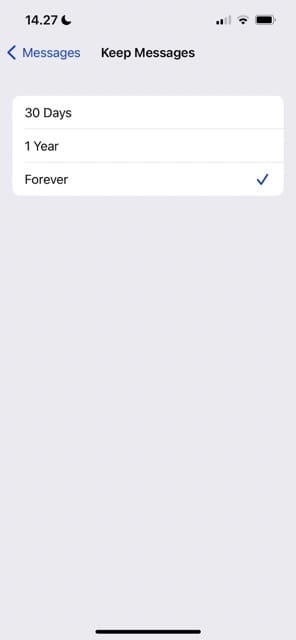
You can decide whether you want to keep your messages for 30 days or whether you’d like them to automatically delete after one year. Alternatively, you can choose to keep them forever.

Note that regardless of the timescale you choose, you can always delete messages earlier than that. Swipe left on a conversation in the Messages app, hit the trash icon, and press Delete when the confirmation pop-up appears.

How to Change the Duration You Keep Messages For in iOS

Messages Tab Settings App Screenshot

Now that you know how long you can keep your messages for on your iPhone, let’s look at how you can change the duration. Follow the steps below:

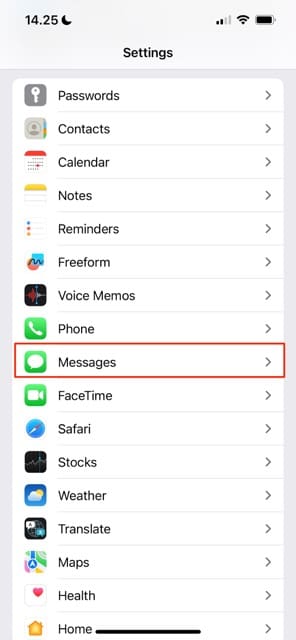
  1. Open the Settings app.
  2. Scroll down to Messages or search for the app in the search bar. Once you’ve found it, tap to open the next set of instructions.
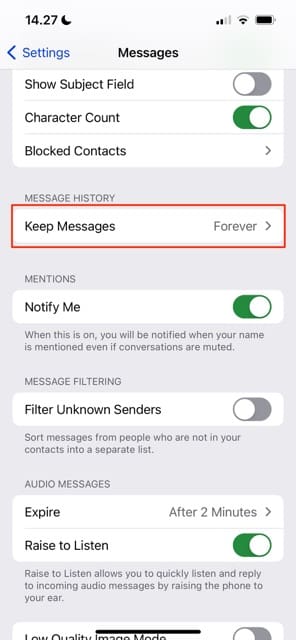
  3. Look for the Message History section; you’ll need to scroll a little down the page before it appears.
  4. Select the Keep Messages tab.
  5. You’ll see the three options that you have to choose from on the next page. Click on whichever fits your needs best.

Once you’ve chosen your preferred option, your changes will take immediate effect. You can switch between the different timescales as frequently as you want.

Customize How Long You Want to Keep Your iPhone Messages For

Messages is a useful app, but it’s a good idea to keep your correspondences in check. One of the main reasons is that lots of texts can, over time, decrease the amount of free storage on your iPhone. This is especially true if someone shares larger forms of media with you.

Keeping your messages in check is also a good idea for ensuring that you only have access to correspondences that are actually meaningful. Whether you want to keep your messages for 30 days, a year, or forever, you’ll find it easy to customize this feature in iOS.

Related Posts:

  • Windows computer
    How to AirDrop from iPhone to Windows PC
  • sidecar on iPadOS and macOS
    Sidecar not working in iPadOS and macOS? How to fix…
  • iOS 16 Unsend Messages on Your On Your iPhone
    No Text or Message Notification Alerts or Sounds on…
  • 2023 Mac Studio lifestyle - 1
    macOS Could Not Be Installed, How-To Fix
  • Update Apple ID settings on your iPhone, iPad, or Mac after changing your password
    Getting a Message to Update Apple ID Settings on…
  • iPhone 15 event - iPhone 15 Pro and iPhone 15 Pro Max A17 Pro Video Recording Promo
    iPhone 14 vs. iPhone 15: Should You Upgrade?
  • Missing Holidays on iPhone Calendar? How-to Fix Hero
    How To Duplicate and Copy Calendar Events in iOS and…
  • How to use ChatGPT on iPhone and iPad - Hero
    How to Use ChatGPT on iPhone and iPad
  • iPhone 15 Pro unboxing
    How To Extend Your iPhone Battery Life
Danny Maiorca

Danny has been a professional writer since graduating from university in 2016, but he’s been writing online for over a decade. He has been intrigued by Apple products ever since getting an iPod Shuffle in 2008 and particularly enjoys writing about iPhones and iPads. Danny prides himself on making complex topics easy to understand. In his spare time, he’s a keen photographer.

Reader Interactions

Write a Comment Cancel reply

Primary Sidebar

Recent Posts

  • How to Hide Username and Photo on the Mac Lock Screen
  • Microsoft Resume vs. Apple Handoff – Which Wins for Cross-Device Work?
  • How to Export iTunes Library to New Computer
  • What the Gemini Desktop App Will Bring to Mac
  • What to Do When Windows 11 Won’t Detect Your iPad
  • Outlook Outage 2026: iPhone Fixes for Sign-In Chaos

Connect with us

Footer

ABOUT

  • About Us
  • Contact us
  • Advertise
  • Privacy
  • Terms of Use

GUIDES

  • iOS & iPadOS
  • Apple ID
  • iCloud
  • App Store
  • iTunes
  • FaceTime
  • iMessage
  • Siri
  • Books and iBooks
  • Game Center
  • AirPlay

CONNECT

  • Facebook
  • Twitter
  • FeedBurner
  • YouTube

© Copyright 2010-2024 Guiding Tech Media · All Rights Reserved

This site and its content are in no way affiliated or endorsed by Apple, Inc. · Reproduction without explicit permission is prohibited