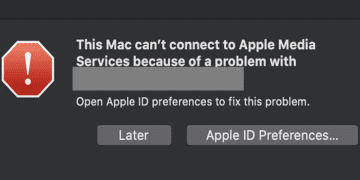
Your Mac may sometimes issue a strange alert when you try to listen to your favorite podcasts. The alert says that “This Mac can’t connect to Apple Media Services because of a problem with [your email].” The issue persists even if you boot into Safe Mode. Restarting your machine several times in a row doesn’t seem to help either. Let’s discuss what else you can do to troubleshoot this issue.
Maybe this alert is triggered by some temporary known issues affecting your Apple ID. Go to Apple’s official System Status page and check if this is a known problem. If this is the case, wait until Apple’s engineers have fixed the issue on their end.
Log Out of Your Account
If you recently changed your Apple ID preferences or password, make sure to log out of your account. Then restart the respective device(s). Log back in and check if the alert is gone.
Additionally, you can also restart your router, or switch to a different connection to make sure your network connection is not the culprit.
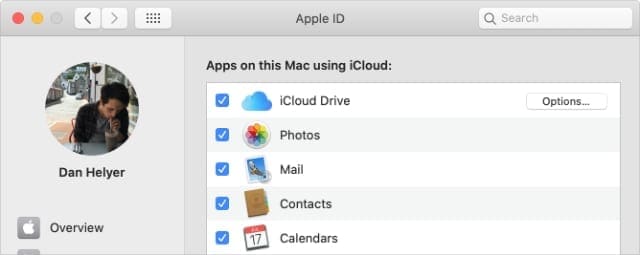
Refresh Your Apple ID and iCloud Settings
Click on the “Apple ID Preferences” button and review your iCloud settings. Edit one of them, save the changes and then go back to your regular settings. This action should help you refresh the settings. Try to listen to the problematic podcast again and check the results.
Enable iCloud Drive from the Apple ID System Preferences.
Update macOS and Check Your Date Settings
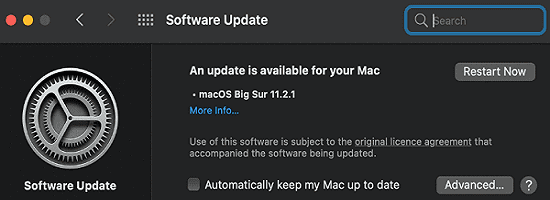
Make sure you’re running the latest macOS version on your laptop. Click on the Apple menu, go to System Preferences, select System Update, and check for updates.
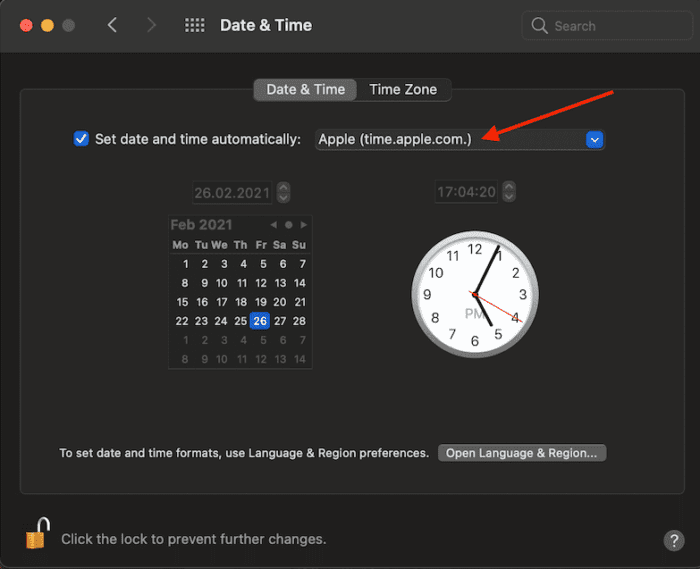
Then, go back to System Preferences, and select Date & Time. Make sure your Mac can set up the date and time settings automatically.
Unlock Your Apple ID
Apple locks you out of your account if someone tries to log in using different passwords. After a series of failed login attempts, Apple will lock your ID for security reasons. To unlock your account, you need to reset your Apple ID password.
Enter your email address and type in the code that proves you’re not a robot.
Hit Continue to access the Security page.
Depending on the security options that you enabled for your account, you’ll either receive a code on your phone (two-factor authentication), or you’ll need to answer some security questions.
So, to recover your account, you need to enter the verification code or answer the security questions.
Conclusion
If your Mac can’t connect to Apple Media Services because of a problem with your email, log out of your account. Additionally, check your Apple ID, iCloud, and date and time settings. If the issue persists, check for macOS updates. Reset your Apple ID password to unlock your account in case Apple locked you out. Use the comments below and let us know which of these solutions worked for you.
Madalina has been a Windows fan ever since she got her hands on her first Windows XP computer. She is interested in all things technology, especially emerging technologies — AI and DNA computing in particular.
I am not a computer expert of any kind, but I had the same persistent popup that I could not clear. I was surprised to see my son’s Apple ID under Media and Purchases in the AppleID section of System Preferences, in addition to mine. When I clicked to “Manage” with his AppleID (which I did not want on my computer) selected, it threw me to Apple Music. I ignored the login popup ” sign in to see account information” (that had his AppleID email pre-populated) and went to the Account tab in Apple Music and found that I was logged in under his account. I clicked to Log Out and then logged in again with my account. Now his Apple ID no longer appears in under Media and Purchases in the AppleID section of System Preferences. So far so good . . . . .
Same here. The email address that pops up is an old email associated with my apple id and no longer shows up in my accounts. I can’t find anything to remove or rest this.
This does not resolve the problem, as with the other commenters, the email used in the popup is an old email that I do not use for AppleID, it is unrecognized and therefore the popup goes in a loop and cannot be satisfied to end.










I am not a computer expert of any kind, but I had the same persistent popup that I could not clear. I was surprised to see my son’s Apple ID under Media and Purchases in the AppleID section of System Preferences, in addition to mine. When I clicked to “Manage” with his AppleID (which I did not want on my computer) selected, it threw me to Apple Music. I ignored the login popup ” sign in to see account information” (that had his AppleID email pre-populated) and went to the Account tab in Apple Music and found that I was logged in under his account. I clicked to Log Out and then logged in again with my account. Now his Apple ID no longer appears in under Media and Purchases in the AppleID section of System Preferences. So far so good . . . . .
Same here. The email address that pops up is an old email associated with my apple id and no longer shows up in my accounts. I can’t find anything to remove or rest this.
I have the same problem, those pop-ups are driving me nuts!
This does not resolve the problem, as with the other commenters, the email used in the popup is an old email that I do not use for AppleID, it is unrecognized and therefore the popup goes in a loop and cannot be satisfied to end.
I have tried all the steps and the message still comes up on screen. The email that comes up is not any of my email addresses.
Did you every resolve the issue? I get notification with another email every day and have to reset it. Wondering if you were able to get rid of yours.
No, this doesnt work because this email is not my Apple ID email!!!! So irritating…. Dont know how to make the notifications go away??