Several users have reported an issue in which their trackpad’s or mouse’s cursor moves randomly and without user input under macOS and Mac OS X. In these cases, the cursor may continue to move even when the mouse is physically disconnected.
Users report that the issue remains after switching mice both wired and Bluetooth. Readers say that the problem persists even when you change surfaces, giving evidence that this is a software-related issue.
One reader writes: “My mouse cursor moves randomly around the screen, usually all the way across and almost always to one of the screen corners, in which I have hot corners enabled.”
Although this problem is generally innocuous, it causes significant issues in some cases, including inadvertent scrolling of web pages or accidental file selection/deletion (if the cursor unexpectedly moves as a user is attempting to interact with a specific file).
Cursor Moves Randomly: Possible fixes
Reset The SMC
Resetting your Mac’s System Management Controller (SMC) often resolve hardware problems like this issue.
Follow these steps to reset the SMC on an iMac, Mac mini, Mac Pro, and Xserve
Choose Apple menu > Shut Down
After your Mac shuts down, unplug the power cord
Wait 15 seconds
Plug the power cord back in
Wait 5 seconds, then press the power button again to turn on your Mac
For MacBooks where the battery is nonremovable
Choose Apple menu > Shut Down
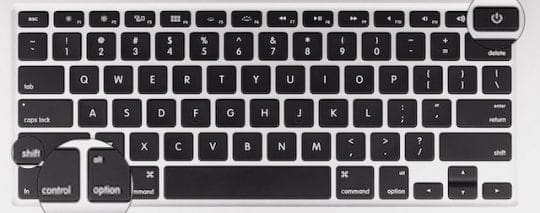
After your Mac shuts down, press Shift-Control-Option on the left side of the built-in keyboard, then press the power button at the same time
Hold these keys and the power button for 10 seconds
Release all keys
Press the power button again to turn on your Mac
For MacBooks where you can remove the battery
Shut down your Mac
Remove the battery
Press and hold the power button for 5 seconds
Reinstall the battery
Press the power button again to turn on your Mac
Clean Your Mouse or Trackpad
It’s quite possible that the reason for this strange mouse behavior is dirt and oil on the surfaces of your mouse or trackpad
Wipe it down with a microfiber cloth and if needed a little water or electronic cleaning solution (no Windex or alcohol please)
Source: dirtydiaperlaundry.com
Some readers needed a more thorough cleaning of their trackpads, so they ended up unscrewing parts and cleaning the inside with a microcloth (no cleaning solutions or water)
Add An Additional Surface
Although anecdotal evidence suggests that, in most cases, this is not a mouse surface issue, placing a white sheet of paper underneath the mouse (or using a mousepad) helped some people
Disconnect Bluetooth and USB Accessories
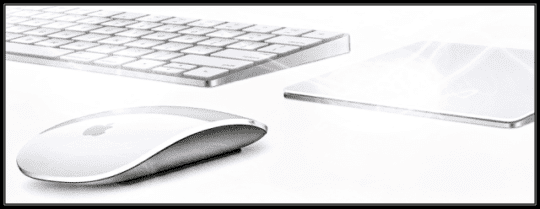
Disconnect each Bluetooth or external USB device (such as a trackpad, mouse, trackball, or graphics tablet)
Remove each device one at a time and then test to identify if one particular device is causing the problem
Turn Off Any Non-Apple Monitors or Second Displays
Some users have also reported that turning off secondary displays mysteriously resolves this issue, albeit not a viable permanent workaround
Other users report problems when their second monitor is connected but off–in these cases, turning it on fixed the problem
Reset the NVRAM
A few users have reported at least temporary success with resetting PRAM/NVRAM
Shut down your Mac, then turn it on and immediately press and hold these four keys together: Option, Command, P, and R. Release the keys after about 20 seconds, during which your Mac might appear to restart.
On Mac computers that play a startup sound, you can release the keys after the second startup sound.
On Mac computers that have the Apple T2 chip, you can release the keys after the Apple logo appears and disappears for the second time.
Try a Safe Boot
Booting into Safe Mode helps narrow down what’s causing the issue and cleans up common problems caused by caches, extensions, startup items, and some directory issues.
Safe Mode also verifies your startup disk. So if nothing works thus far, give Safe Mode a shot!
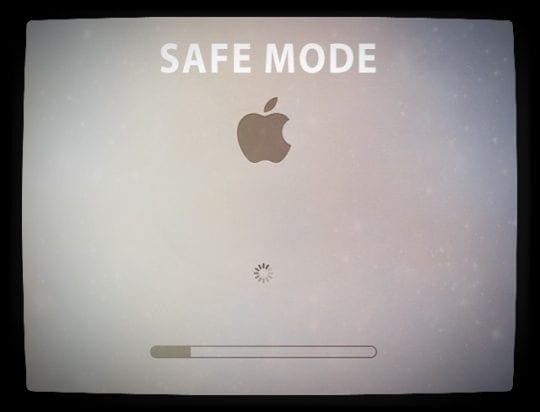
How To Enter Safe Mode
Shut down your Mac
Then press the power button to power while holding the SHIFT KEY
Once you see either the login window or your desktop, reboot normally
Reader Tips
Shut Down
A reader uses this short-term solution. I’ve found out that my computer does this when I haven’t switched it off in a long time. Turn the machine off and on again. Tada!
Check Accessibility Options
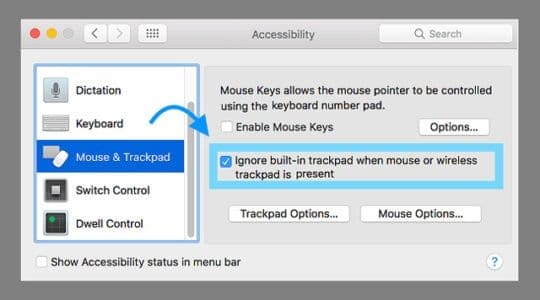
Kristen found a workaround by adjusting an accessibility setting for MacBooks
Go to System Preferences > Accessibility > Mouse and Trackpad
Check the box: Ignore built-in trackpad when mouse or wireless trackpad is present
Obsessed with tech since the early arrival of A/UX on Apple, Sudz (SK) is responsible for the original editorial direction of AppleToolBox. He is based out of Los Angeles, CA.
Sudz specializes in covering all things macOS, having reviewed dozens of OS X and macOS developments over the years.
In a former life, Sudz worked helping Fortune 100 companies with their technology and business transformation aspirations.
Had the problem with my Bluetooth mouse, the issue was simply that I had an (unused) wired USB mouse still connected that was slightly being moved physically! It was connected via the external USB-C monitor, hence it seemed the monitor was responsible.
Make sure you disconnect ALL peripherals (except the mouse if you’re not using a trackpad) to isolate the problem.
MacBook Pro 13” 2019 with Magic Mouse (2015) and two external AOC 27” 4k external monitors
I really though I was going crazy with all the advice on Google saying that I should zap PRAM and everything.
The final advice at the end: “System Preferences > Accessibility > Mouse and Trackpad” has basically fixed this now. Thanks! (I’m hoping it doesn’t been I have a defective Trackpad)
2005 Mac mini, OS 10.6.8
working with Word for Mac, 2011
resetting the SMC earlier was a temporary fix, only.
It didn’t take long for the cursor to start jumping around wherever it wanted
It has an affinity for the hot corners, it wants there or the hidden program sidebar
I have now reset the PRAM/NVRAM
Looking good so far in the first few seconds with no programs running
I started having this problem in Sierra on my iMac 27, specifically in the Contacts App in Notes about 2+ years ago and it followed me into High Sierra.
I use Scott Collier’s Trackpad and love it.
I eventually contacted Apple Support about another item and then asked about the jumping cursor in Contacts.
The Support person immediately told me he hears people complain about this issue all of the time. He told me how to fix the issue and it worked from that moment on UNTIL… I had another issue with my Mail App stopping to update my incoming mail so I contacted Apple Support.
The young lady tried a number of things that would not work. She then had me do a new install of High Sierra. I fixed my Mail for about a week and then it stops updating again and the moving cursor came back with the new install.
I usually take notes when I talk to Support but I didn’t when I called about the cursor issue initially.
I remember the support guy having me open possibly the Sys Pref/Accessibility/Mouse & Trackpad/Options and checking the “Ignore built-in trackpad when Mouse Keys is on”.
But I am not positive.
He told me that this setting was used on old Macs and was never addressed in future OS’s. But I just checked this on my iMac.
The issue is a real pain in my aspirin in Contacts because I am a two-finger typist who looks at his keyboard while pecking so when I do occasionally do look up while typing and I verbally abuse my iMac quite harshly when nothing appears or the cursor jumps into a line above and continues on where I was typing.
A real case of Rectal Neuropathy! Let me shut down and unplug and restart to see if this works.
I had this issue a little while ago. Now for the last hour, it’s gone. The first thing you really need to check out is if the battery is swollen.
Read about this case and it seems frightening, so it really needs to be checked out for other reasons as well.
So what I did, is to ***clean the trackpad***
Unscrewed the bottom, took the battery off (not swollen) and then took off the trackpad at my hands and just cleaned the whole thing with a cloth (no water, no liquid, no foam, nothing at all).
Screwed everything back and after a needed adjustment of an important screw at the bottom of the trackpad, everything is ok!
No jumpy cursor and the left & right-click, works like a charm!
That’s my experience so far, maybe it works out for someone else too!
P.S. a significant temporary workaround is to work with a mouse and at the same time to disable the trackpad, by going to System preferences-> Accessibility and click the “Ignore built-in ….” checkbox.
I was so frustrated with this problem of my runaway cursor and the uncontrollable scrolling, that I contacted Apple Support.
They asked me to reboot in safe mode to see if it still happened. In safe mode everything was perfect, so they booked me in to see a Genius Bar consultant next week.
Since then, I have shut down my computer and started it up again in the normal mode.
So far, it seems the problem has been fixed.
If my computer/mouse/scrolling continues to be stable for the rest of the weekend, I will cancel my appointment with the Genius Bar.
I am delighted that so far all seems fine. I thought I should share my experience with other users.
Having terrible trouble with out of control scrolling and cursor running wildly. I’m going through all your recommendations. In the text in your article, it states that Kristen found a workaround by adjusting an accessibility setting
Go to System Preferences > Accessibility > Mouse and Trackpad
Check the box: Ignore built-in trackpad when mouse or wireless trackpad is present
The image shown is not the same as what appears on my new Mojave. In my Systems Preferences Accessibility, what appears next to Mouse and Trackpad is ‘Spring-loading delay’. Why is mine different?
No – problem still here. Been having an online chat with Apple Support. They got me to start up in Safe Mode and the problem stopped. However, with the usual start up the problem is still there. They’ve booked me in to consult with a Genius Bar to check out my computer. The online support people seem to think it’s a mouse problem. I have another computer, also with the Magic Mouse, and have no trouble at all with that mouse.
I own a MacBook Pro (Retina, 13-inch, Mid 2014) and I am having an issue with the cursor moving backward/up randomly on its own all the time.
If I am online it moves up to the top and then it keeps moving after it reaches the top (once it gets to the menu bar it will continue to push up and if I am in an internet browser I see it just continuously scrolling through all the web addresses).
Pushing ESC and holding it down helps sometimes, but more and more it is not helping and the computer overpowers the ESC command and moves to the top anyhow. It does it in every application.
It’s done it several times as I have typed here (scrolled up to the up to the top of the screen and even though there is nowhere else for it to go once it reaches the top, I can tell from how the cursor looks that it is still in motion).
I have researched solutions online and nothing is helping.
It is definitely not the trackpad, I deactivated that and tried a wireless mouse, and it did the same motion. I turned off spellcheck and the battery says “good”.
I did try running it in safe mode (I’m not quite sure what that’s supposed to do but it didn’t fix my problem). One article said the battery could be swelling, maybe that’s my issue and the reason the fixes I have tried don’t work.
I’ve noticed that the screenshot function using the computer keys does not activate most of the time these days even when it is not scrolling.
I am seeing text move as I type in Pages, Messages, Text, Mail, in all my devices in Mac OS10.14.1 and OS 12.1.1on my 2017 MacBook Pro, iPhone X, and iPad Mini. It is tough to write a letter, message or document when the text jumps to an earlier line.
We’re not sure what’s going on with your Apple devices. We suggest you close all apps and restart–to close apps on iPhone and iPad, double press Home or swipe up the Home Gesture Bar on iPhone X, then swipe up off the top of your screen all the app previews until none remain. Then power off, wait a few minutes, and power back on.
Then try again to type–see if the behavior is gone or if it remains.
I tried all the above. A couple worked temporarily, while others did nothing. Finally got so annoyed I turned off my mouse and tried using the trackpad. This worked, cursor wasn’t going crazy. After about an hour I decided to try the mouse, and all is fine (for now). It’s been a few days and still no crazy cursor activity. Fingers crossed!
I had this problem with an apple and logitech bluetooth brand mouse and it was driving me crazy. This solution worked for me, finally!
System Preferences > Accessiblility > Mouse and Trackpad > Check : Ignore built-in trackpad when mouse or wireless trackpad is present
TRACEROUT,According to common sense, it means another entity has copied, twin control of your pooter, & can see what you are seeing, track you, etc. I went throuth this multiple times, 2 diff. computers, An apple tech consultant verified my question, IT’s NOT GOOD TO HAVE A UNASKED GUEST. After calling apple, & synching w/ service, went away for awhile. I’m no geek,
Short term solution. I’ve found out that my computer does this when I haven’t switched it off in a long time. Turn the machine off and on again. Ta da!
The mouse pointer problem may be perpetually annoying to the extreme, but that does not mean you get to insult the entire Mac Os X system by trying to call it some “badly programmed linux ripoff”. That claim is totally false, exaggerated and completely unnecessary.
OS X is most definitely a VERY WELL programmed and designed, new and improved, advanced and superior system called Mac OS and Mac OS X, which is hardly some “linux ripoff”
I’d rather you stop trying to talk about sophisticated and complex superior technology you know nothing about that you condem for one small tiny minor problem that really could be anything BUT the OS X system itself.
Unfortunately the article did not help much. But the suggestions from the readers did help.
In this case is seems a problem with the built-in trackpad.
Disable this by going to:
System Preferences > Accessiblility > Mouse and Trackpad > Check : Ignore built-in trackpad when mouse or wireless trackpad is present
But the problem seems random if I see the other reactions.
Turning off blutooth
PRAM and NVRAM reset
Changing mouse speed
Changing display resolution
Turning off iTunes
So it actually seems like a randomly triggered software problem in apple’s terribly programmed linux ripoff called OS X.
And ofcours a co-worker controlling the cursor of a different mac. This will sometimes happen with a radio-controlled mouse with usb wireless connectors.
I’m running on Windows, so not all of this will be reliable, but I’ve found something that seems to have fixed it on mine: If you have one of those buttony things in your keyboard that can be used to control the mouse, go into mouse settings and disable it. It seems to have fixed it for me, but like I said, not sure how much help it’ll be for you guys.
Now I hope it doesn’t start moving on its own again, that buttony thing was how I controlled it when the touch pad didn’t work…
It’s a virus. I had the solution before and since it re-accured I cannot find the solution. The virus is usually from suspicious websites. Like watching free movies.
Last time I deleted a bunch of suspicious files and it fixed the problem. Unfortunately I went back to watch free movies and I can’t find the solution.
Not sure if this applies to everyone but for me it was the wireless mouse of the person sitting next to me. I knew when I got a “Mouse is running out of batteries” message despite the fact my mouse was plugged in via USB.
I also changed my screen resolution and it worked.
My computer isn’t a laptop so the trackpad stuff won’t work for me, I am not using anything bluetooth enabled devices either so that’s already turned off.
I noticed that this freaky mouse business only occurred for me when I had started iTunes, which was very annoying because I use iTunes all the time and I use photoshop a lot so I wasn’t able to do anything precise in photoshop without turning iTunes off. Anyone else noticed this with iTunes?
I recommend to look in to the Control Panel/Mouse/Hardware tab and see whether there are correct drivers already installed or not.
It sometimes happens on Mac, that the driver for the pad has a kind of conflict with other drivers for the mouse especially wireless ones.
You can “Disable” the extra drivers and make your mouse driver a privilege to operate only.
This is a serious case in Windows OS on Mac notebooks due to Boot-camp interfering in drivers on the Windows OS.
THANK YOU!! ur advice saved me from throwing my mac out the window!! I was getting so frustrated and nothing was working until i read your advice! My mac was the same as yours – jumping all over the place and being completely useless – thank god that issue is resolved without paying someone an overpriced fee to fix something which took about a minute to resolve! <3
Talked to Apple 4 different times and they had me do everything and now they want me to take or send it to Apple. What they didn’t have me do is go into system preferences, then go to mouse and trackpad, then UNCLICK all the buttons, turn off bluetooth by going to the top and you will see something that looks like an antenna, put curser on it and it will ask TURN OFF BLUETOOTH. I learned both these things from everything I had read. I did those two things and it finally took care of my GHOST controlled computer. Not only was my mouse moving all over without me touching anything, it also opened anything the curser sat on for more than a second. I could sit and watch my computer work itself and it became impossible to use it at all.
NOW it is fixed by following these two simple things that was not told to be by Apple but like people similar to us that work on it ourselves.
Praying this works for you.
My mouse went especially crazy in MS word
Turning off the Bluetooth seems to have worked for now.
Changing the mouse speed works, but only temporarily.
Hope the bluetooth change causes a permanent change…
I have the same problem , I even turn off the trackpad but the problem did not solve . it seems that the only way remain is to reinstall my mac os again! though i’m not sure eveb that help me!
problem solved. its your trackpad that is broken. turn it off by opening universal access, click all the option to ignore the trackpad if mouse is on, and then also turn on ur mouse.
Woot! Thanks so much. This seemed to fix this issue for me. I’ll take my laptop to the Techs at Apple to fix my laptop later. As I have a mouse, this fixed the issue for me! Thanks a lot! 😀
None of these fixes are working, not even the screen resolution fix. The PRAM reset did absolutely nothing. It is like there is a ghost in the machine. The laptop is nearly unusable!
Go to Display Preferences and change the resolution to ANY other resolution except for the one that you are currently using. After that it should be fixed. You can then change it back to the resolution you prefer.
I’m having same problem on Mac Mini. Tried using usb keyboard instead of Bluetooth, that didn’t work. Tried different mouse, no help. Driving me absolutely crazy. My mouse moves and randomly right clicks on stuff. I even tried a complete disk wipe and restore.
Nope that didn’t help me. Are any of you running Cocoatech’s Path Finder. That has to be what’s making my cursor run laps around the screen because it is only happening while I use the Path Finder to make changes(i.e. Enable Finder Icon’s Remove From Dock Option)
Ha 🙂 This is the first time this has happened to me and apparently you guys just now, after more than 3 months, got it figured out 😛 . I’m gonna go try it and I’ll let you know how it goes 🙂
We resolved the wayward mouse issue in two steps: 1) In Universal Access Preference, Mouse & Keyboard tab, activate “Ignore built-in trackpad when mouse or wireless trackpad is present,” and 2) When the laptop is used in the office, Bluetooth is turned on, and a wireless Magic Mouse is used. When it is taken home and the trackpad only is used, Bluetooth is turned off.
Not sure yet if the Bluetooth change is over-reacting, but tests suggested it resolved our mouse moving problem.
I am researching this very problem. The 10.6.5 update did not change the behavior of the bluetooth Magic Mouse, and the problem continued without the mouse is use. Some things I hope to test:
• Deleting bluetooth and mouse preferences
• Installing a 3rd party mouse driver
• Change the mouse speed, then change it back.
Stupid mac. It’s so frustrating, my mouse cursor keeps moving by itself and it keeps clicking or right clicking on stuff and it just wouldn’t follow where my hand leads it to. See, even while typing this, it keeps clicking onto random stuff. Frustrating and annoying
Used the white paper under my mouse and that works for me, except it’s harder to move the mouse on the paper but at least my cursor doesn’t move across the screen all by itself.

















Had the problem with my Bluetooth mouse, the issue was simply that I had an (unused) wired USB mouse still connected that was slightly being moved physically! It was connected via the external USB-C monitor, hence it seemed the monitor was responsible.
Make sure you disconnect ALL peripherals (except the mouse if you’re not using a trackpad) to isolate the problem.
MacBook Pro 13” 2019 with Magic Mouse (2015) and two external AOC 27” 4k external monitors
I really though I was going crazy with all the advice on Google saying that I should zap PRAM and everything.
The final advice at the end: “System Preferences > Accessibility > Mouse and Trackpad” has basically fixed this now. Thanks! (I’m hoping it doesn’t been I have a defective Trackpad)
2005 Mac mini, OS 10.6.8
working with Word for Mac, 2011
resetting the SMC earlier was a temporary fix, only.
It didn’t take long for the cursor to start jumping around wherever it wanted
It has an affinity for the hot corners, it wants there or the hidden program sidebar
I have now reset the PRAM/NVRAM
Looking good so far in the first few seconds with no programs running
Reset SMC, Mouse working normally now, thank you.
It was driving me crazy with the mouse jumping around.
I started having this problem in Sierra on my iMac 27, specifically in the Contacts App in Notes about 2+ years ago and it followed me into High Sierra.
I use Scott Collier’s Trackpad and love it.
I eventually contacted Apple Support about another item and then asked about the jumping cursor in Contacts.
The Support person immediately told me he hears people complain about this issue all of the time. He told me how to fix the issue and it worked from that moment on UNTIL… I had another issue with my Mail App stopping to update my incoming mail so I contacted Apple Support.
The young lady tried a number of things that would not work. She then had me do a new install of High Sierra. I fixed my Mail for about a week and then it stops updating again and the moving cursor came back with the new install.
I usually take notes when I talk to Support but I didn’t when I called about the cursor issue initially.
I remember the support guy having me open possibly the Sys Pref/Accessibility/Mouse & Trackpad/Options and checking the “Ignore built-in trackpad when Mouse Keys is on”.
But I am not positive.
He told me that this setting was used on old Macs and was never addressed in future OS’s. But I just checked this on my iMac.
The issue is a real pain in my aspirin in Contacts because I am a two-finger typist who looks at his keyboard while pecking so when I do occasionally do look up while typing and I verbally abuse my iMac quite harshly when nothing appears or the cursor jumps into a line above and continues on where I was typing.
A real case of Rectal Neuropathy! Let me shut down and unplug and restart to see if this works.
MacBook Pro (13-inch, Mid 2012)
I had this issue a little while ago. Now for the last hour, it’s gone. The first thing you really need to check out is if the battery is swollen.
Read about this case and it seems frightening, so it really needs to be checked out for other reasons as well.
So what I did, is to ***clean the trackpad***
Unscrewed the bottom, took the battery off (not swollen) and then took off the trackpad at my hands and just cleaned the whole thing with a cloth (no water, no liquid, no foam, nothing at all).
Screwed everything back and after a needed adjustment of an important screw at the bottom of the trackpad, everything is ok!
No jumpy cursor and the left & right-click, works like a charm!
That’s my experience so far, maybe it works out for someone else too!
P.S. a significant temporary workaround is to work with a mouse and at the same time to disable the trackpad, by going to System preferences-> Accessibility and click the “Ignore built-in ….” checkbox.
I was so frustrated with this problem of my runaway cursor and the uncontrollable scrolling, that I contacted Apple Support.
They asked me to reboot in safe mode to see if it still happened. In safe mode everything was perfect, so they booked me in to see a Genius Bar consultant next week.
Since then, I have shut down my computer and started it up again in the normal mode.
So far, it seems the problem has been fixed.
If my computer/mouse/scrolling continues to be stable for the rest of the weekend, I will cancel my appointment with the Genius Bar.
I am delighted that so far all seems fine. I thought I should share my experience with other users.
Having terrible trouble with out of control scrolling and cursor running wildly. I’m going through all your recommendations. In the text in your article, it states that Kristen found a workaround by adjusting an accessibility setting
Go to System Preferences > Accessibility > Mouse and Trackpad
Check the box: Ignore built-in trackpad when mouse or wireless trackpad is present
The image shown is not the same as what appears on my new Mojave. In my Systems Preferences Accessibility, what appears next to Mouse and Trackpad is ‘Spring-loading delay’. Why is mine different?
Hi Patrick,
You only see that option if your Mac has a built-in trackpad–like a MacBook, MacBook Air, or MacBook Pro.
Hope your mouse problems are solved!
Liz
No – problem still here. Been having an online chat with Apple Support. They got me to start up in Safe Mode and the problem stopped. However, with the usual start up the problem is still there. They’ve booked me in to consult with a Genius Bar to check out my computer. The online support people seem to think it’s a mouse problem. I have another computer, also with the Magic Mouse, and have no trouble at all with that mouse.
I own a MacBook Pro (Retina, 13-inch, Mid 2014) and I am having an issue with the cursor moving backward/up randomly on its own all the time.
If I am online it moves up to the top and then it keeps moving after it reaches the top (once it gets to the menu bar it will continue to push up and if I am in an internet browser I see it just continuously scrolling through all the web addresses).
Pushing ESC and holding it down helps sometimes, but more and more it is not helping and the computer overpowers the ESC command and moves to the top anyhow. It does it in every application.
It’s done it several times as I have typed here (scrolled up to the up to the top of the screen and even though there is nowhere else for it to go once it reaches the top, I can tell from how the cursor looks that it is still in motion).
I have researched solutions online and nothing is helping.
It is definitely not the trackpad, I deactivated that and tried a wireless mouse, and it did the same motion. I turned off spellcheck and the battery says “good”.
I did try running it in safe mode (I’m not quite sure what that’s supposed to do but it didn’t fix my problem). One article said the battery could be swelling, maybe that’s my issue and the reason the fixes I have tried don’t work.
I’ve noticed that the screenshot function using the computer keys does not activate most of the time these days even when it is not scrolling.
Thanks for any help it is very much appreciated.
I suddenly got this issue on my old (2012) MacBook on July 23rd.
Rebooting made it go away for couple of days, then today it reappeared.
And after checking some system informations, my Chrome browser took great amounts of memory and disk space.
I closed Chrome and the cursor dance stopped.
Been using now Safari for past 4 hours and cursor is still fine.
Just one more idea to get rid of the cursor dance!
Hi Timo,
Thanks for sharing what worked for your MacBook!
It’s a great idea to always check in Activity Monitor how your Mac is using memory and storage.
Thanks for paying it forward.
Liz
this issuer has been going on for years. Apple should step up and admit that there is a problem, but you know they won’t
No kidding. One good answer would make a huge number of people very happy. It’s a serious issue.
I am seeing text move as I type in Pages, Messages, Text, Mail, in all my devices in Mac OS10.14.1 and OS 12.1.1on my 2017 MacBook Pro, iPhone X, and iPad Mini. It is tough to write a letter, message or document when the text jumps to an earlier line.
Hi James,
Yeah, that sounds super frustrating!
We’re not sure what’s going on with your Apple devices. We suggest you close all apps and restart–to close apps on iPhone and iPad, double press Home or swipe up the Home Gesture Bar on iPhone X, then swipe up off the top of your screen all the app previews until none remain. Then power off, wait a few minutes, and power back on.
Then try again to type–see if the behavior is gone or if it remains.
Sam
Hi Sam,
The exact same thing happens to me and yes, it’s extremely frustrating.
I write constantly and often large articles or essays, and its time consuming and can be devastating to my documents.
This is an Apple issue, not James or my fault.
Please admit this and do something.
I love Apple, but would gladly jump if a non-Windows alternative happens, as my Apple experience continues to go downhill.
Not trying to be a downer here, but yes, it’s super frustrating!
It’s not like we don’t pay a lot of money for these machines and then have these types of issues.
Best, Jim
Jim, if you get a definitive answer, please, please email me. : )
I tried all the above. A couple worked temporarily, while others did nothing. Finally got so annoyed I turned off my mouse and tried using the trackpad. This worked, cursor wasn’t going crazy. After about an hour I decided to try the mouse, and all is fine (for now). It’s been a few days and still no crazy cursor activity. Fingers crossed!
I had this problem with an apple and logitech bluetooth brand mouse and it was driving me crazy. This solution worked for me, finally!
System Preferences > Accessiblility > Mouse and Trackpad > Check : Ignore built-in trackpad when mouse or wireless trackpad is present
TRACEROUT,According to common sense, it means another entity has copied, twin control of your pooter, & can see what you are seeing, track you, etc. I went throuth this multiple times, 2 diff. computers, An apple tech consultant verified my question, IT’s NOT GOOD TO HAVE A UNASKED GUEST. After calling apple, & synching w/ service, went away for awhile. I’m no geek,
Short term solution. I’ve found out that my computer does this when I haven’t switched it off in a long time. Turn the machine off and on again. Ta da!
Hi there
Re @Jeroen Houtman comments.
The mouse pointer problem may be perpetually annoying to the extreme, but that does not mean you get to insult the entire Mac Os X system by trying to call it some “badly programmed linux ripoff”. That claim is totally false, exaggerated and completely unnecessary.
OS X is most definitely a VERY WELL programmed and designed, new and improved, advanced and superior system called Mac OS and Mac OS X, which is hardly some “linux ripoff”
I’d rather you stop trying to talk about sophisticated and complex superior technology you know nothing about that you condem for one small tiny minor problem that really could be anything BUT the OS X system itself.
Unfortunately the article did not help much. But the suggestions from the readers did help.
In this case is seems a problem with the built-in trackpad.
Disable this by going to:
System Preferences > Accessiblility > Mouse and Trackpad > Check : Ignore built-in trackpad when mouse or wireless trackpad is present
But the problem seems random if I see the other reactions.
Turning off blutooth
PRAM and NVRAM reset
Changing mouse speed
Changing display resolution
Turning off iTunes
So it actually seems like a randomly triggered software problem in apple’s terribly programmed linux ripoff called OS X.
And ofcours a co-worker controlling the cursor of a different mac. This will sometimes happen with a radio-controlled mouse with usb wireless connectors.
I’m running on Windows, so not all of this will be reliable, but I’ve found something that seems to have fixed it on mine: If you have one of those buttony things in your keyboard that can be used to control the mouse, go into mouse settings and disable it. It seems to have fixed it for me, but like I said, not sure how much help it’ll be for you guys.
Now I hope it doesn’t start moving on its own again, that buttony thing was how I controlled it when the touch pad didn’t work…
It’s a virus. I had the solution before and since it re-accured I cannot find the solution. The virus is usually from suspicious websites. Like watching free movies.
Last time I deleted a bunch of suspicious files and it fixed the problem. Unfortunately I went back to watch free movies and I can’t find the solution.
Not sure if this applies to everyone but for me it was the wireless mouse of the person sitting next to me. I knew when I got a “Mouse is running out of batteries” message despite the fact my mouse was plugged in via USB.
Stupid programmer, I’m pretty sure it’s a bug. Totally pist off!
I also changed my screen resolution and it worked.
My computer isn’t a laptop so the trackpad stuff won’t work for me, I am not using anything bluetooth enabled devices either so that’s already turned off.
I noticed that this freaky mouse business only occurred for me when I had started iTunes, which was very annoying because I use iTunes all the time and I use photoshop a lot so I wasn’t able to do anything precise in photoshop without turning iTunes off. Anyone else noticed this with iTunes?
Anyways, it seems to be working now.
Thanks!
Did the changing screen resolution trick, it seems to have worked, but I bookmarked this page for the other solutions! We will see how it lasts!
Security and Privacy > Privacy > Uncheck “enable locations Services”
With all this my wire mouse pointer still jumps once in a while but less. Yes, it’s not bluetooth.
Universal access > seeing > zoom > options > uncheck “use scroll control…”
Mouse > uncheck “Move content in the…”
> Tracking > Maximum 8th stick
Bluetooth > uncheck “Discoverable”
Fixed? Hell no, now our blutooth services are off and my $80 mouse is working extra as a kiddie distraction ..
I recommend to look in to the Control Panel/Mouse/Hardware tab and see whether there are correct drivers already installed or not.
It sometimes happens on Mac, that the driver for the pad has a kind of conflict with other drivers for the mouse especially wireless ones.
You can “Disable” the extra drivers and make your mouse driver a privilege to operate only.
This is a serious case in Windows OS on Mac notebooks due to Boot-camp interfering in drivers on the Windows OS.
None of these things worked for me… It’s all mad, my computer. Formate?
Sweet – shut off bluetooth, it fixed it!
hey Jonna,
THANK YOU!! ur advice saved me from throwing my mac out the window!! I was getting so frustrated and nothing was working until i read your advice! My mac was the same as yours – jumping all over the place and being completely useless – thank god that issue is resolved without paying someone an overpriced fee to fix something which took about a minute to resolve! <3
Talked to Apple 4 different times and they had me do everything and now they want me to take or send it to Apple. What they didn’t have me do is go into system preferences, then go to mouse and trackpad, then UNCLICK all the buttons, turn off bluetooth by going to the top and you will see something that looks like an antenna, put curser on it and it will ask TURN OFF BLUETOOTH. I learned both these things from everything I had read. I did those two things and it finally took care of my GHOST controlled computer. Not only was my mouse moving all over without me touching anything, it also opened anything the curser sat on for more than a second. I could sit and watch my computer work itself and it became impossible to use it at all.
NOW it is fixed by following these two simple things that was not told to be by Apple but like people similar to us that work on it ourselves.
Praying this works for you.
thanks jonna, you sorted me out, legend:)
Nice
My mouse went especially crazy in MS word
Turning off the Bluetooth seems to have worked for now.
Changing the mouse speed works, but only temporarily.
Hope the bluetooth change causes a permanent change…
I have the same problem , I even turn off the trackpad but the problem did not solve . it seems that the only way remain is to reinstall my mac os again! though i’m not sure eveb that help me!
problem solved. its your trackpad that is broken. turn it off by opening universal access, click all the option to ignore the trackpad if mouse is on, and then also turn on ur mouse.
Woot! Thanks so much. This seemed to fix this issue for me. I’ll take my laptop to the Techs at Apple to fix my laptop later. As I have a mouse, this fixed the issue for me! Thanks a lot! 😀
Yes, this worked. Thanks!
None of these fixes are working, not even the screen resolution fix. The PRAM reset did absolutely nothing. It is like there is a ghost in the machine. The laptop is nearly unusable!
Could you somehow fix your problem?
I´m having the same issues and it is driving me mad!
Just has this problem and fixed it by doing this.
Go to Display Preferences and change the resolution to ANY other resolution except for the one that you are currently using. After that it should be fixed. You can then change it back to the resolution you prefer.
Quick and simple fix.
Great solution! Worked for me.
Worked for me, too. But there are multiple causes.
Changing screen resolution worked for me and now I am happy man again 🙂
Had the same problem, took the batteries out of trackpad, put them back in and seems to have sorted it
I’m having same problem on Mac Mini. Tried using usb keyboard instead of Bluetooth, that didn’t work. Tried different mouse, no help. Driving me absolutely crazy. My mouse moves and randomly right clicks on stuff. I even tried a complete disk wipe and restore.
Nope that didn’t help me. Are any of you running Cocoatech’s Path Finder. That has to be what’s making my cursor run laps around the screen because it is only happening while I use the Path Finder to make changes(i.e. Enable Finder Icon’s Remove From Dock Option)
Ha 🙂 This is the first time this has happened to me and apparently you guys just now, after more than 3 months, got it figured out 😛 . I’m gonna go try it and I’ll let you know how it goes 🙂
We resolved the wayward mouse issue in two steps: 1) In Universal Access Preference, Mouse & Keyboard tab, activate “Ignore built-in trackpad when mouse or wireless trackpad is present,” and 2) When the laptop is used in the office, Bluetooth is turned on, and a wireless Magic Mouse is used. When it is taken home and the trackpad only is used, Bluetooth is turned off.
Not sure yet if the Bluetooth change is over-reacting, but tests suggested it resolved our mouse moving problem.
I am researching this very problem. The 10.6.5 update did not change the behavior of the bluetooth Magic Mouse, and the problem continued without the mouse is use. Some things I hope to test:
• Deleting bluetooth and mouse preferences
• Installing a 3rd party mouse driver
• Change the mouse speed, then change it back.
We’ll see.
Stupid mac. It’s so frustrating, my mouse cursor keeps moving by itself and it keeps clicking or right clicking on stuff and it just wouldn’t follow where my hand leads it to. See, even while typing this, it keeps clicking onto random stuff. Frustrating and annoying
Used the white paper under my mouse and that works for me, except it’s harder to move the mouse on the paper but at least my cursor doesn’t move across the screen all by itself.