Parallels Desktop is a handy virtualization program that allows Mac users to run other operating systems on their devices. For example, if you need to run certain Windows programs that don’t have a Mac version, you can use Parallels Desktop to get the job done. In other words, you can use this tool to create a virtual machine on your Mac.
Unfortunately, Parallels Desktop may sometimes stop working. When this issue occurs, the program usually crashes unexpectedly. Let’s explore how you can troubleshoot this problem.
How Do I Fix “Parallels Desktop Quit Unexpectedly” on Mac?
⇒ Quick Fixes
If Parallels quit all of a sudden, select the Reopen option that appears in the dialogue box.
Disconnect any peripherals. If they’re not compatible with your Mac, they may break certain OS functionalities, including the app-launching functionality.
Click on the Apple menu, select Force Quit and force quit Parallels. Launch the app again and check if it runs normally.
Update Parallels and macOS
If you’re not running the latest macOS version available for your device, click on the Apple menu and select About this Mac. Then click on Software Update to check for updates. If there’s a newer macOS version available, install it, restart your machine and launch Parallels Desktop again. Then click on the Parallels Desktop menu and select Check for Updates to update the program to the latest build.
Other users fixed this problem after rolling back their macOS version. Use your Time Machine backup to roll back to a previous macOS version and check the results. If this error started occurring shortly after you upgraded the OS, rolling back to a previous macOS release could fix it.
Reinstall Parallels
Many users solved this issue by installing a fresh copy of Parallels Desktop.
Go to Finder, click on Applications, and select Parallels Desktop.
Right-click on the program and select Move to Bin.
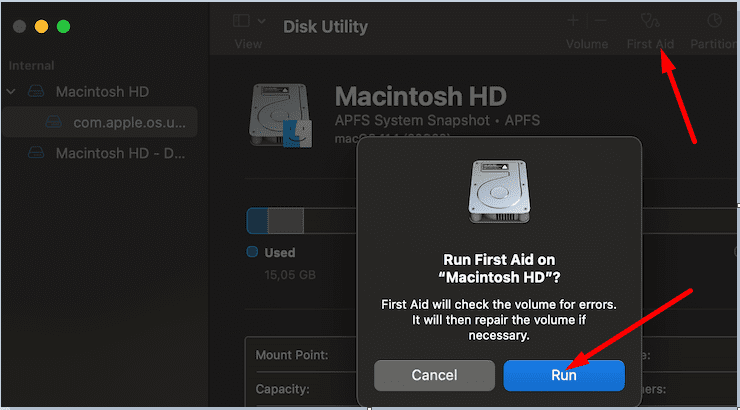
Then navigate to Disk Utility, select Macintosh HD and run First Aid.
Let the tool scan and repair your drive and then restart your Mac.
Download Parallels again and reinstall the app on your computer. Check if the error persists.
Rest assured, reinstalling Parallels won’t affect your virtual machine. You can use the same VM after reinstalling the program without any problems.
Uninstall CleanMyMac
If you have CleanMyMac installed on your device, uninstall it, restart your Mac and check if Parallels is working as it should now. Many users reported that CleanMyMac sometimes causes apps to crash and triggers various permission issues. Third-party tools that promise to clean, optimize or speed-up your Mac often cause more harm than good.
Additionally, disable your antivirus, VPN, firewall and other similar tools, launch Parallels and check if you notice any improvements. Download your apps exclusively from the App Store to avoid compatibility issues.
Use Safe Mode
To ensure there’s nothing wrong with your system, you can also reboot your Mac in Safe Mode.
Go to the Apple menu, and select the Shut Down option. Wait a few seconds, and press the power button. As your Mac is booting up, press the Shift key and release it when the Apple logo appears on the screen.
If you’re using an Apple Silicon MacBook, shut your device down. Then press and hold the power button down until the startup options appear on the screen. Select your disk and click on Continue in Safe Mode.
If Parallels Desktop crashes unexpectedly, force-quit the app and launch it again. Then update the app to the latest build and uninstall third-party system cleaners. If the issue persists, reinstall Parallels Desktop and enter Safe Mode. Are you still experiencing the same issue? Let us know in the comments below.
Madalina has been a Windows fan ever since she got her hands on her first Windows XP computer. She is interested in all things technology, especially emerging technologies — AI and DNA computing in particular.
I am running Mojave 10.14.6 and in Parallels, “Unable to load the Parallels driver.” I have followed all instructions in “Safe Mode” to give consent. The list says the Kext is on the list but still no luck running any program in Parallels for this issue. Parallels support can’t help.










I am running Mojave 10.14.6 and in Parallels, “Unable to load the Parallels driver.” I have followed all instructions in “Safe Mode” to give consent. The list says the Kext is on the list but still no luck running any program in Parallels for this issue. Parallels support can’t help.