The final release of iOS 13 (or 13.1) is finally getting closer, but there are still some new changes that folks are now discovering. One such instance is the inability to return missed calls from iPhone lock screen without unlocking the device.
No, we aren’t talking about the major ones like Shortcuts coming pre-installed or system-wide Dark Mode. Apple has made some smaller tweaks in the system causing users to get a bit lost when features are missing.
Return calls not working after iOS update
A few users have been reporting that the ability to return missed calls from iPhone lock screen without unlocking has disappeared. Luckily, Apple hasn’t actually removed this ability from iOS 13 devices.
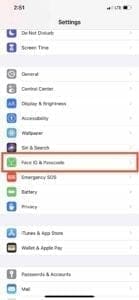
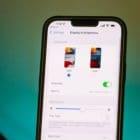
Instead, you’ll have to head into the Settings app in order to turn this feature back on. Here are the steps that you need to take:
Open the Settings app on your iPhone
Scroll down and select Face ID & Passcode
Enter your iPhone’s passcode
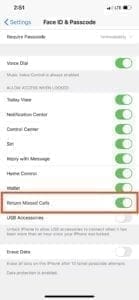
Scroll down to the “Allow Access When Locked” section
Find Return Missed Calls toggle and turn it on
After you have turned this back on, you will be able to return missed calls from iPhone lock screen without actually unlocking the device. We aren’t sure why Apple opted to turn this off by default, but at least iOS 13 includes the ability to toggle it back on.
In some instances, the feature is already turned on, but is not properly working. When that happens, toggle it off and then back on, then exit the Settings app and restart your iPhone. From there, you should not have any issues with returning calls from your lock screen.
Conclusion
Apple has packed a lot of new features, big and small, into iOS 13 and iPadOS. Some of these features are still being discovered, as this is the biggest iOS update in years.
If you run into any issues with having the ability to return missed calls from iPhone lock screen, let us know in the comments below. We will do our best to get you and your iPhone working in the way that you have become accustomed to in years past.
Additionally, if you have found some new features that haven’t been largely covered, please reach out. We love learning about new features or fixes for things that used to work, but no longer do!
Andrew Myrick is a freelance writer based on the East Coast of the US. He enjoys everything to do with technology, including tablets, smartphones, and everything in between. Perhaps his favorite past-time is having a never-ending supply of different keyboards and gaming handhelds that end up collecting more dust than the consoles that are being emulated.
I do not want–but have not been able to stop–my iPhone X (iOS 14.6) automatically redialing missed incoming calls after I unlock my phone. Many of these calls (e.g., telemarketers) are either from numbers not in my contact list–all of which I have set to be sent to voicemail under “Do Not Disturb”–or from legitimate callers who may now be asleep.
Turning off the “Return Missed Calls” toggle under Face ID and Passcode > Allow Access When Locked: > Return Missed Calls, as some have suggested online, has not worked.
Hi there
With the updated iPhone software my missed calls and voicemails and smses are showing up on My lockscreen without details of who the missed call our message is from. I have to go into the call to find details. How do I change this?
Look forward to hearing from you.
kind regards
Brenda
My best bet is that Apple did it to for privacy and security reasons.
When I audit iPhones in SMEs, this is one of the things I recommend to turn off.
Actually, Notification Center, Siri and Reply with Message should also require unlocking the device first before being accessible, in my opinion.
Now for consumers who do not need to worry about data protection laws and regulations, it’s another story and in that case, it’s great to know that the ability to turn it on is still there.









I do not want–but have not been able to stop–my iPhone X (iOS 14.6) automatically redialing missed incoming calls after I unlock my phone. Many of these calls (e.g., telemarketers) are either from numbers not in my contact list–all of which I have set to be sent to voicemail under “Do Not Disturb”–or from legitimate callers who may now be asleep.
Turning off the “Return Missed Calls” toggle under Face ID and Passcode > Allow Access When Locked: > Return Missed Calls, as some have suggested online, has not worked.
Hi there
With the updated iPhone software my missed calls and voicemails and smses are showing up on My lockscreen without details of who the missed call our message is from. I have to go into the call to find details. How do I change this?
Look forward to hearing from you.
kind regards
Brenda
My best bet is that Apple did it to for privacy and security reasons.
When I audit iPhones in SMEs, this is one of the things I recommend to turn off.
Actually, Notification Center, Siri and Reply with Message should also require unlocking the device first before being accessible, in my opinion.
Now for consumers who do not need to worry about data protection laws and regulations, it’s another story and in that case, it’s great to know that the ability to turn it on is still there.
Cheers and keep up the good work!