If you’re running out of space on your MacBook, you may notice a folder called Group Reminders taking up a few gigabytes of space. If you’re using third-party software to optimize macOS, it may prompt you to get rid of this folder.
Naturally, you may consider deleting this folder and all the files stored inside it. But is that really a good idea? Let’s find out!
The Group Reminders folder contains information related to your to-do list. All the notes and tasks you’ve added to your Reminders App are stored under the Groups Reminders folder.
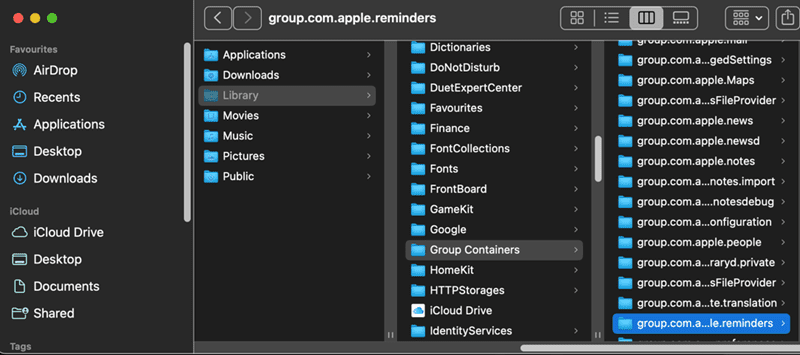
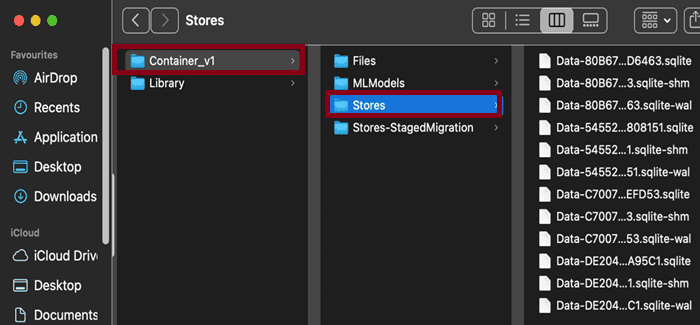
The database files storing all of your reminders are located under the /Users/UserName/Library/GroupContainers/group.com.apple.reminders/Container_v1/Stores folder.
Deleting the Group Reminders folder is relatively safe, but you may want to delete individual problematic files first. If you successfully identify the problematic file(s), you may no longer need to remove the entire Reminders folder.
Delete Reminders Manually
Open your Reminders App and delete all the lists and tasks that are no longer relevant.
If you have important Reminders data, you can use a backup solution to create a backup copy of your system, which will include your Reminders data.
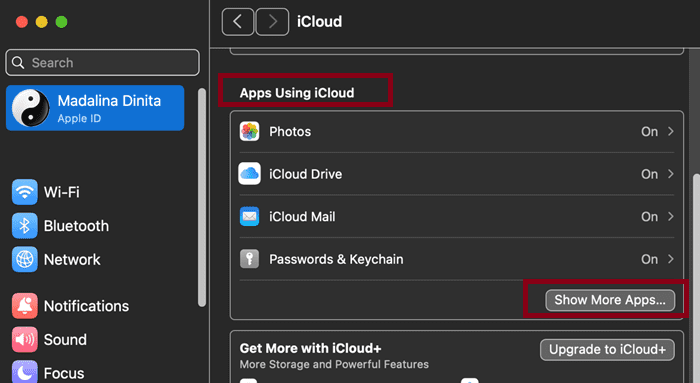
If you synchronize reminders through iCloud with other Apple devices, go to System Settings, select your Username, click on iCloud, go to Show more apps, and then check if Reminders is enabled.
If this is the case, restart all the devices that have access to your Reminders app after removing all the old reminders. Check if you’re still running out of space.
Simply deleting old reminders you’ve probably forgotten about can help you free up space.
If you store pictures in your Reminders, that could explain why your Group Reminders folder is taking up too much space.
You can start by deleting old reminders with pictures attached and check if you notice any changes. It may not be necessary to delete all of the reminders.
Use the Built-in Disk Cleanup Tool
MacBooks comes with an excellently optimized operating system. You don’t really need third-party software to improve your OS, especially those that come with a price tag.
According to users, many macOS system optimizing tools are pretty close to malware. Users have sometimes lost important files after following the suggestions of those tools.
Instead of manually removing folders and files such as apple.com.apple.reminders or allowing third-party tools to do that, you can use macOS’ Disk Cleanup tool. This tool can quickly identify and remove unnecessary files without bricking your system.
If you mistakenly remove the wrong files, your MacBook may hiccup, and you may experience all sorts of technical glitches. Save yourself the time to troubleshoot all that by letting the built-in tool optimize your system.
Manually Delete Sqlite Files
If you dig a bit deeper, you’ll probably notice that the root cause of the problem is an obscure Sqlite file.
If you go to /Users/Username/Library/GroupContainers/group.com.apple.reminders/Container_v1/Stores, chances are you’ll find an Sqlite file that’s taking up way too much storage space.
As a quick reminder, Sqlite files are cross-platform files used in database management systems.
Many users have reported that deleting the Sqlite database solved the problem for them. However, before you do that, don’t forget to backup your system just in case something goes wrong.
After deleting the Sqlite database, restart all your Apple devices and check if the Reminders folder is still taking up an unusual amount of storage space.
There you go, these quick tips should help you solve the issue where the Group Reminders folder is taking up too much space on your device. Hit the Comments below and let us know if these solutions were helpful.
Madalina has been a Windows fan ever since she got her hands on her first Windows XP computer. She is interested in all things technology, especially emerging technologies — AI and DNA computing in particular.












Write a Comment