Slack handles millions of messages every day allowing you to exchange information and ideas with your teammates and collaborators in real time. But the service may sometimes fail to send your messages. Here’s what you can do to fix the problem on Mac.
⇒ Quick Tip: When you get an alert that Slack failed to send your message, immediately copy the problematic message to your clipboard. Reload the app, paste the message into the chat window and there’s no need to type the same message twice.
Check the Service Status
From time to time, Slack’s server may fail to work as intended. The “Slack couldn’t send this message” error indicates the service is affected by major delays when transferring data. If you’re experiencing intermittent issues with sending messages or you can’t send any messages, check Slack’s service status. If Slack already acknowledged the messaging problems, wait until the company has fixed the issue and try again.
Check Your Connection
If Slack is up and running, maybe the problem is on your end. Make sure your connection is stable and you’re not experiencing any bandwidth problems. Unplug your router’s power cord and wait two minutes.
Meanwhile, restart your Mac and iOS devices. Disconnect other devices using the same network. Then restart your router, wait until your Mac and iOS devices go back online and launch Slack again. Check if the messaging problem is gone. Additionally, you can connect to the Slack web app and check if you can message your contacts via your web browser.
Clear the Cache
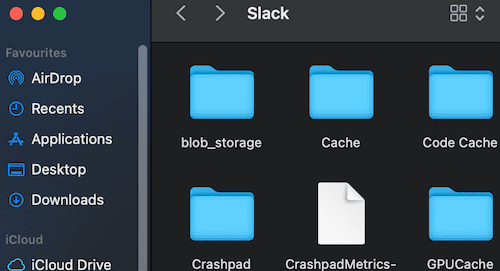
Your app cache might be interfering with your current Slack session. Delete the cache and check if the problem persists. Exit Slack, click on the Go menu and select Go to folder. Enter ~/Library/Application Support and scroll down to Slack. Delete the Cache, Blob Storage, Storage and GPUCache folders.
Launch Slack again, try to send a new message and check if it works.
Update Everything and Reinstall Slack
Make sure you’re running the latest Slack app version on your Mac. Launch the app, click on the Slack menu and select Check for updates. Then click on your Apple menu, select System Preferences, go to System Update and check for updates. Check if Slack can send your messages now.
If the issue persists, launch Finder, go to Applications and remove Slack. Restart your Mac and download a fresh copy of the app from the App Store. Check if reinstalling the app worked.
Conclusion
If Slack won’t send your messages, check the service status, restart the app, reboot your Mac and restart your router. Then clear the app cache, and install the latest Slack and macOS updates. As a last resort, uninstall Slack and install a fresh copy of the app from the App Store. Did you find other ways to troubleshoot this problem? Share your ideas in the comments below.
Madalina has been a Windows fan ever since she got her hands on her first Windows XP computer. She is interested in all things technology, especially emerging technologies — AI and DNA computing in particular.












Write a Comment