It’s movie night and you want to get started, but that darn iTunes rental won’t finish downloading! Slow movie or app downloads from iTunes and the App Store are time-consuming frustrations. So find out what you can do to fix them on your iPhone and Mac.
When you download apps, music, movies, or other stuff from Apple you want it straight away. But often the download says it will take much longer than expected or it doesn’t even finish at all!
Some users get a message saying “Unable to download [app]” with the option to Retry. But no matter how often they retry, it still never finishes downloading. So what’s going on and how do you fix it?
iTunes or the App Store lost connection to the Internet.
iTunes or the App Store quit before the download completed.
Your device restarted before the download completed.
Your Internet connection is too slow.
Other software, like your firewall or security software, blocked the download.
This isn’t a particularly helpful list. You can usually tell if iTunes quit or your device restarted itself. And if your Internet was too slow you’d notice it with other apps too.
If your internet connection was the problem, you’d notice slow downloads and streams from other places too, like YouTube.
In a lot of cases, the sad fact of the matter is this: iTunes and the App Store aren’t programmed to download as efficiently as we expect them to be.
“If Google DNS or OpenDNS routes everyone to [iTunes] the same way, then those [iTunes] nodes and the pipes leading to them get overwhelmed.”
1. Try a different Internet connection
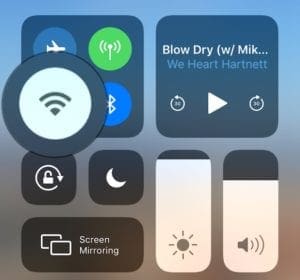
Turn off Wi-Fi in Control Center to switch to cellular data on your iPhone.
Test your Internet connection by streaming a video from YouTube or loading different webpages. Then connect your device to a different Internet connection to try downloading something from iTunes or the App Store again.
For iPhone users, that could mean switching from cellular to Wi-Fi or vice versa. Although when switching to cellular data, beware of extra charges from your cell provider.
Contact your Internet Service Provider (ISP) if you find the problem goes away. Your Internet connection could be the reason why iTunes or the App Store is downloading so slowly.
Restart your router
Restart your router following the instructions for your specific device. You may also want to reset it to factory settings if you’ve made any adjustments.
After allowing time for the router to start back up, attempt your downloads again.
Disable your VPN, if you have one
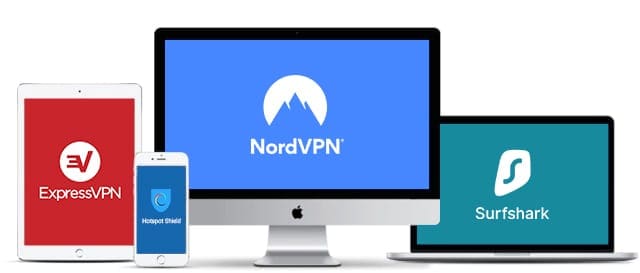
VPNs could make your iTunes movies or apps download more slowly. Image from The Best VPN.
Many people use a VPN (Virtual Private Network) to boost their security online. Generally speaking, this is a good idea! But your VPN could be interfering with iTunes and App Store downloads.
Disable your VPN to find out if it affects download speeds at all. If it does, contact your VPN provider to find out why it’s making iTunes movies or apps so slow to download. They should help you fix it.
2. Change your DNS settings
Your DNS (Domain Name System) settings affect the way your device connects to the Internet. It can make your connection faster, more secure, or more private. A bad DNS could also turn your connection into the opposite of all those things.
A good DNS can make your internet faster, safer, and more reliable. Image from OpenDNS.
Many users have found that by adjusting their DNS settings to free alternatives — like OpenDNS or Google Public DNS — they were able to improve iTunes and App Store download speeds.
Conversely, users who already changed to a custom DNS should return to their ISP default settings. You can usually find these settings by searching for: “[Your ISP] + DNS”.
Some users who changed their DNS saw iTunes downloads change from over 2 hours until they could start watching a movie, to under 20 seconds.
How do I change my DNS settings on an iPhone?
Go to Settings > Wi-Fi.
Tap the blue i button next to your current network.
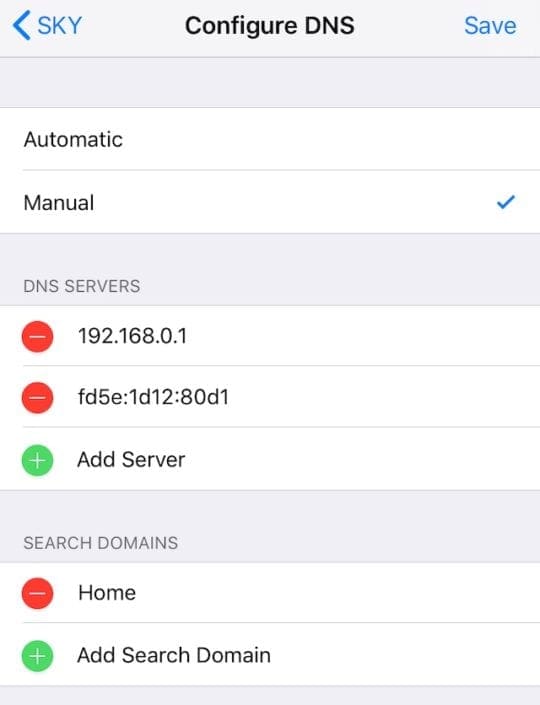
Under DNS tap the Configure DNS button.
Choose to manually select your DNS servers and enter one of the following options:
Google Public DNS: 8.8.8.8 and 8.8.4.4
OpenDNS: 208.67.222.222 and 208.67.220.220
Or your specific ISP’s DNS settings.
Tap Save in the top right after changing your DNS.
Remove old DNS Servers and add new ones on your iPhone. Don’t forget to tap Save after!
How do I change my DNS settings on a Mac?
From the menu bar, go to Apple > System Preferences… > Network.
In the sidebar, click on your current network connection.
Click Advanced… in the bottom right of the window.
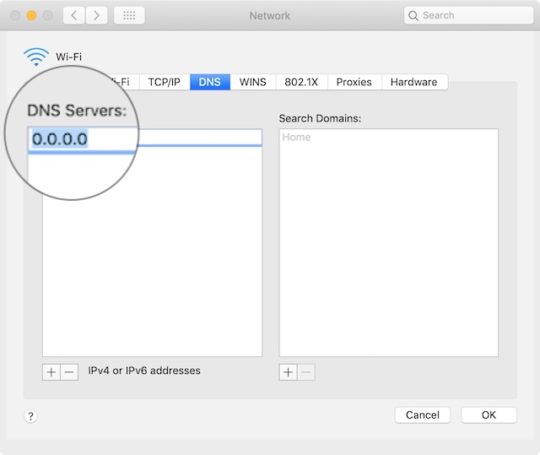
Go to the DNS tab.
Use the + and – buttons under DNS Servers to change your settings to one of the following options:
Google Public DNS: 8.8.8.8 and 8.8.4.4
OpenDNS: 208.67.222.222 and 208.67.220.220
Or your specific ISP’s DNS settings.
Click OK then click Apply.
Enter the DNS Server address for OpenDNS, Google Public DNS, or your ISP default settings.
You can also change DNS settings through your router. Check your router manufacturer’s website for instructions on how to do this.
3. Pause and resume the download
App, movie, software update, or otherwise — try pausing the download and then starting it again. Failing that, cancel the download entirely and start it from scratch one more time.
How do I pause an app download on an iPhone?
Find the downloading app on your iPhone home screen.
Tap the app to pause or resume the download.
If possible on your iPhone, force touch the app and choose to Prioritize Download.
How do I pause an app download on a Mac?
Use one of the following methods to open Launchpad on your Mac:
Press the Launchpad shortcut (F4) on your keyboard or touch bar.
Open the Launchpad app from Finder, Spotlight, or the Dock.
Pinch four fingers together on the trackpad.
Find the app you are downloading in Launchpad.
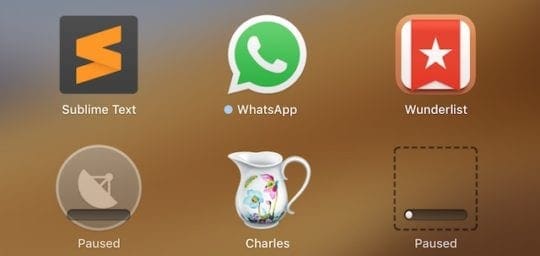
Click the app icon to pause or resume the download.
Click on an app from Launchpad to pause downloading it on your Mac.
How do I pause an iTunes movie download on an iPhone?
Open the iTunes Store app on your iPhone.
At the bottom right, tap More (…).
Tap the pause button or the arrow to stop and start the download.
How do I pause an iTunes movie download on a Mac?
Open iTunes on your Mac.
Click the circular download icon at the top right (only visible when a download is in progress).
Click the circular progress icon to pause or resume the download.
From the menu bar, go to Account > Check for Available Downloads to resume all downloads at once.
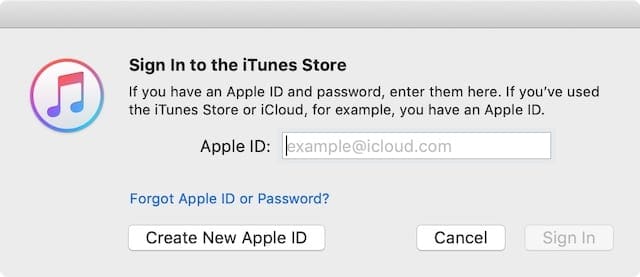
4. Sign out and sign back in again
Use your Apple ID email address and password to sign back into iTunes and the App Store.
Sign out of iTunes and the App Store on your device, then sign in again. This cancels all downloads so you need to start them from the beginning again afterward. But it’s an effective method at battling slow download speeds for iTunes movies and apps.
How do I sign out of iTunes and the App Store on an iPhone?
Go to Settings > iTunes and App Store.
Tap your Apple ID, then choose Sign Out.
How do I sign out of iTunes and the App Store on a Mac?
Open iTunes on your Mac.
From the menu bar, go to Account > Sign Out.
Now open the App Store on your Mac.
From the menu bar, go to Store > Sign Out.
Remember to restart your movie, music, or app download after signing back into iTunes or the App Store.
If you don’t know what the cause of this problem could be, transfer your important documents from the old account to a new one, then delete the original.
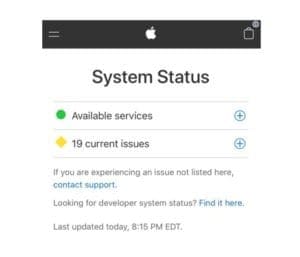
5. Check Apple’s System Status
It’s normally pretty obvious from the website when Apple’s Systems are down.
All services should have a green circle next to them. Sometimes you can see notifications of recent problems that are now resolved. Look specifically at the following services:
App Store
Apple Music
iTunes in the Cloud
iTunes Store
Mac App Store.
If there are any problems with Apple’s servers, all you can do is wait for Apple to resolve the issue their end. Keep checking the website to find out when that service is up and running again.
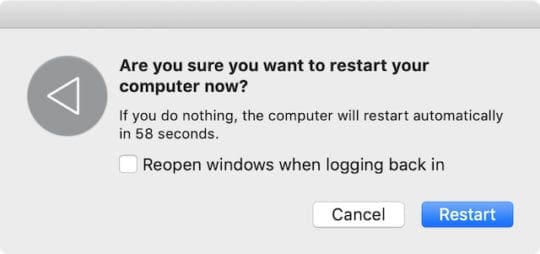
6. Restart your device
Have you turned it off and on again? This trick really does work a lot of the time!
If you haven’t already, close all the apps and turn off your iPhone or Mac completely. Allow enough time for your device to power down — at least 30 seconds — then turn it on again and try your download.
This seems like a basic suggestion, but it really is effective at resolving a lot of software errors on any device. Including slow downloads from iTunes and the App Store.
How do I close apps and shut down an iPhone?
On an iPhone X or later: Swipe up from the bottom and pause in the middle of the screen to view the App Switcher.
On an iPhone 8 or earlier: Double-click the Home button to view the App Switcher.
Push all your open apps off the top of the screen to close them.
Press and hold the Side button and either volume button.
When prompted, slide to power off.
How do I close apps and shut down a Mac?
Use the following key-command to close your current app: command+Q.
Switch between all your open apps using command+tab.
Note: You can’t close down Finder.
Use command+option+escape to force close unresponsive apps.
From the menu bar, go to Apple > Shut Down.
7. Update your operating and security software
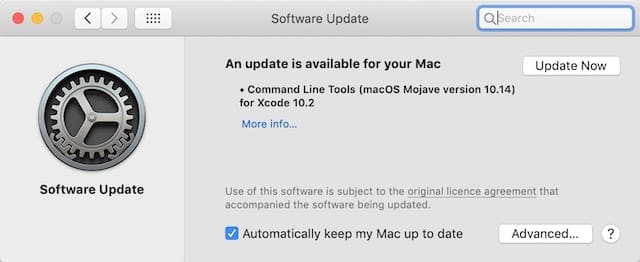
Make sure you download and install any updates that are available on your Mac or iPhone.
Finally, check for updates with your operating software and security software. Out-of-date software on your Mac or iPhone can easily interfere with iTunes and App Store downloads.
It could also be that a bug in your current software has been resolved in a newer update. Perhaps Apple discovered why iTunes movie downloads were slow for some users. They would release a fix to this issue in the next update.
Similarly, third-party security software can interfere with iTunes and App Store downloads. Contact your software provider for information on how to update — or temporarily disable — this software.
How do I update the software on an iPhone?
Go to Settings > General > Software Update.
Wait for your iPhone to check for new updates.
Download and install any updates it finds.
How do I update the software on a Mac?
From the menu bar, go to Apple > System Preferences… > Software Update.
We hope those tips fixed any problems you were having with slow iTunes or App Store downloads on your iPhone or Mac. If all went well, your iTunes movies should be downloading quicker than ever. Let us know your story in the comments!
Dan writes tutorials and troubleshooting guides to help people make the most of their technology. Before becoming a writer, he earned a BSc in Sound Technology, supervised repairs at an Apple Store, and even taught English in China.
Changing the DNS Servers seems to do the trick.
I was on 8.8.8.8 and then I changed it to 8.8.4.4 and my download changed from 17 hours to 16 minutes then to 5 minutes and it was downloaded.
On my macbook air I was unable to use IPv6 2001:4860:4860::8888 2001:4860:4860::8844 because it said it was not compatible.
Wouldn’t it make more sense for Apple to identify the optimal DNS setting, or perhaps change the connectivity at their end? Not sure why they constantly blame the user… “WE are perfect. Your settings as wrong!” I really don’t want to spend hours experimenting with various DNS settings in order to get my iPad to function the way it should with iTunes. What complete nonsense.
The advice here might work for some people, but it does not go to the root of the problem.
I am currently developing a video podcast service that bypasses the iTunes store – in this arrangement, the video file is NOT provided by Apple, the service just uses the iTunes desktop application as the client.
I have seen exactly the same problem, even though I’m serving the video file from an extremely fast server environment.
There seems to be something wrong with the iTunes client application – it’s very bad downloads. Many people have experienced this.
I recently had this problem and you made me realise that I added openDNS to my router. iPhone was originally using my ISP DNA whilst PC was set to openDNS. Changing it my router made the iPhone use openDNS and the app store crawled when downloading. Removed the openDNS from my router and everything is back to normal and fast again. Thanks for the information!
I’m done using iTunes to watch movies . They stop in the middle of the movie and start spooling for an hour or more. The result is: I never get to see the end of the movie. You only have 24 hours once it starts and my schedule often times does not permit me to go back to it he next day. What a frigging rip this is. Netflix has none of the same problems. Good buy apple
I pad 2 is slow when buffering YouTube videos . I tried to change the DNS number with no luck. Then I opened safari to watch LQ it was fast but I like HQ. Is there a download fix.?
I am having the same problems for the last month and a half with iTunes and it is depressing when you have a 25M download speed. The suggestion that it is cause by Google DNS Servers seems a bit odd as I am having extreemly slow speeds and am not using the Google DNS servers or anyones other those of my ISP (Rogers). I dont know if others have noticed it also but Microsoft Updates have also slowed to a crawl if you watch them download as they install.
Wishing for a fast fix to this whole issue and sure hope ISP’s are not upto massive traffic shaping again with out owning up to it.

 If you’re short on time, try these quick tips to see if they help: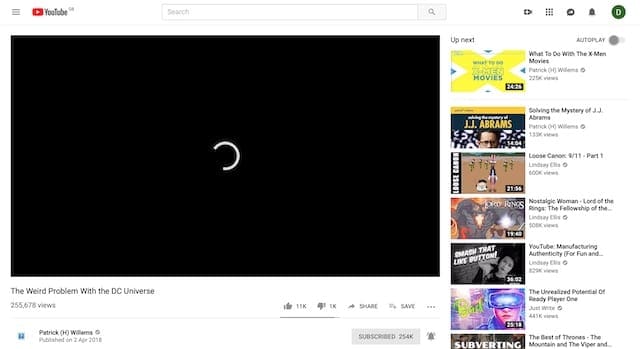











This method work for me,
Try using vpn that far from your original server.
But not too far
Trust me.
wow !! that actually worked . Thankyou
Changing the DNS Servers seems to do the trick.
I was on 8.8.8.8 and then I changed it to 8.8.4.4 and my download changed from 17 hours to 16 minutes then to 5 minutes and it was downloaded.
On my macbook air I was unable to use IPv6 2001:4860:4860::8888 2001:4860:4860::8844 because it said it was not compatible.
oh wow!!! 8.8.8.8 dns was added.
didnt change speed.
paused download. resumed download.
download started over….
now i have to wait 6 hours…
didnt work for me…
Wouldn’t it make more sense for Apple to identify the optimal DNS setting, or perhaps change the connectivity at their end? Not sure why they constantly blame the user… “WE are perfect. Your settings as wrong!” I really don’t want to spend hours experimenting with various DNS settings in order to get my iPad to function the way it should with iTunes. What complete nonsense.
U are a genius! It worked like a charm!
I’m currently trying to download the latest Apple iOS for my iPad 3… used to take (if I recall correctly) about an hour. Now says 8 hours
The advice here might work for some people, but it does not go to the root of the problem.
I am currently developing a video podcast service that bypasses the iTunes store – in this arrangement, the video file is NOT provided by Apple, the service just uses the iTunes desktop application as the client.
I have seen exactly the same problem, even though I’m serving the video file from an extremely fast server environment.
There seems to be something wrong with the iTunes client application – it’s very bad downloads. Many people have experienced this.
I recently had this problem and you made me realise that I added openDNS to my router. iPhone was originally using my ISP DNA whilst PC was set to openDNS. Changing it my router made the iPhone use openDNS and the app store crawled when downloading. Removed the openDNS from my router and everything is back to normal and fast again. Thanks for the information!
this worked for me, from a few kb/sec to several mb/sec
However I also tried clearing the cache.. No difference for me
And setting the keychain access certificate (CRL) to off which was another fix found else where. Didn’t work for me in this instance.
I use the opendns addresses. So setting it back to my default ISP sped the whole thing up.
Thanks!
I’m done using iTunes to watch movies . They stop in the middle of the movie and start spooling for an hour or more. The result is: I never get to see the end of the movie. You only have 24 hours once it starts and my schedule often times does not permit me to go back to it he next day. What a frigging rip this is. Netflix has none of the same problems. Good buy apple
U save my life!!!! I love u!!!!
I pad 2 is slow when buffering YouTube videos . I tried to change the DNS number with no luck. Then I opened safari to watch LQ it was fast but I like HQ. Is there a download fix.?
İ have been living this problem and the instructions here didnt work. What else can i do?
Hi There;
I am having the same problems for the last month and a half with iTunes and it is depressing when you have a 25M download speed. The suggestion that it is cause by Google DNS Servers seems a bit odd as I am having extreemly slow speeds and am not using the Google DNS servers or anyones other those of my ISP (Rogers). I dont know if others have noticed it also but Microsoft Updates have also slowed to a crawl if you watch them download as they install.
Wishing for a fast fix to this whole issue and sure hope ISP’s are not upto massive traffic shaping again with out owning up to it.
AJ