Several apps can consume significant amounts of storage on your iPhone, and you probably think of ones that rely on digital media – such as Adobe Lightroom and Instagram. Safari might be an afterthought in this respect, but the app can take up a surprisingly large amount of data if you don’t maintain it regularly.
If you go to your iPhone’s storage allocation, you might notice that Safari has consumed a considerable amount of storage space. Several factors could contribute to this, and you’ll learn about those today.
We’ll also teach you some of the top ways that you can fix this problem.
Safari might be taking up a lot of your iPhone data for several reasons, but having too many websites and saved logins is one of the largest – and most common – contributors. Like many people, you probably use many sites for entertainment, shopping, advice, and more. All of these add up over time.
Another possible reason why Safari is taking up too much data on your smartphone could be downloaded files and documents. If you download pictures and other media types, these can add up pretty fast.
Many people keep multiple tabs open in Safari, even when they aren’t using the app. These might seem harmless, but they can also contribute to Safari taking up a lot of your iPhone data. On top of that, they can also lead to information overload if you aren’t careful.
How to Stop Safari From Consuming Too Much Data on Your iPhone
Now that you know some of the top reasons why Safari could be taking up a lot of data on your iPhone, let’s move on and look at how you can solve the issue. Below, you will find a broad selection of tips you can try to implement.
1. Close Your Tabs in Safari
Before we move on to some of the more advanced tabs, the best place you can start is by closing excessive tabs in Safari. Keeping these open isn’t really worthwhile if you aren’t using the app, and even if you are, you’re not going to use all of them. You’re better off saving these tabs as a bookmark to access later if you need to.
To close your tabs in Safari, open the app. Then, follow these instructions.
If you can’t see the banner at the bottom, tap that part of your screen.
Select the icon with two overlapping squares.
Hit the x symbol to delete tabs in Safari.
2. Clear Your Safari Cache
Many things you do online, such as accepting cookies, will get stored in your cache. Clearing your Safari cache can help you free data on your iPhone, and it might also result in your browser working more efficiently.
Here’s how to clear your cache in Safari:
Open Safari.
Select the book icon at the bottom of your screen. If you can’t see this, tap on that area to reveal it.
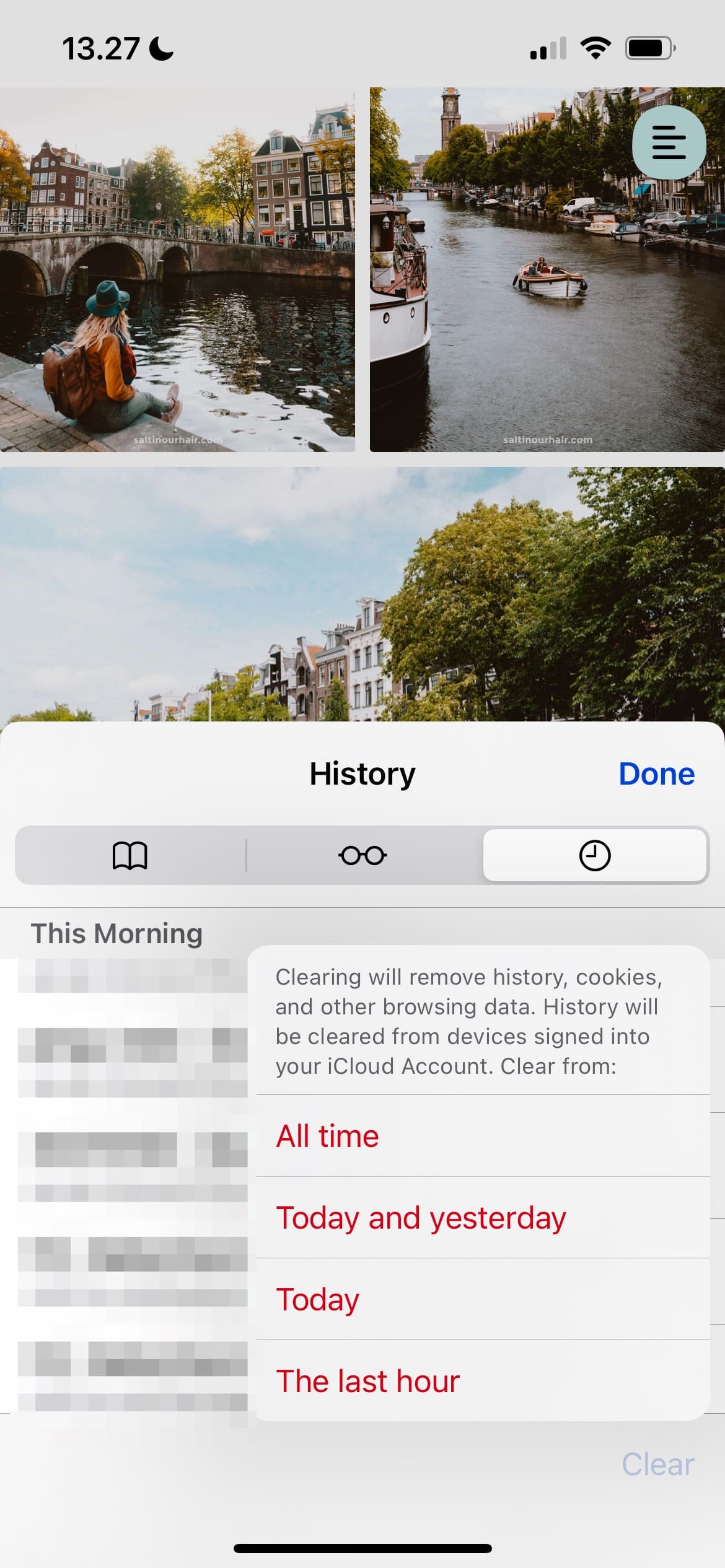
Tap the Clear button in the bottom right-hand corner.
Choose the timescale you want to clear your cache and other browsing data for.
In addition to clearing your cache, these steps will also remove your website history within the time period you selected.
3. Check Offline Storage
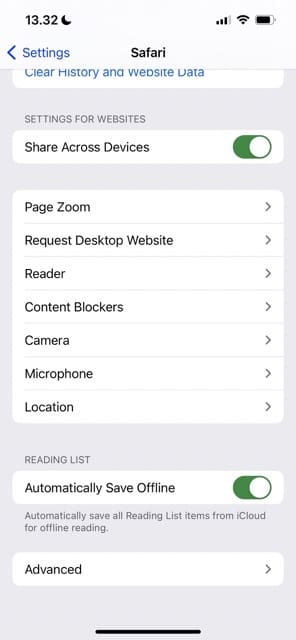
Another method you can try to stop Safari from consuming so much data on your iPhone is to check your offline storage. Safari lets you save reading lists to consume offline, for example, and switching this off will help to free up some space on your device.
Here’s how you can switch off your reading lists’ automatic offline saving tools.
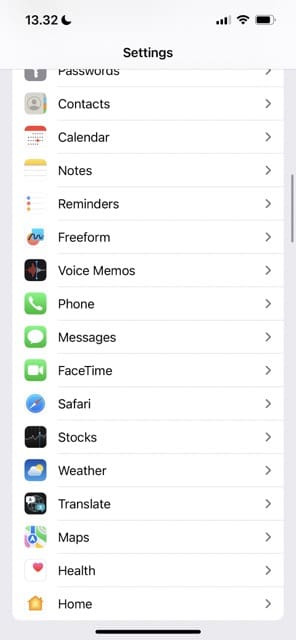
Open the Settings app.
Click on Safari.
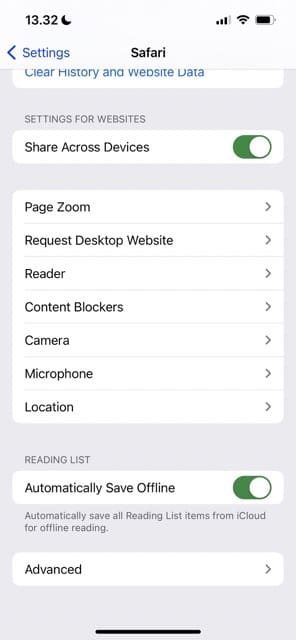
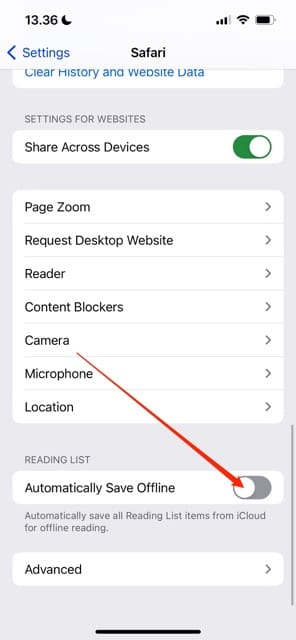
Scroll to the bottom of the next window. Here, you’ll see an option titled Automatically Save Offline.
Toggle Automatically Save Offline off.
4. Remove Website Data in Safari
Some websites you use in Safari will consume more data than others, and these will often be the ones that you frequently visit. Luckily, you can easily clear data for one or more websites.
First, let’s look at how to remove website data in Safari for one site:
Go to Settings > Safari.
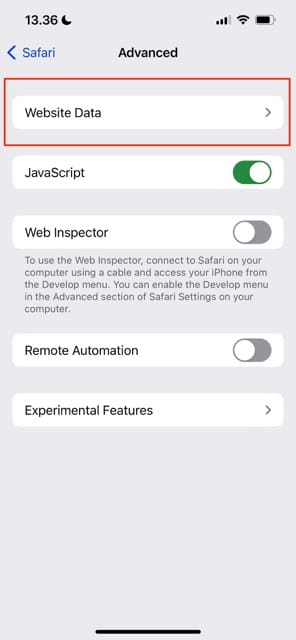
Select Advanced at the bottom of your screen.
Click on Website Data when the next window appears.
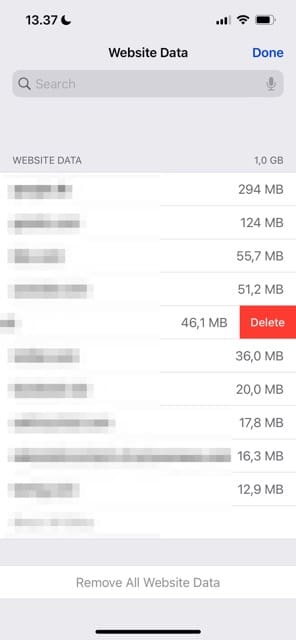
Wait for the website list to load. When it does, swipe left.
Click on Delete when the button appears.
When removing website data for more than one site, you have two options. The first is to select multiple websites at once, and here’s how you can do that:
Go to Safari > Settings > Advanced.
Click on Edit at the top of your screen.
Hit the – icon next to the websites for which you’d like to delete their data.
Click on the Delete button.
Alternatively, you can remove all website data by following these steps.
Go to Safari > Settings > Advanced.
At the bottom of your screen, you’ll see an option titled Remove All Website Data. Click on this.
When the pop-up window appears asking you to confirm your decision, hit Remove Now.
5. Check Your Download Settings
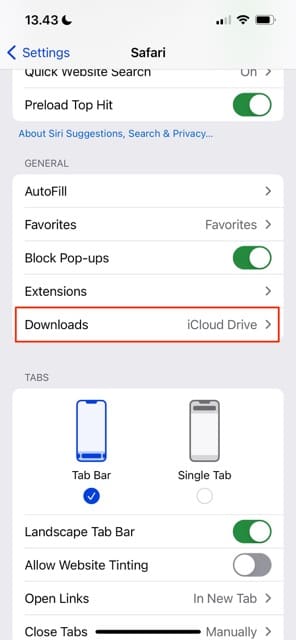
You can choose to store files in iCloud and on your iPhone. If you choose the latter, you might notice that Safari consumes more data than you would have liked.
When checking your download settings, you can also choose when you remove download list items. If you choose Manually, you may notice that Safari takes up more space than would otherwise have been the case.
First, let’s look at how to check your download storage settings.
Go to Settings > Safari.
Select Downloads.
Choose where you want your device to store downloaded files.
To remove downloaded list items, you can follow these instructions instead.
Open Settings and navigate to Safari > Downloads.
Select the Remove Download List Items, which you’ll see at the bottom of your screen.
Pick when you want to remove download list items.
Use These Tips to Clear Some of the Data Safari Is Consuming on Your iPhone
While you’re probably fine with apps like Photos and Lightroom consuming a lot of storage space on your iPhone, you might not want tools like Safari doing the same. Fortunately, you can fix this problem in several ways – as you’ve seen from this article.
Often, fixing problems with Safari taking up so much data is easy to fix. Start by clearing your cache, closing tabs, and checking your offline storage and download settings.
Danny has been a professional writer since graduating from university in 2016, but he’s been writing online for over a decade. He has been intrigued by Apple products ever since getting an iPod Shuffle in 2008 and particularly enjoys writing about iPhones and iPads. Danny prides himself on making complex topics easy to understand. In his spare time, he’s a keen photographer.



















Write a Comment