If you’re experiencing problems using Apple’s AirPrint feature, ensure your printer runs the latest firmware. Most new printers come with AirPrint built-in; however, many older models need an update to use AirPrint–and some won’t support AirPrint at all!
AirPrint is an Apple technology that allows you to print from any Apple device without needing to download or install drivers to that Apple device. One thing that often confuses people is that while your iPhone, iPad, iPod, or Mac don’t need an additional driver, your printer might!
Printer firmware is the software stored inside of a printer. The firmware allows the printer to receive and process information from your device (computer, tablet, or phone) and turn that data into a printed page.
Most printer manufacturers’ regularly release printer firmware updates with bug fixes, enhancements, and any other issue fixes. It’s recommended to update firmware on a regular basis.
Firmware updates update the operating software for a printer, not the software for your Mac or iDevice.
If the latest firmware from the manufacturer is several years old, the manufacturer might have stopped supporting or updating your printer. If so, you might need a more up-to-date printer to use AirPrint.
source: Canon
How to check for new firmware and update your printer
Make sure that your printer is turned on and connected to the internet
Launch a web browser from a computer or mobile device
Go to your manufacturer’s support page
Type in the search bar the make and model of your printer and the words “firmware update”
And it’s likely that your printer manufacturer has similar options.
Can’t AirPrint directly? Use your computer or a third-party printing app
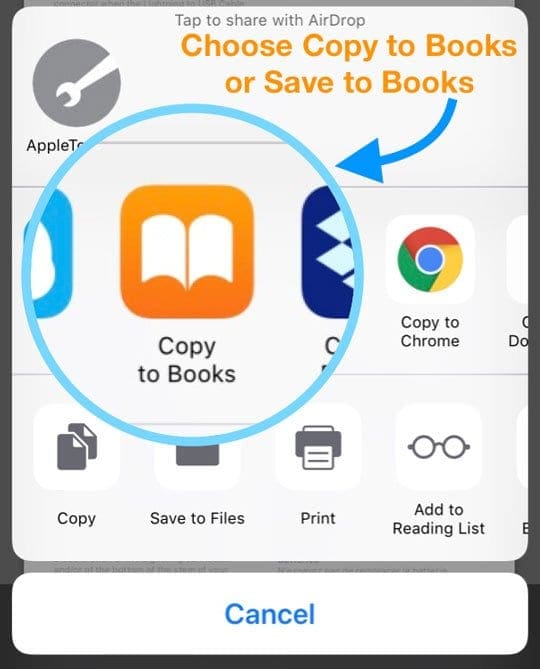
If you have a Mac connected to your printer, it might be easiest to send the document to your Mac. On your iPad, iPhone, or iPad, create a PDF for the document you want to print. Then save that document to Apple Books (iBooks) via the Open in Books or Copy to Books option in the share sheet. Or email or otherwise share that PDF to a computer and print from there.
Alternatively, you can purchase and download a third-party app that allows you to wirelessly print. Check out our article AirPrint to Any Printer for more information on how to use third-party apps for printing from your iPhone, iPad, or iPod.
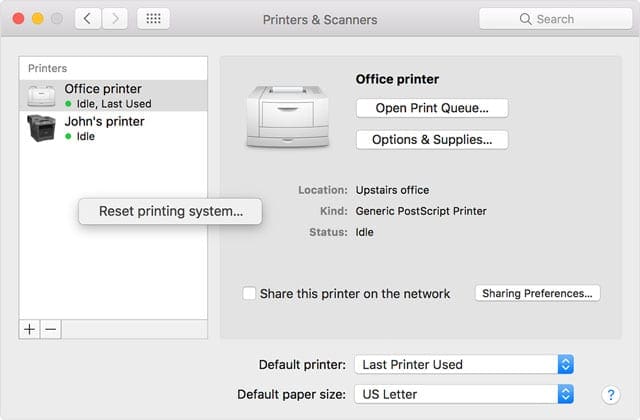
Reset your printing system from your Mac
This process removes all printers and scanners—including print jobs and settings—from your Mac’s Printers & Scanners preferences.
Choose Apple menu > System Preferences > Printers & Scanners
While holding down the Control key on your keyboard, click anywhere in the list of printers
Choose Reset printing system
What printers currently support AirPrint?
Apple frequently updates its list of currently supported AirPrint printers at this site. AirPrint is built into these listed printer models–the list is updated once a month by Apple.
How to use AirPrint to print from your iPhone, iPad, or iPod touch
Open the app that you want to print from
To find the print option, tap the app’s share icon
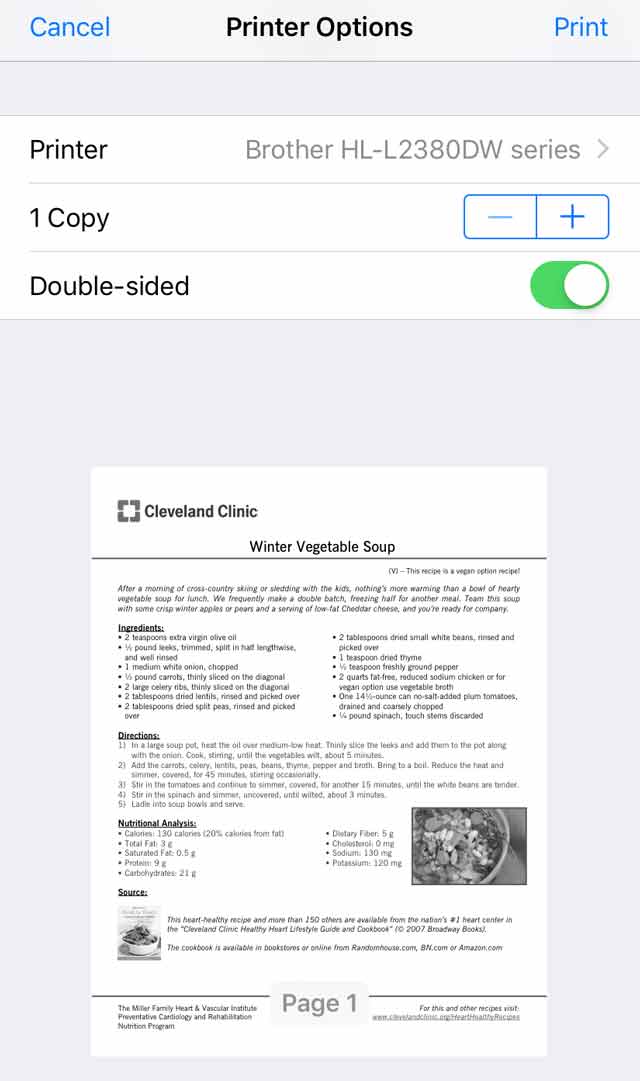
Tap or Print
Tap Select Printer and choose an AirPrint-enabled printer
Choose the number of copies or other options, like which pages you want to print
Tap Print in the upper-right corner
Can’t AirPrint from your Mac or iDevice?
Connect the printer and Mac or iDevice to the same WiFi network
Restart your WiFi router, and then restart your printer (in that order)
Move your printer closer to your WiFi router
Update your macOS or iOS and iPadOS to the latest versions
Update your WiFi router with the latest firmware from its manufacturer
Obsessed with tech since the early arrival of A/UX on Apple, Sudz (SK) is responsible for the original editorial direction of AppleToolBox. He is based out of Los Angeles, CA.
Sudz specializes in covering all things macOS, having reviewed dozens of OS X and macOS developments over the years.
In a former life, Sudz worked helping Fortune 100 companies with their technology and business transformation aspirations.
Found a app that works with any printer not just the HP that you listed above. It’s called “PRINT”. I found it yesterday and works with my Brother and Epson. http://is.gd/hAUJK


 Alternatively, you can purchase and download a third-party app that allows you to wirelessly print. Check out our article AirPrint to Any Printer for more information on how to use third-party apps for printing from your iPhone, iPad, or iPod.







Found a app that works with any printer not just the HP that you listed above. It’s called “PRINT”. I found it yesterday and works with my Brother and Epson. http://is.gd/hAUJK